
Pairing your new iPhone with your Apple Watch should be a seamless experience, but even the most intuitive technology can hit snags. Whether you're setting up your first Apple Watch or replacing an old one, understanding the pairing process—and how to fix common issues—can save time and frustration. This guide walks through every step of the process, offers expert-backed solutions for common problems, and equips you with the knowledge to complete the setup successfully.
Understanding the Pairing Process
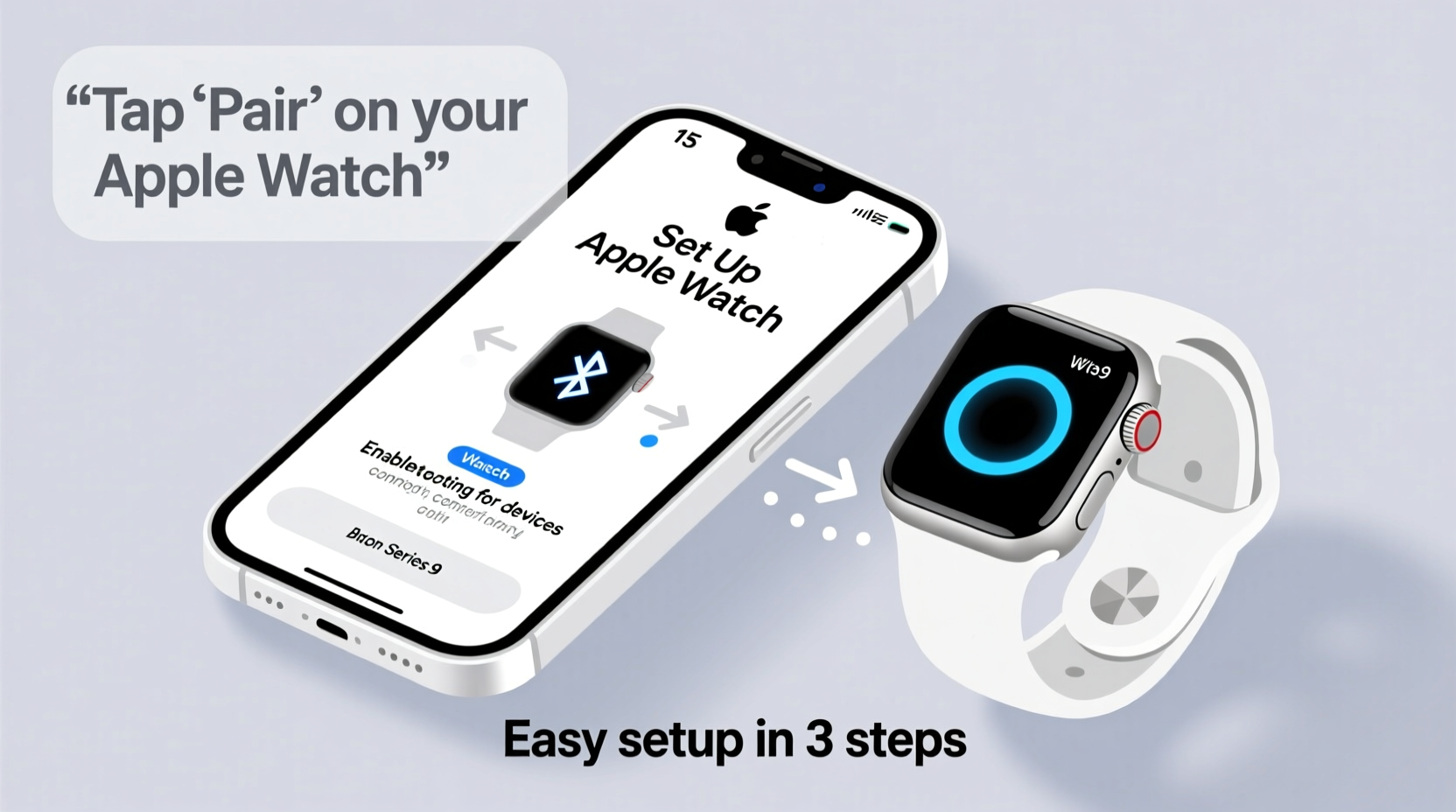
Apple designed the pairing between iPhone and Apple Watch to be automatic and user-friendly. The devices use Bluetooth, Wi-Fi, and NFC to establish a secure connection. When done correctly, the process takes under 15 minutes. However, it requires both devices to meet certain conditions before they can communicate properly.
The initial handshake begins when you power on your Apple Watch by pressing and holding the side button until the Apple logo appears. Your iPhone must be nearby, unlocked, and running a compatible version of iOS (iOS 13 or later for Series 3 and newer models). Once these prerequisites are met, the setup assistant should launch automatically on your iPhone when held near the watch.
Step-by-Step Guide to Pairing Your Devices
Follow this proven sequence to ensure a smooth connection between your iPhone and Apple Watch:
- Power on your Apple Watch: Press and hold the side button until the Apple logo appears.
- Unlock your iPhone: Keep it awake and in close proximity to the watch.
- Open the Apple Watch app: If it doesn’t open automatically, locate it on your home screen and tap to launch.
- Tap \"Start Pairing\" on your iPhone, then select \"Pair Apple Watch Manually\" if no animation appears.
- Use your iPhone’s camera to scan the animated pattern displayed on the Apple Watch.
- Wait for confirmation: Once the devices recognize each other, follow prompts to choose settings, restore from backup (if applicable), and set up features like Siri and Fitness Tracking.
- Wait for sync completion: This may take several minutes depending on data size and network speed.
If the animation doesn’t appear, you can manually trigger pairing by tapping “Pair Apple Watch Manually” and selecting your watch model from the list.
Common Issues and How to Resolve Them
Even with careful preparation, users often encounter hiccups during pairing. Below are frequent problems and their solutions:
| Issue | Possible Cause | Solution |
|---|---|---|
| No pairing animation appears | Bluetooth/Wi-Fi disabled, interference, or software glitch | Restart both devices; ensure Bluetooth and Wi-Fi are enabled |
| Connection drops mid-setup | Low battery or weak signal | Charge both devices; move closer together; avoid crowded wireless areas |
| \"This Apple Watch is already paired\" error | Previous owner didn’t unpair or erase device | Erase all content and settings on the watch first via Settings > General > Reset |
| iPhone won’t detect watch | Outdated iOS or watchOS version | Update iPhone to latest iOS; check Apple’s compatibility chart |
“Over 70% of failed pairings stem from outdated software or temporary connectivity lapses. A simple restart resolves most cases.” — Jordan Lee, Senior Support Technician at Apple Authorized Service Provider
Troubleshooting Checklist Before You Begin
Before attempting to pair, verify the following conditions are met. Use this checklist to eliminate preventable errors:
- ✅ iPhone is running iOS 13 or later (iOS 17 recommended)
- ✅ Apple Watch has been fully charged
- ✅ Bluetooth and Wi-Fi are enabled on the iPhone
- ✅ Both devices are within 6 inches of each other
- ✅ No active VPN or restrictive firewall settings interfering
- ✅ Apple ID is signed in on iPhone
- ✅ Watch isn’t already paired to another iPhone
Real Example: Recovering from a Failed Setup
Sarah, a busy marketing executive, bought a new Apple Watch SE to replace her aging Series 4. She followed the instructions but encountered a recurring issue: after scanning the code, her iPhone would display “Connecting…” for 30 seconds, then fail silently. Frustrated, she almost returned the device.
She reviewed the troubleshooting steps and discovered her iPhone was on iOS 12.4. After updating to iOS 16, she restarted both devices, disabled her corporate-managed Wi-Fi network (which had strict firewalls), and switched to personal hotspot mode. The second attempt succeeded immediately. Her key takeaway? “I assumed my old phone was ‘good enough.’ Updating made all the difference.”
When to Reset and Start Fresh
If multiple attempts fail, a clean reset may be necessary. On the Apple Watch:
- Go to Settings > General > Reset.
- Select “Erase All Content and Settings.”
- Confirm the action and wait for the device to reboot.
- Repeat the pairing process from the beginning.
Note: If the watch is secondhand, this step is essential. A factory reset ensures no prior user data or restrictions remain. For cellular models, remember to reactivate your plan through the Watch app under “Cellular” after pairing.
Frequently Asked Questions
Can I pair my Apple Watch with an Android phone?
No. Apple Watch only works with iPhones running iOS 13 or later. It does not support Android devices due to proprietary ecosystem integration.
Why does my Apple Watch keep disconnecting after pairing?
Intermittent disconnections are often caused by Bluetooth interference, outdated software, or case obstruction. Try removing thick cases, resetting network settings on your iPhone, or toggling Bluetooth off and on.
Do I need to back up my old Apple Watch before pairing a new one?
Yes. During setup, you’ll have the option to restore from a previous backup. This preserves your apps, health data, and preferences. Make sure your last backup completed successfully before erasing the old device.
Final Tips for Long-Term Success
Once paired, maintain a stable connection by keeping both devices updated. Enable Automatic Updates in the Watch app under “General > Software Update.” Also, periodically unpair and re-pair if performance degrades—this clears cached data and refreshes the link.
Consider enabling iCloud Backup for your Apple Watch. It securely stores settings and health data, making future restorations faster and more reliable.
“The best way to avoid pairing issues isn’t just knowing how to fix them—it’s preventing them with proactive maintenance.” — Dr. Lin Zhao, Wearable Technology Researcher at Stanford HCI Group
Master the Connection
Pairing your iPhone with your Apple Watch is more than a technical task—it’s the foundation of a personalized digital experience. From fitness tracking to notifications and mobile payments, a strong, stable connection unlocks the full potential of your wearable. By understanding the process, preparing your devices, and knowing how to troubleshoot common pitfalls, you gain confidence and control.




 浙公网安备
33010002000092号
浙公网安备
33010002000092号 浙B2-20120091-4
Comments
No comments yet. Why don't you start the discussion?