
Connecting a smartwatch to a smartphone should be simple, but many users face unexpected hurdles during setup. Whether you're using an Apple Watch, Samsung Galaxy Watch, or a third-party device like a Fitbit or Garmin, compatibility issues, Bluetooth glitches, and software mismatches can delay the process. The good news is that most problems have straightforward fixes. With the right approach, you can pair your watch quickly and maintain a stable connection for notifications, fitness tracking, and calls.
Understanding Compatibility Before You Begin
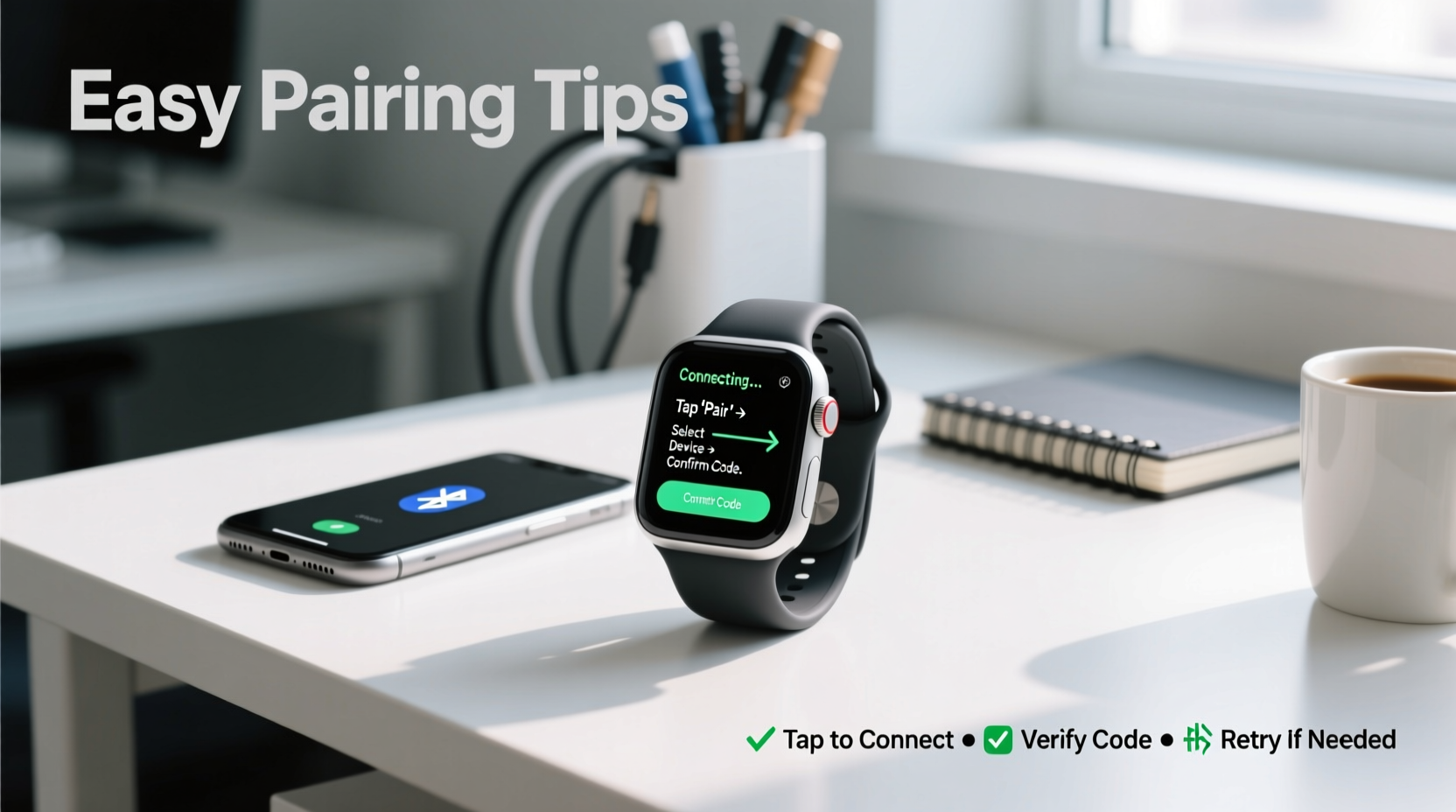
Before attempting to pair your watch, confirm that it's compatible with your phone’s operating system. This step alone prevents half of all failed connections. While some watches are platform-specific, others support both Android and iOS, though with varying features.
| Watch Type | Compatible OS | Limited Features on Alternate OS? |
|---|---|---|
| Apple Watch | iOS only | No Android support at all |
| Samsung Galaxy Watch | Android (optimal), iOS (limited) | No LTE setup, limited app sync on iOS |
| Fitbit Sense/Charge | Android & iOS | Fully functional on both |
| Garmin Venu | Android & iOS | Minor delays in notification delivery on older iOS versions |
| Amazfit GTS | Android & iOS | Battery optimization may interrupt background sync on Android |
Always check the manufacturer’s website for minimum OS requirements. For example, newer Galaxy Watches require Android 8.0 or higher and iOS 13+ for basic functionality. Installing outdated companion apps leads to failed pairing attempts.
Step-by-Step Guide to Pairing Your Watch
The following universal steps work for most smartwatches. Adjustments may apply based on brand, but the core process remains consistent.
- Charge both devices: Ensure your watch has at least 50% battery and your phone is sufficiently charged to avoid interruptions.
- Enable Bluetooth: On your phone, go to Settings > Bluetooth and turn it on. Do not pair with other devices during this process.
- Power on your watch: Press and hold the power button until the logo appears. Follow initial setup prompts until you reach the “Pair with Phone” screen.
- Install the companion app: Search for the official app (e.g., Wear OS by Google, Galaxy Wearable, Fitbit, Garmin Connect) and install it.
- Open the app and follow prompts: Most apps will automatically detect your watch. If not, tap “Add Device” or “Pair New Device.”
- Confirm pairing code: A code will appear on both devices. Verify they match, then confirm on both screens.
- Wait for sync completion: This may take 5–15 minutes depending on data size. Avoid closing the app or locking your phone.
- Test the connection: Send a notification from your phone or check if fitness data syncs correctly.
“Over 70% of pairing failures stem from outdated apps or disabled location services. Always ensure full permissions are granted during setup.” — Raj Patel, Senior Mobile Integration Engineer at TechSync Labs
Common Issues and How to Fix Them
Even with careful preparation, problems can arise. Here are the most frequent issues and their solutions:
- Watch not detected: Restart Bluetooth on your phone. Toggle Airplane Mode on and off to reset wireless modules. Move within 1 meter of the phone during pairing.
- App crashes during setup: Clear the app cache (Android: Settings > Apps > [App Name] > Storage > Clear Cache). On iOS, delete and reinstall the app.
- Connection drops after pairing: Disable Battery Saver mode, which often restricts background app activity. Also, disable aggressive battery optimization for the companion app.
- Notifications not syncing: Enable notification access for the app in phone settings. On Android, go to Settings > Apps > Special Access > Notification Access. On iOS, ensure Allow Notifications is toggled on.
- GPS or heart rate data missing: Update both the watch firmware and the companion app. Outdated firmware is a leading cause of sensor failure.
Mini Case Study: Sarah’s Galaxy Watch Struggles
Sarah bought a new Galaxy Watch 6 and tried pairing it with her iPhone 12. Despite multiple attempts, the Galaxy Wearable app failed to detect the watch. She checked compatibility and confirmed iOS support, but still had no success. After reading online forums, she realized she hadn’t updated her iPhone beyond iOS 14. Once she upgraded to iOS 16 and reinstalled the latest version of the Galaxy Wearable app from the App Store, the pairing completed in under three minutes. The issue wasn’t hardware—it was outdated software blocking communication.
Optimization Tips for Long-Term Stability
A successful first connection doesn’t guarantee ongoing reliability. Maintain performance with these best practices:
- Update both devices regularly. Manufacturers release patches that fix connectivity bugs.
- Restart your watch weekly. Like phones, wearables benefit from occasional reboots to clear memory leaks.
- Remove and re-pair the device if performance degrades. Sometimes starting fresh resolves lingering sync errors.
- Use Wi-Fi during initial setup when possible. Large data transfers (like watch faces or health history) are faster and more reliable over Wi-Fi.
- Limit background apps on your phone. Too many running apps can interfere with Bluetooth stability.
Quick Troubleshooting Checklist
When your watch won’t connect, run through this checklist before contacting support:
- ✅ Is Bluetooth enabled on the phone?
- ✅ Are both devices charged above 30%?
- ✅ Is the companion app installed and updated?
- ✅ Have you restarted both devices recently?
- ✅ Is Location Services enabled? (Required for Bluetooth scanning on Android)
- ✅ Are there any active Bluetooth connections to other devices?
- ✅ Has the watch been previously paired? If yes, unpair it first via phone settings.
- ✅ Are OS versions compatible with the watch model?
Frequently Asked Questions
Can I connect a non-Apple watch to an iPhone?
Yes, many brands like Fitbit, Garmin, and Samsung offer iOS-compatible models. However, functionality may be reduced compared to Android. For example, Samsung watches cannot use LTE or send replies to messages on iOS.
Why does my watch keep disconnecting throughout the day?
This often results from aggressive battery optimization. Disable Battery Saver mode and ensure the companion app is set to “Unrestricted” in background usage settings. Also, verify that Bluetooth isn't being turned off automatically in your phone’s settings.
Do I need Wi-Fi to pair my watch?
Not always, but Wi-Fi helps during initial setup, especially when syncing large amounts of data like apps, contacts, or music. Bluetooth alone may suffice for basic pairing, but expect slower sync speeds.
Conclusion
Connecting your watch to your phone doesn’t have to be frustrating. By understanding compatibility, following a structured setup process, and applying proven troubleshooting methods, you can achieve a seamless and lasting connection. Most issues are preventable with up-to-date software and proper configuration. Don’t let a failed pairing discourage you—most problems are temporary and solvable with patience and the right knowledge.




 浙公网安备
33010002000092号
浙公网安备
33010002000092号 浙B2-20120091-4
Comments
No comments yet. Why don't you start the discussion?