
Packaging an Adobe InDesign file is a critical step in preparing your design for print or handoff to another designer or service provider. The \"Package\" feature collects all necessary components—fonts, linked images, and the INDD file itself—into a single folder, ensuring consistency across systems. But when the process fails or won’t start, it can bring your workflow to a halt. You're not alone if you’ve encountered messages like “Cannot package this document” or simply no response at all. This guide breaks down the most common causes and provides actionable fixes so you can get your project ready on time.
Common Reasons Why InDesign Won’t Package Your File
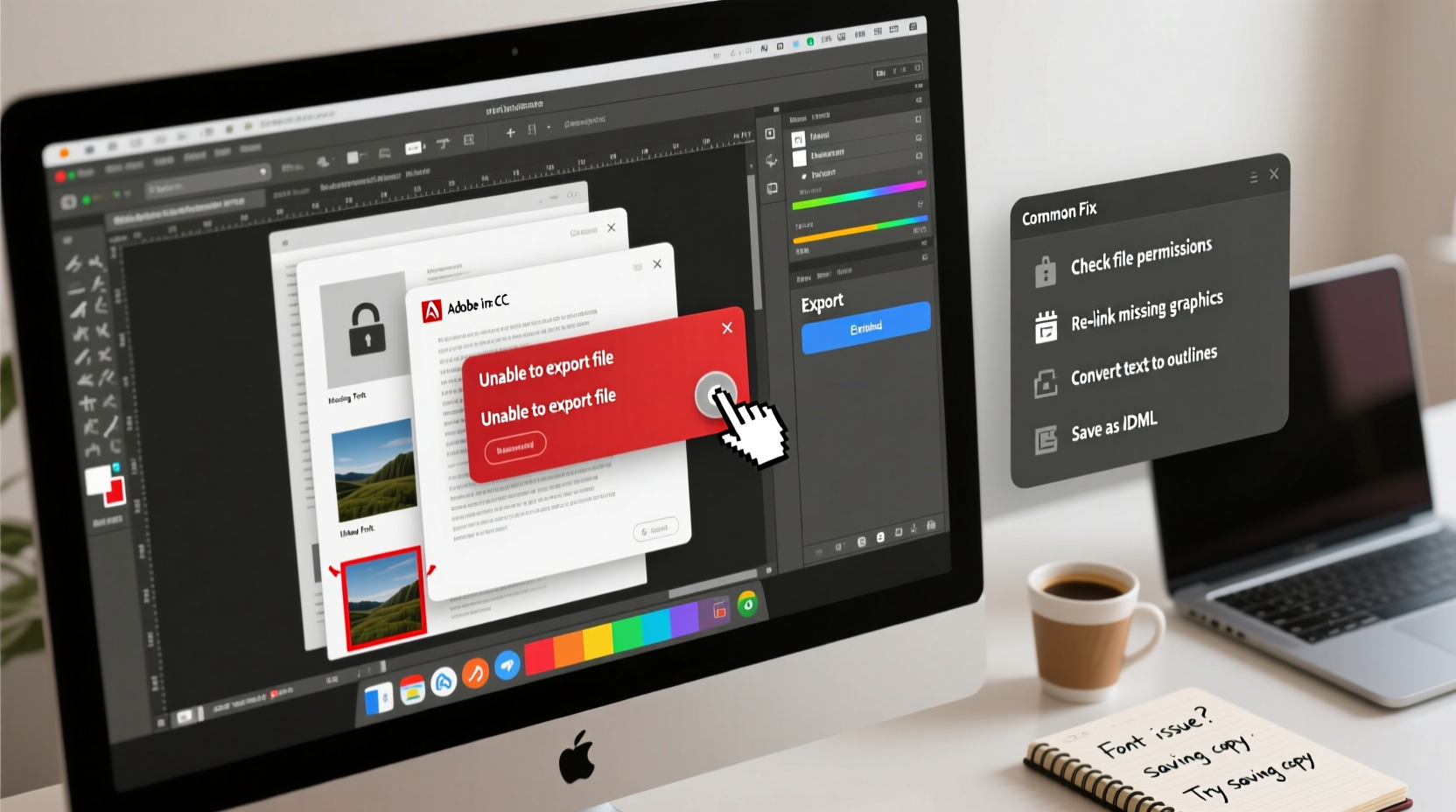
InDesign’s packaging system is robust, but it relies heavily on external dependencies: font availability, image links, and document integrity. When any of these elements are compromised, packaging fails. Understanding the root cause is half the battle. Here are the top reasons why packaging might be failing:
- Missing or inactive fonts: If a font used in your document isn’t active on your system, InDesign can’t embed or copy it into the package.
- Broken image links: Missing, moved, or renamed linked assets prevent successful packaging.
- Corrupted document or preferences: Sometimes, the INDD file or InDesign’s preferences become corrupted, interfering with standard functions.
- Insufficient permissions or disk space: Lack of write access to the destination folder or low storage can halt the process.
- Third-party plugin conflicts: Add-ons may interfere with core InDesign functionality, including packaging.
Step-by-Step Guide to Successfully Package Your InDesign File
Follow this sequence to identify and resolve issues blocking the packaging process. Each step builds on the previous one, ensuring thorough troubleshooting.
- Open the Document in InDesign
Launch InDesign and open your file. Let it fully load before proceeding. - Check for Missing Fonts
Go to Type > Find Font. Review the list. Any font marked as “Not Available” needs to be resolved. Either activate the font via your font manager or replace it with an available alternative. - Review All Linked Assets
Open the Links panel (Window > Links). Look for any icons with a red question mark. These indicate broken links. Relink each missing image by selecting it and clicking the folder icon at the bottom of the panel. - Update Modified Links
If linked files have been updated externally (e.g., a PSD was edited), ensure they’re current. Use Relink or Update Link as needed. - Verify Document Integrity
Try saving the file under a new name (File > Save As). This can sometimes clear minor corruption. Close and reopen the newly saved version. - Attempt Packaging
Go to File > Package. Follow the wizard. If it proceeds past the initial screen, you’re likely on the right track. - Choose a Valid Output Folder
Select a location with full read/write permissions (e.g., Desktop). Avoid system-protected directories like Program Files. - Review the Report
After packaging, InDesign generates a report. Check it for warnings about fonts or images that couldn’t be copied.
Do’s and Don’ts When Packaging InDesign Files
| Do’s | Don’ts |
|---|---|
| Use consistent file naming for linked images (no special characters) | Move or rename linked files outside of InDesign |
| Keep all assets in a single project folder from the start | Work directly from cloud-synced folders like Dropbox during packaging |
| Activate all required fonts before packaging | Ignore yellow or red alerts in the Links or Font panels |
| Test packaging early in the design process | Assume the package will work only at the last minute |
| Back up your INDD file before attempting repairs | Edit a corrupted file without a backup |
Real-World Example: Designer Blocked Before Print Deadline
A freelance designer working on a 24-page product catalog attempted to package the file the night before sending it to the printer. The Package dialog opened but froze after clicking “Package.” No error message appeared. After checking the Links panel, three EPS files were flagged as missing—despite appearing correctly in layout. The designer had renamed the original Illustrator files but forgot to update links in InDesign. After relinking the correct versions and reactivating two Type 1 fonts via Adobe Fonts, the packaging completed successfully. The lesson? Even visually intact layouts can hide underlying dependency issues.
“Packaging isn’t just a final step—it’s a diagnostic tool. If it fails, something in your document chain is broken.” — Carlos Mendez, Senior Prepress Specialist, PrintPro Solutions
Troubleshooting Advanced Issues
Sometimes, basic checks aren’t enough. Here’s how to handle deeper problems:
Clear InDesign Preferences
Corrupted preferences can disrupt many functions. Reset them by holding Ctrl+Alt+Shift (Windows) or Cmd+Option+Shift (Mac) while launching InDesign. Confirm reset when prompted.
Check for Plugin Conflicts
Disable third-party plugins temporarily. Navigate to the InDesign Plug-ins folder and move add-ons to a backup location. Restart InDesign and try packaging again.
Font Management Conflicts
Using multiple font managers (e.g., Suitcase Fusion and Adobe Fonts) can cause conflicts. Temporarily deactivate all except one. Ensure no fonts are listed as “duplicate” or “conflicting” in your manager.
Repair Disk Permissions (Mac)
On macOS, use Disk Utility to run First Aid on your startup disk. Incorrect permissions can block file writing during packaging.
Frequently Asked Questions
Why does InDesign say “This document cannot be packaged”?
This usually means a critical dependency is missing—most often a font or linked image. Check the Fonts and Links panels. Also, ensure the document isn’t set to “Read-Only” mode or opened from a restricted location.
Can I package an InDesign file without fonts?
You can, but it’s not recommended. Without fonts, the recipient may see substitution warnings or layout shifts. If fonts can’t be included (due to licensing), outline text beforehand—but only as a last resort, as it removes editability.
What should I do if the Package button is grayed out?
The button may be disabled if the document hasn’t finished loading or if it’s in a protected state. Try reopening the file, saving it locally, and ensuring no background processes are running. Also, verify you’re not in Presentation Mode or Preview mode.
Final Checklist Before Packaging
- ✅ All fonts are active and listed as “Available” in the Find Font dialog
- ✅ Every image in the Links panel shows a green status icon
- ✅ No placeholder graphics or missing content remain
- ✅ Document has been saved recently and under a stable filename
- ✅ Output folder is local, writable, and has sufficient space
- ✅ Third-party plugins are up to date or temporarily disabled
- ✅ You’ve tested packaging on a duplicate file first
Conclusion
Being unable to package an InDesign file doesn’t mean your project is lost—it’s a signal that something in your design ecosystem needs attention. Whether it’s a missing font, a broken link, or a deeper software conflict, systematic troubleshooting almost always leads to a solution. By adopting proactive habits—like organizing assets early, monitoring links, and testing packaging throughout the design phase—you’ll avoid last-minute crises. Take control of your workflow now: audit your current project, apply these fixes, and ensure your next handoff goes smoothly.




 浙公网安备
33010002000092号
浙公网安备
33010002000092号 浙B2-20120091-4
Comments
No comments yet. Why don't you start the discussion?