
Capturing what happens on your computer screen used to be a technical challenge reserved for developers or video editors. Today, screen recording is essential for educators, marketers, remote workers, and content creators. Whether you're building a tutorial, demonstrating software, or creating engaging online content, the ability to produce crisp, professional-looking screen videos can elevate your communication and credibility. The key isn’t just in hitting “record”—it’s in doing it right.
Choose the Right Screen Recording Software
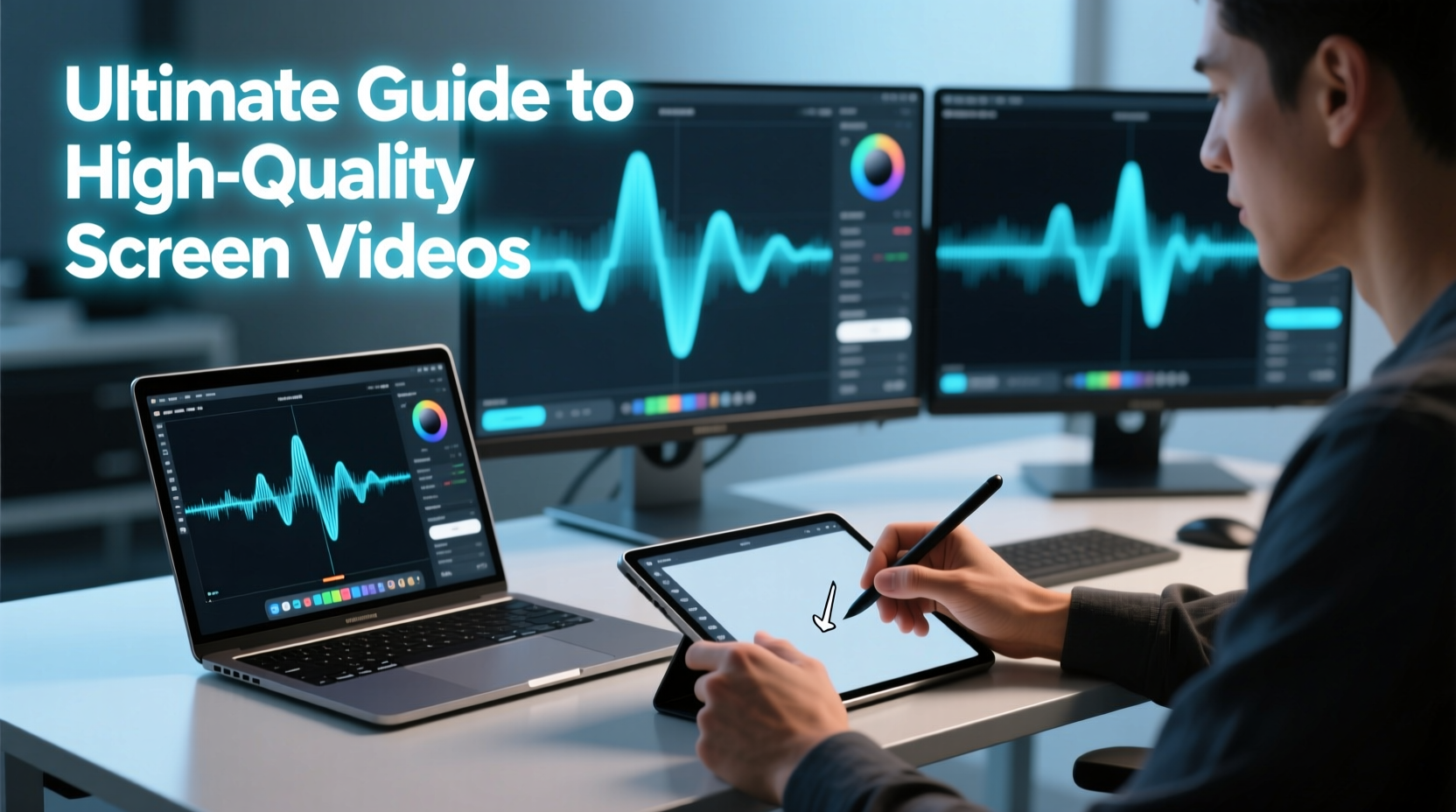
The foundation of any high-quality screen video is reliable recording software. Not all tools are created equal. Some offer basic capture with limited editing, while others provide advanced features like multi-cam support, real-time annotations, and 4K output.
When selecting software, consider:
- Resolution and frame rate support: Aim for at least 1080p at 30fps. For fast-paced actions (e.g., gaming), 60fps is ideal.
- Audio integration: Can you record system audio, microphone, or both simultaneously?
- Export formats: MP4 (H.264) is widely compatible and maintains quality without bloated file sizes.
- Editing capabilities: Built-in trimming, zoom effects, and captions save time in post-production.
Optimize Your System for Smooth Recording
Your computer’s performance directly affects video quality. Lag, dropped frames, or audio glitches often stem from background processes competing for resources.
- Close unnecessary applications: Browsers with multiple tabs, cloud sync tools, and messaging apps consume RAM and CPU.
- Disable notifications: Pop-ups during recording break immersion and may expose private information.
- Plug in your laptop: Power-saving modes can throttle performance, leading to inconsistent frame rates.
- Use an SSD: Faster read/write speeds improve encoding efficiency during recording and export.
If you’re recording intensive applications—like video editors or games—consider lowering in-app graphics settings temporarily to maintain smooth capture.
Set Up Audio for Professional Clarity
Even the sharpest visuals fall flat with poor audio. Background noise, echo, or muffled voiceovers distract viewers and reduce retention.
To ensure clean audio:
- Use a dedicated USB microphone instead of built-in laptop mics.
- Record in a quiet room; soft furnishings help dampen echo.
- Speak clearly and maintain a consistent distance from the mic.
- Enable noise suppression in your recording software if available.
“Audio quality is the silent judge of professionalism. Viewers forgive slightly compressed video, but not muddy sound.” — Jordan Lee, Video Production Engineer at TechFlow Studios
Step-by-Step Guide to Recording High-Quality Screen Videos
Follow this sequence to consistently produce polished screen recordings:
- Plan your content: Outline the steps or narrative. Knowing exactly what you’ll show prevents awkward pauses or tangents.
- Prepare your screen: Close irrelevant windows, clear desktop clutter, and set your browser or app to full-screen mode if needed.
- Adjust display settings: Use native resolution and scale text to 100–125% for readability without pixelation.
- Test audio and video: Do a 10-second test recording. Play it back to check sync, volume levels, and clarity.
- Start recording: Begin with a brief verbal introduction and pause for 2 seconds before action starts.
- Perform actions deliberately: Move slowly through menus or clicks so viewers can follow along.
- Stop cleanly: End with a closing statement and allow 3 seconds of silence before stopping the recording.
- Edit and export: Trim dead space, add captions or highlights, then export in H.264 MP4 format at 1080p or higher.
Best Practices: Do’s and Don’ts
| Do’s | Don’ts |
|---|---|
| Use keyboard shortcuts to speed up navigation | Scroll too quickly through content |
| Highlight cursor or use click effects for visibility | Forget to mute email or message notifications |
| Record in segments for easier editing | Speak too fast or use jargon without explanation |
| Add subtitles for accessibility and engagement | Export in low resolution to “save space” |
Real Example: Creating a Software Tutorial
Sarah, a customer support lead at a SaaS company, needed to train new users on her team’s CRM platform. Instead of writing a lengthy PDF, she recorded a 7-minute walkthrough using OBS Studio.
She prepared by scripting key points, closing Slack and email, and connecting her Yeti microphone. She recorded in 1080p at 30fps, narrating each step as she demonstrated contact import, tagging, and reporting.
After recording, she used DaVinci Resolve to trim pauses, add chapter markers, and insert text callouts for important buttons. The final video was shared internally and reduced onboarding time by 40%. Users reported higher confidence when using the tool independently.
Frequently Asked Questions
Can I record system audio on Windows without third-party tools?
Most built-in screen recorders on Windows (like Xbox Game Bar) can capture system audio, but only for certain apps. For full flexibility—including browser audio—you may need third-party software like OBS Studio or Camtasia.
Why does my screen recording look blurry?
Blurriness usually comes from mismatched resolution settings or compression. Ensure your recording resolution matches your screen’s native resolution. Also, avoid uploading unprocessed videos directly to platforms like YouTube without proper export settings.
How long should a screen recording be?
Aim for brevity and focus. Most effective instructional videos are between 3–8 minutes. If your topic is complex, break it into a series rather than one long session.
Essential Checklist Before You Record
- ☐ Choose the right recording tool (OBS, Camtasia, Loom, etc.)
- ☐ Close unnecessary apps and disable notifications
- ☐ Connect external microphone and test audio levels
- ☐ Clean up desktop and browser tabs
- ☐ Set screen resolution to native (preferably 1080p or higher)
- ☐ Prepare script or outline of key points
- ☐ Perform a short test recording
- ☐ Enable cursor effects and keyboard click visualization (if supported)
Maintain Quality Across Devices and Platforms
Your video might be viewed on smartphones, tablets, or large monitors. To ensure universal clarity:
- Avoid tiny fonts—use at least 14pt in applications.
- Zoom in on critical UI elements during demonstration.
- Export with standard aspect ratios (16:9 is most common).
- Upload to platforms that preserve quality (Vimeo, YouTube, or private hosting with adaptive streaming).
For internal sharing, consider compressing files with HandBrake to balance size and quality. For public content, prioritize maximum fidelity even if files are larger.
Conclusion
Creating high-quality screen videos isn’t about expensive gear—it’s about preparation, consistency, and attention to detail. From choosing the right software to optimizing your environment and delivering clear audio, every step shapes the viewer’s experience. With the techniques outlined here, you can produce professional-grade recordings that inform, engage, and stand out.




 浙公网安备
33010002000092号
浙公网安备
33010002000092号 浙B2-20120091-4
Comments
No comments yet. Why don't you start the discussion?