
Capturing what’s on your screen is one of the most practical digital skills you can master. Whether you’re troubleshooting an error, sharing instructions, or preserving a moment from a video call, screenshots are essential. But knowing how to capture them efficiently—and edit them effectively—can make all the difference between a cluttered image and a polished, professional result.
This guide walks through everything from built-in keyboard shortcuts to advanced editing techniques, ensuring you can take, customize, and share screenshots with confidence—regardless of your operating system.
Understanding Screenshot Types and When to Use Them
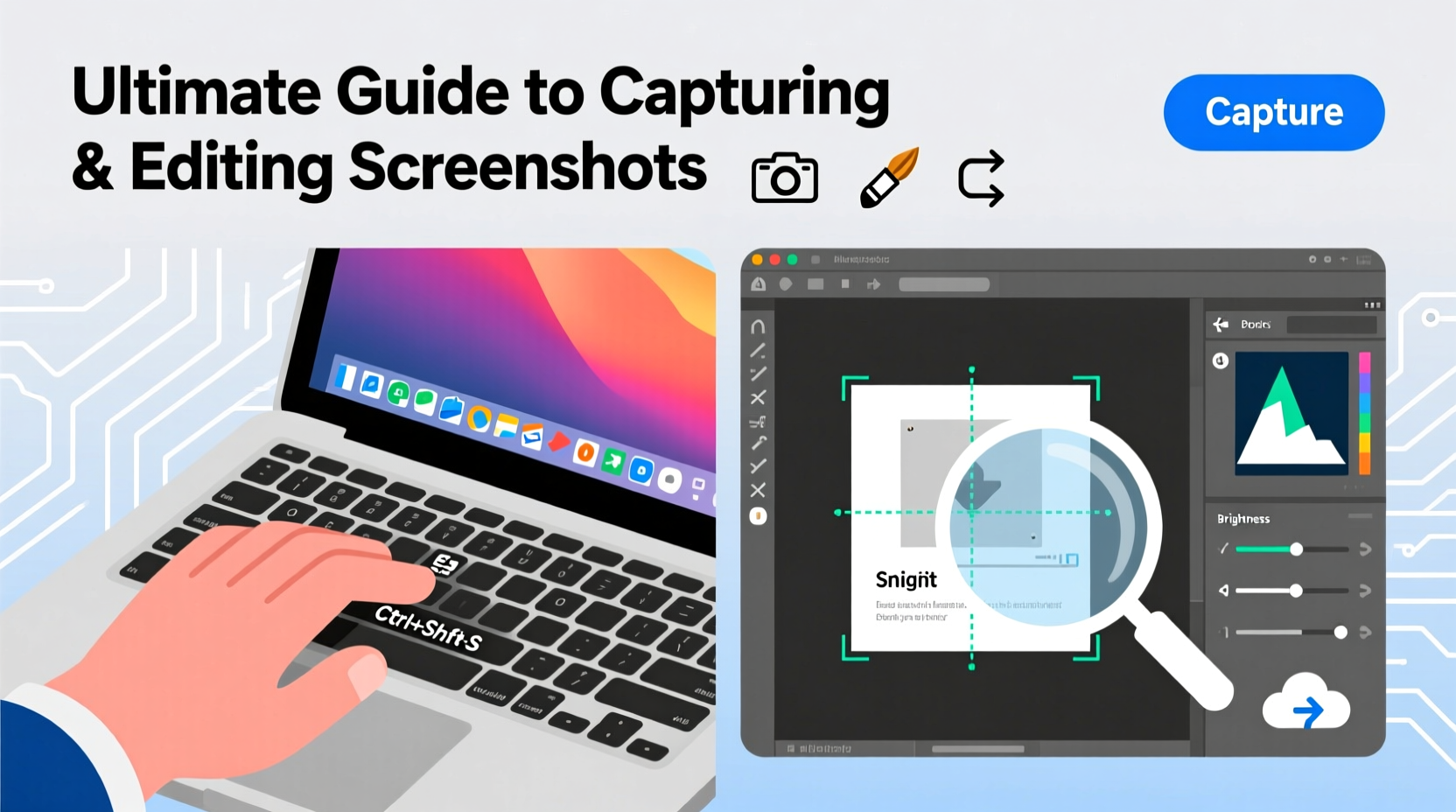
Not all screenshots serve the same purpose. Choosing the right type ensures clarity and relevance:
- Full-screen capture: Best for showing entire desktop layouts or displaying multiple open windows.
- Active window capture: Ideal when focusing on a single application without background distractions.
- Custom region selection: Perfect for highlighting specific details like text snippets, buttons, or charts.
- Timed or delayed capture: Useful for capturing context menus, tooltips, or pop-ups that disappear when you click elsewhere.
How to Capture Screenshots by Operating System
Different platforms offer unique methods for taking screenshots. Mastering these shortcuts saves time and improves workflow efficiency.
Windows: Keyboard Shortcuts and Snipping Tool
Windows provides several fast options:
Print Screen (PrtScn): Copies the entire screen to clipboard.Alt + PrtScn: Captures only the active window.Win + Shift + S: Opens Snip & Sketch for selective region capture.Win + PrtScn: Saves full screen directly to Screenshots folder in Pictures.
The Snipping Tool (available since Windows 10) allows timed captures, freeform snips, and annotation. It's especially useful for creating tutorials or documenting bugs.
macOS: Versatile Built-In Commands
Apple’s ecosystem offers precise control via keyboard combinations:
Command + Shift + 3: Captures entire screen and saves to desktop.Command + Shift + 4: Turns cursor into crosshair for selecting a region.Command + Shift + 5: Opens screenshot control panel with timer, recording, and save location options.Command + Shift + 6: Captures Touch Bar (on MacBook Pro models).
After capturing, a thumbnail appears briefly in the corner—click it to enter instant markup mode for quick edits.
Linux: Distribution-Specific Tools
Most Linux distributions include basic screenshot utilities:
PrtScn: Full screen capture.Shift + PrtScn: Region selection.Alt + PrtScn: Active window only.
Ubuntu uses GNOME Screenshot; Fedora includes similar tools. For more features, install Shutter or Flameshot—a powerful open-source editor with annotations and upload capabilities.
“Knowing your OS-native shortcuts cuts capture time in half. Power users don’t reach for third-party apps unless they need advanced editing.” — Jordan Lee, IT Support Specialist
Step-by-Step Guide to Editing Screenshots Effectively
Capturing is just the beginning. Editing transforms raw images into clear, communicative visuals.
- Open your screenshot using default preview software or an image editor.
- Crop tightly around the subject to remove irrelevant areas.
- Blur or redact sensitive data such as passwords, emails, or personal messages.
- Add arrows, highlights, or text boxes to direct attention to key elements.
- Adjust brightness or contrast if text appears washed out.
- Save in appropriate format: PNG for clarity, JPG for smaller file size.
Best Tools for Advanced Screenshot Editing
While built-in tools suffice for basic needs, dedicated editors unlock greater precision and functionality.
| Tool | Platform | Key Features | Best For |
|---|---|---|---|
| Snagit | Windows, macOS | Scrolling capture, GIF creation, templates | Tutorials, training materials |
| Lightshot | Windows, macOS | Quick upload, cloud sharing, simple markup | Fast collaboration |
| Greenshot | Windows | Open-source, customizable output, OCR support | Developers, technical writers |
| Flameshot | Linux, cross-platform | Annotate, blur, upload, CLI integration | Privacy-focused workflows |
| Markup Hero | Web-based | Team collaboration, commenting, version history | Remote teams, feedback loops |
For example, Snagit excels at capturing long web pages beyond the visible viewport—a feature absent in native tools. This “scrolling capture” function stitches together multiple sections automatically, producing a single tall image ideal for reporting website layouts or saving lengthy articles.
Mini Case Study: Streamlining Customer Support with Better Screenshots
A mid-sized SaaS company noticed their customer support team spent excessive time explaining interface issues over email. Agents were sending unedited, full-screen shots with no annotations.
After implementing a standard workflow using Snagit—featuring cropped regions, highlighted buttons, and numbered steps—response clarity improved dramatically. Resolution time dropped by 34%, and customer satisfaction scores rose within two months.
The change wasn’t due to new technology alone, but consistent application of visual communication principles taught during internal training.
Frequently Asked Questions
Can I capture a dropdown menu or tooltip?
Yes, but not directly with standard shortcuts. Use a delay function (available in Snipping Tool, Snagit, or Command + Shift + 5 on Mac) to trigger the capture after opening the menu. Alternatively, use screen recording briefly and pause at the desired frame.
How do I capture a scrolling webpage?
Native OS tools don’t support this, but third-party software like Snagit, ShareX (Windows), or browser extensions such as GoFullPage (Chrome) can stitch multiple segments into one continuous image.
Why does my screenshot look blurry when I send it?
This usually happens when the image is compressed during upload or resized improperly. Save in PNG format for sharpness, avoid stretching in documents, and check platform limits (e.g., some messaging apps reduce quality automatically).
Essential Checklist Before Sharing Any Screenshot
- ✅ Crop to relevant area only
- ✅ Remove or blur personal/sensitive data
- ✅ Highlight key points with arrows or shapes
- ✅ Add explanatory text if context isn’t obvious
- ✅ Verify readability (font size, contrast)
- ✅ Choose correct file format (PNG for transparency/sharpness, JPG for general use)
- ✅ Confirm file size is appropriate for sharing method
Win + . opens the emoji panel—useful for inserting symbols like ✅ or 📎 when annotating.
Conclusion: Elevate Your Digital Communication
Screenshots are more than digital snapshots—they’re tools for clarity, instruction, and evidence. By mastering both capture mechanics and post-processing techniques, you enhance how you communicate online.
Start applying these strategies today: learn your keyboard shortcuts, experiment with annotation styles, and always consider the viewer’s perspective. Whether you're guiding a colleague, reporting a bug, or teaching a skill, a well-crafted screenshot speaks louder than paragraphs of explanation.




 浙公网安备
33010002000092号
浙公网安备
33010002000092号 浙B2-20120091-4
Comments
No comments yet. Why don't you start the discussion?