
Apple Music offers one of the most seamless and integrated experiences for music lovers across Apple’s ecosystem. At the heart of that experience lies the playlist—a personalized curation tool that transforms how you listen, discover, and share music. Whether you're building a workout mix, a dinner party ambiance, or a nostalgic throwback collection, mastering playlist creation and customization is essential. This guide walks you through everything you need to know to create and fine-tune playlists across all your devices: iPhone, iPad, Mac, and even Apple Watch.
Creating Your First Playlist on Any Device
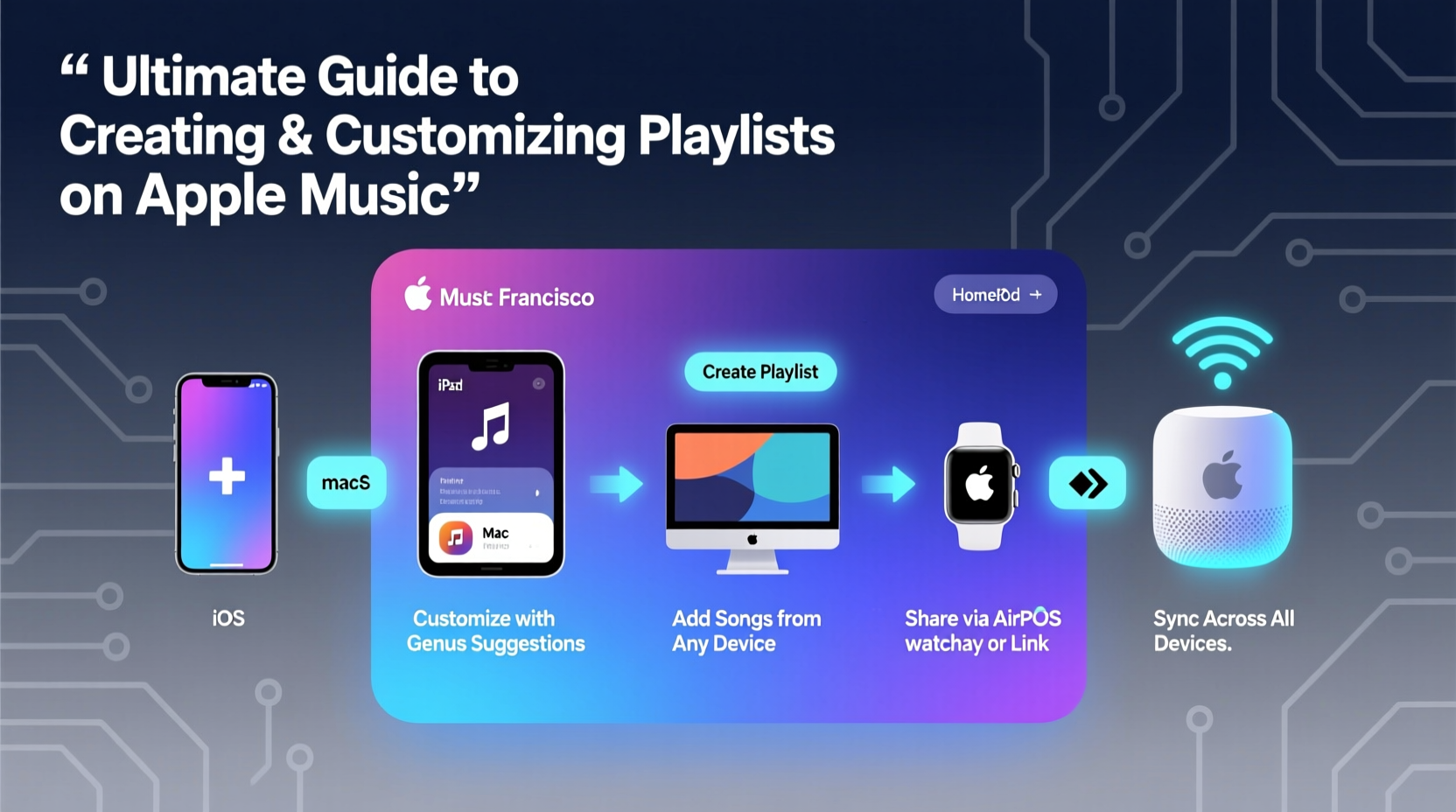
The foundation of any great listening experience begins with a well-crafted playlist. Apple Music makes it easy to start from scratch, no matter which device you’re using.
On iPhone or iPad:
Open the Apple Music app, tap the “Library” tab, then select “Playlists.” Tap the “+” icon in the top-right corner, choose “New Playlist,” enter a name and optional description, and confirm. You can now add songs by searching, browsing your library, or using the “Add to Playlist” option from any track.
On Mac:
Launch the Music app (formerly iTunes), click “File” > “New” > “Playlist,” name it, and press Enter. Drag and drop songs directly into the playlist from your library or search results. The drag-and-drop functionality makes bulk additions fast and intuitive.
On Apple Watch:
While you can’t create a new playlist directly on the watch, you can access and play existing ones. Open the Music app, go to “Library” > “Playlists,” and select your desired list. For full control, use your paired iPhone.
Smart Ways to Customize Your Playlists
A playlist isn’t just a list—it’s a reflection of mood, activity, or memory. Customization elevates it from functional to meaningful.
- Add artwork: On iPhone or Mac, open the playlist, tap the current image (or placeholder), and choose a photo from your library or take a new one. This visual cue helps identify playlists quickly.
- Write descriptions: Include details like “Songs from our road trip to Oregon” or “Focus mode—no vocals.” These appear under the playlist name and enrich the context.
- Sort order: Reorder tracks manually by dragging, or sort by song, artist, album, or recently added. On Mac, right-click the playlist header to toggle sorting options.
- Make it collaborative: Enable collaboration so friends can add songs. Ideal for parties or shared moods. Toggle this in playlist settings under “Make Collaborative.”
“Personalized playlists increase listener engagement by up to 70%. When users feel ownership over their music, they listen longer and more frequently.” — Dr. Lena Torres, Audio Experience Researcher at Stanford HCI Group
Device-Specific Features and Limitations
Each Apple device offers unique advantages—and some constraints—when managing playlists.
| Device | Creation? | Edit Tracks? | Custom Artwork? | Offline Sync? |
|---|---|---|---|---|
| iPhone/iPad | Yes | Yes | Yes | Yes (Download enabled) |
| Mac | Yes | Yes | Yes | Yes (Sync via iCloud) |
| Apple Watch | No | Limited playback only | No | Yes (Synced playlists) |
| HomePod | No | No | No | Yes (via AirPlay) |
iCloud Music Library ensures your playlists sync across all devices automatically. Make sure it’s enabled in Settings > Music on iOS or Preferences > General on Mac. Without it, changes made on one device won’t reflect elsewhere.
Real Example: Building a Commute Playlist Across Devices
Sophie starts her playlist on her Mac during lunch break, adding upbeat indie tracks she discovered through Apple Music’s “Discover Weekly.” She names it “Train Ride Energy” and uploads a vibrant city skyline as artwork. Later, on her iPhone, she refines the order and enables offline download. During her evening commute, she uses her Apple Watch to play the playlist seamlessly through wireless earbuds—no phone needed. The next day, she shares it with a coworker who adds three more songs, thanks to the collaborative setting.
This cross-device flow exemplifies Apple’s ecosystem strength: start anywhere, continue everywhere.
Advanced Tips for Power Users
For those looking to go beyond basics, these techniques unlock deeper control and personalization.
- Use Smart Playlists (Mac only): Create dynamic lists based on criteria like genre, play count, date added, or rating. They update automatically as your library grows.
- Leverage Siri: Say “Add this song to my ‘Evening Wind Down’ playlist” on any Siri-enabled device. Works best when playlists are named clearly and consistently.
- Batch-edit metadata: On Mac, select multiple tracks, press Command+I, and edit artist, album, or grouping info. Helps maintain consistency in large playlists.
- Create nested folders: On Mac, organize playlists into folders by right-clicking and selecting “New Playlist Folder.” Great for separating moods, events, or projects.
- Export playlists: While not natively supported, third-party tools like Soundiiz allow migration to other services if needed.
Frequently Asked Questions
Can I share my Apple Music playlist with someone who doesn’t have Apple Music?
Yes. From the playlist menu, tap “Share Playlist” and choose messaging, email, or social media. Non-subscribers will see the songs but may only play previews unless they own the tracks or subscribe.
Why isn’t my playlist syncing across devices?
Ensure iCloud Music Library is turned on for all devices. Also, verify that you’re signed in with the same Apple ID and that your internet connection is stable. If issues persist, restart the Music app or toggle iCloud Music Library off and on.
How many songs can an Apple Music playlist hold?
There’s no official limit. Users have created playlists with over 10,000 songs. However, extremely large playlists may slow down loading times on older devices.
Essential Checklist: Optimize Your Playlist Workflow
- ✅ Name each playlist clearly and descriptively
- ✅ Add custom artwork for visual recognition
- ✅ Enable iCloud Music Library on all devices
- ✅ Download key playlists for offline listening
- ✅ Use collaborative mode for group events
- ✅ Regularly curate and remove outdated tracks
- ✅ Test playback on different devices to ensure sync
Final Thoughts: Make Music Work for You
Playlists are more than just collections—they’re soundtracks to your life. With Apple Music, the ability to create, customize, and carry them effortlessly across devices puts you in full control of your auditory environment. Whether you're setting the tone for a lazy Sunday or powering through a high-intensity workout, a well-built playlist enhances every moment.
Take time this week to review your existing playlists. Rename the vague ones, add artwork, delete stale tracks, and try building one collaboratively. Small improvements compound into a richer, more satisfying music experience.




 浙公网安备
33010002000092号
浙公网安备
33010002000092号 浙B2-20120091-4
Comments
No comments yet. Why don't you start the discussion?