
Whether you're traveling, working remotely, or caught in a location without Wi-Fi, your iPhone can become a powerful personal router. The built-in Personal Hotspot feature turns your cellular data into a secure, portable internet connection for laptops, tablets, and other devices. But simply turning on the hotspot isn’t enough. To ensure speed, security, and battery efficiency, you need a strategic approach. This guide walks you through every aspect of setting up, optimizing, and troubleshooting your iPhone hotspot so you stay connected—anytime, anywhere.
How to Set Up Your iPhone Hotspot in Minutes
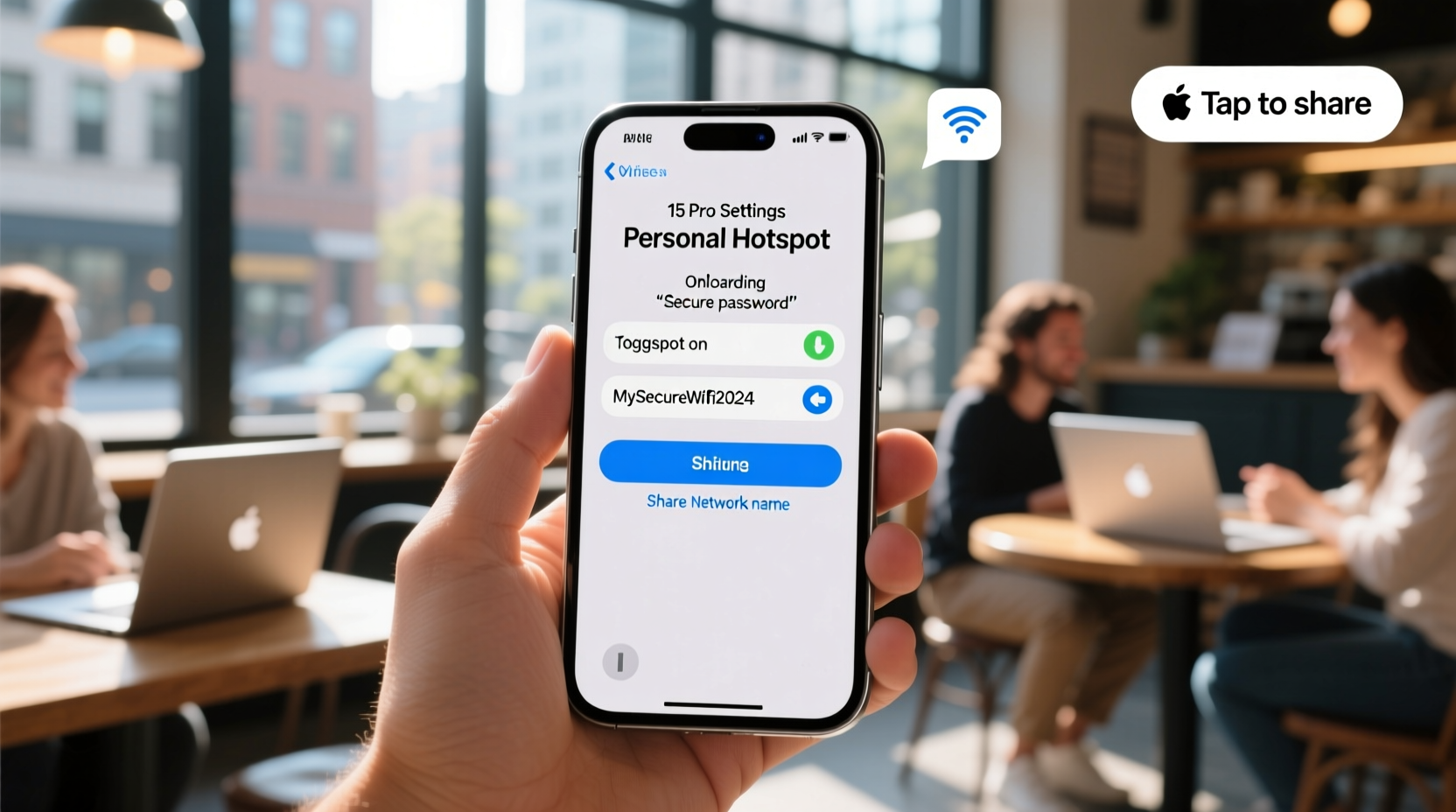
Activating your iPhone's Personal Hotspot is straightforward, but knowing all available methods ensures flexibility depending on your situation. You can enable it via Settings, Control Center, or even from another Apple device using Instant Hotspot.
- Using Settings: Go to Settings > Personal Hotspot and toggle “Allow Others to Join.” If you don’t see this option, go to Settings > Cellular > Personal Hotspot.
- From Control Center: Swipe down from the top-right corner (iPhone X and later) or up from the bottom (older models). Press and hold the network settings card (top-left icon), then tap the hotspot button.
- With Instant Hotspot: On a nearby Mac or iPad signed into the same iCloud account, click the Wi-Fi menu and select your iPhone’s name under “Personal Hotspots.”
Once enabled, others can connect via Wi-Fi, Bluetooth, or USB. The default Wi-Fi password appears under the hotspot settings—change it by tapping the password field and entering a stronger one.
Optimizing Performance and Battery Life
Your iPhone hotspot is convenient, but heavy usage can drain the battery quickly and slow down connections if not managed properly. Consider these best practices to maintain performance while conserving power.
- Limit connected devices: Each additional device shares bandwidth. For optimal speed, connect only essential gadgets—ideally no more than three.
- Use Wi-Fi instead of Bluetooth: While Bluetooth uses less power, Wi-Fi provides faster speeds and better stability for tasks like video calls or file downloads.
- Plug into power when possible: When using the hotspot for extended periods, keep your iPhone charging. This prevents shutdowns due to low battery.
- Turn off when idle: Leaving the hotspot active unnecessarily consumes background resources and exposes your device to potential intrusions.
“Battery optimization starts with awareness. Most users leave hotspots running long after they’re done using them—this silently drains both charge and cellular data.” — David Lin, Mobile Network Analyst at ConnectWise Labs
Managing Data Usage Wisely
One of the biggest risks of using a mobile hotspot is exceeding your data plan. Streaming HD video or large software updates over a hotspot can consume several gigabytes in minutes. Without monitoring, you could face overage fees or throttled speeds.
| Activity | Average Data Used per Hour | Recommendation |
|---|---|---|
| Email & Browsing | 50–100 MB | Safe for daily use within limits |
| Video Calls (Zoom, FaceTime) | 200–400 MB | Use speakerphone mode to reduce video load |
| Streaming SD Video | 700 MB | Download offline content beforehand if possible |
| Streaming HD Video | 1.5–3 GB | Avoid unless necessary; switch to audio-only mode |
| Software Updates | 1–5 GB (per app/OS) | Never update over hotspot unless critical |
To track consumption, visit Settings > Cellular and scroll down to see data used by Personal Hotspot. Reset the counter monthly to align with your billing cycle.
Real-World Example: Staying Connected During Travel
Sophia, a freelance graphic designer, travels frequently between cities for client meetings. Last month, she spent three days in a rural cabin with no Wi-Fi. Her solution? She used her iPhone 14 Pro with an unlimited data plan as a hotspot for her MacBook and iPad.
She scheduled high-bandwidth tasks—like syncing cloud files and backing up photos—for times when she had strong LTE signal. She disabled automatic app updates and limited streaming to short audio clips. By connecting only one device at a time and keeping her phone plugged in, she maintained consistent speeds without draining her battery.
“I used to panic about losing connectivity,” Sophia said. “Now I treat my iPhone like a mini-router—planned, protected, and purpose-driven.”
Troubleshooting Common Hotspot Issues
Even when set up correctly, hotspot connections can fail. Below are frequent problems and their fixes:
- Other devices can’t find the hotspot: Ensure Airplane Mode is off, Wi-Fi is on, and Personal Hotspot is enabled. Restart both the iPhone and the connecting device if needed.
- Poor speed despite strong signal: Check for network congestion. Move closer to a window or try switching from 5G to LTE (or vice versa) under Settings > Cellular > Cellular Data Options > Voice & Data.
- Device connects but has no internet: Confirm that cellular data is active. Try toggling the hotspot off and back on. Also verify that the carrier supports tethering—some plans restrict hotspot use.
- iPhone overheats during use: Heat reduces performance and battery life. Close unused apps, remove thick cases, and avoid direct sunlight. If overheating persists, pause usage until the device cools.
Security Best Practices for Public Use
Using a hotspot in public spaces increases exposure to digital threats. Cybercriminals may attempt to brute-force weak passwords or exploit open connections. Protect yourself with these steps:
- Always set a strong, unique password—avoid defaults like “12345678” or easily guessed combinations.
- Disable “Broadcast Name” if privacy is critical. Rename your hotspot to something generic (not your name or phone model).
- Enable two-factor authentication on linked devices to minimize risk if someone gains access.
- Forget the connection on guest devices after use to prevent automatic reconnection.
FAQ: Frequently Asked Questions
Can I use my iPhone hotspot internationally?
Yes, but roaming charges apply unless you have an international plan. Purchase a local SIM or travel-specific data package to avoid high fees. Always confirm with your carrier before departure.
Why does my hotspot turn off automatically?
iOS disables the hotspot after 90 seconds of inactivity to save battery. It reactivates when a paired device requests internet. This behavior cannot be changed, but frequent reconnects are normal.
Does using a hotspot affect call quality?
On most modern iPhones (iPhone 7 and later), simultaneous voice and data work seamlessly on VoLTE networks. However, in areas with weak coverage, calls may drop or revert to 3G, pausing data temporarily.
Final Checklist Before You Go
Before relying on your iPhone hotspot in critical situations, run through this checklist:
- ✅ Confirm Personal Hotspot is enabled in Settings
- ✅ Set a strong, custom Wi-Fi password
- ✅ Verify sufficient cellular data balance
- ✅ Charge your iPhone fully or carry a power bank
- ✅ Test the connection with your primary device
- ✅ Inform guests how to connect securely
Stay Connected With Confidence
The iPhone hotspot is more than a backup—it’s a lifeline for productivity, communication, and peace of mind when traditional internet isn't available. By understanding how to configure it efficiently, monitor data, and protect your connection, you transform your smartphone into a reliable hub for all your devices. Whether you're on a train, in a hotel, or off the grid, you now have the tools to stay online without compromise.




 浙公网安备
33010002000092号
浙公网安备
33010002000092号 浙B2-20120091-4
Comments
No comments yet. Why don't you start the discussion?