
In today’s hyper-connected world, your iPhone is more than just a phone—it's the central hub of your digital life. From wireless earbuds and smartwatches to car infotainment systems and home automation devices, pairing these tools efficiently ensures smooth transitions throughout your day. Yet many users struggle with inconsistent connections, forgotten steps, or compatibility confusion. The truth is, once you understand the ecosystem and best practices, pairing devices with your iPhone becomes second nature. This guide breaks down everything you need to know to create a frictionless network of connected devices.
Understanding iPhone Connectivity Options
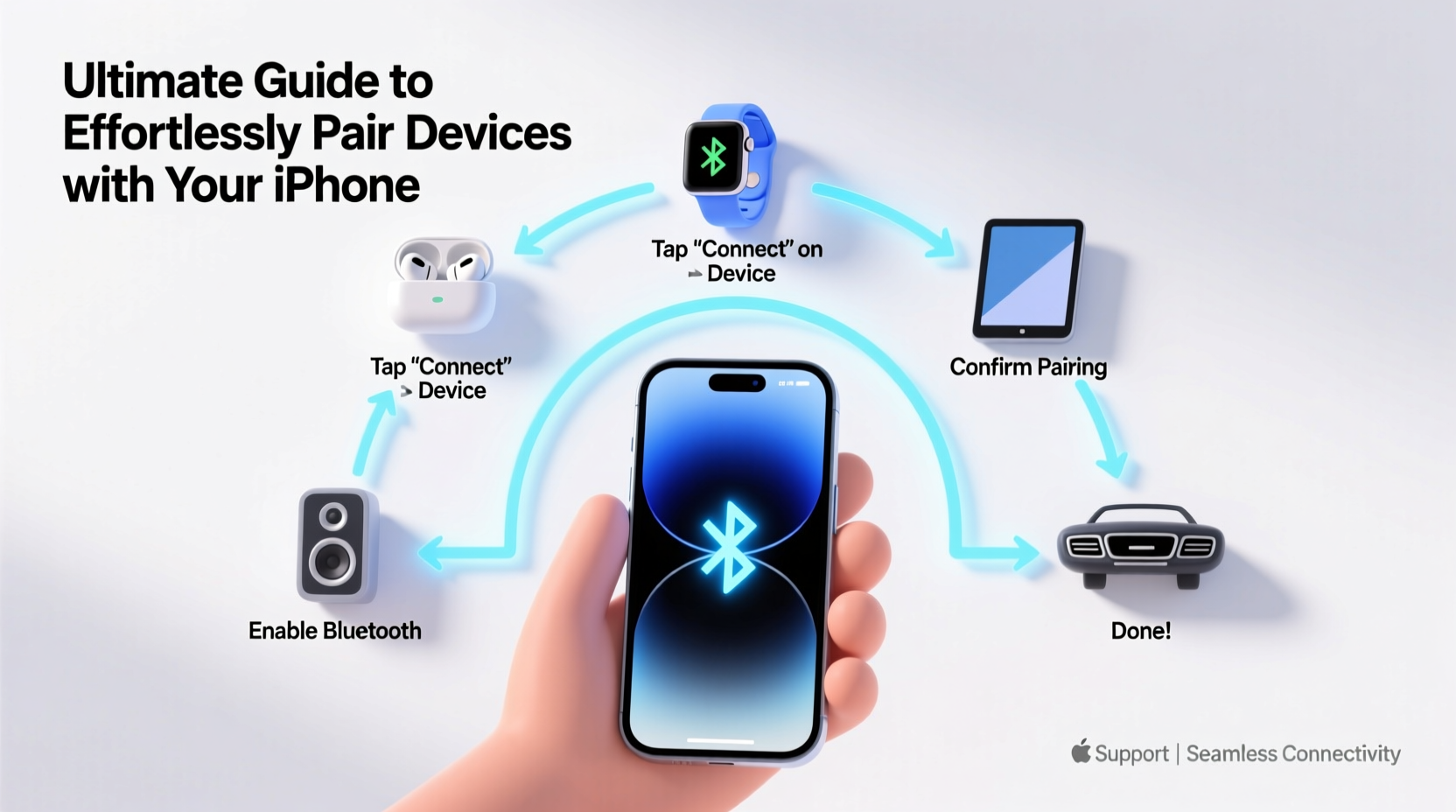
Your iPhone supports multiple wireless technologies, each designed for specific use cases. Knowing which protocol to use—and when—can save time and prevent frustration.
| Technology | Best For | Range | Key Notes |
|---|---|---|---|
| Bluetooth | Earbuds, speakers, keyboards | ~30 feet | Low energy usage; ideal for audio and input devices |
| Wi-Fi | Printers, smart home hubs, file sharing | ~100 feet indoors | Required for cloud syncing and remote access |
| AirPlay | Streaming to Apple TV, AirPlay-compatible displays | Same network required | Uses Wi-Fi, not Bluetooth |
| NFC | Contactless payments (Apple Pay), Quick Tags | Touch distance | Limited to reading tags or payment terminals |
| Ultra Wideband (UWB) | Precise location tracking (AirTags, Find My) | Very short range, high accuracy | Available on iPhone 11 and later |
Most consumer device pairing relies on Bluetooth and Wi-Fi. AirPlay enhances media experiences, while UWB enables spatial awareness for locating items. Understanding these distinctions helps you troubleshoot faster and choose compatible accessories wisely.
Step-by-Step Guide to Pairing Common Devices
Whether it’s your first time connecting AirPods or setting up a new smart light bulb, following a consistent process reduces errors and improves success rates.
- Ensure your iPhone is unlocked and near the device. Proximity matters—especially for Bluetooth and NFC-based setups.
- Enable Bluetooth in Settings > Bluetooth. Wait 10 seconds for nearby devices to appear.
- Put the accessory into pairing mode. Refer to its manual—this often involves pressing and holding a button until an LED blinks.
- Select the device name from the list under “Other Devices.” Tap to connect.
- Follow any on-screen prompts. Some devices may require app installation (e.g., Fitbit, Tile) or firmware updates.
- Test functionality immediately. Play audio through earbuds, send a print job, or trigger a smart plug.
For Wi-Fi-enabled smart home devices like cameras or thermostats, download the manufacturer’s app first. These apps typically guide you through network selection, password entry, and cloud registration—all while communicating directly with your iPhone via local Wi-Fi.
“Modern iOS makes device pairing intuitive, but user error during setup remains the top cause of failed connections.” — David Lin, Senior Mobile Engineer at Connected Living Labs
Optimizing Your Pairing Experience with Best Practices
Even with correct steps, poor habits can undermine reliability. Apply these strategies to maintain stable, automatic connections.
- Forget old or unused devices. Go to Settings > Bluetooth, tap the (i) icon next to inactive devices, and select \"Forget This Device\" to free up resources.
- Update iOS regularly. New versions often include Bluetooth stack improvements and security patches that enhance compatibility.
- Restart both devices if pairing fails. A soft reset clears temporary glitches in wireless modules.
- Use iCloud-synced accessories when possible. Devices like AirPods automatically appear across your Apple ID-linked devices thanks to H1/W1 chips.
- Check power sources. Low battery on either the iPhone or peripheral can disrupt handshake signals.
Checklist: Before You Pair Any Device
- ✅ Charge both iPhone and accessory above 50%
- ✅ Turn on Bluetooth/Wi-Fi as needed
- ✅ Disable airplane mode
- ✅ Confirm device is in pairing mode
- ✅ Close unnecessary background apps
- ✅ Have passwords ready for Wi-Fi-dependent gadgets
Real-World Example: Setting Up a Morning Routine Ecosystem
Sophia, a busy marketing executive in Seattle, wanted her home to respond intelligently to her morning routine. She paired her iPhone with several devices to automate her start to the day:
- Connected her AirPods Pro via Bluetooth for instant podcast playback upon waking.
- Linked her iPhone to a Philips Hue bridge over Wi-Fi, enabling sunrise simulation lighting through the Hue app.
- Paired her iPhone with her Nissan Leaf via CarPlay so navigation launched automatically when she entered the vehicle.
- Used Shortcuts app to create a “Good Morning” automation: triggered by alarm off, it turns on lights, reads weather, and starts coffee maker via a smart plug.
The entire system works because each component was properly paired and authenticated through her iPhone. When she forgot to charge her AirPods one night, the audio defaulted to her bedside HomePod—a failover made possible by seamless integration within the Apple ecosystem.
Troubleshooting Common Pairing Issues
Even experienced users encounter hiccups. Here are frequent problems and how to resolve them quickly.
| Issue | Root Cause | Solution |
|---|---|---|
| Device not showing in Bluetooth list | Not in pairing mode or out of range | Reset accessory, move closer, restart iPhone Bluetooth |
| Connection drops frequently | Interference or outdated firmware | Move away from microwaves/routers; update device firmware via its app |
| Paired but no sound from headphones | Audio output not selected | Open Control Center > long-press audio card > choose correct output |
| Smart home device won’t join Wi-Fi | 2.4 GHz vs. 5 GHz mismatch | Ensure router broadcasts 2.4 GHz band; most IoT devices don't support 5 GHz |
FAQ: Common Questions About iPhone Device Pairing
Can I pair multiple Bluetooth devices at once?
Yes, iOS supports concurrent connections to several Bluetooth devices, such as headphones, a keyboard, and a fitness tracker. However, only one audio output device can be active at a time unless using audio sharing features available with AirPods and select Beats models.
Why does my smartwatch disconnect randomly?
This often occurs when Background App Refresh is limited or when Wi-Fi/Bluetooth toggles are restricted. Ensure the companion app (like Watch app) has permission to refresh in the background under Settings > General > Background App Refresh. Also, disable Low Power Mode if constant syncing is essential.
How do I share a paired device with family members?
iOS allows sharing of certain accessories—like AirPods or HomeKit-enabled locks—via Family Sharing. Open the Find My or Home app, select the device, tap “Share Access,” and invite contacts from your family group. They’ll receive setup instructions directly.
Conclusion: Build a Smarter, Simpler Connected Life
Your iPhone is designed to simplify complexity, not add to it. By mastering the fundamentals of device pairing—knowing which technology to use, following reliable setup sequences, and maintaining clean connection hygiene—you unlock a responsive, intelligent environment tailored to your lifestyle. Whether you're streaming music, controlling your home, or staying productive on the go, seamless connectivity starts with deliberate, informed pairing. Take control of your digital ecosystem today. Review your current connections, remove clutter, and embrace the effortless experience your iPhone was built to deliver.




 浙公网安备
33010002000092号
浙公网安备
33010002000092号 浙B2-20120091-4
Comments
No comments yet. Why don't you start the discussion?