
Apple CarPlay transforms your daily drive into a smarter, safer experience by bringing your iPhone’s most essential features directly onto your car’s infotainment screen. Whether you’re navigating unfamiliar roads, taking hands-free calls, or listening to your favorite playlist, CarPlay streamlines access without compromising safety. While many newer vehicles come with built-in support, millions of drivers still own cars that didn’t ship with this technology. The good news: you can enable Apple CarPlay in almost any vehicle—wired or wirelessly—with the right tools and know-how.
Understanding Apple CarPlay Compatibility
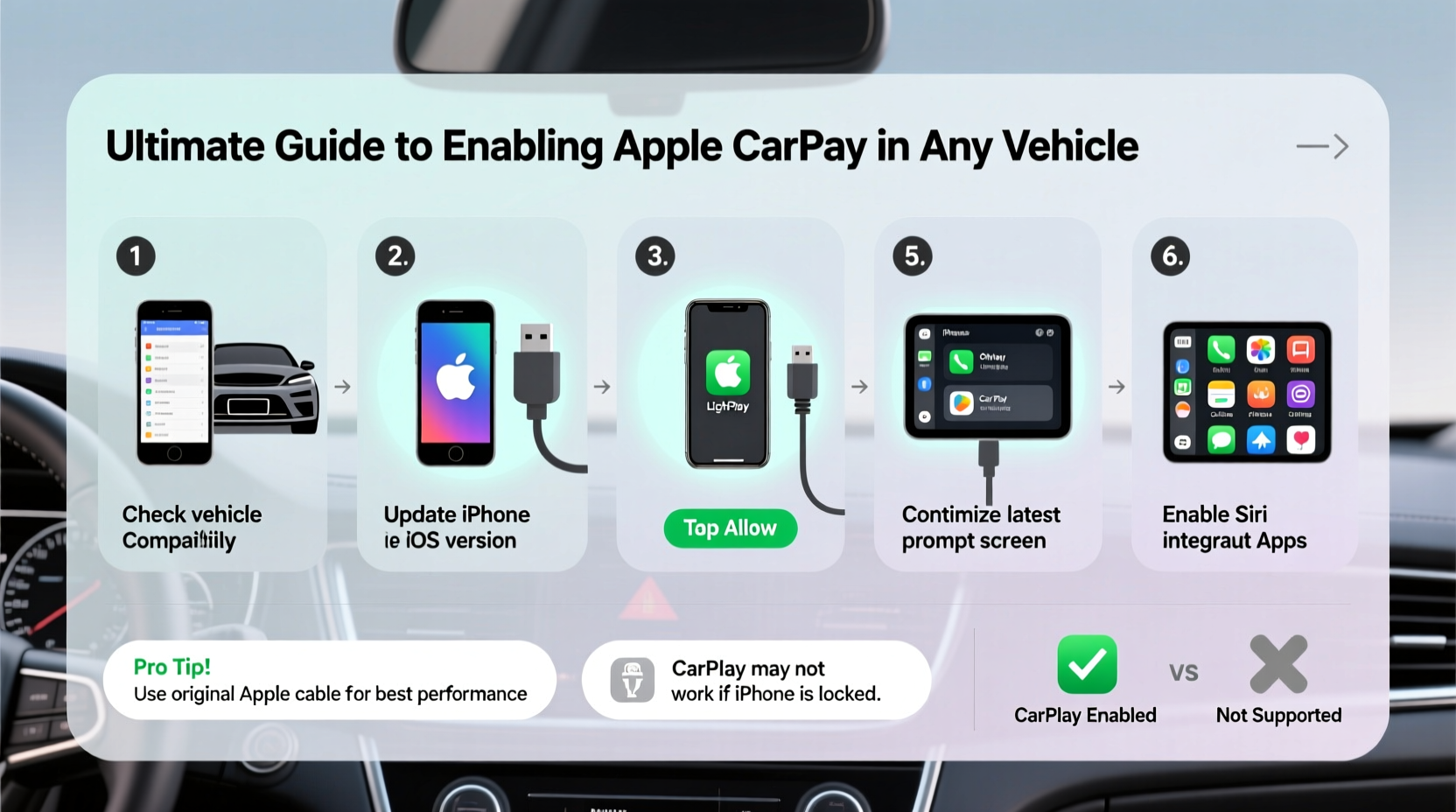
Before diving into installation, confirm whether your vehicle and iPhone are compatible. CarPlay requires an iPhone 5 or later running iOS 7.1 or higher. Most modern iPhones (iPhone SE and later models) support both wired and wireless CarPlay, though wireless functionality depends on the car’s hardware or aftermarket system.
For the vehicle side, check if your car’s factory head unit supports CarPlay. Many manufacturers have added support since 2016, including Honda, Toyota, Ford, BMW, and Hyundai. If your car lacks native support, don’t worry—aftermarket solutions make retrofitting straightforward.
Step-by-Step Guide to Enabling Apple CarPlay
Follow this structured process to get CarPlay working in your vehicle, regardless of its age or original tech package.
- Check Your iPhone Settings: Ensure Bluetooth and Wi-Fi are enabled. Go to Settings > General > CarPlay and confirm no existing connections are blocking new setups.
- Determine Connection Type: Decide between wired (USB) or wireless CarPlay. Wired works universally; wireless requires specific hardware.
- Inspect Your Vehicle’s Infotainment System: Turn on your car and navigate to the home screen. Look for a “CarPlay” or “Apple” icon. If present, proceed to pairing. If not, consider upgrading your head unit.
- Connect via USB (Wired Setup): Use an Apple-certified Lightning cable to plug your iPhone into the car’s primary USB port—usually labeled with a smartphone icon.
- Approve Connection on Screen: A prompt will appear asking to connect to CarPlay. Tap “Use CarPlay.” You may choose “Always Enable” to skip future prompts.
- For Wireless CarPlay: Press and hold the voice command button on your steering wheel or tap “Connect iPhone” on-screen. Make sure your iPhone is unlocked and within range. Select your car from the Bluetooth list and follow pairing instructions.
- Test Core Functions: Launch Maps, make a test call using Siri, and play music through Spotify or Apple Music to ensure full functionality.
Aftermarket Head Units: Bringing CarPlay to Older Cars
If your car predates CarPlay integration, installing an aftermarket stereo is the most reliable upgrade path. Brands like Pioneer, Kenwood, and Sony offer double-DIN units with full CarPlay (and often Android Auto) support.
Installation typically involves removing the factory radio, connecting a wiring harness adapter, and mounting the new unit. While DIY is possible with basic tools, professional installation ensures clean integration and avoids damaging airbag systems or dash components.
| Head Unit Model | CarPlay Support | Wireless Option | Estimated Cost |
|---|---|---|---|
| Pioneer DMH-W2770NEX | Yes (wired) | No | $400 |
| Sony XAV-AX6000 | Yes (wired) | No | $380 |
| Kenwood DDX9705S | Yes | Yes | $600 |
| Pioneer AVH-A1680FHD | Yes | Yes | $700 |
Maximizing CarPlay Performance: Tips and Best Practices
Once CarPlay is active, optimize usage for smoother performance and enhanced safety.
- Use Siri Hands-Free: Activate with “Hey Siri” or the steering wheel button. This minimizes distraction while sending messages, changing routes, or adjusting volume.
- Keep iOS Updated: New iOS versions often include CarPlay improvements, bug fixes, and security patches.
- Minimize Background Apps: Close unused apps before driving to reduce lag and improve connection stability.
- Charge Strategically: Use a high-amperage USB port or add a 12V charger to prevent battery drain during long trips.
- Customize Your Home Screen: In Settings > General > CarPlay, rearrange frequently used apps like Waze, Podcasts, or Audible for quicker access.
“CarPlay isn’t just about convenience—it’s a proven tool for reducing cognitive distraction. When drivers interact with their phones through voice commands and large touch targets, reaction times improve significantly.” — Dr. Linda Chen, Human Factors Researcher at MIT Transportation Lab
Real-World Example: Upgrading a 2012 Honda Civic
Mark, a rideshare driver in Denver, owned a 2012 Honda Civic with a basic CD player and no smartphone integration. Constantly switching between GPS and music apps on his phone became dangerous and inefficient. After researching options, he purchased a Pioneer DMH-W2770NEX with CarPlay support.
He booked a $75 installation at a local car audio shop. Within two hours, his dashboard was upgraded. Now, Mark uses Siri to accept ride requests, navigates via Apple Maps with real-time traffic updates, and streams music—all without touching his phone. His passenger ratings improved, and he reports feeling less fatigued after long shifts.
Common Issues and Troubleshooting
Even with proper setup, users occasionally face hiccups. Here’s how to resolve them quickly.
CarPlay Doesn’t Appear After Connecting
First, restart both your iPhone and the car’s infotainment system. Try a different USB cable—many third-party cables fail to support data transfer. Also, disable Low Power Mode, which can interfere with CarPlay initialization.
Audio Drops During Navigation
This often occurs when another app interrupts the audio channel. Close background apps and set Maps as the default navigation provider in iPhone Settings > Maps > Default App.
Wireless CarPlay Fails to Connect
Ensure your car’s firmware is up to date. Reset network settings on your iPhone (Settings > General > Transfer or Reset iPhone > Reset > Reset Network Settings). Then re-pair Bluetooth and Wi-Fi networks manually.
FAQ: Apple CarPlay Essentials
Can I use CarPlay without a USB cable?
Yes, but only if both your iPhone and car (or aftermarket head unit) support wireless CarPlay. Most factory systems released before 2020 require a wired connection.
Does CarPlay use my phone’s data plan?
Yes. Any feature requiring internet—like Maps, streaming music, or web searches via Siri—uses your iPhone’s cellular data unless connected to Wi-Fi. Consider using unlimited data plans or downloading offline maps to conserve bandwidth.
Will CarPlay work with multiple iPhones?
Absolutely. Most systems allow pairing with several devices. When a new iPhone connects, the car will prompt you to enable CarPlay. Each user can save personalized app layouts and preferences.
Final Checklist Before Driving
Before hitting the road, run through this quick verification list:
- ✅ iPhone charged above 50%
- ✅ Certified Lightning cable (for wired)
- ✅ Bluetooth and Wi-Fi enabled
- ✅ CarPlay permission granted on first connection
- ✅ Voice commands tested successfully
- ✅ Preferred apps arranged on CarPlay home screen
- ✅ Emergency contacts synced for hands-free calling
Drive Smarter Today
Enabling Apple CarPlay is one of the most impactful upgrades you can make to an older or tech-limited vehicle. It enhances safety, simplifies navigation, and keeps you connected without compromising focus on the road. Whether through a simple cable connection or a full head unit replacement, the investment pays off in convenience, efficiency, and peace of mind.




 浙公网安备
33010002000092号
浙公网安备
33010002000092号 浙B2-20120091-4
Comments
No comments yet. Why don't you start the discussion?