
Dark mode has evolved from a niche preference to a mainstream necessity. With its sleek aesthetics, reduced eye strain, and potential battery savings—especially on OLED screens—users increasingly demand darker interfaces across digital platforms. Among the most frequently used services, Google stands out, offering search, Gmail, YouTube, and more. However, achieving a true black background across Google’s ecosystem requires more than a single toggle. This comprehensive guide walks you through every method available to enable dark mode on Google services with a genuine black background, tailored for desktops, mobile devices, and specific browsers.
Why Dark Mode Matters: Beyond Aesthetics
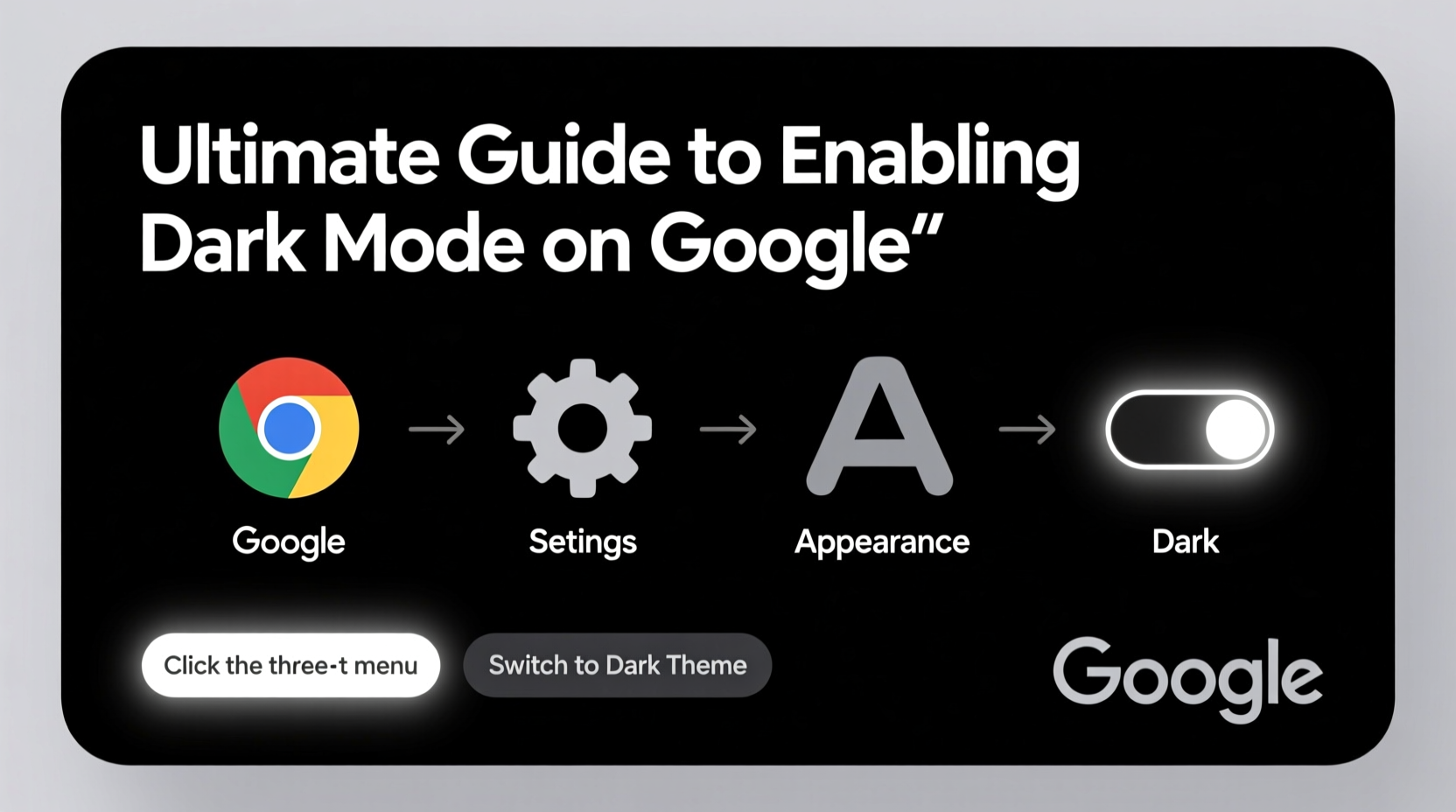
While many adopt dark mode for its modern look, the benefits extend deeper. Studies suggest that dark interfaces reduce blue light exposure, which may improve sleep quality when using devices at night. On smartphones with OLED or AMOLED displays, true black pixels are turned off entirely, resulting in real power savings. For example, Google reported up to 60% lower screen energy use on Pixel devices when displaying predominantly black content.
“Dark mode isn’t just about comfort—it’s an accessibility feature and an efficiency tool.” — Dr. Lena Torres, Human-Computer Interaction Researcher, MIT Media Lab
However, not all dark modes are created equal. Some merely dim colors without switching to pure black. The goal here is to achieve a consistent, deep black background across Google Search, Google Chrome, and related services like Gmail and YouTube.
How to Enable Dark Mode on Google Search
Google Search itself doesn’t offer a standalone dark mode setting. Instead, it inherits the theme from your device or browser. Here’s how to ensure Google Search appears with a black background:
On Desktop (Windows/macOS)
- Open Google Chrome and sign into your Google account.
- Navigate to google.com.
- Click the “Settings” link below the search bar, then select “Search settings.”
- Scroll to the “Appearance” section and click “Themes.”
- Select “Dark” under Theme options.
This changes the Google homepage and results page to dark gray, but not pure black. For a true black background, additional steps are required.
On Android Devices
- Open the Google app.
- Tap your profile picture or initial in the top-right corner.
- Go to “Settings” > “General” > “Theme.”
- Select “Dark” or “System default” if your phone is already in dark mode.
When enabled, Google Search will display with a dark background. On phones with OLED screens, set your wallpaper to black and ensure system-wide dark mode is active to maximize battery efficiency.
On iPhone/iPad
- Open the Google app.
- Tap your profile icon > “Settings” > “General.”
- Choose “Dark” under Theme.
iOS users should also enable System Dark Mode in Settings > Display & Brightness to maintain consistency across apps.
Forcing True Black: Browser-Level Customization
Google’s native dark mode uses dark gray (#181818), not pure black (#000000). To achieve a true black background, especially on OLED screens, consider these advanced methods.
Using Chrome Extensions
Extensions like **Dark Reader** or **Midnight Lizard** allow granular control over website appearance. These tools invert colors, adjust contrast, and can be configured to render Google pages with pure black backgrounds.
- Dark Reader
- Available on Chrome, Firefox, Edge. Offers dynamic theming, brightness control, and grayscale options.
- Midnight Lizard
- Highly customizable color schemes. You can manually set background to #000000 and text to white.
| Extension | True Black Support | Customization Level | Best For |
|---|---|---|---|
| Dark Reader | Yes (via Filter Settings) | High | Beginners & power users |
| Midnight Lizard | Yes (manual RGB input) | Very High | Advanced customization |
| Stylus | Yes (with custom CSS) | Extreme | Developers |
Applying Custom CSS via Stylus
For maximum control, install the Stylus extension and apply custom CSS to Google domains:
@-moz-document domain(\"google.com\") {
  body, #gsr, .hp, .kno-fv {
    background-color: #000000 !important;
    color: #ffffff !important;
  }
  img { filter: brightness(0.8) !important; }
}
This code forces all Google pages to use pure black backgrounds and adjusts image brightness to maintain visibility.
System-Wide Integration Across Google Services
Dark mode on Google Search works best when synchronized with other Google products. Ensure consistency by aligning settings across platforms.
Gmail, YouTube, and Google Drive
- Gmail: Click the gear icon > “Display density” > “Themes” > “Dark.”
- YouTube: Tap your profile > “Appearance” > “Dark theme.”
- Google Drive: No direct setting, but follows system/browser theme.
Enabling dark mode in one service often prompts others to follow suit, especially when signed into the same account.
Android System Dark Mode Sync
Modern Android versions (10+) support global dark mode. When enabled:
- Google apps automatically switch to dark themes.
- OLED screens benefit from true black pixel deactivation.
- Battery usage drops noticeably during extended use.
“I noticed my Pixel 7 lasted nearly two hours longer on a single charge after switching to full dark mode across Google apps.” — Mark T., UX Designer, San Francisco
Checklist: Achieving Full Black Background on Google
Follow this checklist to ensure every part of your Google experience uses a true black background:
- ✅ Enable system dark mode on your device (Android/iOS/Windows/macOS).
- ✅ Set Google app theme to “Dark” in settings.
- ✅ Install Dark Reader or Midnight Lizard in your browser.
- ✅ Configure extension to use pure black (#000000) background.
- ✅ Apply custom CSS via Stylus for permanent override (optional).
- ✅ Verify appearance on Google Search, Gmail, and YouTube.
- ✅ Test on OLED screen to confirm pixel-level black rendering.
Frequently Asked Questions
Does Google Search support true black backgrounds natively?
No. Google’s built-in dark mode uses dark gray (#181818). To achieve true black (#000000), you must use third-party tools like Dark Reader or custom CSS.
Can I automate dark mode based on time of day?
Yes. On Android, go to Settings > Display > Dark theme scheduling. On desktop, use Chrome extensions with scheduling features or OS-level automation (e.g., Windows Night Light or macOS Dark Mode on sunset).
Will forcing dark mode affect Google’s functionality?
Rarely. Most dark mode tools work at the visual layer and don’t interfere with search algorithms or account syncing. However, poorly coded extensions might slow down page loading. Stick to trusted tools like Dark Reader or official Google settings.
Final Thoughts: Optimize for Comfort and Efficiency
Enabling dark mode on Google with a black background is more than a visual upgrade—it’s a strategic move toward better eye health, improved focus, and extended battery life. While Google’s default implementation stops short of true black, the combination of system settings, browser extensions, and custom styling closes the gap effectively. Whether you’re browsing late at night or conserving power on a long commute, a fully optimized dark interface enhances every interaction with Google’s ecosystem.




 浙公网安备
33010002000092号
浙公网安备
33010002000092号 浙B2-20120091-4
Comments
No comments yet. Why don't you start the discussion?