
Disney Plus has become a cornerstone of modern streaming, offering an expansive library of beloved classics, original series, Pixar films, Marvel epics, Star Wars sagas, and National Geographic documentaries. Whether you're setting up your first subscription or expanding access for your household, navigating the platform’s sign-up process and device integration can be smoother with the right guidance. This comprehensive resource walks through every step—from registration to multi-device access—ensuring you get the most out of your Disney Plus experience without technical hiccups.
Step-by-Step Guide to Signing Up for Disney Plus
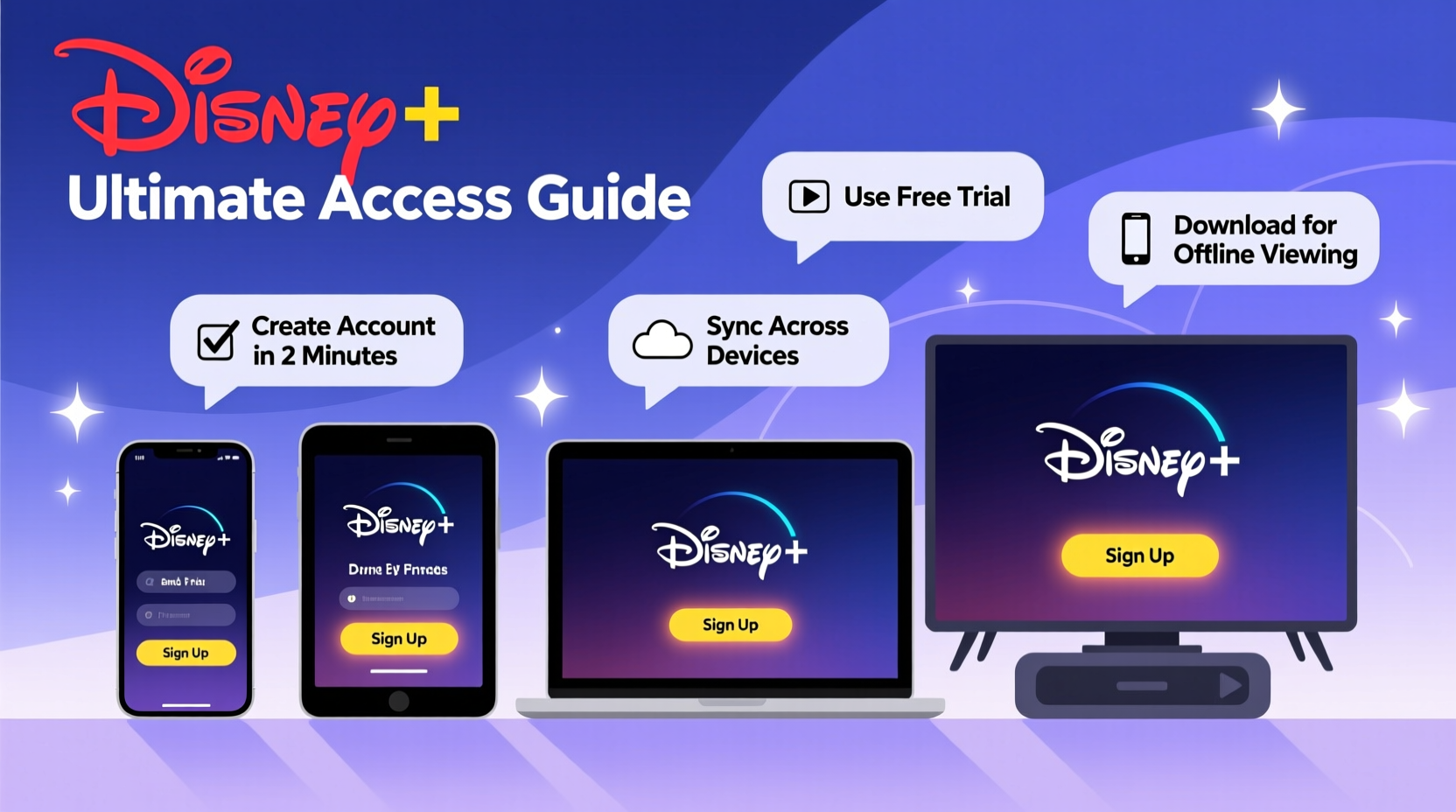
Creating a Disney Plus account is straightforward, but knowing what to expect helps avoid delays or errors. Follow this timeline to complete your sign-up efficiently:
- Visit the official website: Go to disneyplus.com from any browser on your computer, tablet, or smartphone.
- Select a plan: Choose between the ad-supported plan (lower cost) or the ad-free premium tier. Pricing varies by region, so confirm your local options.
- Create an account: Enter your email address, create a strong password, and provide your date of birth. Disney enforces age verification to comply with data privacy laws.
- Add payment information: Input a valid credit card, debit card, or use supported digital wallets like PayPal or Apple Pay.
- Verify your identity: You’ll receive a confirmation email. Click the link to activate your account.
- Set up your profile: After logging in, customize profiles for each household member, including child-friendly restrictions.
Accessing Disney Plus Across Devices: What Works Where?
One of Disney Plus’s strengths is its broad device compatibility. Once signed up, you can stream on nearly any screen in your home or on the go. Below is a comparison of supported platforms and key considerations for each.
| Device Type | App Available? | Max Streams | Offline Viewing? |
|---|---|---|---|
| Smart TVs (Samsung, LG, Vizio, etc.) | Yes – via built-in app store | 4 simultaneous streams | No |
| Streaming Sticks (Roku, Fire Stick, Chromecast) | Yes – download Disney+ app | 4 | No |
| iOS & Android Phones/Tablets | Yes – App Store / Google Play | 4 | Yes – download eligible titles |
| Gaming Consoles (PlayStation, Xbox) | Yes – via console marketplace | 4 | No |
| Web Browser (Chrome, Safari, Firefox) | Yes – direct login at disneyplus.com | 4 | No |
| Apple TV (4th gen and later) | Yes – tvOS app | 4 | No |
Disney Plus allows up to four concurrent streams per subscription, making it ideal for families or roommates. Each account also supports up to seven unique profiles, enabling personalized recommendations and viewing histories.
How to Install Disney Plus on Your Devices
The installation process varies slightly depending on your device, but the general steps are consistent:
- Navigate to your device’s app store (e.g., Roku Channel Store, Google Play, Apple App Store).
- Search for “Disney Plus” using the search function.
- Download and install the official app (ensure it’s published by Disney).
- Open the app and sign in with your credentials.
- Begin browsing or resume watching from your last session.
Optimizing Your Streaming Experience
Even with a successful sign-up and device setup, suboptimal internet speed or misconfigured settings can degrade video quality. To ensure smooth 4K HDR streaming where available, follow these best practices:
- Maintain a minimum internet speed of 5 Mbps for HD and 25 Mbps for 4K Ultra HD.
- Use a wired Ethernet connection when possible, especially for smart TVs or gaming consoles.
- Adjust playback settings under “Account > App Settings > Video Quality” to balance data usage and clarity.
- Enable downloads over Wi-Fi only if you’re using a mobile device with limited storage.
“Streaming reliability starts with network stability. A strong, consistent connection is more important than raw speed.” — Raj Patel, Senior Streaming Engineer at Broadband Insights Group
Real-World Example: The Thompson Family Setup
The Thompsons, a family of five in Austin, Texas, wanted seamless access to Disney Plus across multiple devices. Dad streams Marvel shows on his iPad during commutes, the twins watch animated films on their tablets before bedtime, and parents enjoy Star Wars series on their Samsung Smart TV.
They initially faced issues when all four streams were used simultaneously—until they realized one profile was logged in on an old Fire Stick no longer in use. By signing out of inactive devices under “Manage Devices” in their account settings, they freed up bandwidth and restored full functionality.
Additionally, they enabled parental controls on the children’s profiles, restricting mature content under the Star hub. This small adjustment gave them peace of mind while allowing kids independent access.
Essential Checklist Before You Start
Before activating your subscription, run through this quick checklist to prevent common issues:
- ✅ Confirm your email is active and accessible for verification.
- ✅ Ensure your payment method is valid and not linked to another Disney account.
- ✅ Check device compatibility using the official support page.
- ✅ Note your chosen password in a secure password manager.
- ✅ Review regional content availability—some titles vary by country.
- ✅ Set up profiles early to personalize viewing experiences.
Frequently Asked Questions
Can I share my Disney Plus account with relatives abroad?
While Disney Plus allows account sharing within a single household, international sharing may trigger location-based restrictions. Content libraries differ by region, and prolonged use outside your registered country might require re-verification or result in access blocks due to licensing agreements.
Why won’t Disney Plus load on my smart TV?
This issue often stems from outdated firmware or cached data. Try uninstalling and reinstalling the app, restarting your router, or checking for system updates in your TV’s settings menu. If problems persist, log in via a web browser to verify your account status.
Is offline viewing available on all devices?
No. Offline downloads are only supported on iOS and Android mobile apps. You cannot download content for offline viewing on smart TVs, gaming consoles, or desktop browsers.
Final Tips for Long-Term Success
Managing a Disney Plus subscription goes beyond initial setup. Regularly audit connected devices, update passwords annually, and explore new features like group watch parties or audio description tracks for accessibility. Subscribers should also monitor billing dates and take advantage of promotional bundles—such as those with Hulu and ESPN+ in the U.S.—to maximize value.
Disney frequently updates its interface and adds new content, so staying informed through their official blog or customer support portal ensures you never miss a feature upgrade or exclusive release.




 浙公网安备
33010002000092号
浙公网安备
33010002000092号 浙B2-20120091-4
Comments
No comments yet. Why don't you start the discussion?