
Random Access Memory (RAM) is one of the most critical components in determining how smoothly your computer runs. Whether you're editing videos, gaming, or simply multitasking across multiple browser tabs, insufficient or poorly configured RAM can bring even a high-end system to its knees. Yet, many users treat RAM as a mysterious number on a spec sheet rather than a tunable resource that directly impacts daily performance. Understanding what kind of RAM your PC uses—and how to optimize it—can unlock noticeable speed improvements without costly hardware overhauls.
Why RAM Matters More Than You Think
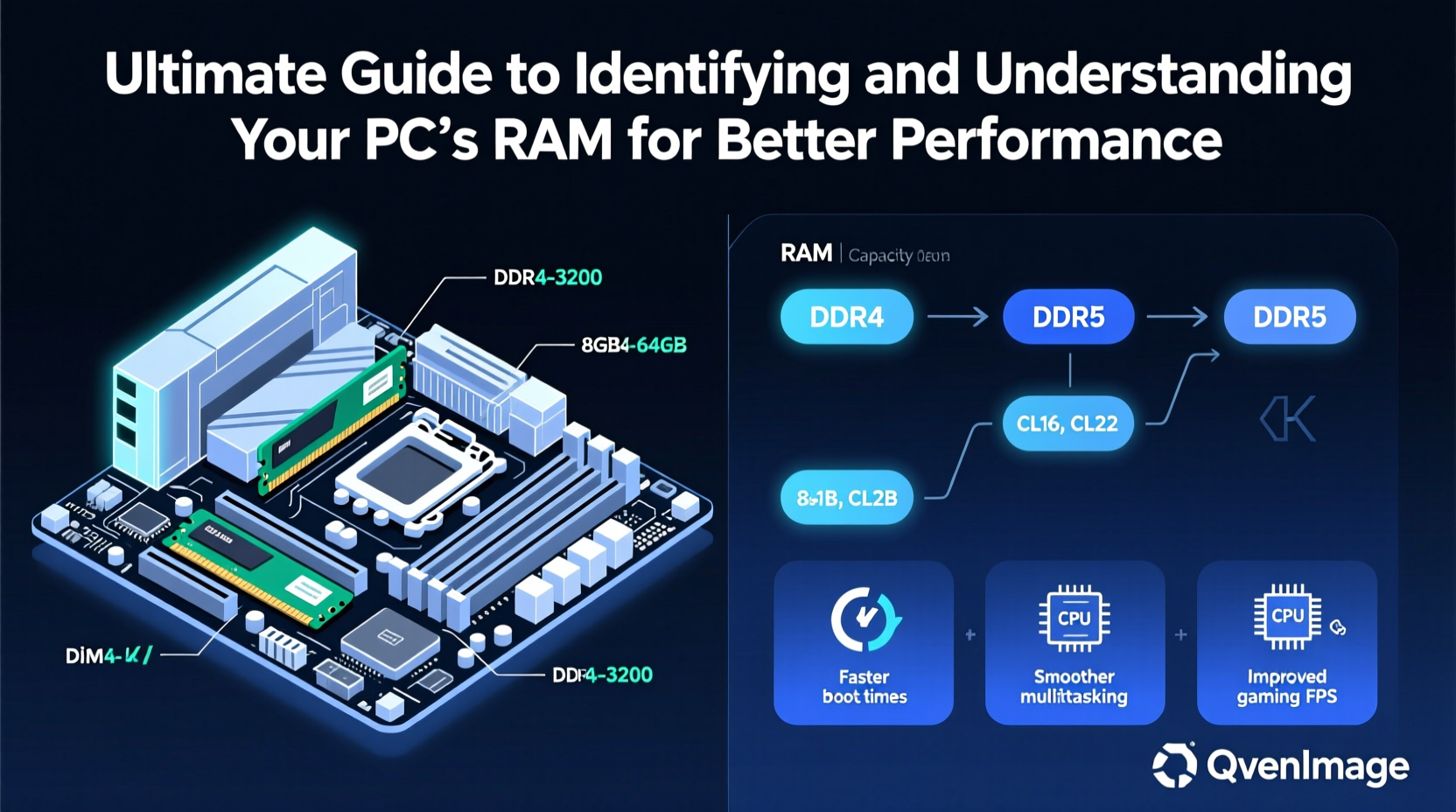
RAM acts as your computer’s short-term memory. While your SSD or hard drive stores data permanently, RAM holds active programs, files, and operating system processes so the CPU can access them instantly. When RAM fills up, your system starts using slower virtual memory from the storage drive, leading to lag, stuttering, and long load times.
The amount of RAM matters, but so do its type, speed, latency, and configuration. Two systems with 16GB of RAM can perform drastically differently based on these factors. For example, DDR4-3200 RAM with tight timings will outperform DDR4-2400 with looser settings—even if both are used in identical configurations.
How to Identify Your Current RAM Configuration
Before upgrading or optimizing, you must know exactly what RAM is installed. Here’s how to find it across different platforms:
- Windows Task Manager: Press Ctrl + Shift + Esc, go to the “Performance” tab, click “Memory,” and view capacity, speed, form factor (DIMM/SO-DIMM), and slot usage.
- Command Line (WMIC): Open Command Prompt and type
wmic memorychip get capacity,speed,devicelocator,partnumberfor detailed module specs. - CPU-Z: A free third-party tool that displays real-time RAM frequency, timings, voltage, and SPD (Serial Presence Detect) data for each stick.
- macOS System Report: Click Apple logo > About This Mac > System Report > Memory to see size, type, speed, and slot configuration.
- Linux Terminal: Use
sudo dmidecode --type memoryorlshw -short -C memoryto retrieve comprehensive RAM details.
These tools reveal not just how much RAM you have, but also whether it’s running at advertised speeds (XMP/DOCP enabled?), how many slots are occupied, and if modules are mismatched—a common cause of instability and reduced bandwidth.
Understanding RAM Types, Speeds, and Timings
Not all RAM is interchangeable. Choosing the wrong type can render your upgrade useless—or worse, prevent your system from booting. Key specifications include:
- Generation: DDR3, DDR4, DDR5—each has different voltage requirements and physical notches. DDR5 offers higher bandwidth and efficiency but requires compatible motherboards and CPUs.
- Speed (MHz): Measured in MT/s (MegaTransfers per second). DDR4-3200 operates at 3200 MT/s; DDR5-5600 at 5600 MT/s. Higher speed improves data throughput.
- Timings: Represented as four numbers (e.g., CL16-18-18-36). Lower primary latency (CL) means faster response time, though speed often outweighs timing differences.
- Voltage: DDR4 typically runs at 1.2V (1.35V for XMP); DDR5 at 1.1V. Exceeding safe voltages risks damaging the memory controller.
| Type | Typical Speed Range | Voltage | Max Theoretical Bandwidth (per channel) |
|---|---|---|---|
| DDR3 | 800–2133 MT/s | 1.5V (1.35V low-voltage) | 17 GB/s |
| DDR4 | 2133–3200 MT/s (overclocked up to 4800+) | 1.2V (1.35V XMP) | 25.6 GB/s |
| DDR5 | 4800–8400+ MT/s | 1.1V | 76.8 GB/s |
“Memory bandwidth is increasingly becoming a bottleneck in modern applications. Upgrading from DDR4-2666 to DDR4-3600 can yield up to 18% improvement in gaming frame rates and rendering tasks.” — Dr. Alan Zhou, Hardware Systems Engineer at TechInsight Labs
Step-by-Step Guide to Upgrading and Optimizing RAM
Upgrading RAM isn’t just about buying more sticks—it’s about making informed decisions that align with your motherboard, CPU, and workload. Follow this sequence:
- Determine compatibility: Check your motherboard manual or manufacturer’s website for supported RAM type, maximum capacity, and QVL (Qualified Vendor List).
- Evaluate current usage: Monitor RAM utilization via Task Manager or Resource Monitor. Consistently exceeding 80% usage indicates a need for more memory.
- Choose matching modules: For dual-channel performance, use identical sticks (same brand, speed, timings). Mixing sizes is acceptable, but avoid mixing speeds unless necessary.
- Install correctly: Align the notch on the RAM stick with the slot, apply even pressure until clips snap into place. Refer to your motherboard’s manual for optimal DIMM layout (usually A2/B2 for dual-channel).
- Enable XMP/DOCP: Enter BIOS/UEFI after installation and enable XMP (Intel) or DOCP (AMD) profiles to run RAM at rated speed instead of default JEDEC settings.
- Test stability: Run MemTest86 or Windows Memory Diagnostic to ensure no errors occur under load.
Real-World Example: Boosting Productivity in a Creative Studio
A small video editing team was experiencing constant lag in Adobe Premiere Pro when working with 4K timelines. Their workstations had 16GB of DDR4-2666 RAM in single-channel configuration. After analysis, they upgraded to 32GB (2x16GB) DDR4-3200 running in dual-channel mode and enabled XMP in BIOS.
The result? Timeline scrubbing became fluid, export times dropped by 22%, and background rendering no longer froze the interface. One editor noted, “It felt like we got new computers for half the price.” This case underscores that RAM optimization doesn’t always require doubling capacity—configuration and speed matter just as much.
Frequently Asked Questions
Can I mix different RAM sizes and speeds?
You can, but the system will default to the speed of the slowest stick, and dual-channel benefits may be reduced. Mismatched timings can also cause instability. For best results, use identical modules.
Is 16GB of RAM enough in 2024?
For general use and moderate gaming, yes. However, content creators, streamers, VM users, and those running large datasets should consider 32GB or more. Future-proofing with expandable slots is wise.
Does RAM speed affect gaming performance?
Yes, especially with AMD Ryzen processors, which rely heavily on memory bandwidth. Faster RAM can improve minimum frame rates and reduce stutters in CPU-bound titles. Intel systems benefit too, though less dramatically.
Optimization Checklist
- ✅ Check current RAM specs using Task Manager or CPU-Z
- ✅ Verify motherboard compatibility and available slots
- ✅ Monitor memory usage over time to assess needs
- ✅ Purchase matched pairs for dual-channel performance
- ✅ Install in correct slots (consult motherboard manual)
- ✅ Enable XMP/DOCP in BIOS for full speed
- ✅ Test system stability post-upgrade
- ✅ Keep BIOS updated to support newer RAM profiles
Final Thoughts: Make RAM Work for You
RAM is not a set-and-forget component. Its impact on responsiveness, multitasking, and application performance is profound. By taking the time to identify your current setup, understand technical specifications, and make informed upgrades, you gain control over one of the most influential aspects of your PC’s behavior. Whether you’re squeezing extra frames from a game or eliminating frustrating delays in creative software, optimizing your RAM delivers tangible returns.




 浙公网安备
33010002000092号
浙公网安备
33010002000092号 浙B2-20120091-4
Comments
No comments yet. Why don't you start the discussion?