
RGB lighting has transformed PC building from a purely functional endeavor into an expressive art form. Among the most visible and customizable components are RGB case fans—where performance meets visual flair. Mastering RGB fan light control isn’t just about making your system look good; it’s about creating a cohesive, responsive, and immersive experience that reflects your style and enhances your computing environment. Whether you're a beginner or a seasoned builder, understanding how to fully control and synchronize your RGB fans unlocks new levels of personalization.
Understanding RGB Fan Types and Connectivity
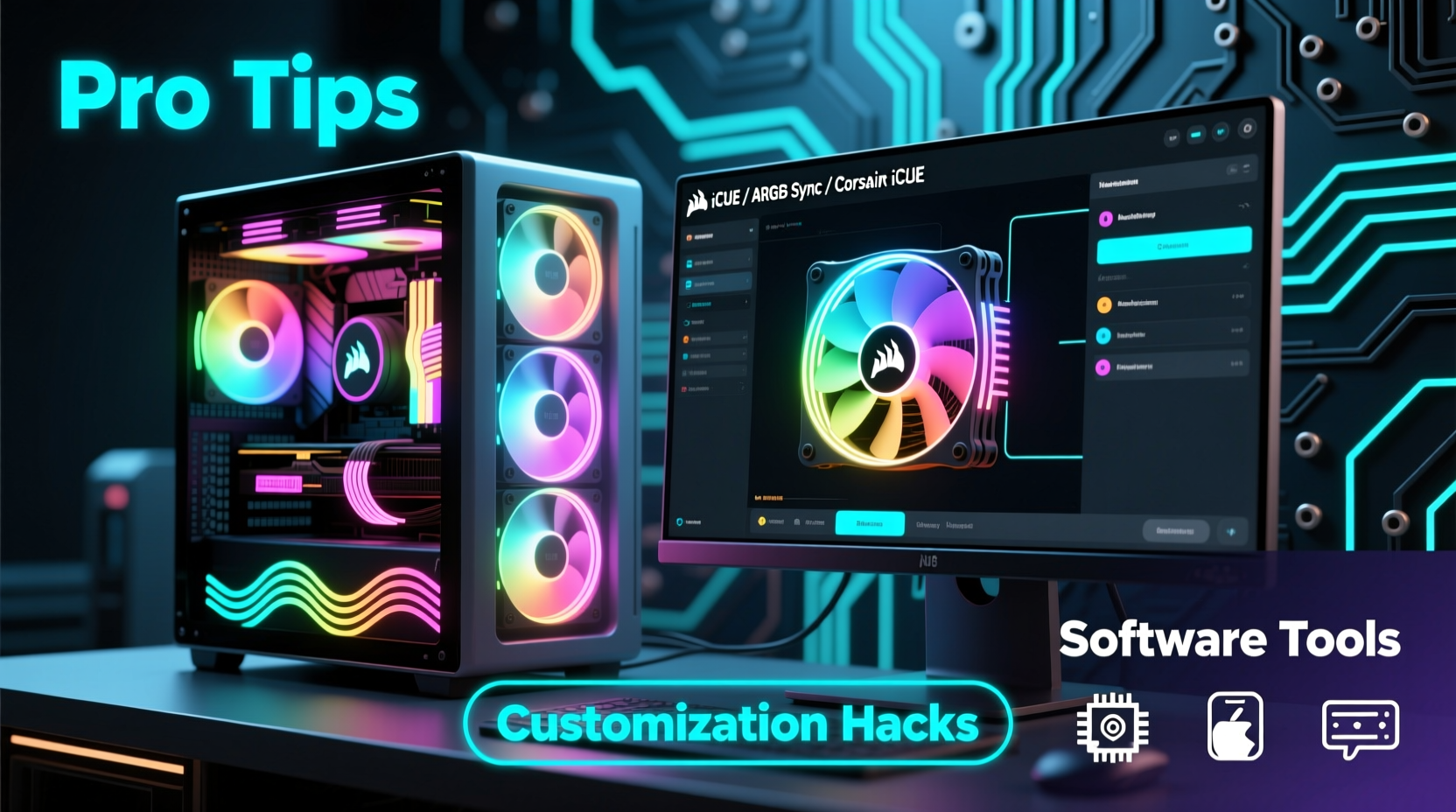
Before diving into software control, it's essential to understand the hardware foundation. Not all RGB fans work the same way, and compatibility is critical to achieving seamless lighting effects.
There are two primary types of RGB connectors used in modern fans:
- 3-pin 5V Addressable RGB (ARGB): Allows individual LED control on each fan, enabling complex animations like rainbow waves, sound synchronization, and per-LED effects. Must be connected to a compatible motherboard header or hub.
- 4-pin 12V RGB (non-addressable): Controls all LEDs on a fan as a single unit. Offers basic color shifts and brightness adjustments but lacks pixel-level precision.
Motherboards from brands like ASUS, MSI, Gigabyte, and ASRock include dedicated RGB headers labeled “ADDRGB” or “JRGB.” Always verify your motherboard’s specifications before purchasing fans to avoid compatibility issues.
Top Software Tools for RGB Fan Light Control
The real magic happens in software. Modern RGB ecosystems allow deep integration between fans, motherboards, and peripherals. Here are the leading platforms:
| Software | Best For | Key Features |
|---|---|---|
| ASUS Aura Sync | ASUS motherboard users | Synchronization across Aura-enabled devices, music-reactive lighting, temperature-based effects |
| MSI Mystic Light | MSI component owners | Supports over 16 million colors, scene saving, fan speed-lighting linkage |
| Gigabyte RGB Fusion | Gigabyte ecosystem | Customizable zones, DIY lighting patterns, mobile app support |
| Corsair iCUE | Corsair fans & coolers | Advanced scripting, sound visualization, multi-device syncing |
| Razer Chroma Studio | Razer peripheral integrators | Game-integrated lighting, reactive effects, macro triggers |
Many of these platforms now support cross-brand compatibility through standards like OpenRGB, which can unify control even when using mixed hardware. OpenRGB is especially useful for users who don’t want to be locked into a single manufacturer’s ecosystem.
“True customization begins where software meets hardware—being able to script lighting that responds to CPU load or audio input turns a static build into a living system.” — Jordan Lee, PC Modding Specialist
Step-by-Step Guide to Setting Up Custom RGB Lighting
Follow this sequence to achieve full control over your RGB fan lighting:
- Inventory Your Hardware: List all RGB components, noting connector types (3-pin ARGB or 4-pin 12V).
- Check Motherboard Headers: Locate available RGB and ARGB headers on your motherboard. Most boards offer 1–2 of each.
- Connect Fans Properly: Plug ARGB fans into 3-pin 5V headers, RGB fans into 4-pin 12V. Avoid mixing types on the same header.
- Install Manufacturer Software: Download the appropriate suite (e.g., iCUE for Corsair, Aura for ASUS).
- Detect and Name Devices: Launch the software and ensure all fans appear. Assign names like “Front Intake” or “Rear Exhaust” for clarity.
- Apply Lighting Effects: Choose from presets or create custom profiles. Test smooth transitions and responsiveness.
- Sync Across Devices: Enable ecosystem-wide sync if using multiple brands via OpenRGB or manufacturer bridges.
- Save and Set Default: Save your profile and set it to auto-load at startup.
Real-World Example: Transforming a Basic Build into a Visual Showcase
Consider Mark, a content creator building his first high-end streaming rig. He installed four 120mm ARGB fans—two at the front, two at the rear—but initially struggled with inconsistent lighting. The front fans pulsed red while the rears stayed static blue.
After checking connections, he realized he’d plugged ARGB fans into a 12V header, causing erratic behavior. He corrected the wiring, downloaded ASUS Aura Sync (his motherboard was an ROG Strix B650E-F), and assigned a “Network Pulse” effect that synced with his microphone input. Now, when he speaks during streams, the entire fan array pulses outward from the center—creating a striking visual cue that viewers love.
This transformation didn’t require new hardware—just proper setup and software mastery. His stream chat often comments on the lighting, boosting engagement.
Optimization Tips and Common Pitfalls
Even experienced builders make mistakes. Avoid these common issues:
- Overloading headers: Most RGB headers support up to 3A. Exceeding this can damage the motherboard. Use a powered RGB hub for more than three fans.
- Mixing voltage types: Never force a 4-pin 12V plug into a 5V ARGB header—it can destroy the LEDs.
- Neglecting airflow impact: Shrouds and diffusers can obstruct cooling. Prioritize function over form when necessary.
- Ignoring firmware updates: RGB software and fan controllers often receive updates that improve stability and add features.
To optimize both performance and aesthetics:
- Use daisy-chaining wisely—only connect fans of the same model and type.
- Leverage temperature-based lighting (e.g., blue when cool, red under load) for real-time system feedback.
- Create multiple profiles: one for gaming (dynamic), one for work (subtle), and one for night mode (dimmed).
FAQ
Can I control RGB fans without software?
Yes, some fans come with IR remotes or onboard controls via a button press. However, these options lack precision and advanced effects. Software provides full customization and automation.
Why won’t my RGB fans sync across different brands?
Not all manufacturers support universal protocols. Use OpenRGB to bridge gaps between brands, or stick within a single ecosystem (e.g., all Corsair or all ASUS-compatible gear).
Do RGB fans affect cooling performance?
No, the LEDs consume minimal power and generate negligible heat. Cooling performance depends on fan design, RPM, and static pressure—not lighting.
Final Checklist for Mastering RGB Fan Control
- ✅ Verify fan and header compatibility
- Match 3-pin ARGB or 4-pin 12V correctly.
- ✅ Install correct software suite
- Download from official manufacturer sources.
- ✅ Test each fan individually
- Isolate issues early by testing one at a time.
- ✅ Use a hub for large setups
- Prevent header overload with powered splitters or hubs.
- ✅ Create and save custom profiles
- Design themes for different use cases.
- ✅ Update firmware regularly
- Check manufacturer websites quarterly.
Bring Your Build to Life
Mastering RGB fan light control is more than a technical skill—it’s a creative outlet. With the right tools and knowledge, you can turn your PC into a responsive, personalized centerpiece that reflects your personality and enhances your digital experience. Whether you’re chasing a clean minimalist glow or a full-spectrum light show, the power is in your hands. Take the time to explore settings, experiment with effects, and refine your setup. Your dream build isn’t just about specs—it’s about expression.




 浙公网安备
33010002000092号
浙公网安备
33010002000092号 浙B2-20120091-4
Comments
No comments yet. Why don't you start the discussion?