
JPG (or JPEG) is one of the most widely used image formats in the world. Whether you receive photos from friends, download them from websites, or transfer them from a camera, chances are they come in JPG format. While iPhones handle JPG files natively, users occasionally face confusion when trying to open or view these images—especially if they arrive via email, messaging apps, or cloud storage. This guide walks you through every practical method to open JPG files on your iPhone, troubleshoot common issues, and make the most of your photo experience.
Understanding JPG Files and iPhone Compatibility
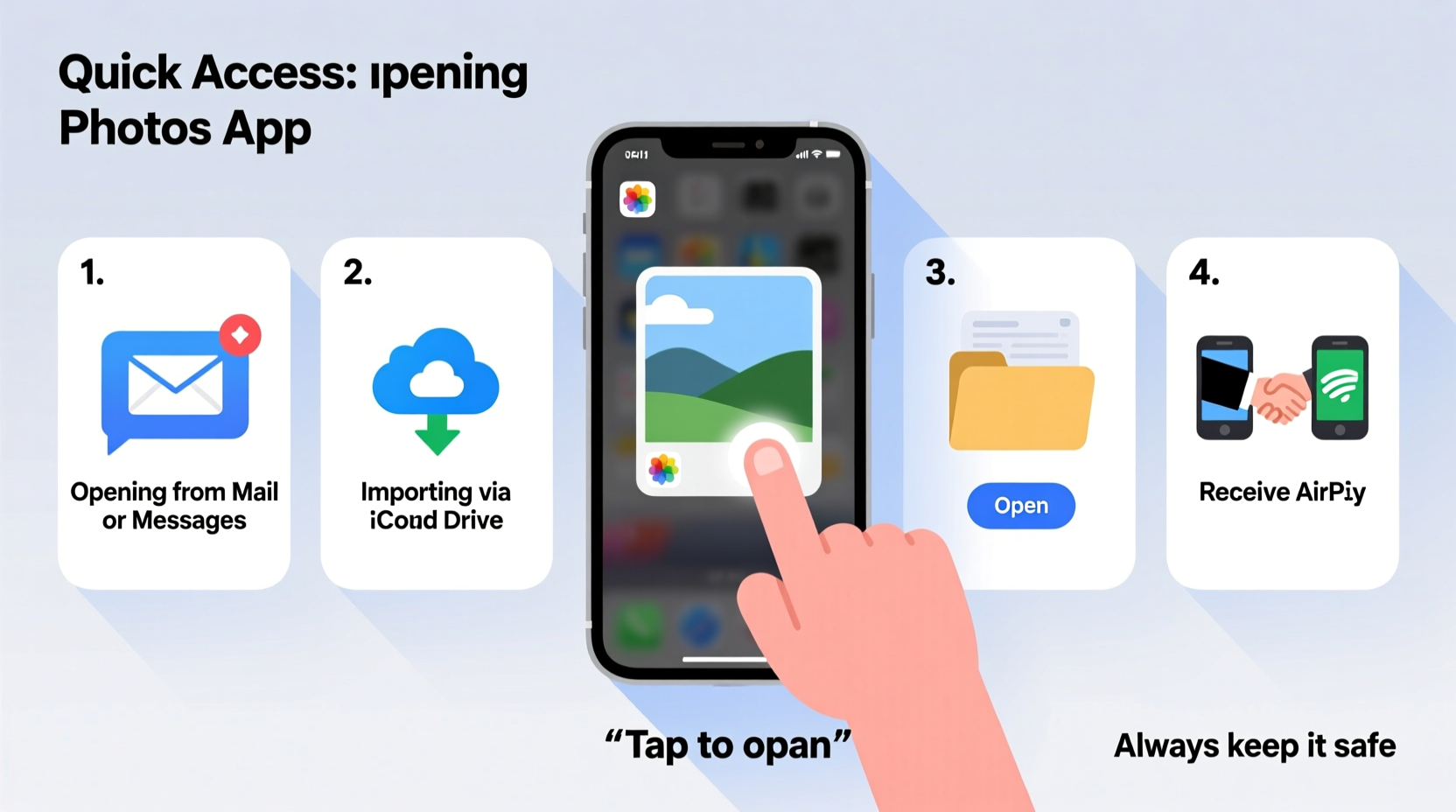
The iPhone supports JPG files out of the box. The Photos app, Apple’s default image viewer, can open, display, and organize JPG images without requiring additional software. However, compatibility isn’t always the issue—accessibility is. Many users don’t realize that how a JPG file is delivered (e.g., as an email attachment, a link, or a compressed archive) affects how easily it can be opened.
Apple’s iOS processes JPGs efficiently, but confusion often arises when:
- A JPG arrives as a file attachment rather than an embedded image.
- The file is part of a ZIP or RAR archive.
- The sender used an unusual file extension or encoding.
- iCloud settings interfere with local access.
Knowing where your JPG file comes from and how it's packaged is the first step to successfully opening it.
Step-by-Step Methods to Open JPG Files on iPhone
Opening a JPG file on your iPhone depends on its source. Below are the most common scenarios and reliable ways to access your image.
1. Opening JPG Attachments from Email
- Open the Mail app and locate the email with the JPG attachment.
- Tap the attachment (it may appear as a thumbnail or a paperclip icon).
- When the preview opens, tap the share icon (square with arrow) at the bottom-left.
- Select “Save Image” to store it directly in your Photos app.
- Open the Photos app to view the saved JPG.
2. Opening JPGs from Messaging Apps (iMessage, WhatsApp, Telegram)
In most cases, JPGs sent via messaging platforms appear as visible thumbnails. Simply tap the image to view it full-screen. To save it:
- Tap and hold the image.
- Select “Save Image” from the menu.
If the file appears as a document (e.g., “photo.jpg”), tap it to download, then use the share sheet to save it to Photos.
3. Accessing JPGs from Cloud Services (Google Drive, Dropbox, OneDrive)
- Open the respective cloud app and navigate to the JPG file.
- Tap the file to preview it.
- Tap the share icon and choose “Save Image” or “Export” > “Save to Photos.”
Note: Some cloud services require you to enable offline access or download the file before viewing.
4. Opening JPGs from Safari or Other Browsers
When browsing the web, JPGs are usually displayed directly on the page. To save one:
- Tap and hold the image.
- Select “Save Image” from the pop-up menu.
If the image doesn’t respond to tap-and-hold, it might be embedded in a PDF or protected by the site. In such cases, check if there’s a download button nearby.
5. Extracting JPGs from ZIP Files
Sometimes JPGs are bundled in ZIP archives. iPhones can unzip files using the built-in Files app:
- Open the Files app and locate the ZIP file.
- Tap the ZIP file—it will automatically extract.
- Open the extracted folder and find your JPG.
- Tap the JPG, then use the share sheet to save it to Photos.
“Modern iOS versions handle compression well, but users still struggle with file navigation. The key is knowing where the system stores extracted data.” — Jordan Lee, Mobile Software Analyst
Troubleshooting Common JPG Issues
Even with native support, JPG files sometimes fail to open. Here are frequent problems and their solutions.
| Issue | Possible Cause | Solution |
|---|---|---|
| JPG won’t open or preview | Corrupted download or incomplete transfer | Re-download the file or request it again from the sender. |
| File shows as “Unsupported” | Wrong file extension (e.g., .jpeg vs .jpg) | Rename the file to end in .jpg or use a file manager app. |
| Image is blank or pixelated | File corruption or low-quality source | Verify the original file on another device. |
| Can’t save to Photos | Storage full or restricted permissions | Free up space or go to Settings > Privacy > Photos to allow access. |
Optimizing JPG Viewing and Management
Once you’ve opened a JPG, consider how to manage it effectively. The Photos app offers powerful tools, but many users underutilize them.
Create Albums for Better Organization
Instead of scrolling through thousands of images, create albums:
- Open the Photos app and tap “Albums” at the bottom.
- Select “+” > “New Album.”
- Add relevant JPGs and give the album a descriptive name.
Use Markup for Quick Edits
After opening a JPG, tap “Edit,” then the three-dot icon to access Markup. You can annotate, crop, or highlight parts of the image without third-party apps.
Enable iCloud Photos for Seamless Access
Go to Settings > [Your Name] > iCloud > Photos and turn on “iCloud Photos.” This syncs all JPGs across your Apple devices, so you can open them on iPad or Mac seamlessly.
Mini Case Study: Recovering Travel Photos
Sophie, a frequent traveler, received a ZIP file from her photographer containing 50 JPGs from a recent trip to Portugal. On her iPhone, the ZIP wouldn’t open at first. After reading online, she realized she needed to use the Files app. She downloaded the ZIP to iCloud Drive, opened Files, tapped the archive, and let iOS extract it. She then selected each JPG and saved them individually to her Photos app. By creating an album titled “Portugal 2024,” she kept the memories organized and accessible. What initially seemed like a technical hurdle turned into a smooth workflow once she understood iOS’s file handling.
Essential Checklist: How to Open Any JPG on iPhone
Follow this checklist whenever you receive a JPG file:
- ✅ Identify the source (email, message, cloud, browser).
- ✅ Tap to preview; wait for full download if needed.
- ✅ Use the share sheet to save the image to Photos.
- ✅ For ZIP files, use the Files app to extract first.
- ✅ Check storage and permissions if saving fails.
- ✅ Organize saved JPGs into albums for long-term access.
Frequently Asked Questions
Why can’t I see the JPG file in my Photos app after saving?
The image may be saved, but not immediately visible due to syncing delays (especially with iCloud). Wait a few moments, then pull down in the Photos app to refresh. If it still doesn’t appear, check Settings > Privacy > Photos to ensure the app has permission to save.
Can I open JPG files without saving them to Photos?
Yes. You can preview JPGs in email, messages, or cloud apps without saving. However, they’ll disappear once cleared from the app unless manually saved. For permanent access, always save to Photos or another storage location.
Are JPG and JPEG the same on iPhone?
Yes. JPG and JPEG are identical formats—the difference is purely in file extension (.jpg vs .jpeg). iPhones treat both the same way and open them without issue.
Final Thoughts and Action Steps
Opening JPG files on your iPhone doesn’t have to be complicated. With the right approach, you can access, save, and organize your images quickly—whether they come from email, messaging, or cloud storage. The key is understanding how iOS handles attachments and leveraging built-in tools like the Files app and Photos library.
Don’t let a simple file format slow you down. Take control of your digital photos today: review your recent downloads, organize old JPGs into albums, and test the extraction process with a sample ZIP file. A few minutes of practice now can save hours of frustration later.




 浙公网安备
33010002000092号
浙公网安备
33010002000092号 浙B2-20120091-4
Comments
No comments yet. Why don't you start the discussion?