
Recording your Nintendo Switch gameplay opens the door to sharing highlights, creating walkthroughs, or building a content channel. Whether you're capturing a flawless speedrun or a hilarious moment with friends, high-quality recordings enhance your experience and engagement. The Switch offers built-in recording features, but they come with limitations. To get the most out of your captures—especially in full 1080p at 60fps—you’ll need to explore additional tools and techniques. This guide walks through every practical method, from using the console’s native options to leveraging external capture devices and post-processing workflows.
Understanding the Built-In Recording Feature
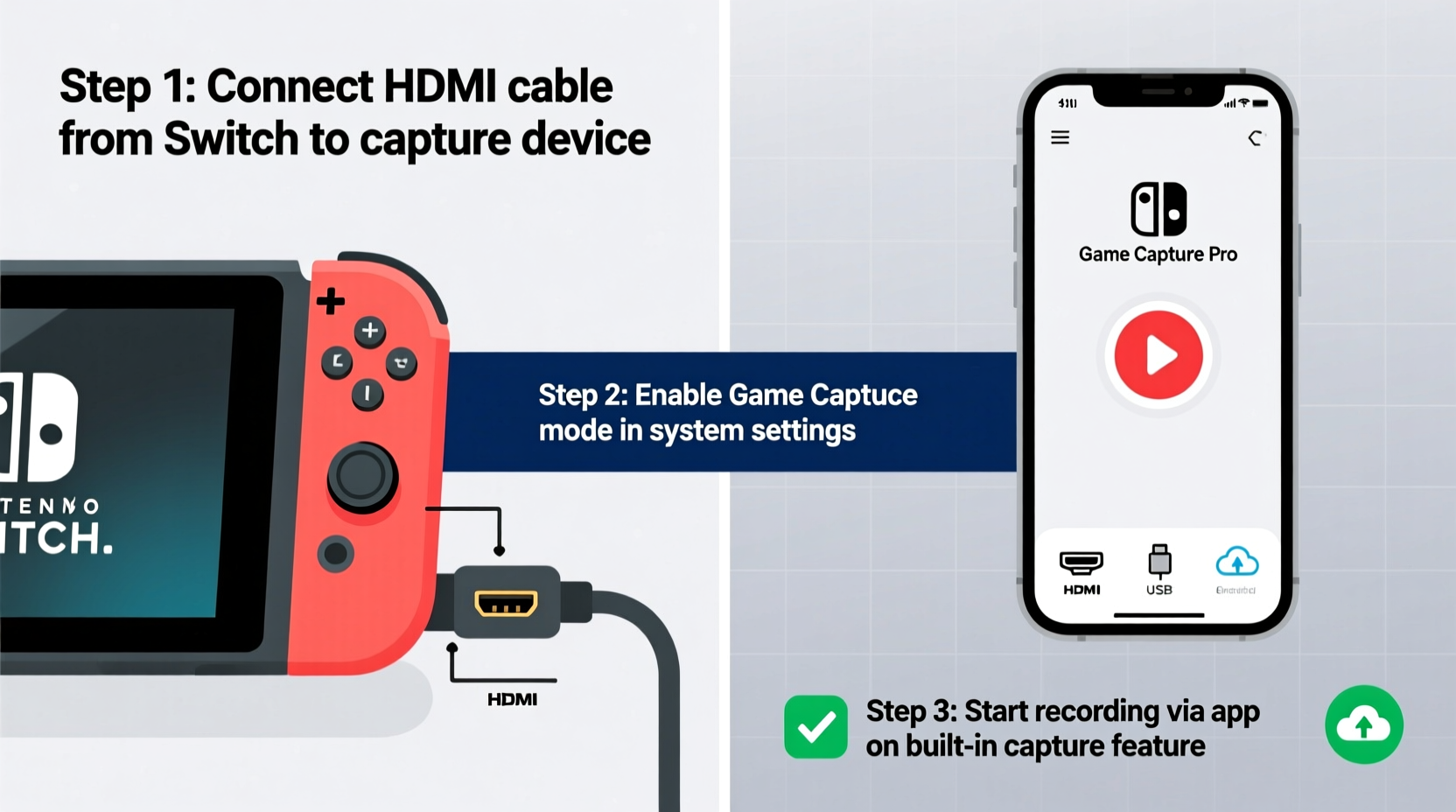
The Nintendo Switch includes a basic screen recording function accessible via the Capture button on the left Joy-Con or the system menu. Pressing this button lets you save up to 30 seconds of recent gameplay directly to your microSD card. While convenient, this feature has notable constraints: limited duration, compressed video quality (720p maximum), and no real-time recording option.
To use it:
- Ensure a compatible microSD card is inserted.
- During gameplay, press the Capture button.
- Select “Save Video Clip” to store the last 30 seconds.
- Access saved clips via the Album in System Settings.
This method works well for casual users who want to share quick moments on social media. However, creators aiming for professional-grade output will find it insufficient for extended sessions or high-resolution publishing.
Using an External Capture Card for High-Quality Recordings
For full control over recording length, resolution, and audio quality, an external capture card is the gold standard. These devices sit between your Switch dock and TV, capturing the HDMI signal in real time. When paired with recording software like OBS Studio or Elgato Game Capture HD60 S+, you can record uninterrupted gameplay in up to 1080p at 60fps.
Popular capture cards include:
- Elgato Game Capture HD60 S+
- Razer Ripsaw HD
- AverMedia Live Gamer Portable 2 Plus
Step-by-Step Setup Process
- Power off your Nintendo Switch and dock.
- Connect the HDMI output from the dock to the “In” port on the capture card.
- Link the capture card’s “Out” HDMI to your TV or monitor.
- Connect the capture card to your computer via USB 3.0.
- Install and open compatible recording software (e.g., OBS).
- Configure video settings: set resolution to 1080p, frame rate to 60fps, and bitrate to at least 15 Mbps for clarity.
- Start recording directly from your PC interface.
“External capture cards eliminate compression artifacts and give creators full editorial control.” — Jordan Lee, AV Production Specialist
This method supports long-form content such as Let’s Plays, tutorials, or live streams. It also allows simultaneous streaming to platforms like YouTube or Twitch when configured properly.
Software Solutions: OBS Studio and Alternatives
OBS Studio (Open Broadcaster Software) is a free, open-source application widely used for recording and streaming gameplay. Once your capture card is connected, OBS detects the video input and enables customizable scenes, overlays, and audio mixing.
Key advantages of using OBS:
- Free and regularly updated
- Supports multiple audio sources (game, microphone, system sounds)
- Customizable hotkeys for seamless recording starts/stops
- Real-time preview and monitoring
Alternative software options include Streamlabs Desktop (user-friendly interface with built-in alerts) and vMix (advanced multi-camera support). For Mac users, Ecamm Live offers robust integration with Apple hardware.
Comparison of Recording Methods
| Method | Max Quality | Max Duration | Cost | Best For |
|---|---|---|---|---|
| Switch Built-In | 720p / 30fps | 30 seconds | Free | Quick social clips |
| Capture Card + OBS | 1080p / 60fps | Limited by storage | $100–$200 | Content creators, streamers |
| Smartphone HDMI Adapter (iOS) | 1080p / 30fps | Moderate | $50+ | Mobile-first editors |
| Screen Mirroring Apps (Android) | 720p / unstable | Variable | Free–$20 | Testing or drafts |
Optimizing Audio and Lighting for Professional Results
High-quality video means little without clear audio. Most built-in recordings capture only game sound. To add commentary, use a USB microphone like the Blue Yeti or HyperX QuadCast. Position it close to your mouth and use a pop filter to reduce plosives.
In OBS, adjust audio levels under the Mixer tab:
- Game audio: 75%
- Microphone: 85%
- System sounds: Mute if unnecessary
Lighting matters even for gameplay videos. If you’re appearing on camera via a webcam or phone, ensure your face is evenly lit. Natural light from a window or a soft ring light prevents harsh shadows and improves viewer engagement.
Checklist: Preparing for a Recording Session
- ✅ Charge your Switch or connect it to power
- ✅ Insert a high-speed microSD card (UHS-I or better)
- ✅ Test capture card connection and video feed
- ✅ Launch and configure OBS or alternative software
- ✅ Set audio levels and test microphone
- ✅ Close background apps on your PC to avoid lag
- ✅ Confirm HDMI cables are securely connected
Real Example: From Casual Player to YouTube Creator
Samantha, a college student and avid Zelda fan, started recording her Breath of the Wild exploration runs using the Switch’s built-in tool. She quickly grew frustrated with the 30-second limit and poor quality. After researching, she invested in an Elgato HD60 S+ and downloaded OBS. Within two weeks, she published her first 15-minute adventure video with voiceover commentary. Her attention to detail—clear audio, smooth transitions, and engaging descriptions—helped her gain 5,000 subscribers in three months. Today, she monetizes her channel and collaborates with indie developers.
Her advice? “Start simple, but don’t stay basic. Upgrade when you’re ready to be taken seriously.”
Frequently Asked Questions
Can I record gameplay without a capture card?
Yes, but only up to 30 seconds at 720p using the Switch’s Capture button. For longer or higher-quality recordings, a capture card is required.
Do I need a powerful PC to use a capture card?
You don’t need a gaming rig, but your PC should have a modern CPU (Intel i5 or equivalent), at least 8GB RAM, and a USB 3.0 port. Storage space is critical—recordings consume about 1GB per 5 minutes at 1080p.
Is it legal to record and upload Nintendo Switch gameplay?
Yes. Nintendo permits gameplay recording and uploading for non-commercial use under its Content Usage Guidelines. Avoid using copyrighted music or distributing ROMs.
Final Thoughts and Next Steps
Recording Nintendo Switch gameplay doesn’t have to be complicated. Start with the tools you have, then scale up as your needs grow. Whether you're preserving memories or launching a creative career, mastering these techniques gives you the freedom to share your passion with the world. The key is consistency—practice your setup, refine your audio, and focus on storytelling.




 浙公网安备
33010002000092号
浙公网安备
33010002000092号 浙B2-20120091-4
Comments
No comments yet. Why don't you start the discussion?