
Running your own Minecraft server opens the door to a personalized gaming experience—whether you're building with friends, hosting a public community, or teaching in a classroom. While Mojang provides official multiplayer options, a self-hosted server gives full control over game rules, mods, plugins, and player access. Setting one up may seem daunting at first, but with the right approach, anyone can do it. This guide walks through every phase: from choosing hardware to launching a stable, secure world.
1. Understanding Server Types and Your Goals
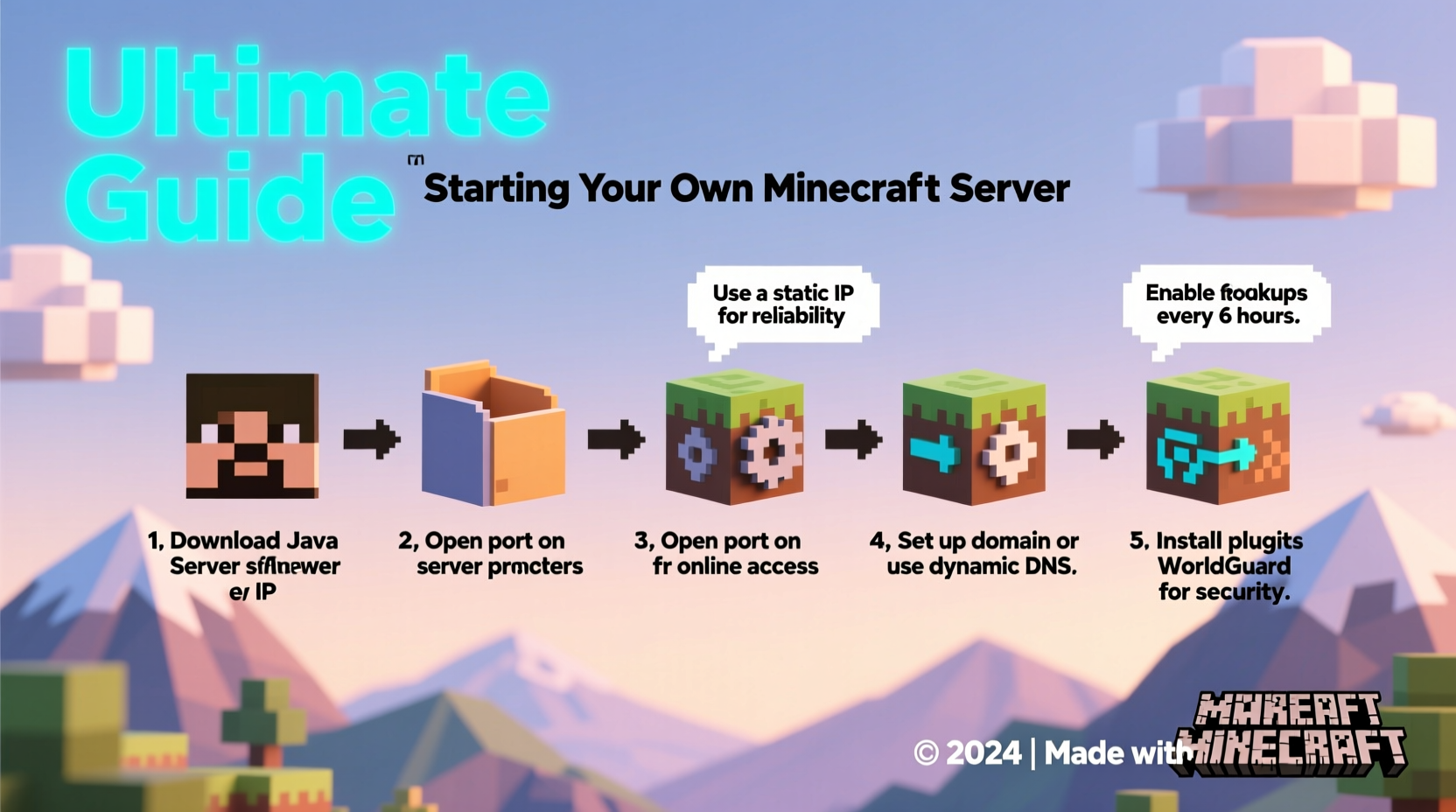
Before diving into installation, clarify what kind of server you want. The choice affects software, performance needs, and long-term maintenance.
- Vanilla Server: Uses unmodified Minecraft code. Best for beginners seeking simplicity and stability.
- Modded Server: Runs custom modifications (mods) that add new items, mechanics, or dimensions. Requires all players to have matching mod versions.
- Spigot/Paper Server: Optimized forks of the vanilla server with plugin support and better performance. Ideal for adding features like economy systems or minigames.
- BungeeCord Network: For advanced users managing multiple servers under one network (e.g., survival, creative, minigames).
2. Hardware and Hosting Options Compared
Your server’s performance depends on available computing resources. You can host locally on your PC or use a remote provider.
| Hosting Type | Pros | Cons | Best For |
|---|---|---|---|
| Local (Home PC) | Free, full control, easy testing | Must keep PC running; port forwarding required; poor uptime | Small private groups, learning |
| Dedicated VPS | Always online, scalable RAM/CPU, static IP | Monthly cost ($5–$30), requires basic Linux skills | Serious hobbyists, small communities |
| Managed Hosting (Apex, Hostinger, etc.) | No technical setup, one-click installs, backups | More expensive, limited customization | Beginners, non-tech users |
For most personal or semi-public servers, a VPS with 2–4 GB RAM is sufficient for 5–15 players. Allocate more if using resource-heavy mods like GregTech or Biomes O’ Plenty.
3. Step-by-Step Server Setup (Vanilla Example)
This sequence assumes you’re setting up a vanilla Minecraft server on a Windows machine. Adjust paths accordingly for macOS or Linux.
- Download the Server Software: Visit Minecraft's official server page and download
server.jar. - Create a Dedicated Folder: Make a new folder (e.g.,
C:\\MinecraftServer) and place the JAR file inside. - Run the Server Once: Open Command Prompt in that folder and type:
java -Xmx2G -Xms1G -jar server.jar nogui
This allocates 2GB max RAM. The server will generate config files and shut down due to EULA violation. - Accept the EULA: Open
eula.txt, changeeula=falsetoeula=true, then save. - Restart the Server: Run the same command again. The world generates, and the server starts listening on port 25565.
- Connect Locally: Launch Minecraft, go to Multiplayer → Add Server, enter
localhostas the address, and join.
To allow external connections, configure port forwarding on your router: forward TCP port 25565 to your computer’s local IP. Share your public IP with friends, or use a dynamic DNS service if your ISP assigns changing IPs.
4. Essential Configuration and Optimization Tips
After initial launch, fine-tune settings in server.properties for better gameplay and performance.
- gamemode=creative/survival: Set default mode for new players.
- difficulty=hard: Adjust challenge level.
- view-distance=6: Lowering this reduces bandwidth and CPU load.
- enable-command-block=true: Enable for redstone engineers and custom maps.
- max-players=20: Limit concurrent users based on your hardware.
saves/ folder before updating the server JAR or making major changes.
“Most server lag comes from poorly optimized plugins or excessive entity counts. Regular chunk claiming and mob limits solve 80% of performance issues.” — Derek Lin, Server Administrator and Mod Developer
5. Security, Backups, and Maintenance Routine
A live server needs ongoing care to remain secure and reliable.
Checklist: Weekly Server Maintenance
- Back up world data (
saves/folder) - Update server software to latest version
- Review player logs for griefing or exploits
- Clear excess entities (minecarts, dropped items) using
/kill @e[type=item,distance=..32] - Verify backup integrity by restoring to a test environment monthly
Use tools like TimedBackup (for Paper) or shell scripts on Linux to automate backups. Never store backups on the same drive as the server.
Real Example: Recovering from a Crash
Jamie hosted a 10-player survival server for her school club. After a power outage, the server failed to restart, showing “world corruption” errors. Because she had been manually copying the saves folder to an external drive every Friday, she restored the last backup with only two hours of lost progress. She later automated nightly backups using a simple batch script, preventing future data loss.
Frequently Asked Questions
Can I run a Minecraft server on an old laptop?
You can, provided it runs Java 17+ and has at least 4GB RAM. Performance will depend on how many players connect. For 1–3 players, even modest hardware works. Close background apps to free up memory.
Why can’t my friends connect even though the server is running?
The most common causes are: incorrect public IP, missing port forwarding, firewall blocking the connection, or ISP restrictions on residential ports. Test connectivity using online port checkers. Alternatively, use a VPS to bypass home network limitations.
How do I stop griefing on my server?
Install protection plugins like GriefPrevention or CoreProtect. Assign trusted players moderator roles, set spawn area protections, and enable whitelisting during early stages. Clear rules and active moderation reduce destructive behavior.
Conclusion
Creating a Minecraft server is more than a technical task—it’s the foundation of a shared digital space where creativity and collaboration thrive. Whether you're crafting a peaceful realm with family or building a competitive arena for dozens, the effort you invest in setup and maintenance pays off in smoother gameplay and lasting memories. With the right tools, configurations, and habits, your server can run reliably for months or years.




 浙公网安备
33010002000092号
浙公网安备
33010002000092号 浙B2-20120091-4
Comments
No comments yet. Why don't you start the discussion?