
Streaming YouTube on Apple TV brings the vast world of online video—from music videos and vlogs to educational content and live streams—directly to your living room. With a large screen, high-quality audio, and intuitive navigation, Apple TV transforms casual viewing into an immersive experience. Yet, many users encounter confusion when setting up or optimizing YouTube playback. Whether you’re new to Apple TV or looking to refine your setup, this guide delivers clear, actionable methods to get YouTube running smoothly and efficiently.
Why Stream YouTube on Apple TV?
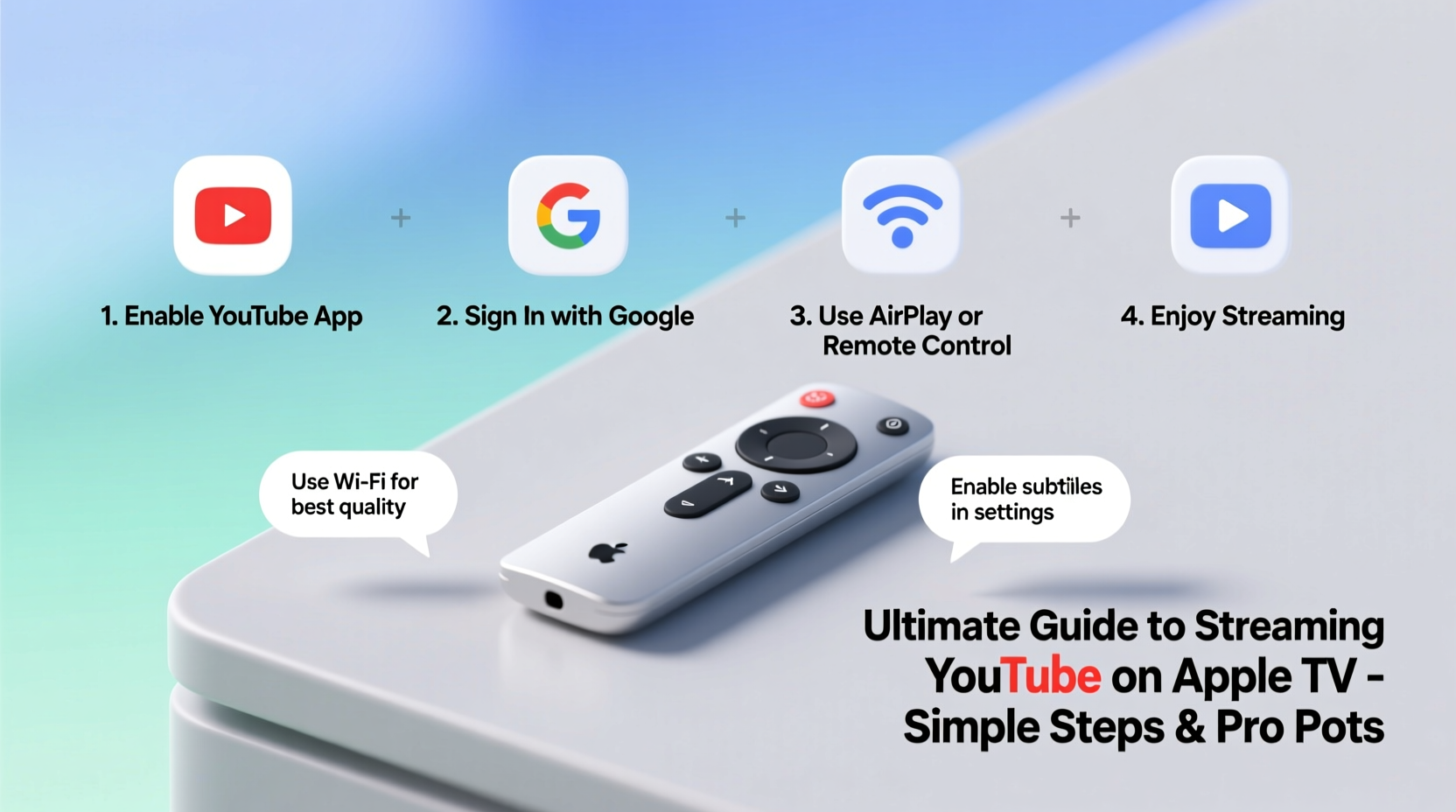
While smartphones and tablets offer portability, they can’t match the comfort and clarity of watching YouTube on a big screen. Apple TV supports up to 4K HDR playback, making it ideal for high-resolution videos. It also integrates seamlessly with other Apple devices, allowing for effortless casting, voice control via Siri, and personalized recommendations. Beyond convenience, using Apple TV encourages shared viewing experiences—perfect for family movie nights, workout sessions, or catching up on trending content together.
Step-by-Step: Installing and Launching YouTube on Apple TV
The first step to enjoying YouTube is getting the app installed and configured correctly. Follow this timeline to set it up in minutes:
- Power on your Apple TV and ensure it's connected to Wi-Fi.
- Go to the Home Screen and navigate to the App Store.
- Use the search function to find “YouTube” (ensure it's published by Google LLC).
- Select Get to download and install the app.
- Once installed, open the YouTube app from your home screen.
- Sign in with your Google account when prompted.
- Customize settings like autoplay, parental controls, and dark mode under Settings within the app.
After signing in, your subscriptions, watch history, and playlists will sync automatically. You’ll also gain access to YouTube Premium features if you're a subscriber, including ad-free playback and background listening.
Alternative Ways to Watch YouTube Without the App
Situations may arise where the YouTube app isn’t available—such as on older Apple TV models or restricted accounts. Fortunately, there are reliable workarounds:
- AirPlay from iPhone or iPad: Open YouTube on your iOS device, tap the AirPlay icon, and select your Apple TV. This mirrors the video directly to your TV.
- Screen Mirroring from Mac: On macOS, click the Screen Mirroring icon in the menu bar and choose your Apple TV. Then open YouTube in Safari or Chrome.
- Using a Web Browser (Limited): While Apple TV doesn’t support traditional browsers, third-party apps like Puffin TV allow limited web browsing, though performance varies.
Optimizing Playback Quality and Performance
Even after setup, buffering, low resolution, or lag can disrupt your viewing. These strategies help maintain optimal performance:
| Action | Benefit | How to Do It |
|---|---|---|
| Check Internet Speed | Prevents buffering during HD/4K playback | Run a speed test via Apple TV Settings > Network |
| Enable High-Quality Streaming | Maximizes visual clarity | In YouTube app Settings > Video Quality Preferences, select “Higher” |
| Restart Apple TV Regularly | Clears memory leaks and improves responsiveness | Hold Menu + Right buttons until light blinks |
| Update Software | Ensures compatibility and security | Settings > System > Software Updates |
For households with multiple users, consider creating separate YouTube profiles within the app. This keeps recommendations personalized and avoids mixing watch histories.
“Streaming quality depends more on network stability than raw internet speed. A consistent 15 Mbps connection often outperforms an unstable 100 Mbps link.” — Raj Mehta, Senior Streaming Engineer at Broadband Insights Group
Troubleshooting Common Issues
Despite best efforts, problems may still occur. Here’s how to resolve frequent challenges:
- YouTube app crashes on launch: Delete the app (press and hold app icon), then reinstall from the App Store.
- Can’t sign in: Ensure your Google account allows less secure apps or enable 2FA with app-specific passwords if needed.
- Video plays but no sound: Check audio output settings under Settings > Audio and Video. Try switching between stereo and surround options.
- Search not working: Restart the app or reset network settings if the issue persists across other apps.
Mini Case Study: Resolving Persistent Buffering
Sarah, a teacher in Portland, frequently used her Apple TV to play educational videos for her kids. She noticed constant buffering despite having a 50 Mbps plan. After testing, she discovered her router was outdated and placed in a basement closet. By relocating the router to a central location and upgrading to a mesh Wi-Fi system, her streaming stabilized instantly. The lesson? Hardware placement and age matter as much as advertised speeds.
Expert Tips for Enhanced Viewing Experience
Go beyond basic functionality with these advanced techniques:
- Create a dedicated YouTube profile on your Apple TV for each family member to preserve individual preferences.
- Use picture-in-picture (PiP) mode when multitasking—available when casting from iPhone or iPad.
- Download videos offline on mobile first, then cast them via AirPlay if you expect connectivity issues.
- Link YouTube TV (separate subscription) for live TV channels and DVR functionality through the YouTube TV app.
Frequently Asked Questions
Can I use YouTube Kids on Apple TV?
Yes. Download the “YouTube Kids” app from the App Store on Apple TV. It offers a safer, curated environment for children with parental supervision tools like screen time limits and content filters.
Is YouTube free on Apple TV?
The base YouTube app is free to download and use, supported by ads. To remove ads, enable YouTube Premium on your Google account, which applies across all devices, including Apple TV.
Why does YouTube say 'This video is unavailable' on Apple TV?
This usually occurs due to regional restrictions, copyright claims, or age-gating. Signing into a Google account often resolves access issues, especially for age-restricted content.
Final Checklist Before You Start
Before hitting play, verify these essentials:
- ✅ Apple TV is updated to the latest software version
- ✅ YouTube app is downloaded and signed in
- ✅ Stable Wi-Fi connection (minimum 15 Mbps for HD)
- ✅ Remote batteries are charged
- ✅ Subscriptions and playlists are synced
Conclusion
Streaming YouTube on Apple TV should be effortless and enjoyable. With the right setup, optimization, and a few insider techniques, you unlock a richer, more engaging way to consume digital content. From installing the app to mastering AirPlay and troubleshooting hiccups, every step contributes to a seamless big-screen experience. Don’t let technical hurdles limit your entertainment—apply these tips today and transform your Apple TV into a powerful YouTube hub.




 浙公网安备
33010002000092号
浙公网安备
33010002000092号 浙B2-20120091-4
Comments
No comments yet. Why don't you start the discussion?