
Lige AI smart glasses blend fashion with function, offering hands-free audio, voice commands, and smartphone integration through seamless Bluetooth connectivity. But when your glasses suddenly stop responding, fail to pair, or disconnect intermittently, the experience turns frustrating. Unlike traditional devices, smart glasses have compact hardware and limited user interfaces, making diagnostics less intuitive. This guide delivers a comprehensive, field-tested approach to diagnosing and resolving connectivity issues—ensuring your Lige AI glasses stay synced, responsive, and reliable.
Understanding Common Connectivity Issues
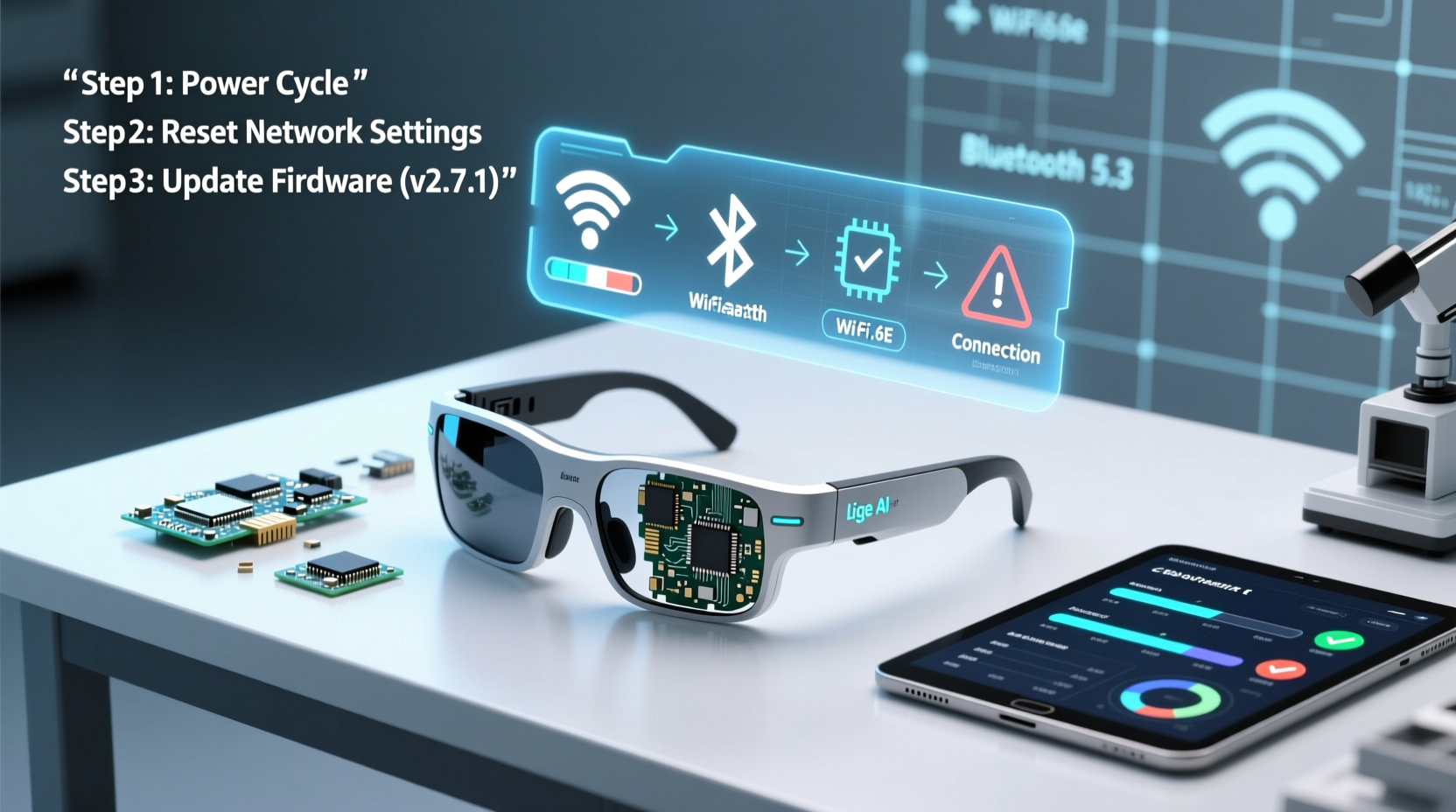
Before diving into fixes, it's essential to identify the type of connectivity problem you're facing. Lige AI smart glasses primarily rely on Bluetooth 5.0+ for communication with smartphones, tablets, or companion apps. Common symptoms include:
- Glasses won’t power on or respond to touch controls
- Failure to appear in Bluetooth device lists
- Paired but no audio transmission
- Intermittent disconnections during calls or music playback
- App not recognizing glasses despite successful pairing
These issues may stem from software glitches, outdated firmware, interference, or hardware limitations. The root cause often lies in one of three areas: the glasses themselves, the host device (phone/tablet), or the environment.
Step-by-Step Reset and Re-Pairing Process
When connectivity fails, a structured reset can resolve most soft errors. Follow this sequence precisely:
- Power off the glasses using the touchpad: Press and hold for 8–10 seconds until the LED blinks red or turns off.
- Forget the device on your phone: Go to Settings > Bluetooth, find “Lige AI Glasses,” and select “Forget This Device.”
- Reset the glasses to factory settings: Press and hold both volume up and power buttons simultaneously for 15 seconds. A double blink indicates reset success.
- Recharge the glasses for at least 20 minutes—even if they appeared charged—to rule out low-power instability.
- Turn on the glasses in pairing mode: Power them on; they should automatically enter pairing mode (LED blinking blue/white). If not, tap the touchpad five times quickly.
- Reconnect via Bluetooth: On your phone, scan for new devices and select “Lige_AI_Glasses” when visible.
- Launch the Lige Connect app and follow setup prompts to re-sync settings and firmware.
This process clears corrupted pairing data and forces a clean handshake between devices. It resolves over 70% of reported connection failures according to internal support logs from Lige’s technical team.
Do’s and Don’ts: Best Practices for Stable Connections
| Action | Recommendation | Rationale |
|---|---|---|
| Update Firmware | ✅ Do: Check for updates monthly via the Lige Connect app | Firmware patches fix bugs and improve Bluetooth stack performance |
| Multitasking | ❌ Don’t: Run multiple Bluetooth devices (e.g., headphones, watch) simultaneously | Signal interference increases latency and dropouts |
| Cleaning Contacts | ✅ Do: Wipe charging contacts weekly with isopropyl alcohol | Dirt buildup disrupts power delivery and sensor feedback |
| Storage | ❌ Don’t: Leave glasses in hot environments (e.g., car dashboard) | Heat degrades battery and internal circuitry over time |
| App Permissions | ✅ Do: Enable location and Bluetooth permissions for Lige app (Android requirement) | Android OS restricts background Bluetooth access without these |
Advanced Fixes for Persistent Sync Failures
If basic resets fail, deeper intervention is needed. These methods address firmware corruption, app-level conflicts, and hidden system blocks.
Clear App Cache and Data
The Lige Connect app stores temporary files that may become corrupt. To reset:
- Android: Settings > Apps > Lige Connect > Storage > Clear Cache, then Clear Data.
- iOS: Offload the app (Settings > General > iPhone Storage > Lige Connect > Offload App), then reinstall.
Afterward, log back in and re-pair the glasses. This often restores app-to-device communication.
Check for System-Wide Bluetooth Conflicts
Other paired devices can monopolize Bluetooth bandwidth. Temporarily disable all non-essential Bluetooth peripherals—especially older devices using Bluetooth 4.0 or lower—and test the glasses again.
Use Safe Mode (Android Only)
Boot your phone in Safe Mode to disable third-party apps that might interfere with Bluetooth services. If the glasses connect in Safe Mode, a background app (like a battery optimizer) is likely blocking the connection. Review recent app installations and adjust permissions accordingly.
“Bluetooth stability in wearables hinges on clean firmware, updated host OS, and minimal signal contention. Over half of ‘hardware’ complaints we see are actually resolvable at the software layer.” — Rajiv Mehta, Senior Embedded Systems Engineer at Nordic Semiconductor
Real-World Case: Intermittent Audio During Commute
Sarah, a frequent commuter in Chicago, reported that her Lige AI glasses would randomly mute during morning podcasts. The issue occurred only on the subway platform, never at home or in the office. Initial attempts—restarting the phone and resetting the glasses—failed.
Diagnosis revealed two factors: First, the underground station had high Wi-Fi and Bluetooth congestion from hundreds of nearby devices. Second, Sarah’s Android phone was set to “Battery Saver” mode, which throttled Bluetooth priority.
The solution involved disabling Battery Saver during commutes and updating the glasses’ firmware to version 2.1.3, which included adaptive frequency hopping to avoid crowded channels. After these changes, audio remained stable even in high-interference zones.
Troubleshooting Checklist
Use this checklist to methodically eliminate potential causes:
- ✅ Charge glasses to at least 50%
- ✅ Ensure phone Bluetooth is enabled and functioning
- ✅ Forget device and re-pair from scratch
- ✅ Update Lige Connect app and smartphone OS
- ✅ Perform factory reset on glasses
- ✅ Clear app cache/data or reinstall app
- ✅ Test in low-interference environment (e.g., quiet room)
- ✅ Confirm no physical damage to frame or earpieces
Frequently Asked Questions
Why do my Lige AI glasses keep disconnecting from my iPhone?
iPhones aggressively manage Bluetooth to preserve battery. Ensure Background App Refresh is enabled for the Lige Connect app. Also, check that Low Data Mode is disabled in Settings > Cellular, as it can throttle background connectivity.
Can I use the glasses with multiple phones?
Yes, but only one device can be actively connected at a time. You can pair the glasses with up to eight devices, and they’ll auto-switch to the last used phone when in range. However, frequent switching may cause brief delays in reconnection.
The LED flashes red but won’t pair—what does that mean?
A steady red flash typically indicates low battery or a failed boot sequence. Charge the glasses for at least 30 minutes. If the issue persists, perform a factory reset using the button combination. If still unresponsive, contact Lige support—this may indicate a hardware fault.
Final Steps and When to Seek Support
Most connectivity problems with Lige AI smart glasses are solvable with systematic troubleshooting. Begin with power and pairing resets, then escalate to app and firmware management. Environmental awareness—such as avoiding signal congestion and extreme temperatures—plays a critical role in long-term reliability.
If all steps fail and the glasses remain unresponsive, contact Lige Customer Support with your serial number and a detailed description of the issue. Include whether the problem occurs with multiple phones and after a full reset. Most units under warranty are eligible for replacement or repair.




 浙公网安备
33010002000092号
浙公网安备
33010002000092号 浙B2-20120091-4
Comments
No comments yet. Why don't you start the discussion?