
In the modern development landscape, where multitasking is not just common but expected, screen real estate has become a critical factor in productivity. Developers routinely juggle code editors, terminals, documentation tabs, version control tools, and communication platforms—all simultaneously. This constant context switching can fragment attention and slow progress. Enter the ultrawide monitor: a single display that stretches beyond traditional 16:9 aspect ratios, typically offering resolutions like 3440x1440 or 3840x1600. But does this expanded canvas actually translate into measurable gains in coding efficiency? The answer isn’t just about size—it’s about how that space is used.
The Case for Extra Screen Space in Development Workflows
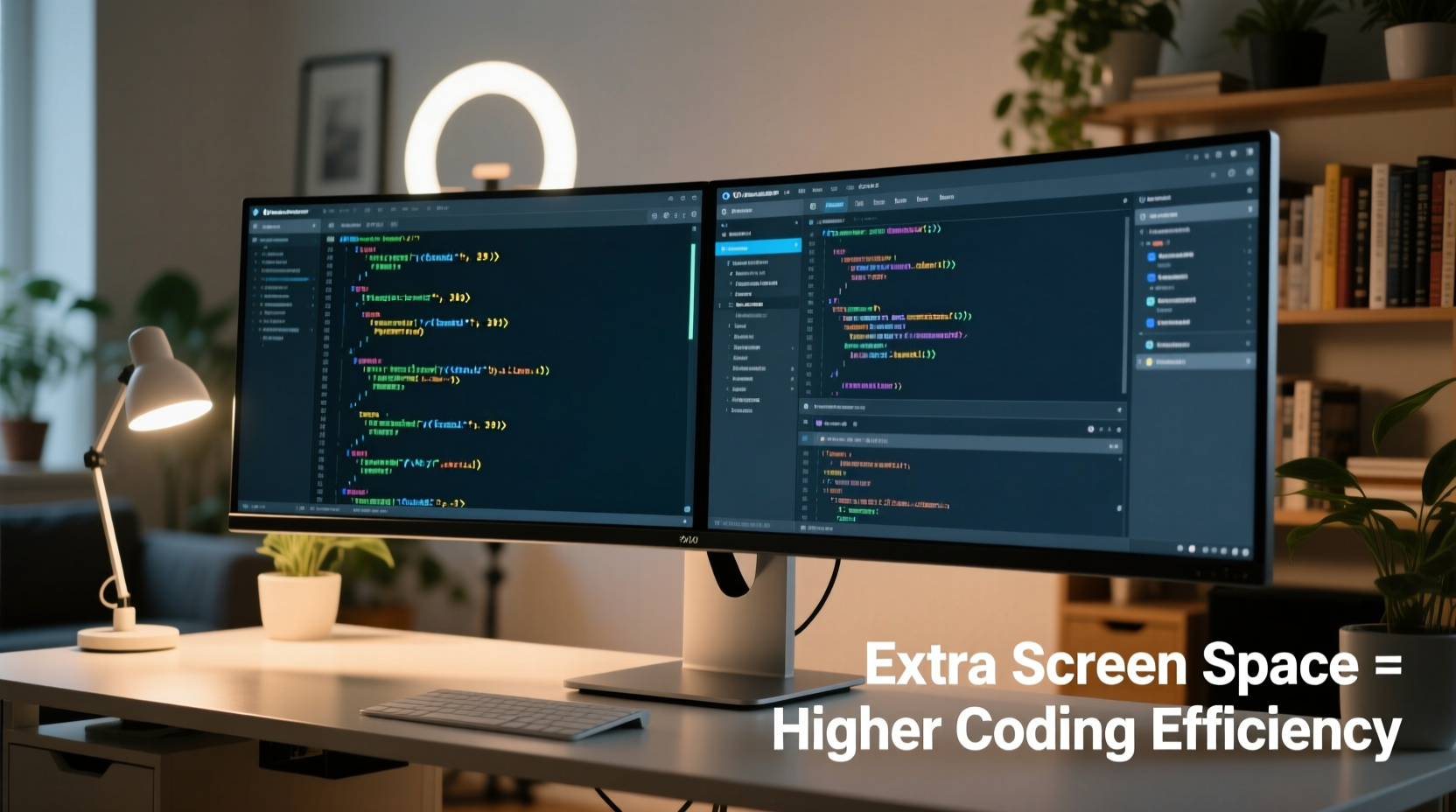
Traditional dual-monitor setups have long been a staple among developers seeking more workspace. However, they come with drawbacks: bezel interruptions, inconsistent color calibration, and physical clutter. Ultrawide monitors eliminate the middle gap while providing even greater horizontal space than two side-by-side 24-inch screens. For coding, this means you can comfortably run your IDE on one side, a terminal or database client on the other, and still have room for a browser window displaying API documentation or a project management tool.
Studies from the University of Utah and independent usability labs suggest that increased screen area reduces task-switching time by up to 10%. In practical terms, this means less time minimizing and maximizing windows, fewer mouse movements across multiple displays, and improved visual continuity between related components—like code and its output.
Real-World Workflow Advantages
Coding often involves comparing files, reviewing diffs, or writing tests alongside implementation. An ultrawide monitor allows side-by-side file editing without resorting to split-pane views that reduce readability. You can keep your main code visible at full height while docking auxiliary tools—debuggers, logs, REPLs—along the edges.
Frontend developers benefit significantly. With responsive design requiring constant testing across breakpoints, having a browser preview open next to the editor enables rapid iteration. Designers and full-stack engineers can place Figma or Sketch previews adjacent to their CSS files, reducing reliance on mental mapping or frequent tab switching.
Data scientists and backend engineers working with pipelines or configuration files also gain from extended width. Viewing wide JSON structures, YAML configurations, or database schemas becomes far more manageable when line wrapping is minimized. Long SQL queries or nested data trees no longer require excessive horizontal scrolling.
“With my 34-inch ultrawide, I’ve reduced my average context switch time by nearly half. Seeing both the problem and solution in view simultaneously changes how I think through bugs.” — David Lin, Senior Software Engineer at DevStack Labs
Optimizing Your Ultrawide Setup for Maximum Efficiency
Simply owning an ultrawide monitor doesn’t guarantee productivity gains. Poor layout choices can lead to wasted space or ergonomic strain. Here’s how to structure your environment effectively:
Step-by-Step Guide to Configuring an Efficient Coding Layout
- Divide the screen into functional zones: Left third for code editor, center for live preview or debugging console, right third for documentation or communication apps (Slack, email).
- Use snapping features: On Windows, use Win + Left/Right arrows; on macOS, use Stage Manager or third-party tools like Magnet. Assign consistent positions for frequently used apps.
- Adjust DPI scaling: High-resolution ultrawides may render text too small. Tune scaling settings so fonts remain readable without sacrificing screen utilization.
- Enable taskbar/dock customization: Disable auto-hide only if necessary. Consider using a minimalist dock to preserve vertical space.
- Leverage IDE panes: Configure your IDE (VS Code, IntelliJ, etc.) to utilize full-height panels for navigation trees, Git history, or terminal access.
Common Pitfalls to Avoid
- Overcrowding the screen with too many floating windows
- Placing important UI elements at extreme edges, forcing head movement
- Ignoring font size and line spacing, leading to eye fatigue
- Failing to calibrate brightness and color temperature for prolonged use
Comparative Analysis: Ultrawide vs. Dual Monitors vs. Standard Display
| Setup | Horizontal Space | Continuity | Ease of Management | Ideal For |
|---|---|---|---|---|
| Ultrawide (34\", 21:9) | ★★★★★ | ★★★★★ | ★★★★☆ | Single-task deep work, side-by-side coding, media-heavy workflows |
| Dual 24\" Monitors | ★★★★☆ | ★★☆☆☆ | ★★★☆☆ | Heavy multitaskers, those needing separate secure environments |
| Single 27\" (16:9) | ★★★☆☆ | ★★★★☆ | ★★★★★ | Budget-conscious users, compact desks, basic editing tasks |
Note: While dual monitors offer flexibility, the central bezel disrupts immersive workflows, especially when dragging windows across screens. Ultrawides provide seamless panning and are easier to mount on arms or stands due to single-unit design.
Mini Case Study: From Dual 24-Inch to 34-Inch Ultrawide
Jamal Chen, a backend engineer at a mid-sized SaaS company, spent years using two 24-inch 1080p monitors. His daily routine involved toggling between four Chrome tabs, Postman, a terminal, and his IDE. Despite using window snapping, he found himself constantly resizing and repositioning windows.
After switching to a 3440x1440 ultrawide, Jamal redesigned his layout: VS Code occupied the left 60%, a vertically tiled terminal took the bottom-right quadrant, and Postman and Chrome shared the top-right. He reported a noticeable drop in mental fatigue and faster debugging cycles. “I used to lose track of what I was doing every time I switched apps,” he said. “Now everything I need is in view, and I don’t feel like I’m jumping around.” Within three weeks, his team lead noted a 15% increase in completed ticket reviews and fewer merge conflicts due to better situational awareness.
Expert Recommendations and Industry Trends
According to Dr. Lena Torres, a human-computer interaction researcher at MIT Media Lab, “The cognitive load associated with window management is often underestimated. When information is spatially persistent—meaning it stays in the same relative location—users develop muscle memory and visual shortcuts that accelerate performance.”
This principle applies directly to ultrawide adoption. By assigning fixed zones for recurring tools, developers build efficient mental models. Over time, this leads to faster navigation and fewer errors caused by misaligned expectations (e.g., expecting a log output in a certain position).
Major tech companies are taking note. Google, Meta, and several fintech firms now include ultrawide monitors as optional equipment in their remote work stipends. Internal surveys show employees who adopt them report higher satisfaction with their home office ergonomics and self-rated productivity.
“The future of knowledge work isn’t more screens—it’s smarter screens. Ultrawides represent a shift toward integrated, distraction-minimized environments.” — Dr. Lena Torres, MIT Media Lab
Practical Checklist: Is an Ultrawide Right for Your Coding Workflow?
Before investing in an ultrawide monitor, ask yourself:
- ✅ Do I regularly use more than two applications at once?
- ✅ Am I frustrated by constant window resizing or tab switching?
- ✅ Do I work with wide-format content (logs, spreadsheets, code diffs)?
- ✅ Is my desk large enough to accommodate a 34”+ display?
- ✅ Does my GPU support high-resolution ultrawide output?
- ✅ Am I willing to reconfigure my current workflow for optimal layout?
If you answered “yes” to most of these, an ultrawide could be a worthwhile upgrade.
Frequently Asked Questions
Can ultrawide monitors cause eye strain or discomfort?
When properly positioned, ultrawide monitors do not inherently cause eye strain. However, placing the screen too far away or at an incorrect height can force excessive eye or head movement. Ensure the monitor is centered, tilted slightly upward, and positioned so the top edge is at or below eye level. Use dark themes and blue light filters during evening hours to reduce visual fatigue.
Are there software limitations with ultrawide displays?
Most modern operating systems and applications handle ultrawide resolutions well. Some older or poorly optimized apps may not scale correctly or assume a 16:9 aspect ratio, resulting in black bars or stretched visuals. Always check community forums or vendor support pages before purchase to confirm compatibility with your essential tools.
Do I need a powerful PC to drive an ultrawide monitor?
For coding and general development tasks, a mid-tier integrated GPU (Intel Iris Xe, Apple M-series, AMD Radeon 680M) is sufficient for resolutions up to 3440x1440. Gaming or video editing at high refresh rates requires dedicated graphics, but pure programming workloads are not GPU-intensive. Focus on CPU, RAM, and SSD performance instead.
Conclusion: Rethinking Productivity Through Spatial Intelligence
An ultrawide monitor isn’t just a luxury or aesthetic upgrade—it’s a tool for cognitive optimization. The extra screen space doesn’t automatically make you faster, but when leveraged intentionally, it supports deeper focus, reduces friction in multitasking, and enhances your ability to see connections across systems and files. It shifts the paradigm from reactive window management to proactive workspace design.
Efficiency in coding isn’t solely about typing speed or algorithmic cleverness. It’s also about minimizing distractions, preserving context, and creating an environment where flow states can emerge naturally. An ultrawide monitor, configured thoughtfully, aligns with these goals by giving your mind room to breathe and your workflow room to expand.




 浙公网安备
33010002000092号
浙公网安备
33010002000092号 浙B2-20120091-4
Comments
No comments yet. Why don't you start the discussion?