
For developers, time is code, and code needs space. The rise of ultrawide monitors—typically 21:9 or even 32:9 aspect ratios—has sparked debate in the programming community. Are these expansive screens a game-changer for coding, or just an expensive luxury with diminishing returns? While traditional dual-monitor setups have long dominated dev workspaces, ultrawides promise a seamless, distraction-free expanse that consolidates windows into one continuous workspace. But does that translate to tangible gains in productivity, focus, and comfort?
The answer isn’t universal. It depends on your workflow, tools, and personal preferences. However, when used strategically, an ultrawide monitor can fundamentally transform how developers manage multiple applications, debug complex systems, and maintain flow during deep work sessions.
The Real Estate Advantage: More Than Just Width
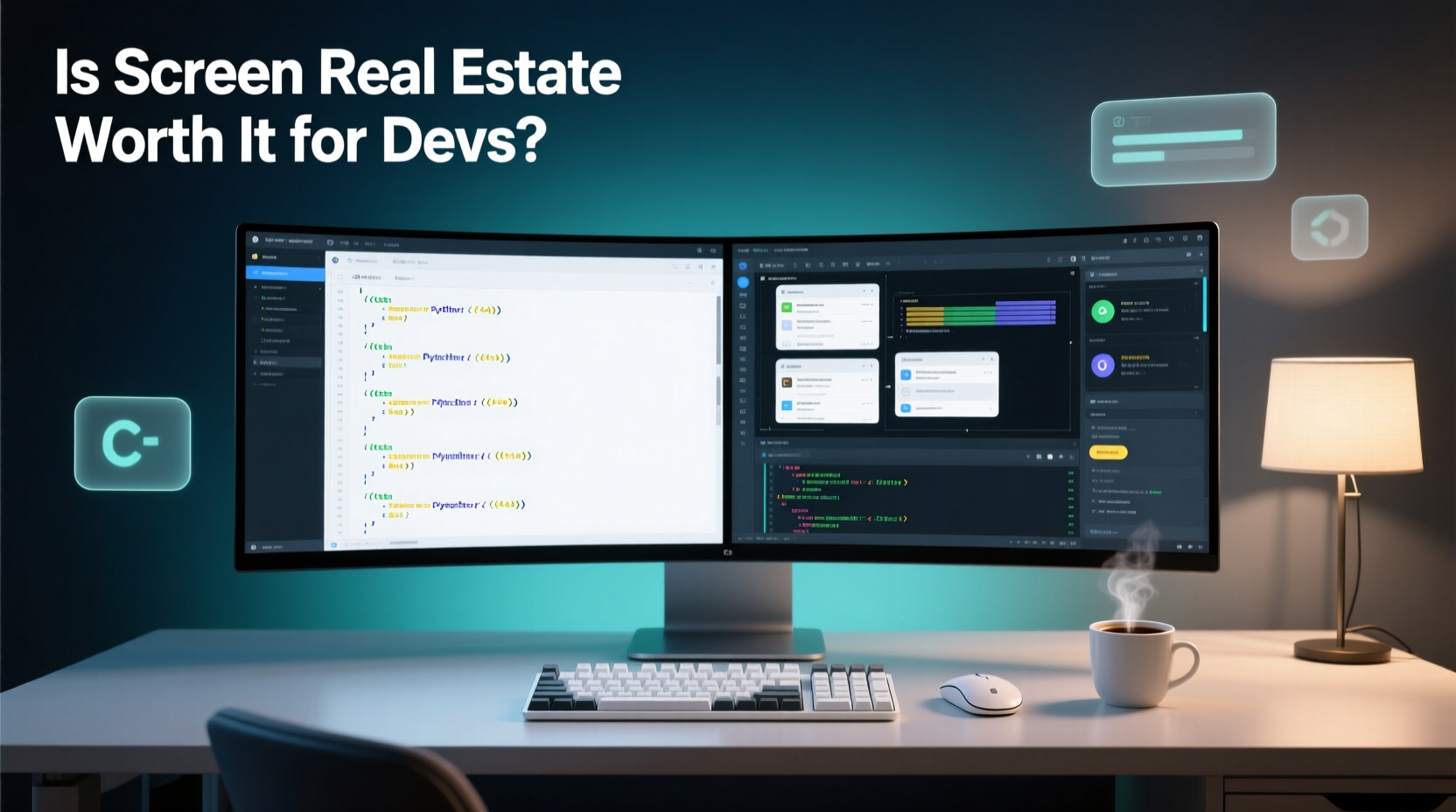
At first glance, the appeal of an ultrawide monitor (commonly 3440x1440 or 3840x1600 resolution) lies in its horizontal breadth. A typical 27-inch 16:9 display offers about 1920 pixels in width. An ultrawide triples that usable horizontal space without requiring multiple physical screens. This eliminates bezels between monitors—a subtle but significant source of visual disruption when dragging windows or tracking lines of code across displays.
Consider a standard development environment: a code editor on one side, terminal on the other, documentation in a browser above, and version control tools open in tabs. On a standard monitor, this requires constant tabbing or window resizing. With an ultrawide, all these panels can coexist simultaneously, arranged side-by-side or in tiled layouts, reducing cognitive load from context switching.
Workflow Scenarios That Benefit Most
Not every coding task benefits equally from extra width. But certain workflows thrive:
- Frontend Development: Preview responsive designs side-by-side with code. Keep browser dev tools docked while editing HTML/CSS/JS.
- Data Science & Analytics: View Jupyter notebooks alongside data visualizations, terminal outputs, and reference materials.
- DevOps & Backend Work: Monitor logs in one pane, SSH into servers in another, edit configuration files in a third—all visible at once.
- Full-Stack Debugging: Run IDE, API client, database GUI, and browser console simultaneously without minimizing anything.
In each case, the ability to see more information at once reduces the need to toggle between applications, which research shows can cost up to 20 seconds per switch due to mental reloading.
Productivity Gains: Quantified and Qualitative
A 2020 study by the University of Utah found that professionals using wider screens completed tasks 10–32% faster than those on standard displays, particularly in multitasking environments. For developers juggling compilers, terminals, debuggers, and documentation, this edge matters.
But beyond speed, there’s a qualitative benefit: sustained focus. Frequent window toggling disrupts concentration. When you're deep in a recursive algorithm or debugging race conditions, losing your train of thought because a popup obscured your terminal is costly. Ultrawides mitigate this by enabling persistent visibility of critical tools.
“After switching to a 34-inch ultrawide, I stopped reaching for my second monitor. Everything I need fits naturally in one field of view.” — Jordan Lee, Senior Software Engineer at DevFlow Systems
Ergonomic Considerations
One concern often raised is neck strain from panning across wide screens. However, modern ultrawides are curved (especially 34”+ models), aligning better with natural peripheral vision. Positioned correctly—with the center aligned to your line of sight—the lateral edges remain comfortably within view without excessive head movement.
Optimal setup includes:
- Centering the primary workspace (e.g., editor) in the middle third of the screen.
- Using software zones (via tools like DisplayFusion or Magnet) to snap apps into predefined regions.
- Mounting the monitor at eye level, about an arm’s length away.
Ultrawide vs. Dual Monitors: A Practical Comparison
| Factor | Ultrawide Monitor | Dual Monitors |
|---|---|---|
| Seamless Workspace | ✅ No bezel interruption; smooth drag-and-drop | ❌ Bezel breaks continuity; misalignment possible |
| Cable Management | ✅ Single power and video cable | ❌ Two sets of cables, more clutter |
| Portability | ❌ Bulky; hard to transport | ✅ Easier to move and reconfigure |
| Vertical Space | ⚠️ Same height as 16:9 (1440px max) | ✅ Can mix orientations (portrait + landscape) |
| Cost Efficiency | ✅ One premium device | ❌ Two monitors, possibly two mounts/arms |
| Multitasking Flexibility | ✅ Unified layout with flexible zoning | ✅ Independent control over each screen |
The table reveals a nuanced trade-off. Ultrawides win in integration and aesthetics, while dual monitors offer greater flexibility in orientation and adaptability. For example, pairing a vertical monitor for code with a horizontal one for output remains difficult on a single ultrawide unless using virtual desktops or software splitting.
Setting Up Your Ultrawide for Maximum Coding Efficiency
Purchasing an ultrawide is only half the battle. To truly harness its potential, deliberate configuration is essential.
Step-by-Step Guide: Optimizing Your Ultrawide for Development
- Choose the Right Resolution: Aim for at least 3440x1440 (QHD+). Avoid 2560x1080—it lacks pixel density for comfortable coding.
- Select a Matte Finish: Glossy screens increase glare under office lighting, causing eye fatigue during long sessions.
- Enable Native Scaling: On macOS or Windows, set scaling to 125–150% to keep text readable without sacrificing too much space.
- Divide the Screen into Zones: Use three main columns: left for code, center for preview/debugger, right for docs/chat/email.
- Leverage Tiling Managers: Tools like i3 (Linux), BetterSnapTool (macOS), or PowerToys (Windows) automate window placement.
- Adjust Font Sizes and Line Lengths: Wider editors risk overly long lines. Cap line length at 80–100 characters for readability.
- Use Virtual Desktops: Reserve one desktop for coding, another for communication, and a third for testing.
Real-World Example: From Dual 24” to Single 34” Ultrawide
Mark Tan, a backend engineer at a fintech startup, spent years using two 24-inch 1080p monitors. His setup worked, but he often felt fragmented—terminal commands hidden behind browser windows, IDE tabs buried under Slack notifications. After skepticism, he tested a 34-inch LG 34WN80C-B for two weeks.
Within days, his workflow changed. He split the screen into three equal zones: VS Code on the left, Chrome with Swagger docs in the center, and a vertically split terminal (Docker logs on top, shell below) on the right. No more alt-tabbing. No more resizing. “I didn’t realize how much mental energy I was spending managing windows,” he said. “Now, everything’s where I expect it.”
He also noticed fewer instances of lost focus. Previously, a Slack notification on the secondary monitor would pull his gaze away. Now, he uses a separate laptop lid closed on a stand behind the monitor for chat alerts—visible only when he turns slightly. Distractions dropped by half.
After four months, Mark reports a measurable improvement: 15% faster debugging cycles and fewer merge conflicts due to better visibility of Git diffs inline.
Common Pitfalls and How to Avoid Them
Despite their advantages, ultrawides aren’t foolproof. Many developers fall into avoidable traps:
- Overfilling the Screen: Just because you can open ten windows doesn’t mean you should. Clutter negates the benefits of real estate.
- Ignoring Vertical Limits: Ultrawides don’t offer more height. Long scrollable files still require navigation. Pair with a high-DPI setting or external zoom tools.
- Poor Font Scaling: Small text on high-res screens causes eye strain. Adjust IDE font sizes and system DPI settings accordingly.
- Assuming All Apps Support Wide Layouts: Some legacy tools stretch poorly or lack responsive UIs. Test compatibility before committing.
Checklist: Is an Ultrawide Right for You?
Answer these questions honestly before upgrading:
- Do you frequently use two monitors side by side?
- Do you work with multiple panes (code, terminal, browser, logs)?
- Are you frustrated by bezels interrupting your workflow?
- Do you value clean desk aesthetics and minimal cables?
- Can your GPU drive 3440x1440 at 60Hz+ via DisplayPort?
If most answers are yes, an ultrawide is likely a worthwhile investment.
Frequently Asked Questions
Can I mount an ultrawide on a dual-arm stand?
Yes, most VESA-compatible ultrawides (e.g., 100x100mm or 200x100mm) work with quality monitor arms. Ensure the arm supports the weight (usually 8–10kg) and width (check extension range).
Does screen curvature affect coding?
On 34”+ curved models, curvature enhances immersion and reduces edge distortion. For smaller ultrawides (e.g., 29”), flat panels may be preferable to avoid minor text warping at the edges.
Are ultrawides good for pair programming?
Surprisingly, yes—if positioned correctly. Split the screen vertically so both participants can see code and output. However, sharing a single screen remotely works better than trying to crowd around a wide display.
Final Verdict: Screen Real Estate That Pays Off
The question isn’t whether ultrawide monitors provide more screen space—they clearly do. The deeper issue is whether that space translates into meaningful gains for developers. Evidence suggests it does, provided the extra real estate is used intentionally.
Unlike general office work, coding thrives on parallel visibility. Seeing code, output, and references simultaneously reduces cognitive friction. Eliminating bezels between monitors streamlines interaction. And consolidating hardware simplifies both setup and maintenance.
That said, an ultrawide won’t magically make you a better programmer. It’s a tool—one that amplifies existing workflows rather than reinventing them. Its value emerges over time, in the small savings of attention, the reduction of distractions, and the quiet boost to sustained concentration.
“The best tools don’t shout. They disappear into your process. My ultrawide vanished into my workflow within a week. Now I wonder how I coded without it.” — Lena Patel, Principal Developer at CloudNest
Take Action: Optimize Your Coding Environment
If you’re still on a single 16:9 monitor or wrestling with mismatched dual displays, consider trialing an ultrawide. Many manufacturers offer return policies. Set it up properly—zone your screen, adjust scaling, integrate tiling tools—and give it two full workweeks.
You might find, as many developers have, that the extra width isn’t just nice to have. It becomes indispensable.




 浙公网安备
33010002000092号
浙公网安备
33010002000092号 浙B2-20120091-4
Comments
No comments yet. Why don't you start the discussion?