
For knowledge workers, designers, developers, and financial analysts, the choice of display setup significantly influences daily efficiency. The debate between using a single ultrawide monitor versus a dual-monitor configuration has intensified as screen technology advances and remote work becomes standard. Both options promise enhanced multitasking and improved workflow, but they deliver these benefits in fundamentally different ways. Understanding their respective strengths and limitations helps users make informed decisions based on their specific tasks, ergonomics, and budget.
The Rise of High-Resolution Workspace Setups
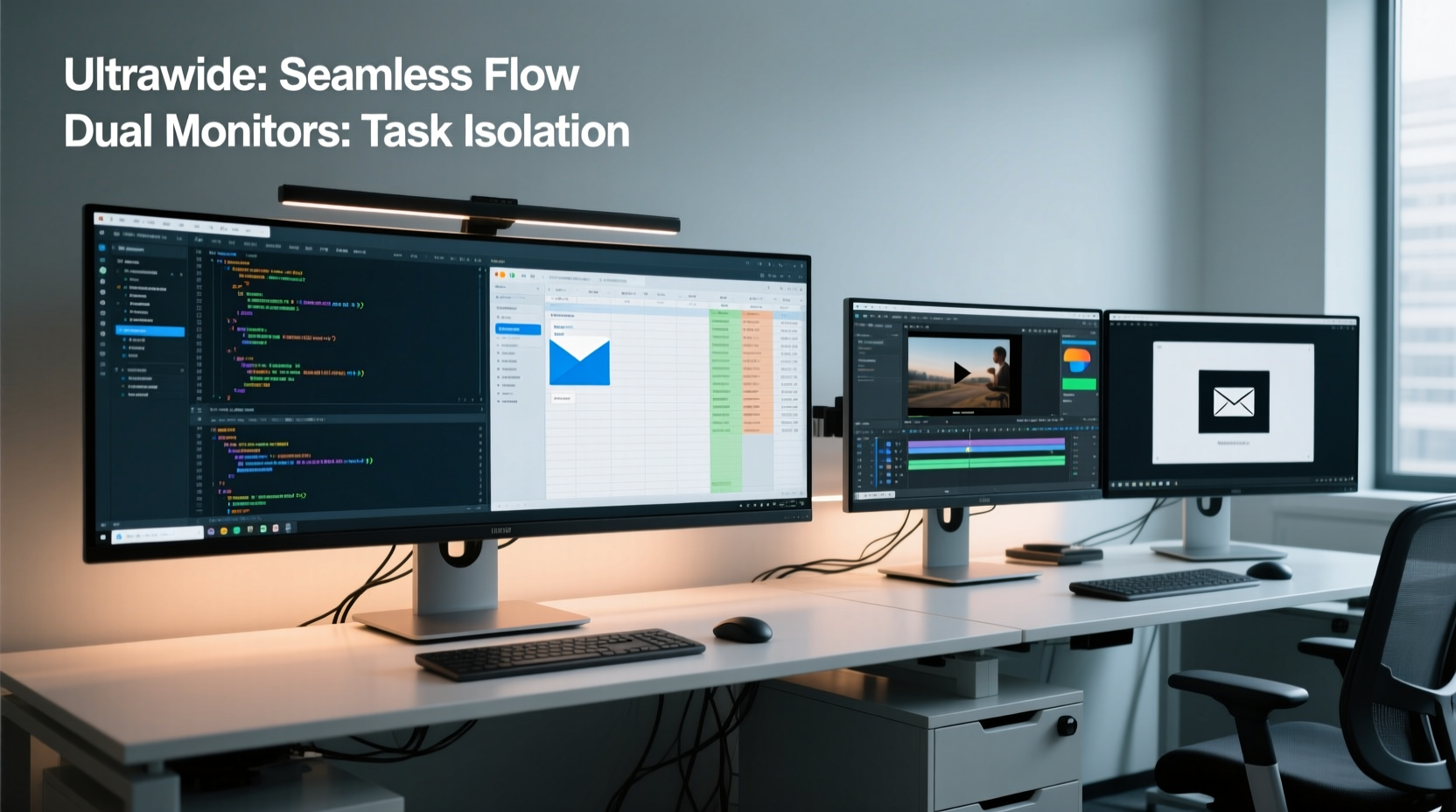
Modern computing demands more screen real estate than ever. With multiple applications running simultaneously—email, spreadsheets, code editors, video conferencing, and design tools—the traditional 16:9 aspect ratio often feels restrictive. This has led to widespread adoption of either dual 16:9 monitors or single ultrawide displays with aspect ratios like 21:9 or even 32:9. Each approach expands horizontal space, but does so with distinct trade-offs in usability, continuity, and visual immersion.
Ultrawide monitors typically range from 29 to 49 inches, offering resolutions such as 2560x1080 (FWHD), 3440x1440 (QWHD), or 5120x1440 (DQHD). Dual monitor setups usually consist of two 24- to 27-inch screens at 1920x1080 or 2560x1440 each. While both increase total pixel count, the way that space is organized affects user experience profoundly.
Advantages of an Ultrawide Monitor
An ultrawide monitor provides a seamless, uninterrupted field of view across its entire surface. This continuity offers several compelling advantages:
- Seamless Multitasking: Applications can be placed side-by-side without a physical bezel interrupting the flow. This is especially useful when comparing documents, coding with reference material, or editing video timelines alongside preview windows.
- Better Immersion for Creative Work: Video editors, motion graphics artists, and musicians benefit from extended timelines visible in one glance. Audio DAWs, for example, gain significant usability with dozens of tracks laid out horizontally.
- Reduced Head Movement: Studies suggest that minimizing lateral head movement reduces eye strain and fatigue during long work sessions. With everything within a single pane, users maintain a more natural posture.
- Cleaner Desk Aesthetics: One monitor means fewer cables, one stand, and less clutter—a key factor for minimalist or space-constrained workspaces.
- Improved Full-Screen Experiences: Media consumption, gaming, and presentations feel more cinematic due to the wider aspect ratio mimicking theater screens.
Drawbacks of Ultrawide Monitors
Despite their appeal, ultrawide monitors are not universally ideal. Several practical issues may arise:
- Poor Vertical Space: Most ultrawides have lower vertical resolution than standard 1440p or 4K monitors. For developers reading long code files or writers working with dense text, this can mean excessive scrolling.
- Software Compatibility Issues: Some older programs do not scale well on ultrawide formats. Window placement, UI stretching, or letterboxing can reduce usability.
- Cost: High-resolution ultrawide panels (especially 3440x1440 and above) tend to be more expensive than two mid-range 1080p monitors.
- Limited Flexibility: Unlike dual monitors, you cannot angle each screen independently. If your workflow requires viewing angles tailored to different apps (e.g., referencing a document while facing a client), adjustability is limited.
- Scaling Challenges: On high-DPI ultrawides, improper OS scaling settings can lead to tiny text or blurry interfaces, particularly in legacy software.
“Ultrawide monitors excel in horizontal workflows, but they shouldn’t be seen as a one-size-fits-all upgrade. Task alignment matters most.” — Dr. Lena Torres, Human-Computer Interaction Researcher, MIT Media Lab
Benefits of Dual Monitor Setups
Dual monitors remain popular for good reason. Their modular nature supports diverse use cases through flexible arrangement and independent control.
- Customizable Orientation: One screen can be rotated vertically (portrait mode) for coding, reading PDFs, or browsing web pages, while the other stays in landscape for main tasks.
- Independent Resolution & Scaling: You can mix and match monitors—for instance, pairing a 4K primary with a 1080p secondary for communications or monitoring tools.
- Greater Total Screen Area (Potentially): Two 27-inch 1440p monitors offer more combined pixels than many 34-inch ultrawides, giving users more room for complex multitasking.
- Easier Upgrades: Replace one monitor at a time without overhauling your entire setup.
- Cost Efficiency: Entry-level dual-monitor configurations are often cheaper than premium ultrawide alternatives.
Many enterprise environments standardize on dual monitors because they accommodate a wide variety of roles—from customer service agents managing chat and CRM systems to financial traders tracking multiple markets.
Challenges with Dual Monitor Configurations
While versatile, dual monitor setups come with ergonomic and functional downsides:
- Bezel Interruption: The central gap between screens disrupts continuous content like spreadsheets, timelines, or panoramic images. This forces mental recalibration when moving windows across the divide.
- Increased Clutter: Two power cables, two video inputs, two stands—this adds visual noise and desk footprint. Cable management becomes critical.
- Eye and Neck Strain: Frequent sweeping motions between distant edges of two wide-apart monitors can cause discomfort over time, especially if improperly aligned.
- Misalignment Risks: If monitors differ in height, brightness, or color temperature, cognitive load increases as the brain adjusts to inconsistent visuals.
- OS Management Overhead: Managing window positions across non-contiguous spaces can be frustrating without third-party tools like DisplayFusion or Magnet.
Direct Comparison: Ultrawide vs Dual Monitors
| Feature | Ultrawide Monitor | Dual Monitors |
|---|---|---|
| Seamless Viewing | ✅ Excellent – no bezel break | ❌ Interrupted by center bezel |
| Total Horizontal Space | ✅ Superior – up to 5120px wide | ✅ Good – depends on size/spacing |
| Vertical Resolution | ⚠️ Limited – max ~1440px | ✅ Higher – 1440px+ per screen |
| Ease of Setup | ✅ Simple – one cable, one device | ⚠️ Moderate – alignment required |
| Flexibility in Use | ⚠️ Fixed orientation | ✅ Can rotate one screen |
| Cost (Entry-Level) | ❌ Higher starting price | ✅ More affordable combo options |
| Aesthetic Cleanliness | ✅ Minimalist look | ⚠️ More cables and stands |
| Software Compatibility | ⚠️ Some legacy app issues | ✅ Broad compatibility |
Real-World Example: Financial Analyst Workflow
Consider Maria, a financial analyst at a mid-sized investment firm. Her typical day involves monitoring live market data, analyzing Excel models, reviewing news feeds, and attending Zoom calls.
Initially, she used dual 24-inch 1080p monitors. She placed her Bloomberg terminal on the left, Excel on the right, and floated Teams in a small window. However, she found herself constantly turning her head, and the bezel made it hard to track correlated data across sheets.
She switched to a 34-inch ultrawide QWHD monitor. Using screen partitioning, she divided the display into three zones: real-time ticker on the far left, Excel model in the center, and communication apps on the right. The reduction in head movement improved focus, and the seamless layout allowed smoother cross-referencing. After six weeks, she reported a measurable drop in end-of-day eye strain and a 15% increase in report completion speed.
However, when presenting to clients, she missed having a dedicated screen to share her presentation while keeping notes private. To compensate, she now uses a laptop as a third screen during meetings—an elegant hybrid solution.
Actionable Tips for Choosing the Right Setup
- Assess Your Primary Tasks: Do you work with long timelines, wide spreadsheets, or multi-column layouts? An ultrawide excels here. If you frequently switch between unrelated apps (e.g., email, browser, design tool), dual monitors may suit better.
- Measure Your Desk Space: Ultrawides require depth clearance. Ensure your desk is at least 36 inches wide to accommodate a 34”+ panel comfortably.
- Check GPU Output Capabilities: Driving dual 1440p monitors or a single 5120x1440 ultrawide requires sufficient GPU ports and bandwidth (preferably DisplayPort 1.4 or HDMI 2.1).
- Use Virtual Desktops: Both setups benefit from virtual desktops (Windows + Tab or macOS Mission Control) to reduce clutter and context-switch efficiently.
- Invest in Calibration: Match brightness, contrast, and color profiles across dual monitors. For ultrawides, enable factory presets optimized for productivity (e.g., low blue light, sRGB mode).
Frequently Asked Questions
Can I run dual ultrawide monitors?
Yes, but it’s rare and often excessive. Professionals in data visualization or film editing sometimes use dual ultrawides, but this requires a powerful GPU, ample desk space, and advanced window management skills. For most users, a single ultrawide or dual standard monitors is sufficient.
Do ultrawide monitors hurt productivity for coders?
It depends on coding style. Developers who prefer long lines of code or split-pane IDEs (like Vim or VS Code) may find the horizontal space beneficial. However, those who rely on deep vertical stacks (e.g., full-stack development with terminal, editor, and browser) might miss the extra height. A vertical secondary screen paired with an ultrawide can solve this hybrid need.
Which setup is better for video conferencing?
Dual monitors offer an edge. Keep the meeting window on one screen and presentation materials or notes on the other. With an ultrawide, you can achieve similar results via window snapping, but some find the proximity of shared content and self-view distracting.
Final Recommendation: Match Setup to Workflow
There is no definitive winner in the ultrawide vs dual monitor debate. The optimal choice hinges on individual work patterns, physical workspace, and software demands. Graphic designers and video editors often thrive on ultrawides for their immersive canvas. Programmers and data analysts may lean toward dual setups for vertical flexibility and application separation. Office workers handling email, documents, and calls will likely benefit from either—provided the system is well-organized.
The future of productivity displays may lie not in choosing one over the other, but in blending both. A growing number of professionals adopt a triple-screen setup: an ultrawide flanked by a vertical monitor or supplemented with a laptop. This hybrid model leverages the strengths of each format while mitigating weaknesses.
“The best monitor setup isn't the biggest or newest—it's the one that disappears into your workflow.” — James Reed, UX Consultant at Interface Dynamics
Take Action Today
Don’t assume your current setup is optimal. Audit how you use your screens: track where you resize windows, how often you alt-tab, and where friction occurs. Try mirroring your workflow on a friend’s ultrawide or simulate dual monitors using virtual machines. Small adjustments can yield outsized gains in focus, speed, and comfort. Whether you choose seamless width or modular flexibility, prioritize intentionality over trends. Your eyes—and your output—will thank you.




 浙公网安备
33010002000092号
浙公网安备
33010002000092号 浙B2-20120091-4
Comments
No comments yet. Why don't you start the discussion?