
In today’s digital workspace, screen real estate is no longer a luxury—it’s a necessity. Whether you're managing spreadsheets, editing video timelines, coding across multiple IDEs, or juggling communication platforms, how you arrange your display environment directly impacts productivity. Two dominant setups dominate the conversation: ultrawide monitors and dual monitor configurations. Both promise enhanced multitasking, but they deliver in fundamentally different ways. Understanding their strengths, limitations, and practical implications can help professionals make informed decisions tailored to their workflow.
The Core Differences: Design and Functionality
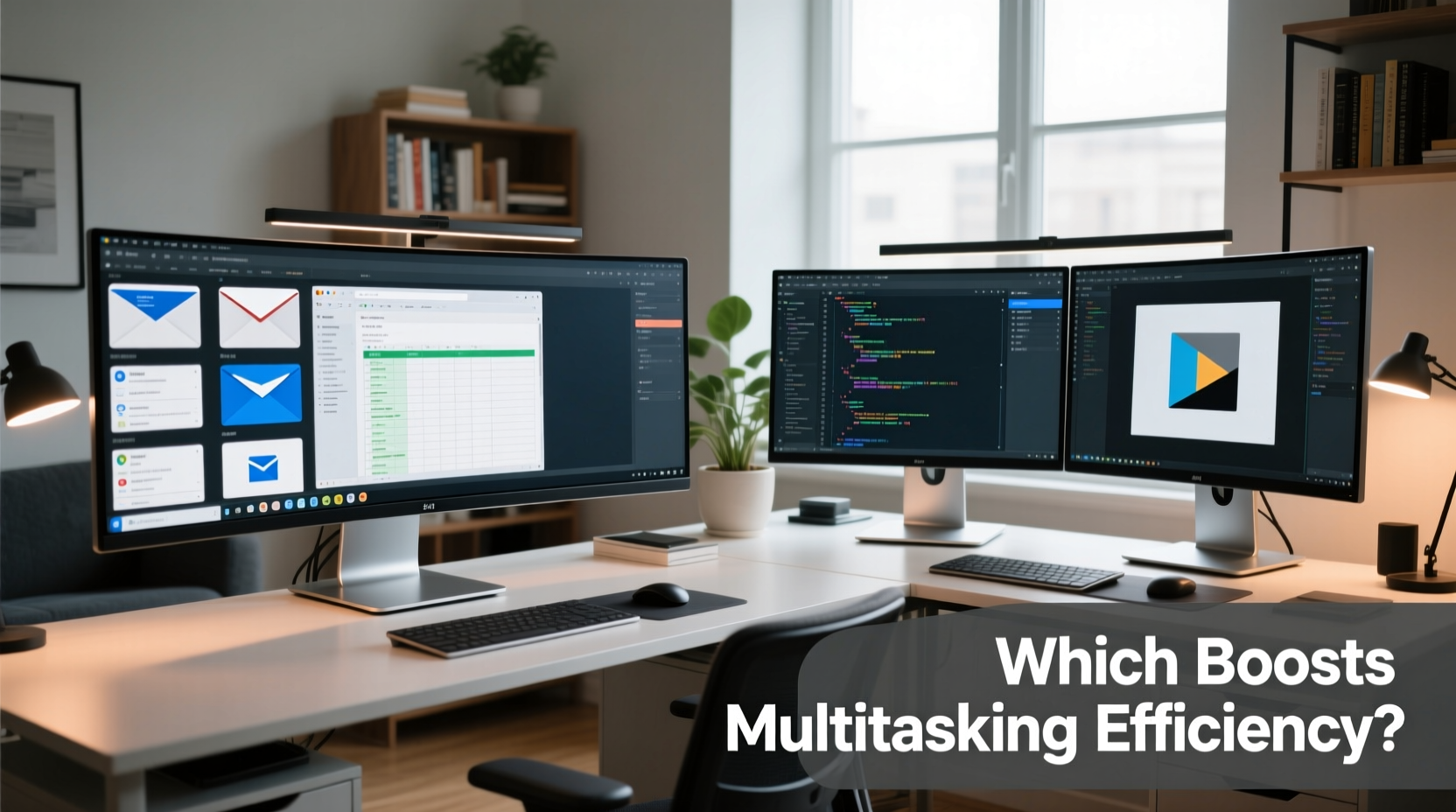
An ultrawide monitor typically features an aspect ratio of 21:9 or even 32:9, offering a continuous, seamless display that spans far wider than standard 16:9 screens. These monitors eliminate bezels in the center, providing a single canvas ideal for immersive work and media consumption. In contrast, dual monitors involve two separate displays—usually 16:9—placed side by side, often creating a physical gap between screens.
The most apparent distinction lies in continuity. With an ultrawide, windows can be dragged smoothly from left to right without interruption. Dual monitors, while flexible, introduce a “dead zone” at the center where the bezels meet, potentially disrupting visual flow. However, dual setups allow for greater hardware flexibility—you can mix sizes, resolutions, and even brands based on budget or need.
“Display continuity matters more than raw pixel count when it comes to cognitive load during task switching.” — Dr. Lena Torres, Human-Computer Interaction Researcher, MIT Media Lab
Workflow Efficiency: Who Benefits From What?
Multitasking isn’t just about having more screens; it’s about minimizing friction between tasks. Let’s break down common professional scenarios and evaluate which setup excels.
Video Editing and Content Creation
For video editors, timeline navigation is critical. An ultrawide monitor allows the preview window, timeline, and tool panels to coexist in a single view without constant tabbing or window resizing. The extended horizontal space makes scrubbing through long clips intuitive. In contrast, dual monitors often force users to dedicate one screen entirely to the preview and another to the editing suite, leading to frequent eye movement and reduced peripheral awareness.
Software Development
Developers frequently work with code files, terminals, documentation, and debug consoles simultaneously. Dual monitors offer a clear advantage here: one screen for the integrated development environment (IDE), the other for browser references, API docs, or version control tools. This separation reduces clutter and mental fatigue. While ultrawides can accommodate split views, some IDEs don’t scale well across ultra-wide canvases, leading to awkward spacing or excessive whitespace.
Financial Analysis and Data Management
Analysts working with large datasets benefit from horizontal expanse. Ultrawide monitors enable full visibility of wide Excel sheets or financial dashboards without constant horizontal scrolling. However, dual monitors allow pairing a data-heavy spreadsheet on one screen with pivot tables or reporting tools on the other—ideal for cross-referencing. The choice depends on whether the priority is breadth (ultrawide) or compartmentalization (dual).
Remote Work and Communication
Hybrid workers balancing video calls, chat apps, email, and project management tools often find dual monitors easier to manage. One screen can host the video conference, while the other runs notes, Slack, and task lists. Ultrawides can replicate this with window snapping, but the lack of physical separation may lead to distraction if not managed carefully.
Comparative Overview: Strengths and Trade-offs
| Feature | Ultrawide Monitor | Dual Monitors |
|---|---|---|
| Seamless Display | ✅ Yes – No bezel interruption | ❌ No – Bezel gap disrupts continuity |
| Setup Simplicity | ✅ Single cable, plug-and-play | ❌ Requires alignment, cabling, and potential driver tuning |
| Cost Efficiency | ❌ Higher upfront cost for quality models | ✅ Can reuse existing monitors or buy incrementally |
| Ergonomic Flexibility | ❌ Fixed curvature and position | ✅ Adjustable angles, heights, and orientations |
| Window Management | ✅ Smooth dragging across entire span | ❌ Cursor must \"jump\" over bezel gap |
| Hardware Compatibility | ❌ May require specific GPU ports (e.g., DisplayPort 1.4) | ✅ Works with most modern GPUs and laptops |
Real-World Example: A Day in the Life of a Digital Marketer
Sophie, a senior digital marketing strategist, tested both setups over a four-week period. Her typical day involves managing Google Ads dashboards, analyzing social media metrics in spreadsheets, attending Zoom meetings, and drafting campaign reports in Google Docs.
During Week 1–2, she used dual 27-inch 1440p monitors. She placed her analytics dashboard on the left, creative assets on the right, and minimized distractions during meetings. She appreciated the ability to rotate one screen vertically for long-form content editing.
In Weeks 3–4, she switched to a 34-inch 21:9 ultrawide. She snapped Chrome to the left third, Google Sheets across the middle, and her email client to the right. Initially, she found the layout cleaner, but struggled when presenting—sharing only part of the screen confused clients unfamiliar with ultrawide aspect ratios.
Her verdict? “Dual monitors gave me better control and adaptability. I could close one screen mentally when focusing. The ultrawide felt slick, but I missed the physical boundaries that helped me compartmentalize tasks.”
Optimizing Either Setup: Actionable Tips
Regardless of which configuration you choose, optimization is key. Poor window arrangement or suboptimal ergonomics can negate any efficiency gains.
Step-by-Step Guide to Configuring Your Multitasking Environment
- Assess your core tasks: List the top three applications you use daily. Are they vertical (e.g., code, documents) or horizontal (e.g., timelines, spreadsheets)?
- Determine screen dominance: Decide if you need one central workspace (favoring ultrawide) or isolated zones (favoring dual).
- Test window snapping: Use built-in OS tools (Windows Snap, macOS Split View) or third-party utilities like Magnet (Mac) or PowerToys (Windows) to automate layouts.
- Adjust scaling and resolution: On ultrawides, ensure text remains legible. Avoid stretching or poor DPI scaling that causes blurriness.
- Evaluate ergonomics: Center your setup, align the top of the screen at or slightly below eye level, and maintain a viewing distance of 24–30 inches.
- Monitor usage patterns: After one week, review how often you switch between apps, resize windows, or experience visual fatigue.
Common Pitfalls to Avoid
- Overcrowding the ultrawide: Just because you have space doesn’t mean you should fill it. Clutter defeats the purpose of expanded real estate.
- Mismatched dual monitors: Using different resolutions or refresh rates can cause cursor stutter and inconsistent color rendering.
- Ignoring cable management: Tangled cables increase stress and reduce desk usability. Use sleeves or under-desk trays.
- Skipping calibration: Color-critical work requires gamma and brightness alignment, especially on dual setups.
Frequently Asked Questions
Can I use an ultrawide monitor with a laptop?
Yes, provided your laptop has a compatible video output such as DisplayPort, Mini DisplayPort, or USB-C/Thunderbolt that supports high bandwidth. Check your device specifications to confirm resolution and refresh rate support.
Do dual monitors slow down my computer?
Not significantly for most modern systems. However, driving two high-resolution displays increases GPU and memory usage. For 4K or HDR content, ensure your graphics card has sufficient VRAM and processing power.
Is gaming better on ultrawide or dual monitors?
Ultrawide monitors are superior for gaming due to immersive field-of-view and native support in many titles. Dual monitors are rarely used for gameplay and can cause bezel interruptions in fast-paced scenes.
Expert Insight: Balancing Form and Function
“The best multitasking setup isn’t the one with the most pixels—it’s the one that reduces cognitive switching costs. That means minimizing distractions, maintaining visual hierarchy, and supporting natural workflow rhythms.” — Dr. Rajiv Mehta, Cognitive Ergonomics Specialist, Stanford HCI Group
This insight underscores a crucial point: efficiency isn’t solely about screen size or quantity. It’s about reducing mental effort. An ultrawide might look sleek, but if it encourages constant window resizing, it fails its purpose. Similarly, dual monitors may offer flexibility, but misaligned screens can cause eye strain and disorientation.
Final Recommendation: Match Setup to Workflow
There is no universal winner in the ultrawide vs dual monitor debate. The optimal choice hinges on individual needs:
- Choose an ultrawide if: You work with long timelines, wide spreadsheets, immersive media, or prefer minimalistic, clutter-free desktops. Ideal for video editors, financial analysts, and writers using distraction-free environments.
- Choose dual monitors if: You frequently switch between unrelated tasks, need vertical screen space, or want to repurpose existing hardware. Best for developers, customer support agents, traders, and hybrid office workers.
Conclusion: Elevate Your Productivity Intentionally
Multitasking efficiency isn’t achieved by simply adding more screens. It’s cultivated through thoughtful design, ergonomic awareness, and workflow alignment. Whether you lean toward the cinematic sweep of an ultrawide or the modular precision of dual monitors, the goal remains the same: to create a digital workspace that feels like an extension of your mind.
Start by auditing your daily tasks. Experiment with both configurations if possible. Use snapping tools, adjust positioning, and listen to your body—if you’re squinting, craning your neck, or constantly rearranging windows, it’s time to reassess. Technology should serve you, not distract you.




 浙公网安备
33010002000092号
浙公网安备
33010002000092号 浙B2-20120091-4
Comments
No comments yet. Why don't you start the discussion?