
In today’s digital workspace, screen real estate is no longer a luxury—it’s a necessity. Whether you're editing video timelines, analyzing spreadsheets, coding complex applications, or managing multiple communication channels, your monitor setup directly impacts efficiency, focus, and long-term comfort. Two of the most popular high-productivity configurations are ultrawide monitors and dual monitor setups. But when it comes to actual workflow improvement, which one delivers more value?
The answer isn’t universal. It depends on your work style, software demands, physical workspace, and even personal preference. This article breaks down both options with real-world insights, expert opinions, and practical comparisons to help you make an informed decision.
Understanding the Core Differences
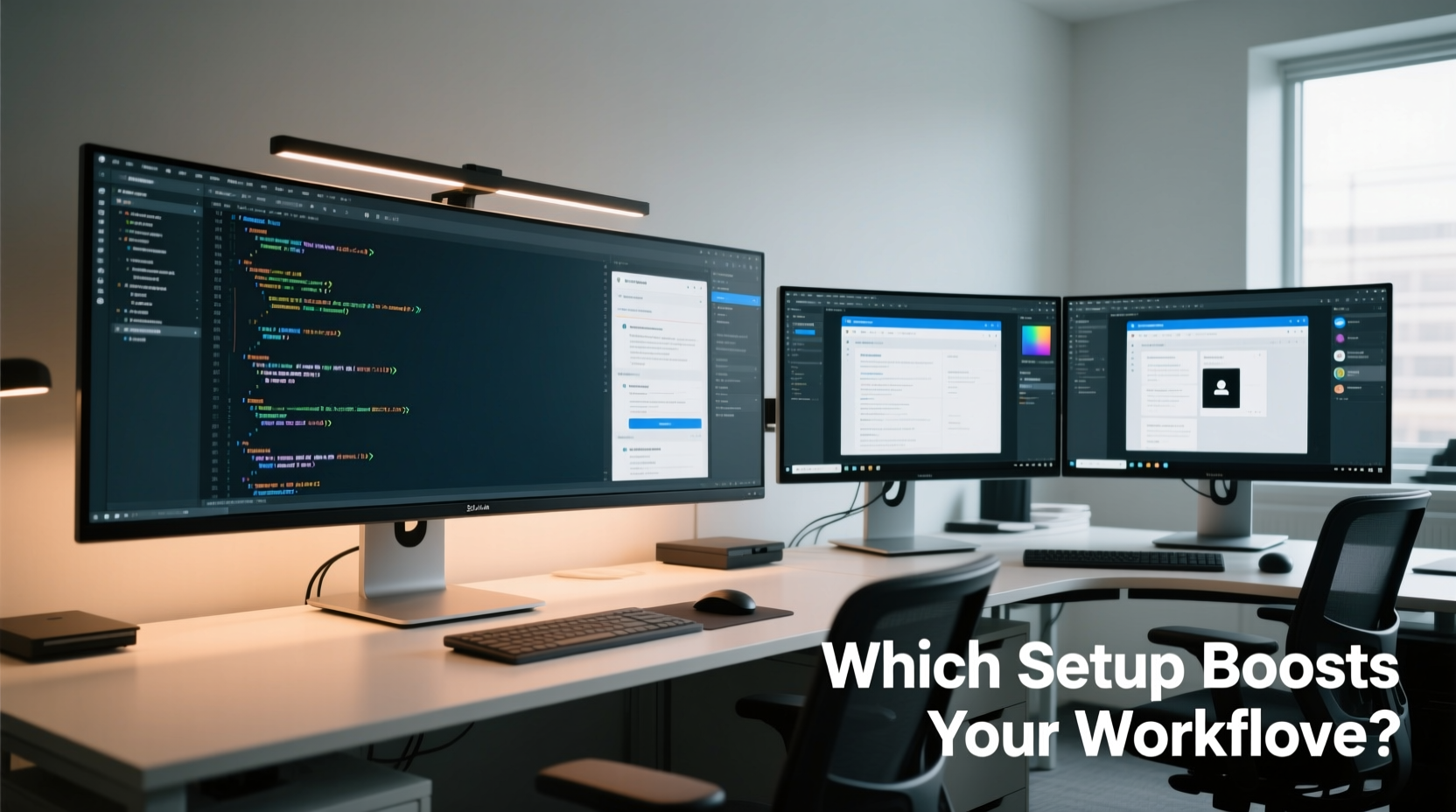
An ultrawide monitor typically features a 21:9 or 32:9 aspect ratio, offering a single continuous display surface that spans across a wide field of view. In contrast, a dual monitor setup uses two separate screens—usually 16:9 panels—placed side by side, creating a combined desktop environment.
While both aim to expand usable screen space, they do so in fundamentally different ways:
- Ultrawide: A seamless, immersive experience with no bezel interruption between windows.
- Dual Monitors: Modular flexibility—you can mix sizes, resolutions, and orientations based on need.
The lack of a central bezel in ultrawides benefits tasks like video editing or data visualization, where continuity matters. Dual monitors, however, allow for task segregation—one screen for reference material, the other for active creation—making them ideal for multitaskers who juggle apps constantly.
Productivity Showdown: Real-World Performance
Multiple studies have examined screen size and layout impact on productivity. According to research from Jon Peddie Research, workers using extended displays report up to 35% higher productivity compared to single-screen users. But does that advantage favor ultrawide or dual setups?
A 2022 study conducted at the University of Utah's Human-Computer Interaction Lab compared 49 participants performing office tasks (email triage, document editing, web research) across three configurations: single 24-inch monitor, dual 24-inch monitors, and a 34-inch ultrawide (3440x1440). The results showed:
| Setup | Average Task Completion Time | User Satisfaction (1–10) | Reported Distractions |
|---|---|---|---|
| Single Monitor | 47 minutes | 5.2 | High (constant window switching) |
| Dual Monitors | 38 minutes | 8.1 | Low (once arranged) |
| Ultrawide | 36 minutes | 7.9 | Very low (no bezel distraction) |
The ultrawide slightly edged out dual monitors in speed, primarily due to reduced cognitive load from fewer window transitions and no central bezel interrupting full-screen content. However, users praised dual monitors for better app isolation—keeping email or Slack permanently visible on one screen while focusing on primary tasks on the other.
“With ultrawides, we see improved immersion in timeline-based work like video and audio editing. But for knowledge workers managing many concurrent streams, dual screens offer superior compartmentalization.” — Dr. Alan Torres, HCI Researcher, University of Utah
Ergonomic Considerations and Long-Term Comfort
Prolonged screen use demands attention to posture, eye strain, and head movement. Here, ultrawide monitors present both advantages and risks.
On one hand, having all content within a single panel reduces lateral head turning. On the other, large ultrawides (especially curved models over 34 inches) can encourage poor neck rotation if not properly centered. Users often tilt their heads to view far edges, leading to tension over time.
Dual monitors, when placed incorrectly, create a “valley” effect between screens, forcing eyes to refocus across different planes. But when aligned flush with matching height, tilt, and minimal gap, they offer excellent peripheral access without excessive motion.
Best Practices for Ergonomic Setup
- Position the center of either setup directly in front of your seated position.
- Ensure top of screen is at or slightly below eye level.
- For dual monitors, align bezels as closely as possible; consider a VESA mount for seamless alignment.
- Use a monitor arm to reduce desk clutter and improve adjustability.
- Take breaks every 20–30 minutes; follow the 20-20-20 rule (every 20 minutes, look at something 20 feet away for 20 seconds).
Software Compatibility and Workflow Integration
Not all applications behave equally well on ultrawide or dual displays. Some thrive in expansive horizontal space, while others benefit from spatial separation.
Video editors, for example, gain significant advantages on ultrawides. A 3440x1440 resolution provides ample room for the preview window, timeline, effects panel, and audio meters—all in a single view. Adobe Premiere Pro and DaVinci Resolve support ultrawide natively, allowing full utilization of horizontal pixels.
Coders often prefer dual monitors: one for code editor, another for documentation, terminal, or debugging tools. IDEs like Visual Studio Code or JetBrains suites don’t stretch efficiently across ultrawide width—they’re designed vertically. Splitting them left-right works, but loses vertical scroll depth unless paired with tiling window managers.
Financial analysts using Excel benefit from ultrawide’s extra columns, especially when comparing datasets side-by-side. Yet, running multiple dashboards simultaneously (e.g., Bloomberg Terminal + Excel + Teams) favors dual monitors for dedicated application zoning.
Window Management Tools That Help
Both setups benefit from smart window management:
- FancyZones (Windows): Create custom grid layouts to snap apps into precise regions.
- Magnet (macOS): Drag windows to screen edges to auto-resize across halves or thirds.
- DisplayFusion: Offers advanced taskbar controls and multi-monitor wallpaper management.
These tools mitigate some limitations—such as difficulty resizing windows on ultrawides or managing overlapping apps on dual monitors.
Mini Case Study: Graphic Designer vs. Software Developer
Situation: Two professionals in adjacent home offices upgraded from single monitors but chose different paths.
Lena, a freelance graphic designer, switched to a 34-inch ultrawide (LG 34WN80C-B). Her typical day involves Photoshop, Illustrator, and client Zoom calls. She uses the left third for tool palettes, center for canvas, and right for communication. The uninterrupted workspace lets her pan across large designs smoothly. “I used to lose my cursor in the gap between monitors,” she says. “Now everything flows.”
Mark, a backend developer, opted for dual 27-inch 1440p monitors. He codes in Vim on one screen, runs Docker logs and API tests on the other, and keeps Jira open in a small window on the far right. He occasionally mirrors his secondary screen during pair programming. “I need context without switching tabs,” he explains. “Two screens let me keep everything alive and visible.”
Their choices reflect core truths: creative workflows with linear timelines benefit from ultrawide continuity, while technical roles requiring constant context-switching thrive on dual-screen modularity.
Cost, Space, and Scalability Comparison
Price and physical constraints matter—especially in smaller workspaces.
| Factor | Ultrawide Monitor | Dual Monitor Setup |
|---|---|---|
| Initial Cost | $500–$1,200 (premium for 5K2K or 32:9) | $400–$900 (can reuse existing monitors) |
| Desk Space | One footprint; ideal for compact desks | Bulkier; requires wider surface |
| Cable Management | Single cable to GPU (usually DisplayPort) | Two cables; potential clutter |
| Upgrade Path | All-or-nothing replacement | Replace one at a time; mix brands/models |
| GPU Requirements | One strong output (supports high bandwidth) | Two outputs; less per-port demand |
Dual monitors win on flexibility and incremental upgrades. You can start with one screen and add later. Ultrawides require upfront investment but deliver cleaner aesthetics and simpler cabling.
Checklist: Choosing the Right Setup for Your Workflow
Still unsure? Use this checklist to guide your decision:
- ✅ Do you frequently work with long timelines (video/audio/editing)? → Favors ultrawide.
- ✅ Do you run 3+ apps simultaneously and keep them all open? → Favors dual monitors.
- ✅ Is desk space limited? → Favors ultrawide.
- ✅ Do you value seamless visuals (e.g., gaming, photo panoramas)? → Favors ultrawide.
- ✅ Do you already own a good monitor? → Favors dual setup (add one more).
- ✅ Do you prioritize clean cable management and minimalist design? → Favors ultrawide.
- ✅ Do you switch between very different tasks (coding, then presenting)? → Favors dual monitors for role-specific screen assignment.
Frequently Asked Questions
Can I use an ultrawide and still have dual-monitor functionality?
Yes—many ultrawides support virtual desktops or software partitioning (like FancyZones) to simulate multiple screens. You can designate zones for specific apps, mimicking the organization of dual monitors without physical separation.
Are ultrawide monitors bad for productivity in office environments?
No. While early adopters reported difficulty adjusting to the width, modern operating systems (Windows 11, macOS Sonoma) include better snapping and tiling features. Once configured, ultrawides often enhance focus by reducing window overlap and minimizing task switching.
Do dual monitors cause more eye strain than ultrawides?
Only if poorly set up. Misaligned screens force your eyes to constantly refocus between different depths or angles. When both monitors are level, angled inward slightly, and positioned correctly, eye strain is comparable to ultrawide use.
Final Verdict: Which Setup Improves Workflow More?
There is no outright winner—only what works better for you.
If your work is immersive, linear, and benefits from horizontal expansion—video editing, financial modeling, photography, or panoramic design—an ultrawide monitor likely offers superior workflow enhancement. Its seamless display reduces distractions, simplifies cabling, and maximizes compact desk usage.
If your role demands constant context switching—software development, project management, customer support, or research—an intelligently arranged dual monitor setup provides unmatched flexibility. The ability to isolate functions, extend across mismatched hardware, and adapt over time makes it a resilient choice for evolving needs.
Ultimately, the most productive setup is the one that fades into the background. When your tools stop demanding attention and start enabling flow, you’ve found the right fit.




 浙公网安备
33010002000092号
浙公网安备
33010002000092号 浙B2-20120091-4
Comments
No comments yet. Why don't you start the discussion?