
In today’s digital workspace, screen real estate directly impacts how efficiently you work. Whether you're coding, editing video, managing spreadsheets, or juggling multiple communication platforms, having the right display setup can dramatically affect your focus, workflow, and comfort. Two of the most popular high-productivity configurations are the ultrawide monitor and the dual-screen setup. While both aim to expand your visual workspace, they do so in fundamentally different ways. Choosing between them isn’t just about preference—it’s about aligning your tools with your tasks, environment, and long-term ergonomic health.
The Core Differences: Design and Functionality
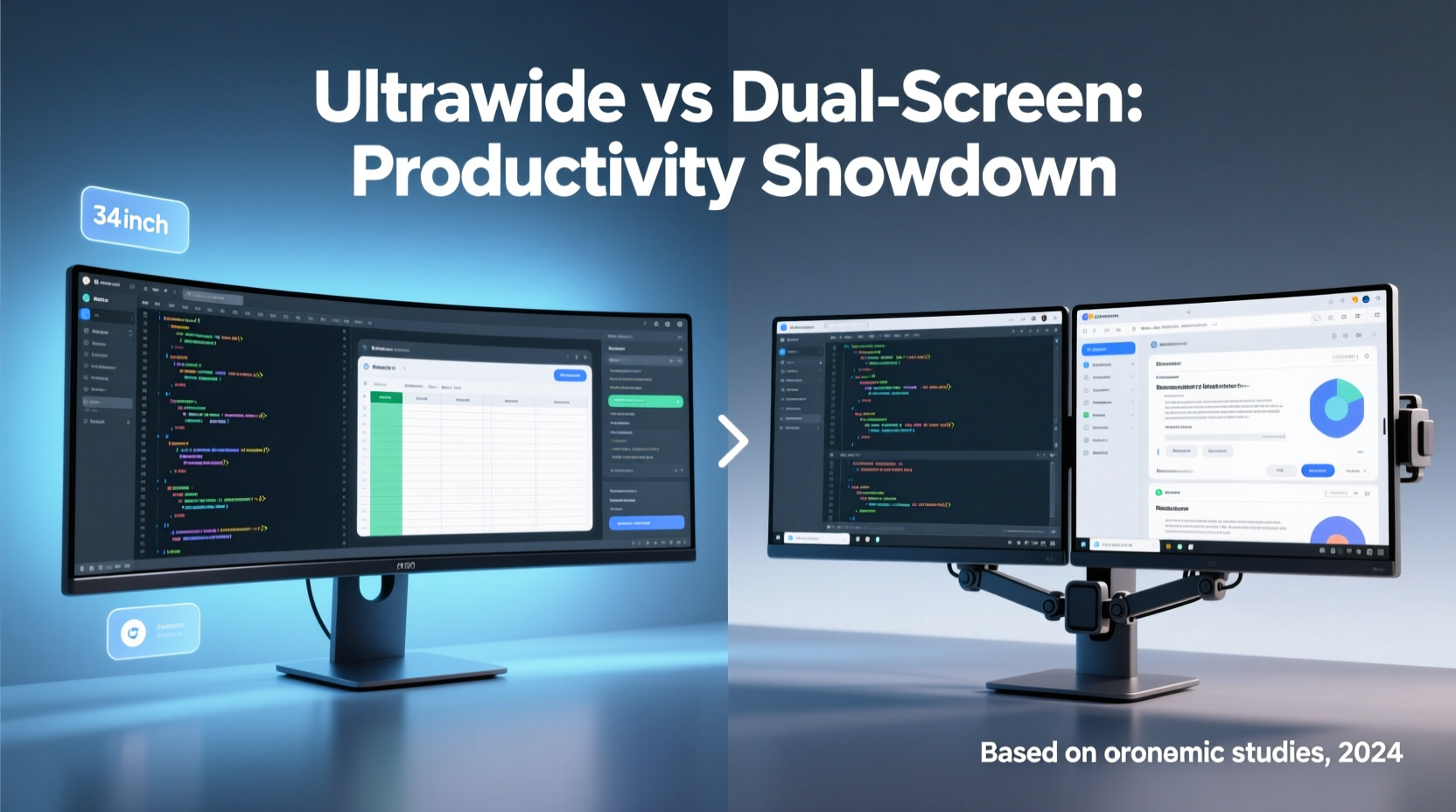
An ultrawide monitor typically features an aspect ratio of 21:9 or even 32:9, offering a single, seamless display that stretches across your field of view. In contrast, a dual-screen setup involves two separate monitors—usually 16:9 panels—placed side by side, either aligned horizontally or stacked vertically depending on use case.
The ultrawide provides a continuous canvas without physical bezels interrupting your view. This makes it ideal for tasks requiring smooth lateral movement, such as timeline editing in video production or viewing wide spreadsheets. Dual monitors, however, offer modularity. You can rotate one vertically for coding or document editing while keeping the other horizontal for reference material, web browsing, or communication apps.
One critical distinction lies in window management. On an ultrawide, operating systems treat the display as a single unit, which can complicate snapping windows into precise zones unless third-party software is used. Dual monitors, on the other hand, are natively recognized as separate displays, allowing intuitive drag-and-drop workflows across screens.
Productivity Showdown: Where Each Setup Excels
When evaluating productivity, context matters more than raw specs. The “best” setup depends on what you do, how you work, and where you work.
Ultrawide Monitors: Best For Immersive, Horizontal Workflows
- Video and photo editing: A 32:9 curved ultrawide lets editors view full timelines alongside preview windows and tool palettes without constant tab switching.
- Data analysis: Financial analysts benefit from seeing dozens of spreadsheet columns at once, reducing the need to scroll horizontally.
- Gaming and media consumption: Though not strictly productivity, many professionals also use their setups for hybrid work-play scenarios where immersion adds value.
However, ultrawides can create challenges with window scaling. Some applications don’t handle extreme aspect ratios well, leading to awkwardly stretched interfaces or excessive white space.
Dual-Screen Setups: Best For Task Segmentation and Flexibility
- Software development: Developers often place code on one screen and documentation, terminals, or debug consoles on the other.
- Customer support and multitasking: Keeping email, chat, CRM, and knowledge bases open across two screens reduces task-switching fatigue.
- Trading and finance: Day traders rely on multiple data streams—charts, news feeds, order books—spread across independent screens for rapid monitoring.
The modular nature of dual monitors allows for hardware diversity. You could pair a high-resolution 4K screen for detailed design work with a fast-refresh 1080p panel optimized for responsiveness.
“Dual monitors give users control over spatial organization. That cognitive separation between tasks improves focus and reduces mental clutter.” — Dr. Lena Patel, Human-Computer Interaction Researcher, MIT Media Lab
Comparative Analysis: Key Factors at a Glance
| Factor | Ultrawide Monitor | Dual-Screen Setup |
|---|---|---|
| Seamless Viewing Experience | ✅ Yes – no bezel interruption | ❌ No – visible gap between screens |
| Window Management | ⚠️ Challenging without third-party tools | ✅ Native OS support, intuitive dragging |
| Ergonomic Flexibility | ⚠️ Fixed curvature may not suit all desks | ✅ Adjustable angles, heights, orientations |
| Cost Efficiency | ⚠️ High-end models are expensive | ✅ Can mix old and new monitors |
| Cable Management | ✅ Single connection (often) | ❌ Multiple cables, power adapters |
| Scalability | ❌ Limited to one large display | ✅ Expand to three or more screens easily |
Real-World Example: A Content Creator’s Dilemma
Sarah Kim, a freelance video editor based in Vancouver, upgraded from a dual 27-inch 1440p monitor setup to a 49-inch 5120x1440 ultrawide. Initially thrilled by the panoramic workspace, she quickly encountered issues. Premiere Pro timelines looked great, but her script, audio meters, and messaging apps competed for vertical space. She missed the ability to dedicate one screen purely to communications.
After six weeks, Sarah returned to a hybrid model: a 32:9 ultrawide paired with a smaller vertical monitor mounted to its side. This gave her the best of both worlds—the expansive timeline view and a dedicated zone for chat, email, and reference clips. Her rendering time didn’t change, but her daily stress dropped significantly.
Her experience highlights a growing trend: the convergence of ultrawide and multi-monitor strategies. Rather than choosing one or the other, many professionals now blend them for maximum utility.
Making the Right Choice: A Step-by-Step Decision Framework
Selecting between an ultrawide and a dual-screen setup shouldn’t be arbitrary. Follow this structured approach to match your needs with the optimal solution.
- Assess Your Primary Workload: List your top three daily tasks. Are they linear (e.g., timelines, spreadsheets) or compartmentalized (e.g., coding + docs, trading + news)?
- Evaluate Physical Space: Measure your desk depth and width. Ultrawides require at least 40 inches of clearance and benefit from centered seating. Dual monitors need adjustable arms if alignment is critical.
- Check GPU and Port Compatibility: A 5120x1440 ultrawide demands DisplayPort 1.4 or HDMI 2.1 bandwidth. Older GPUs may struggle. Dual 1440p monitors are less demanding and can run off mid-tier graphics cards.
- Test Ergonomics: Sit at your desk and imagine the eye movement required. With dual monitors, frequent glancing across a gap can cause neck strain. Ultrawides reduce head motion but may require slight head turning if too wide.
- Budget Realistically: A premium ultrawide starts around $800–$1,200. Two quality 27-inch IPS panels can cost $600–$900 combined, offering better value if flexibility is key.
- Pilot Before Committing: Borrow or rent equipment for a week. Productivity gains are personal—what works for one person may hinder another.
Common Pitfalls to Avoid
- Ignoring bezel placement: In dual setups, the center bezel can split important content. Position it between unrelated apps (e.g., between browser and music player).
- Overlooking text clarity: On large ultrawides, default scaling may make UI elements too small. Adjust DPI settings to maintain readability.
- Forgetting cable clutter: Dual monitors generate more wires. Invest in a cable management tray or sleeve system to reduce visual distraction.
- Assuming bigger is always better: A 49-inch screen might overwhelm a small home office. Consider 34-inch ultrawides as a balanced alternative.
Frequently Asked Questions
Can I use an ultrawide as dual monitors virtually?
Yes. Tools like FancyZones (via Microsoft PowerToys), Divvy, or BetterSnapTool let you divide an ultrawide into customizable regions, mimicking separate screens. This gives you the seamless look of an ultrawide with the organizational logic of dual monitors.
Is eye strain worse with ultrawides?
Not necessarily. Curved ultrawides can reduce distortion and maintain consistent viewing distance. However, if the screen is too wide or improperly positioned, frequent side-to-side eye movement may contribute to fatigue. Proper calibration and viewing distance (about arm’s length) mitigate this risk.
Which setup uses more GPU power?
A single 3440x1440 ultrawide has roughly the same pixel count as two 2560x1440 monitors (~5 million pixels). GPU load is comparable, though some ultrawides with higher refresh rates (120Hz+) demand more performance. For general productivity, neither will strain modern integrated or discrete graphics.
Action Checklist: Choosing and Optimizing Your Setup
Before purchasing or reconfiguring your workspace, complete this checklist:
- ☐ Identify your primary productivity bottleneck (e.g., constant window switching, limited screen space)
- ☐ Measure desk dimensions and viewing distance
- ☐ Verify GPU output ports and supported resolutions
- ☐ Decide on orientation (landscape only, or one vertical?)
- ☐ Research specific models: check reviews for color accuracy, uniformity, and input lag
- ☐ Plan cable routing and power access
- ☐ Install window management software (especially for ultrawide)
- ☐ Calibrate brightness, contrast, and color temperature for consistency
Final Recommendation: It’s Not Either/Or—It’s About Integration
The debate between ultrawide and dual-screen setups misses a crucial point: the future of productivity lies in intelligent integration. Many high-performing professionals now adopt a tiered approach. They use a central ultrawide for core creative or analytical work and supplement it with a smaller secondary monitor for notifications, communications, or monitoring dashboards.
Rather than treating this as a binary decision, think in terms of workflow zones. What part of your day requires immersion? What part benefits from separation? Answer those questions honestly, and the right configuration will emerge—not as a rigid standard, but as a dynamic extension of how you think and create.
Technology should serve your productivity, not dictate it. Whether you choose the cinematic sweep of an ultrawide or the practical versatility of dual screens, the goal remains the same: to minimize friction, maximize focus, and make every minute at your desk count.




 浙公网安备
33010002000092号
浙公网安备
33010002000092号 浙B2-20120091-4
Comments
No comments yet. Why don't you start the discussion?