
For professional video editors, screen real estate is more than a luxury—it’s a necessity. Whether you're scrubbing timelines, managing color grading panels, or monitoring multiple camera angles, the way you configure your display directly impacts efficiency, ergonomics, and creative flow. Two dominant setups dominate the conversation: ultrawide monitors and dual-screen configurations. Each offers distinct advantages and trade-offs. Understanding these differences helps you make an informed decision based on your editing style, software preferences, and physical workspace.
Understanding the Core Differences
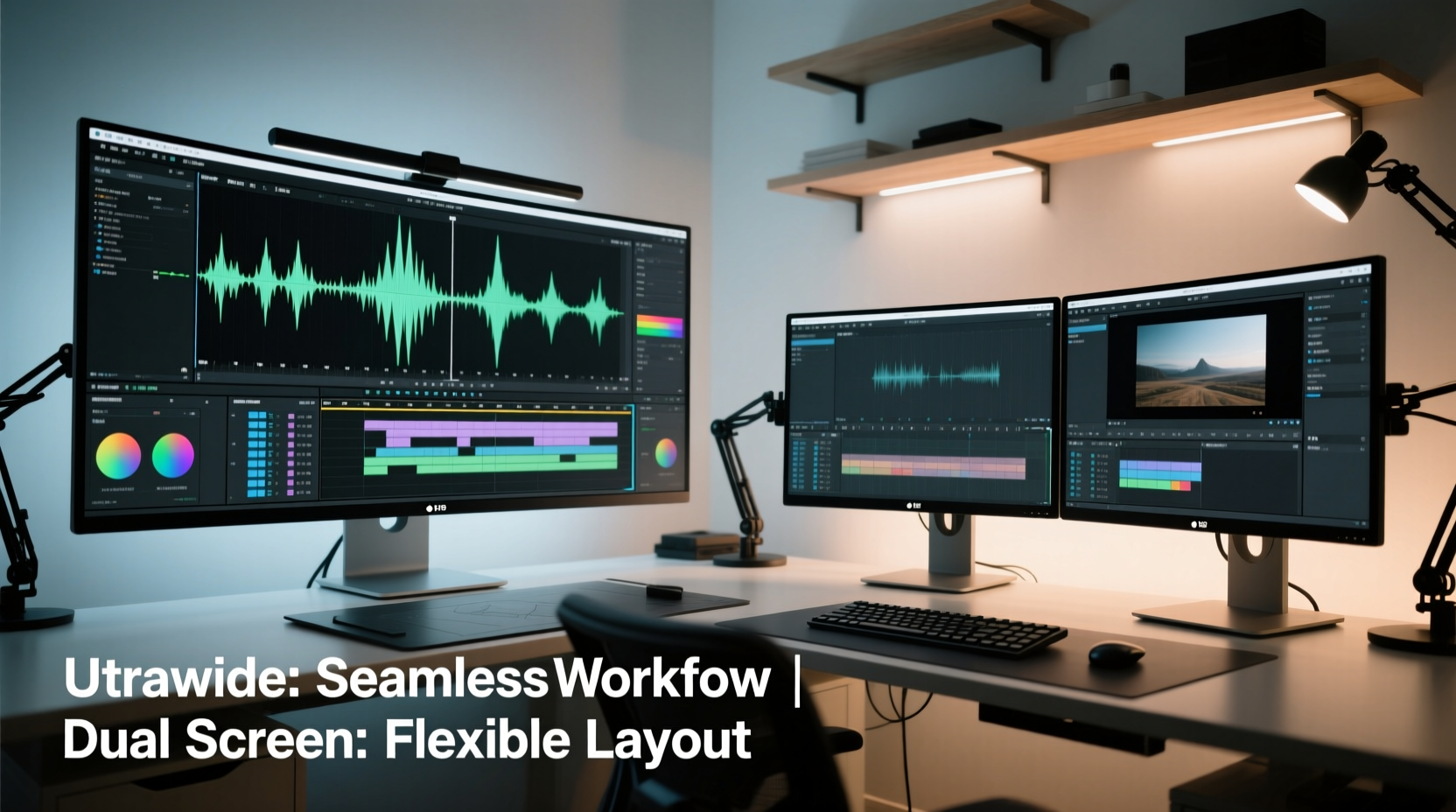
An ultrawide monitor typically features a 21:9 or even 32:9 aspect ratio, offering a single, continuous display surface with high horizontal resolution—commonly 3440x1440 or 5120x2160 pixels. This format mimics cinematic widescreen visuals and provides seamless space for timeline navigation and tool placement.
In contrast, a dual-screen setup involves two separate monitors—often 24 to 27 inches each—arranged side by side. This configuration traditionally uses standard 16:9 displays, combining them to achieve similar or greater total pixel count but with a physical gap in the middle.
The fundamental difference lies not just in resolution but in continuity, usability, and spatial organization. While both aim to expand your digital workspace, they do so in fundamentally different ways—one unified, the other segmented.
Pros and Cons of Ultrawide Monitors for Video Editing
Advantages
- Seamless Timeline View: With no bezel interrupting the center, ultrawide screens allow uninterrupted visibility across long timelines in Adobe Premiere Pro, DaVinci Resolve, or Final Cut Pro. This is especially valuable when working with multi-track sequences.
- Better Immersion: The wide field of view reduces the need to pan windows, keeping primary tools like the viewer, timeline, and audio meters within easy sight without constant window switching.
- Cleaner Desk Aesthetic: One monitor means fewer cables, one stand, and less clutter—a benefit for minimalist workspaces or mobile editing rigs.
- Natural Fit for Cinema Workflows: Since most modern films and videos are shot in wide formats, editing on a similarly proportioned screen creates visual harmony and intuitive layout alignment.
- Improved Multitasking Within a Single App: Applications optimized for ultrawide (like DaVinci Resolve) can spread panels across the width efficiently—viewer on the left, timeline at the bottom, scopes on the right.
Drawbacks
- Poor Vertical Space: Most ultrawides prioritize width over height. At 1440p vertical resolution, you get less screen “tallness” than a standard 1440p 16:9 monitor, which can be limiting when stacking tracks or using vertically oriented tools.
- Software Compatibility Issues: Not all editing software scales well to ultrawide resolutions. Some UI elements may stretch awkwardly or require manual resizing.
- Higher Cost: High-quality ultrawide monitors with accurate color reproduction (essential for grading) often cost more than two mid-range 1080p or 1440p screens.
- Ergonomic Challenges: Larger ultrawides (especially 34”+) may require head movement to scan from edge to edge, potentially causing neck strain during extended sessions.
- Limited Expandability: You’re locked into one display. Adding a second screen later may create mismatched resolutions and scaling issues.
Dual-Screen Setup: Strengths and Limitations
Benefits
- Flexible Window Management: Assign one screen to your main editing interface and the other to media bins, email, reference videos, or communication apps like Slack or Zoom—ideal for collaborative workflows.
- Greater Vertical Real Estate: Two stacked or landscape-oriented screens offer more usable height when organizing multi-layer timelines or effects chains.
- Easier Upgrades: You can upgrade one monitor at a time, mix sizes, or repurpose existing hardware, making this option more budget-flexible over time.
- Better Peripheral Vision Utilization: Your brain naturally treats each screen as a separate task zone, aiding focus separation between creative and administrative work.
- Wider Software Support: Most NLEs (non-linear editors) are designed with dual-monitor use in mind, allowing drag-and-drop panel distribution across displays.
Challenges
- Middle Bezels Create Visual Disruption: The gap between screens can split timelines or waveforms, forcing awkward window positioning or wasted space near the center.
- Inconsistent Color & Brightness: Matching two separate monitors—even same models—can be difficult. Slight variances affect color grading accuracy.
- More Cables and Clutter: Dual power cords, video inputs, and stands increase desk complexity and potential failure points.
- Calibration Overhead: Requires individual calibration for consistent color, doubling maintenance effort compared to a single ultrawide.
- Alignment Sensitivity: If monitors aren’t perfectly aligned in height or angle, eye tracking becomes fatiguing over long sessions.
“Dual monitors give me control over context. I keep my timeline and viewer on the left, and all my metadata, scripts, and comms on the right. It’s like having a production assistant built into my desk.” — Lena Torres, Senior Editor at FrameShift Studios
Direct Comparison: Ultrawide vs Dual Screen
| Feature | Ultrawide Monitor | Dual-Screen Setup |
|---|---|---|
| Timeline Continuity | ✅ Seamless, no central gap | ❌ Interrupted by bezel |
| Vertical Workspace | ⚠️ Limited (max 1440p) | ✅ Greater (especially if stacked) |
| Cost Efficiency | ❌ Higher upfront cost | ✅ Can reuse existing monitors |
| Color Accuracy Consistency | ✅ One calibrated surface | ⚠️ Requires dual calibration |
| Flexibility in App Placement | ⚠️ Good within one app | ✅ Excellent across tasks |
| Ease of Setup | ✅ Plug-and-play simplicity | ⚠️ More cabling and alignment needed |
| Fitness for Color Grading | ✅ Ideal with HDR/IPS ultrawides | ⚠️ Only if both screens are reference-grade |
| Expandability | ⚠️ Hard to add third screen | ✅ Easier to scale to triple-monitor |
Real-World Workflow Example: Documentary Editor's Dilemma
Jamal Reed, a freelance documentary editor based in Portland, recently transitioned from a dual 27” 1440p setup to a single 34” ultrawide. His project involved syncing 12 interview clips with B-roll and sound design layers. Initially excited by the clean look and immersive timeline view, he quickly noticed limitations.
\"I loved how the entire timeline fit horizontally without zooming,\" Jamal explains. \"But when I added subtitles and music tracks, I ran out of vertical space. I couldn’t see all my audio waveforms clearly, and I missed subtle sync drifts.\" He also found that dragging playback markers across the full width required more mouse travel than expected.
After six weeks, he reverted to dual screens—one dedicated to the timeline and preview, the other to script notes, transcription files, and client feedback. \"The physical gap annoyed me at first,\" he admits, \"but once I positioned the timeline slightly off-center, it became muscle memory. Now I feel more in control.\"
This case illustrates a key insight: workflow needs evolve with project complexity. What works for simple social media edits may falter under feature-length demands.
Choosing Based on Your Editing Style
Your ideal setup depends heavily on your typical workload:
- Single-Camera Narrative Projects: Ultrawide excels here. Long timelines, visual effects lanes, and scope monitoring benefit from horizontal sprawl.
- Multi-Cam & Interview-Based Work: Dual screens help manage source footage, transcripts, and synchronization windows simultaneously.
- Color Grading Specialists: A high-end ultrawide with DCI-P3 coverage and factory calibration (e.g., LG UltraFine or Dell Ultrasharp) minimizes color inconsistency risks inherent in dual setups.
- Freelancers on the Move: Ultrawide laptops or portable ultrawides (like ASUS ProArt PQ22UC) integrate better with compact mobile stations.
- Collaborative Editors: Dual screens allow one monitor to face a client or director during review sessions while maintaining private tool access on the other.
Actionable Checklist: Choosing Your Ideal Setup
- Assess your most common project type (short-form, long-form, multi-cam).
- Measure your desk depth and viewing distance—ensure ultrawide curvature fits your line of sight.
- Check software compatibility: Does your NLE support ultrawide panel layouts?
- Determine color accuracy needs—do you grade professionally? Invest in a single reference-grade display.
- Calculate total cost including mounts, cables, and calibration tools.
- Simulate workflows: Try arranging mock panels on paper to visualize space usage.
- Consider future-proofing: Will you add a third screen later? Dual setups scale more easily.
Expert Recommendations and Industry Trends
According to Dr. Aris Thorne, human-computer interaction researcher at MIT Media Lab, “The cognitive load of switching between discontinuous spaces—like jumping over a bezel—is measurable. Users report higher fatigue after four hours on dual monitors versus ultrawide, even with identical pixel counts.”
However, he cautions against generalizations: “Task segmentation matters. When administrative and creative tasks are separated spatially, dual screens can reduce mental clutter. It’s not just about pixels—it’s about purpose.”
Industry trends show growing adoption of ultrawide among solo creators and YouTubers, while post houses and broadcast facilities still favor dual or triple 16:9 setups for their flexibility and proven reliability.
Frequently Asked Questions
Can I use an ultrawide monitor with DaVinci Resolve?
Yes, and it’s highly recommended. DaVinci Resolve handles ultrawide resolutions exceptionally well, allowing you to place the viewer on the left, timeline at the bottom, and color wheels/scopes on the right—all visible at once without scrolling.
Is a dual-screen setup better for multitasking outside editing?
Absolutely. If you frequently check emails, research stock footage, or communicate via Teams while editing, dual screens let you isolate distractions. An ultrawide forces everything into one visual field, increasing cognitive load.
Do ultrawide monitors cause eye strain?
Not inherently. However, poorly positioned ultrawides (too far, too wide, or incorrectly curved) can force excessive eye or head movement. Use a curved model and position it close enough that edge content stays within your natural peripheral vision (about 30–36 inches for a 34” screen).
Final Recommendation: Match Setup to Workflow
There is no universal winner between ultrawide and dual-screen setups. The best choice aligns with your specific editing demands, software habits, and physical environment.
Choose an **ultrawide monitor** if:
- You prioritize timeline visibility and immersion.
- You work primarily in one application (e.g., Premiere or Resolve).
- You value clean, minimal workspace design.
- You perform color grading and need uniform display quality.
Opt for a **dual-screen setup** if:
- You juggle multiple applications during editing.
- You edit multi-camera projects with extensive source media.
- You already own compatible monitors and want to save costs.
- You collaborate frequently and need screen-sharing flexibility.




 浙公网安备
33010002000092号
浙公网安备
33010002000092号 浙B2-20120091-4
Comments
No comments yet. Why don't you start the discussion?