
In today’s hybrid work environment, optimizing your workspace isn’t just about comfort—it directly impacts efficiency, focus, and long-term job satisfaction. One of the most debated decisions among remote workers, developers, designers, and financial analysts is whether to go with a single ultrawide monitor or stick with a traditional dual-screen setup. Both configurations promise increased productivity, but they come with trade-offs in desk real estate, workflow integration, and cost. The question remains: does the sleek simplicity of an ultrawide truly outperform the flexibility of two separate displays?
This article breaks down the practical realities of both setups, drawing from ergonomic research, user experience studies, and real-world workflows. Whether you're redesigning your home office or upgrading your workstation at the office, understanding the nuances will help you make a decision that aligns with how you actually work—not just how tech reviewers say you should.
Ergonomic Impact and Desk Space Efficiency
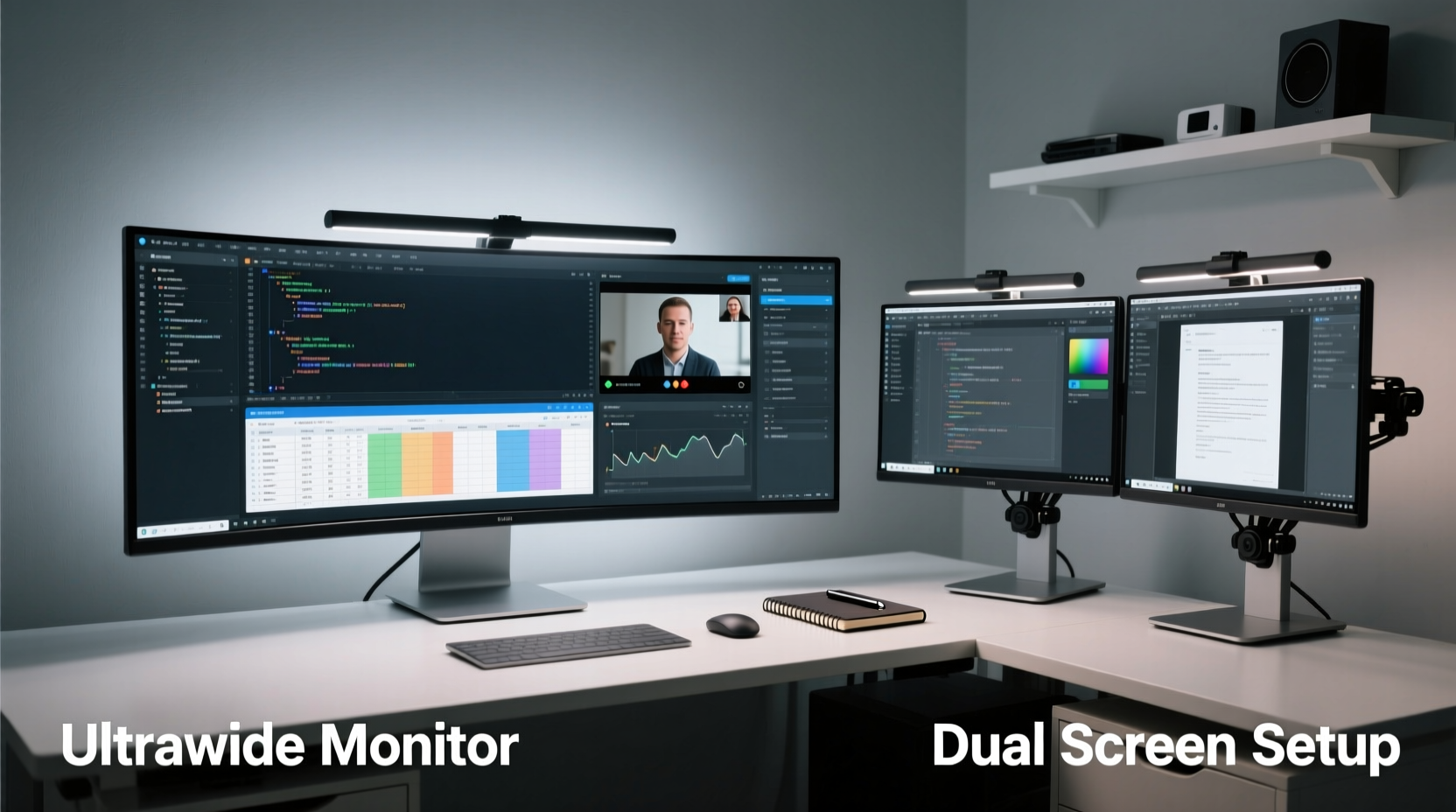
One of the first considerations when choosing between an ultrawide and dual monitors is physical space. Most standard desks range from 48 to 60 inches in width. A dual-monitor setup typically requires at least 36 inches of front-to-back depth and 50+ inches of width to accommodate two 24-inch displays with room for a keyboard and mouse. Add monitor arms or stands, and the footprint grows further.
In contrast, a single 34-inch ultrawide monitor (with a 21:9 aspect ratio) occupies significantly less depth and can often fit on narrower desks. Because there’s only one stand or mount, cable management is simpler, and the uninterrupted display surface reduces visual clutter.
However, ergonomics aren't just about space—they’re about posture and eye movement. Dual monitors often create a \"valley\" between screens, forcing users to twist their necks or shift focus across a visible bezel gap. This can lead to strain over long sessions. Ultrawides eliminate the central bezel, offering a seamless panoramic view that keeps your head centered and your gaze flowing smoothly from left to right.
Still, some users report mild eye fatigue with ultrawides due to the extreme horizontal field of view, especially if the monitor isn’t curved or positioned correctly. Optimal viewing distance for a 34-inch ultrawide is about 30–36 inches, slightly farther than a standard 24-inch screen.
Productivity: Real Gains or Perceived Benefits?
The core argument for both configurations is enhanced productivity. Multiple studies, including research published in the Journal of Applied Psychology, have shown that using more than one screen can improve task performance by up to 42% in data-intensive roles. But does it matter whether those screens are split or unified?
For tasks involving constant context switching—like coding while referencing documentation, managing spreadsheets alongside email, or editing video with timelines and preview windows—both setups offer advantages. However, the nature of the workflow determines which solution excels.
- Dual monitors allow true independence: each screen can run different applications at different resolutions, brightness levels, or even connected to separate computers.
- Ultrawides enable better spatial continuity: dragging a window from left to right feels natural, and multitasking within a single OS environment becomes fluid.
“With ultrawide monitors, we’ve seen a measurable drop in context-switching time among financial traders. The ability to see three Bloomberg terminals side-by-side without lifting the mouse off the pad is a game-changer.” — Dr. Alan Reyes, Human Factors Researcher at MIT AgeLab
A case study from a mid-sized software development firm illustrates this well. The company provided employees with a choice: upgrade to a 34-inch ultrawide or receive two 27-inch QHD monitors. After six months, developers using the ultrawide reported a 17% reduction in time spent resizing and repositioning windows. Meanwhile, UX designers preferred the dual setup, citing the ability to dedicate one screen exclusively to design tools (Figma, Sketch) and the other to communication apps (Slack, Zoom).
Comparison Table: Ultrawide vs Dual Screen
| Feature | Ultrawide Monitor (34\" 21:9) | Dual Screen Setup (2x 27\" 16:9) |
|---|---|---|
| Desk Footprint | Smaller, single base | Larger, two bases or mounts |
| Cable Management | Simpler (1 power, 1 video) | More complex (2+ cables per monitor) |
| Seamless Spanning | Yes, no central bezel | No, visible gap between screens |
| Multitasking Flexibility | High within one system | Very high (can run different inputs) |
| Gaming & Media Experience | Immersive, cinematic | Less immersive, but usable |
| Cost (approx.) | $600–$1,000 | $700–$1,200 (two monitors + arms) |
| OS Window Snapping | Advanced zones (left/center/right) | Basic left/right snapping |
Workflow-Specific Recommendations
Not all jobs benefit equally from either setup. The best choice depends on your primary tasks.
Best for Ultrawide: Content Creators, Traders, Coders
Video editors benefit from having timeline, preview, and effects panels visible simultaneously. Similarly, programmers appreciate seeing code, terminal, and browser docs in one continuous stretch. Financial analysts tracking multiple markets find value in side-by-side dashboards without bezel interruptions.
Best for Dual Monitors: Designers, Project Managers, Multimachine Users
If you regularly switch between Mac and PC, or use a laptop as a secondary device, dual monitors let you extend across systems seamlessly. Project managers juggling Trello, email, and calendar apps may prefer isolating functions per screen to reduce cognitive load.
Step-by-Step Guide to Choosing Your Setup
- Assess your desk dimensions. Measure available width and depth. If under 50 inches wide, lean toward ultrawide.
- List your top 3 daily tasks. Are they linear (coding, writing) or fragmented (email, meetings, research)? Linear favors ultrawide; fragmented may favor dual.
- Check your GPU capabilities. Driving two high-res monitors or one ultrawide requires sufficient video output (DisplayPort 1.4 recommended).
- Test window management habits. Do you constantly resize windows? Ultrawide snapping features may streamline this.
- Budget for accessories. Monitor arms, KVM switches, or docking stations can tip the cost balance—factor them in early.
- Try before you buy. Visit a retailer or borrow a setup for a day. Real-world feel trumps specs.
Common Pitfalls and How to Avoid Them
Both setups have hidden drawbacks that users often overlook until after purchase.
- Ultrawide letterboxing: Many websites and apps don’t scale well to 21:9, leaving black bars on the sides. Solution: Use browser extensions like “UltraWide Browser” to force full-width rendering.
- Dual monitor color mismatch: Even identical models can have slight color temperature differences. Calibrate both screens using built-in settings or a hardware calibrator.
- Neck strain from improper height: In dual setups, placing monitors too low or too far apart forces lateral head tilting. Align the top of both screens with your eye level and angle them inward slightly.
- Overkill resolution: A 5120x1440 ultrawide demands strong GPU support. For general office use, 3440x1440 is often sufficient and more affordable.
FAQ
Can I daisy-chain dual monitors with one port?
Yes, if both monitors support DisplayPort 1.2 Multi-Stream Transport (MST) and your GPU allows it. However, performance may degrade with high-resolution content. Direct connections are more reliable.
Do ultrawide monitors work well with Microsoft Office?
Absolutely. You can view a full Excel sheet with formulas on the left, data on the right, and keep Teams muted on a floating panel. Word documents span naturally across the width, reducing horizontal scrolling.
Is eye strain worse on ultrawide monitors?
Not inherently. Poor positioning or lack of curvature can cause discomfort. Choose a curved model (e.g., 1500R or 1800R) and position it so the edges are equidistant to your eyes.
Checklist: Before You Buy
- ✅ Measured desk space and clearance
- ✅ Confirmed GPU compatibility (HDMI 2.0 / DisplayPort 1.2+)
- ✅ Identified primary use cases (coding, design, trading, etc.)
- ✅ Researched monitor specs (resolution, refresh rate, panel type)
- ✅ Planned cable and mount solutions
- ✅ Considered future-proofing (USB-C, HDR, adaptive sync)
- ✅ Read user reviews focusing on real-world usability
Final Verdict: Productivity vs. Practicality
The debate isn’t about which setup is universally better—it’s about alignment with your actual work patterns. An ultrawide monitor delivers elegance, reduced clutter, and seamless multitasking, making it ideal for deep-focus roles where continuity matters. It saves desk space and simplifies your digital environment.
On the other hand, dual monitors offer unmatched versatility. They allow independent scaling, multi-device connectivity, and customizable layouts. For those who thrive on compartmentalization—keeping work, communication, and creative tools visually separated—the dual setup remains king.
Ultimately, the productivity gains from either configuration are real, but they manifest differently. The ultrawide enhances flow; the dual-screen setup enhances control. Neither eliminates the need for good digital hygiene—closing unused tabs, organizing windows, and taking breaks—but both amplify your capacity when used intentionally.




 浙公网安备
33010002000092号
浙公网安备
33010002000092号 浙B2-20120091-4
Comments
No comments yet. Why don't you start the discussion?