
In today’s digital workspace, the tools you use directly influence how efficiently you work. Among the most impactful decisions is choosing between an ultrawide monitor and a dual-screen setup. Both options promise enhanced multitasking, broader screen real estate, and improved workflow—but they deliver those benefits in fundamentally different ways. For professionals in design, programming, finance, content creation, or data analysis, this choice can shape daily productivity. This article breaks down the core differences, advantages, limitations, and real-world applications of each setup to help you make an informed decision.
The Core Differences: Design and Functionality
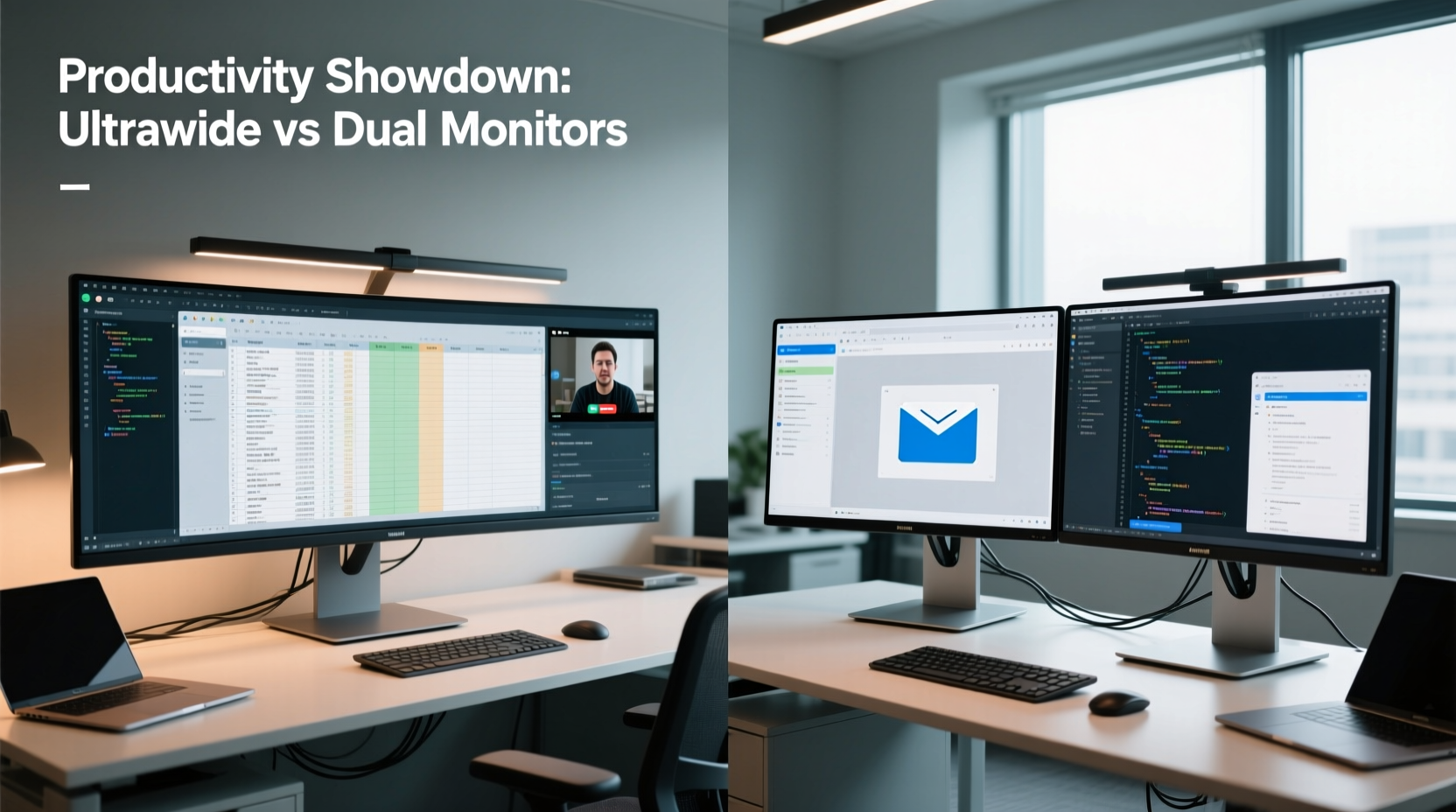
An ultrawide monitor typically features a single display with an aspect ratio of 21:9 or even 32:9, offering a seamless horizontal expanse. In contrast, a dual-screen setup uses two separate monitors—usually 16:9 displays—positioned side by side. While both provide more screen space than a standard single monitor, their underlying architecture leads to distinct user experiences.
The ultrawide monitor eliminates the physical bezel gap that exists between two monitors, creating a continuous visual field. This makes it ideal for tasks requiring uninterrupted horizontal scrolling, such as video editing timelines, spreadsheet navigation, or panoramic views in CAD software. On the other hand, dual monitors offer modularity. You can rotate one vertically for coding or document reading, adjust brightness independently, or even use different resolutions based on specific needs.
Productivity Benefits: Where Each Setup Excels
Both configurations significantly outperform single-monitor setups in multitasking, but their strengths diverge based on workflow demands.
Ultrawide Monitor Strengths
- Seamless Multitasking: Split-screen workflows (e.g., email on one side, research on the other) feel natural without visual interruptions from bezels.
- Better Immersion: Video editors, financial traders, and developers benefit from seeing long timelines, codebases, or trading charts in one view.
- Cleaner Desk Aesthetic: One cable, one stand, less clutter—ideal for minimalist workspaces.
- Natural Eye Movement: The curved design of many ultrawides supports peripheral vision and reduces head turning.
Dual Screen Setup Strengths
- Flexibility in Orientation: Use one screen in portrait mode for reading PDFs, coding, or writing long documents.
- Independent Workspaces: Run different operating systems or virtual machines on separate screens.
- Easier Upgrades: Replace or upgrade one monitor without overhauling the entire setup.
- Better for Multi-Application Power Users: Keep communication apps (Slack, Teams) on one screen while working on another.
“An ultrawide monitor reduces cognitive load when managing multiple panes because there’s no mental break at the center. But dual monitors win when you need true separation between tasks.” — Dr. Lena Torres, Human-Computer Interaction Researcher, MIT Media Lab
Real-World Application: Who Benefits Most?
The optimal choice often depends on profession and personal preference. Consider these scenarios:
Mini Case Study: Financial Analyst Using Ultrawide
Sarah, a senior equity analyst at a Boston-based firm, switched from dual 24-inch monitors to a 49-inch 32:9 ultrawide. Her workflow involves monitoring live market data, analyzing spreadsheets, and reviewing news feeds simultaneously. With the ultrawide, she arranges Bloomberg Terminal on the left third, Excel in the center, and Reuters news feed on the right. She reports a 20% reduction in time spent switching windows and fewer instances of missing critical alerts due to screen-hopping.
Mini Case Study: Software Developer Using Dual Screens
James, a backend developer, uses a dual 27-inch 1440p monitor setup. He keeps his IDE (VS Code) on the primary screen, terminal and database tools on the secondary, and occasionally rotates the right monitor vertically to view long API documentation. He values the ability to isolate debugging environments and run Docker containers on a separate display. “I don’t want everything on one canvas,” he says. “Sometimes I need to close one screen mentally while focusing on the other.”
Comparison Table: Key Features at a Glance
| Feature | Ultrawide Monitor | Dual Screen Setup |
|---|---|---|
| Screen Continuity | ✅ Seamless, no bezel interruption | ❌ Bezel gap disrupts flow |
| Setup Complexity | ✅ Simple: one cable, one mount | ❌ Requires calibration, alignment, extra cables |
| Flexibility | ❌ Fixed orientation | ✅ Independent rotation and positioning |
| Cost Efficiency | ❌ Higher upfront cost (premium panels) | ✅ Can mix older/newer models, incremental upgrades |
| Best For | Video editing, trading, immersive multitasking | Coding, writing, multi-app workflows |
| Eye & Neck Strain | ✅ Curved models reduce head movement | ❌ Frequent lateral eye/head motion |
Common Challenges and How to Overcome Them
Neither solution is perfect. Understanding potential drawbacks helps you mitigate them effectively.
Ultrawide Limitations
- App Compatibility: Some legacy software doesn’t scale well to ultra-aspect ratios, resulting in black bars or distorted UIs.
- Text Readability: Long lines of text can be harder to follow without proper column formatting.
- Vertical Space: Limited height compared to stacked or vertical dual monitors.
Dual Screen Drawbacks
- Bezel Distraction: The central gap breaks continuity, especially noticeable when dragging full-height windows.
- Inconsistent Calibration: Color, brightness, and resolution mismatches can cause eye strain.
- Cable Clutter: More power and video cables increase desk complexity.
Step-by-Step Guide: Choosing the Right Setup for Your Workflow
Follow this sequence to determine which configuration aligns best with your daily tasks:
- Map Your Daily Tasks: List the top five applications you use. Are they window-heavy (e.g., Excel, Photoshop) or linear (e.g., code editors, timelines)?
- Evaluate Window Management Needs: Do you constantly switch between apps, or do you keep them open side-by-side?
- Assess Physical Workspace: Measure desk depth and width. Ultrawides require significant depth; dual monitors need width and stability.
- Test Ergonomics: Simulate viewing angles. Ultrawides should fill your field of view without excessive head turning.
- Consider Future-Proofing: Will your next laptop support DisplayPort 1.4 or Thunderbolt for ultrawide resolution? Can your GPU drive dual 4K panels?
- Try Before You Buy: Visit a tech store or borrow setups to experience both firsthand.
Checklist: What to Evaluate Before Buying
- ✅ Resolution: Aim for at least 3440x1440 for ultrawide; 2560x1440 for dual 27-inch screens
- ✅ Connectivity: Ensure your PC/laptop has DisplayPort or HDMI 2.0+ support
- ✅ Mount Compatibility: Check VESA standards for arm mounting options
- ✅ Software Support: Verify OS window snapping features (Windows Snap Layouts, macOS Stage Manager)
- ✅ Eye Comfort: Look for flicker-free panels and blue light filters
- ✅ Budget: Ultrawides start around $600; dual mid-range monitors total ~$700–$900
Frequently Asked Questions
Can I use an ultrawide monitor for gaming and productivity?
Yes, especially if you work in creative fields. Many ultrawides offer high refresh rates and low response times suitable for gaming. However, not all games support 21:9 or 32:9 resolutions natively, though popular titles like Microsoft Flight Simulator and Cyberpunk 2077 do. For pure office work, productivity gains usually outweigh gaming considerations.
Do dual monitors slow down my computer?
Not significantly for modern systems. Driving two 1080p or 1440p monitors requires minimal GPU power unless you’re gaming or rendering video. Integrated graphics on recent Intel/AMD CPUs handle dual displays effortlessly. Only consider GPU impact if using 4K panels or running intensive graphical applications across both.
Is screen burn-in a concern with ultrawide monitors?
Primarily for OLED ultrawides, which are rare and expensive. Most ultrawides use LCD or QLED panels with negligible burn-in risk. However, leaving static elements (taskbars, docked apps) visible for extended periods can cause temporary image retention. Use screen savers or auto-dimming features during idle times.
Final Recommendation: It’s About Workflow Fit, Not Just Specs
Choosing between an ultrawide monitor and a dual-screen setup isn’t about which is objectively better—it’s about alignment with your workflow, environment, and habits. The ultrawide excels when continuity, immersion, and clean aesthetics matter. It’s particularly effective for roles involving long-format content, where minimizing distractions enhances focus. Conversely, dual monitors shine when compartmentalization, flexibility, and hardware adaptability are priorities. Developers, writers, and multi-platform operators often find greater utility in having independent, customizable screens.
Ultimately, the most productive setup is the one that reduces friction in your daily routine. Whether you value the cinematic sweep of a 49-inch ultrawide or the modular freedom of two independent displays, the goal remains the same: to create a workspace that supports deep work, minimizes fatigue, and scales with your evolving needs.




 浙公网安备
33010002000092号
浙公网安备
33010002000092号 浙B2-20120091-4
Comments
No comments yet. Why don't you start the discussion?