
For remote workers, the home office setup is no longer a temporary arrangement—it's a long-term investment in efficiency, comfort, and output. One of the most impactful decisions you can make is how you configure your display. The debate between using an ultrawide monitor versus a dual-screen setup has become central to discussions about digital workspace optimization. Both options promise increased screen real estate, reduced clutter, and better multitasking. But which truly delivers greater productivity gains for remote professionals?
This article breaks down the key differences, performance benefits, ergonomic considerations, and workflow compatibility of ultrawide monitors and dual-screen configurations. Whether you're a developer, writer, designer, or project manager, understanding these trade-offs will help you make a data-driven decision that aligns with your work style.
Understanding the Core Differences
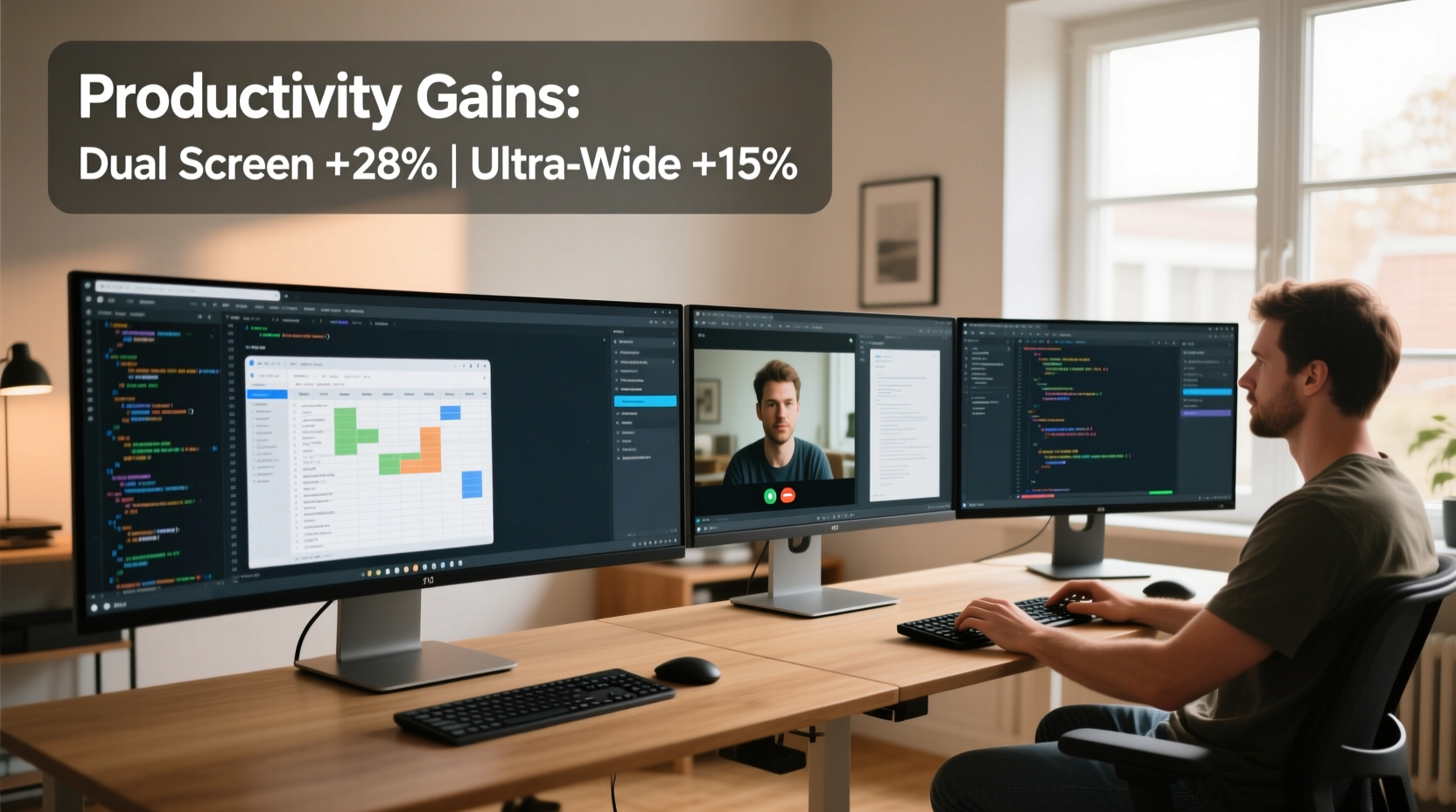
The fundamental distinction lies in form and function. An ultrawide monitor is a single display panel with an extended horizontal aspect ratio—typically 21:9 or even 32:9—offering a seamless visual field. A dual-screen setup involves two separate monitors placed side by side, usually at standard 16:9 aspect ratios, creating a split but expansive workspace.
While both aim to eliminate constant window switching, their implementation affects eye movement, task continuity, and physical desk space. Ultrawides provide a panoramic view ideal for timeline-based applications like video editing or financial modeling. Dual screens allow true independence—each monitor can run different applications at different resolutions or brightness levels, offering flexibility for segmented workflows.
Productivity Benefits: Where Each Excels
Productivity isn’t just about screen size—it’s about how efficiently you interact with your tools. Let’s examine where each configuration shines.
Ultrawide Monitors: Seamless Multitasking
An ultrawide monitor eliminates the bezel gap found in dual setups, creating a continuous canvas. This is particularly advantageous for:
- Video editors working with multi-track timelines
- Data analysts viewing full spreadsheets without horizontal scrolling
- Traders monitoring multiple stock tickers across a single dashboard
- Writers using split-screen research and drafting environments
The uninterrupted surface reduces eye strain caused by jumping over physical gaps between screens. Additionally, modern ultrawides support advanced features like Picture-by-Picture (PbP) and Picture-in-Picture (PiP), allowing users to connect two devices simultaneously—such as a laptop and desktop—without switching inputs.
Dual-Screen Setups: Task Segmentation & Flexibility
Dual monitors offer superior compartmentalization. You can dedicate one screen exclusively to communication tools (email, Slack, calendar), while reserving the other for deep work. This separation minimizes distractions and supports focused attention.
They’re also easier to customize. Need a vertical monitor for coding and a horizontal one for design previews? With dual screens, that’s simple. Upgrading becomes incremental—you can replace one monitor without scrapping the entire setup. For budget-conscious remote workers, this modularity is a significant advantage.
“Display configuration should follow workflow architecture, not the other way around.” — Dr. Lena Patel, Human-Computer Interaction Researcher, MIT Media Lab
Comparative Analysis: Key Decision Factors
To help you evaluate which option suits your needs, here’s a detailed comparison across critical dimensions:
| Factor | Ultrawide Monitor | Dual-Screen Setup |
|---|---|---|
| Seamless Viewing Experience | ✅ No bezel interruption | ❌ Bezel breaks visual flow |
| Setup Simplicity | ✅ Single cable, single power source | ❌ Multiple cables, mounts, and power outlets |
| Flexibility in Orientation | ❌ Limited (usually landscape only) | ✅ Can rotate one monitor vertically |
| Cost Efficiency | ❌ Higher upfront cost (~$600–$1,500) | ✅ Can mix older/newer models |
| Ease of Mobility | ❌ Bulky; hard to transport | ✅ Easier to disassemble and move |
| Multitasking Across Devices | ✅ PbP/PiP supported on high-end models | ✅ Native support via separate inputs |
| Ergonomic Alignment | ✅ Curved models reduce neck strain | ⚠️ Requires careful alignment to avoid eye fatigue |
Real-World Application: A Day in the Life of Two Remote Workers
Case Study 1: Sarah, UX Designer
Sarah works remotely from her apartment studio, designing interfaces in Figma while referencing user feedback in Notion and attending client Zoom calls. She recently switched from dual 24-inch monitors to a 34-inch ultrawide (3440x1440). The curved screen allows her to keep her design canvas on the left, notes on the right, and video calls floating centrally—all without turning her head excessively. She reports a 20% reduction in neck pain and faster design iteration due to fewer alt-tab interruptions.
Case Study 2: James, Software Developer
James codes backend systems in VS Code while constantly referring to API documentation, terminal logs, and Jira tickets. He uses a dual-monitor setup: one 27-inch main screen for code and a secondary 24-inch vertical monitor for documentation. This vertical layout maximizes line visibility in code files, reducing scroll fatigue. He finds that having completely independent screens helps him isolate debugging tasks without cluttering his primary workspace.
Their experiences highlight a crucial insight: productivity gains are highly dependent on individual work patterns. There is no universal \"best\" option—only what works best for your specific role and habits.
Step-by-Step Guide to Choosing Your Ideal Setup
Follow this practical sequence to determine whether an ultrawide or dual-screen configuration will serve you better:
- Map Your Daily Workflow
List the top three applications you use and how you switch between them. Are they used simultaneously or sequentially? - Assess Your Physical Workspace
Measure desk depth and width. Ultrawides require at least 36 inches of clear space. Dual setups need room for two stands or a robust mount. - Evaluate Input Sources
Do you use multiple devices (laptop + desktop)? Dual screens offer simpler input management unless your ultrawide supports PbP. - Test Ergonomics
Sit at your desk and imagine your eye movement. Frequent lateral scanning may benefit from a curved ultrawide; fixed zones suit dual screens. <5>
Consider Future Scalability
- Run a Trial (If Possible)
Borrow or rent both configurations for a week. Track focus duration, task completion speed, and physical comfort.
Will you change jobs or tools in the next 2 years? A modular dual setup adapts more easily than a specialized ultrawide.
Common Pitfalls to Avoid
Even with the right hardware, poor configuration can undermine productivity. Watch out for these mistakes:
- Ignoring calibration: Color accuracy and brightness mismatches in dual setups can cause eye strain.
- Overextending the ultrawide: Extremely wide 49-inch models (32:9) may force excessive eye movement if not centered properly.
- Skipping cable management: Cluttered wires increase mental noise and reduce workspace efficiency.
- Forgetting software optimization: Not enabling spanning modes or virtual desktops wastes potential.
Frequently Asked Questions
Can I use an ultrawide monitor for gaming and work?
Yes, many ultrawides offer high refresh rates and low response times suitable for gaming. However, some productivity apps don’t scale well to 21:9 resolution, leading to letterboxing or awkward UI layouts. Test compatibility before committing.
Is a dual-screen setup better for video conferencing?
It can be. Many remote workers place the video call on one screen and keep presentation materials or notes on the other. This avoids sharing sensitive info accidentally. Ultrawides can do this too, but the proximity of windows increases the risk of unintended exposure.
Do ultrawide monitors cause eye strain?
Not inherently. Poor positioning—such as placing the monitor too far or off-center—can lead to discomfort. Curved ultrawides designed for 35+ inches minimize distortion and support natural peripheral vision when properly aligned.
Final Recommendation Checklist
Use this checklist to finalize your decision:
- ☐ My primary tasks involve horizontal workflows (timelines, spreadsheets, code rows)
- ☐ I value minimal cable clutter and clean desk aesthetics
- ☐ I work primarily from one device (laptop or desktop)
- ☐ I prefer a single, immersive workspace over segmented zones
- ☐ Budget allows for $700+ investment in a quality ultrawide
- ☐ I frequently use multiple applications side-by-side
- ☐ I need one monitor in portrait mode (e.g., coding, reading PDFs)
- ☐ I work across multiple computers and want flexible input switching
- ☐ I already own a decent monitor and want to expand affordably
- ☐ My desk space is limited in width but deep enough for staggered placement
If the first five items resonate more, an ultrawide is likely your best fit. If the latter five apply, a dual-screen setup will probably serve you better.
Conclusion: Optimize for How You Work, Not What’s Trendy
The choice between an ultrawide monitor and a dual-screen setup isn’t about which is objectively superior—it’s about alignment with your daily workflow, physical environment, and professional goals. Remote work has redefined productivity, making personalized ergonomics more important than ever. An ultrawide offers elegance and immersion, reducing friction in linear, expansive tasks. A dual-screen system provides adaptability and segmentation, ideal for dynamic, multi-tool workflows.
Invest time in self-assessment before spending on hardware. Try virtual simulations using screen layout tools, consult user reviews in your field, and prioritize adjustability—whether through mounts, stands, or software settings. Remember, the most productive setup is the one that disappears into the background, letting you focus entirely on your work.




 浙公网安备
33010002000092号
浙公网安备
33010002000092号 浙B2-20120091-4
Comments
No comments yet. Why don't you start the discussion?