
A cluttered digital workspace can be just as overwhelming as a physical one. For professionals juggling multiple applications, browser tabs, spreadsheets, and communication tools, screen real estate is more than a luxury—it’s a necessity. Two popular solutions dominate the market: ultrawide monitors and dual-screen setups. While both aim to expand your visual workspace, they function differently and cater to distinct workflows. Choosing between them isn’t just about preference; it’s about optimizing for focus, efficiency, and long-term comfort—especially when your desktop tends toward chaos.
This guide breaks down the core differences, evaluates real-world performance, and delivers actionable strategies to maximize productivity regardless of your display choice. Whether you're a developer, designer, writer, or multitasking manager, these insights will help you tame digital clutter and reclaim control over your workflow.
The Core Divide: Ultrawide vs Dual Screens
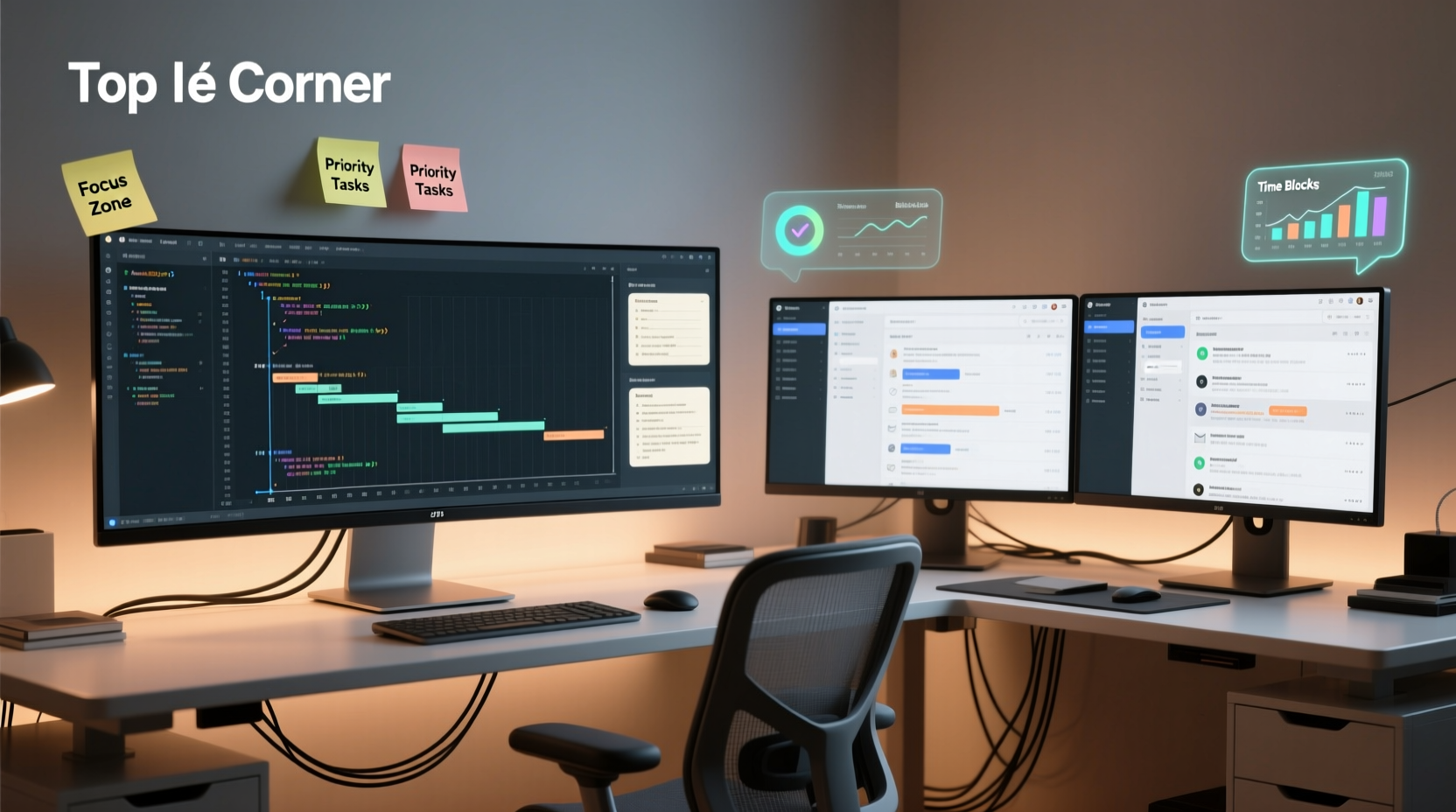
An ultrawide monitor typically features an aspect ratio of 21:9 or 32:9, offering a single, expansive canvas that spans across your field of view. In contrast, a dual-screen setup uses two separate displays—usually 16:9 panels—positioned side by side, either horizontally or in an L-shape configuration. The fundamental distinction lies in continuity versus compartmentalization.
Ultrawide screens provide seamless window movement and eliminate bezel interruptions, making them ideal for video editing, coding across split panes, or managing wide spreadsheets. Dual monitors offer modularity—you can rotate one vertically for document reading, use different resolutions, or even assign each screen to a specific task category (e.g., email on one, analytics on the other).
But when your desktop becomes a mess of overlapping windows, misaligned icons, and forgotten applications, the structural integrity of your display setup starts to matter more than raw size.
Managing Visual Clutter: Workflow-Specific Strategies
Productivity isn’t just about screen space—it’s about how effectively you organize and access information. A messy desktop often stems from poor spatial habits, not lack of room. Both ultrawide and dual-monitor users must implement intentional organization systems.
For Ultrawide Users: Zone-Based Layouts
Divide your ultrawide screen into functional zones. Think of it like a kitchen work triangle: keep related tools within reach but separated enough to avoid interference. A common three-zone layout includes:
- Left third: Communication apps (email, Slack, calendar)
- Middle third: Primary work (code editor, design tool, writing app)
- Right third: Reference materials (browser, documentation, notes)
This layout minimizes mouse travel and reduces cognitive load by assigning consistent locations to recurring tasks. Because ultrawide monitors lack physical separation, visual zoning prevents mental bleed between activities.
For Dual-Monitor Users: Task Segmentation
Dual screens excel at isolation. Use one screen exclusively for deep work and the other for reactive tasks. For example:
- Primary (center or dominant eye-side): Full-screen writing or coding
- Secondary (opposite side): Notifications, messaging, research
This separation helps maintain focus. When the secondary screen flashes with a new message, your eyes may flicker toward it, but your hands stay on the primary task. Over time, this trains your brain to resist context-switching impulses.
“High-performing knowledge workers don’t just have more screens—they have clearer boundaries between their cognitive domains.” — Dr. Lena Patel, Cognitive Ergonomics Researcher, MIT Human Systems Lab
Hardware & Software Optimization Checklist
Even the best setup fails without proper tuning. Use this checklist to optimize either configuration:
- ✅ Calibrate brightness and color temperature across all screens
- ✅ Align screen heights and angles to reduce neck strain
- ✅ Use virtual desktops (Spaces on Mac, Task View on Windows) to create alternate layouts
- ✅ Enable snapping features (Aero Snap, Magnet) for instant window alignment
- ✅ Assign keyboard shortcuts for moving windows between zones or monitors
- ✅ Disable unnecessary notifications during focused sessions
- ✅ Regularly audit open applications and close unused ones
Performance Comparison: Real-World Scenarios
Theoretical advantages mean little without practical validation. Below is a comparison of ultrawide and dual-screen setups across key productivity metrics.
| Metric | Ultrawide Monitor | Dual Screen Setup |
|---|---|---|
| Window Management | Smooth panning, fewer edge glitches | Bezel interruptions; potential drag lag |
| Multitasking Fluidity | Excellent for side-by-side apps in one ecosystem | Better for isolating unrelated tasks |
| Cable Management | Simpler (single power + video cable) | More complex (two monitors = double connections) |
| Ergonomic Flexibility | Fixed curvature; limited rotation | Individual adjustment per screen |
| Cost Efficiency | Higher upfront cost, lower long-term TCO | Lower entry cost, but scales with second monitor quality |
| Software Compatibility | Some apps don’t scale well to 21:9 | Universal support; no aspect ratio issues |
Note that \"TCO\" (Total Cost of Ownership) includes desk space, cables, mounts, and energy use. While dual monitors may seem cheaper initially, adding a high-quality arm, extra HDMI/DP cables, and power strips can quickly close the gap.
Mini Case Study: From Chaos to Control
Jamie, a freelance data analyst, used a dual-monitor setup for years—until constant window drift and mismatched resolutions began affecting output. Her left screen ran at 1080p, the right at 1440p, causing scaling inconsistencies in Excel and Tableau. She also found herself constantly resizing browser windows that spanned both displays.
After switching to a 34-inch 21:9 ultrawide (3440x1440), she implemented a strict zonal system. Left zone: client emails and project timelines. Center: active dataset in Excel. Right: live dashboard in Power BI. Using Windows Snap Layouts, she saved this configuration as a template and restored it with Win+Z in under five seconds.
Within two weeks, her average report completion time dropped by 18%. More importantly, she reported fewer instances of “losing” open files or accidentally closing critical tabs. The absence of a central bezel eliminated a subtle but persistent distraction she hadn’t realized was affecting her concentration.
Step-by-Step Guide: Optimizing Your Current Setup
No need to buy new hardware immediately. Follow this six-step process to maximize your existing configuration:
- Declutter your desktop: Remove all non-essential icons. Store files in organized folders, not on the desktop surface.
- Define your primary task: Identify the activity that consumes most of your day (e.g., writing, coding, designing).
- Assign zones or screens: Allocate dedicated areas for primary work, communication, and reference.
- Enable window snapping: Configure your OS to snap windows to halves, thirds, or quarters with keyboard shortcuts.
- Create a daily reset routine: At the end of each workday, close unused apps and reposition windows to default positions.
- Test and refine weekly: After seven days, assess pain points. Are you reaching too far? Distracted by pop-ups? Adjust layout accordingly.
This methodical approach ensures that any setup—ultrawide or dual—becomes a tailored productivity engine rather than a source of digital noise.
Frequently Asked Questions
Can I combine an ultrawide with a second vertical monitor?
Absolutely. Many professionals use a 21:9 ultrawide as their main display and add a 16:10 or 10:16 monitor rotated vertically for reading documents, monitoring logs, or tracking communications. This hybrid approach offers the continuity of an ultrawide with the specialization of a dual setup.
Do ultrawide monitors cause eye strain?
Not inherently. However, improper positioning—such as placing the screen too far away or too high—can increase strain. Ensure the center of the screen is at or slightly below eye level, and sit about an arm’s length away. Curved ultrawides often reduce eye movement and improve focus across the entire field.
Which setup is better for remote work?
It depends on your environment. If space is limited (e.g., a small home office), an ultrawide saves desk area and reduces cable clutter. If you need strong task separation—like handling personal and professional apps simultaneously—dual screens offer clearer boundaries. Consider your daily workflow more than square inches.
Final Recommendations and Action Plan
There is no universal winner between ultrawide monitors and dual-screen setups. The optimal choice hinges on your work patterns, physical space, and tolerance for digital disarray. That said, ultrawide displays tend to benefit users who value immersion and continuity, while dual monitors serve those who thrive on compartmentalized, multi-domain workflows.
If your desktop is consistently messy, start by addressing behavior before upgrading hardware. Implement snapping rules, define zones, and adopt a reset ritual. Then, evaluate whether your current setup supports—or sabotages—those habits.
For those considering a switch:
- Try a 34” 21:9 ultrawide if you edit video, write code, or manage large datasets.
- Stick with dual 27” 1440p monitors if you frequently compare documents, trade stocks, or manage multiple communication channels.
- Experiment with a hybrid model if you need both breadth and vertical space.




 浙公网安备
33010002000092号
浙公网安备
33010002000092号 浙B2-20120091-4
Comments
No comments yet. Why don't you start the discussion?