
In today’s digital workspace, screen real estate is a currency. Whether you're editing video timelines, managing spreadsheets across departments, or coding full-stack applications, the way you organize your visual environment directly impacts how efficiently you work. Two dominant solutions dominate the conversation: ultrawide monitors and dual-screen setups. Both promise enhanced multitasking, but they deliver in fundamentally different ways. Choosing between them isn’t just about preference—it’s about aligning technology with your actual workflow.
An ultrawide monitor typically offers a single display with an aspect ratio of 21:9 or even 32:9, providing a vast horizontal canvas. In contrast, a dual-screen setup uses two separate monitors—usually 16:9—placed side by side. While both expand your view, their impact on focus, continuity, and task management varies significantly. This article breaks down the strengths and limitations of each configuration, backed by practical insights, user experiences, and ergonomic considerations, to help you determine which setup genuinely boosts multitasking for your needs.
Understanding Multitasking in Modern Workflows
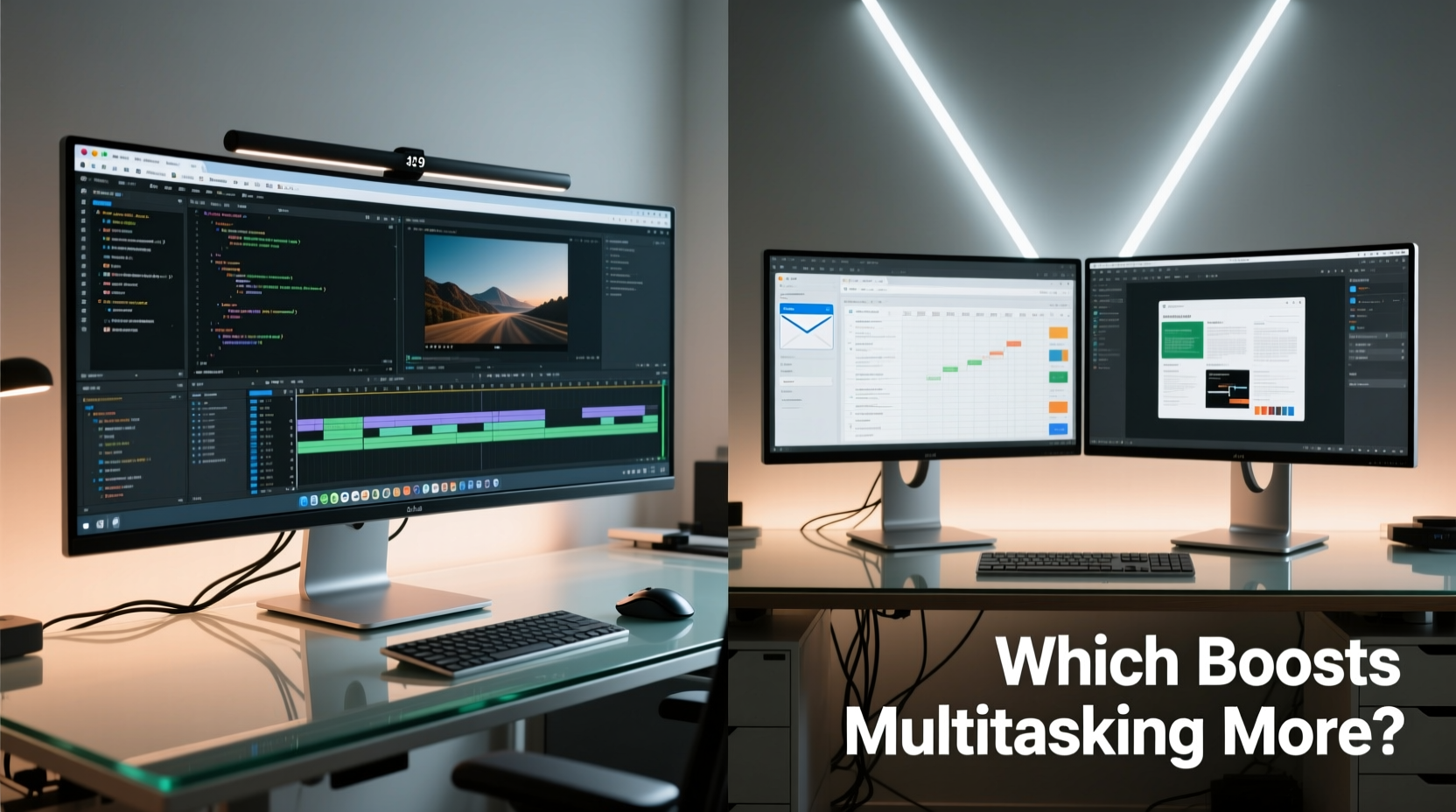
Multitasking isn’t just about having multiple windows open—it’s about seamless interaction between tasks. True productivity gains come from minimizing context switching, reducing mouse travel, and maintaining mental continuity across tools. For example, a financial analyst might need Excel on one side while referencing a live Bloomberg feed on the other; a developer may have code on the left and documentation or terminal output on the right.
The ideal multitasking environment reduces friction. It should allow rapid access to information without forcing constant window resizing or tab navigation. Both ultrawide and dual-monitor setups aim to solve this, but their approaches differ:
- Ultrawide monitors offer a continuous, uninterrupted surface that mimics panoramic vision. This can enhance immersion and reduce eye strain from jumping between physical screens.
- Dual-screen setups provide discrete zones, enabling users to dedicate entire monitors to specific functions (e.g., communication on one, deep work on the other).
The choice ultimately depends on how your brain processes spatial information and how your software behaves across extended displays.
Performance and Practical Advantages Compared
To evaluate which system boosts multitasking more effectively, we must examine resolution, bezel interference, software compatibility, and physical ergonomics.
Resolution and Screen Real Estate
A typical ultrawide monitor delivers 3440x1440 or 5120x2160 pixels across a single panel. A dual-monitor setup using two 27-inch 1440p displays provides roughly 5120x1440 pixels—but split across two physical units. On paper, the total pixel count may be similar, but the distribution matters.
Ultrawides eliminate the central bezel, allowing applications like video editors or trading platforms to span the entire width without interruption. In contrast, dual monitors create a physical gap where content disappears, disrupting linear workflows such as timeline scrubbing or wide spreadsheet navigation.
Bezel Impact on Focus and Flow
The presence of a bezel in dual-monitor setups can subtly disrupt concentration. Moving a window across screens requires crossing a dead zone, which interrupts visual flow. Over time, this micro-friction accumulates, especially during drag-and-drop operations or when tracking moving elements (e.g., animations or scrolling data).
Some users adapt by positioning the primary monitor slightly forward or angling both inward, but these adjustments don't eliminate the cognitive load of shifting focus across distinct panels.
Software and OS Optimization
Operating systems handle ultrawide displays differently than multi-monitor arrays. Windows Snap Layouts and macOS Mission Control often struggle with ultrawide aspect ratios, defaulting to vertical divisions that underutilize the horizontal space. However, third-party tools like DisplayFusion or Magnet can restore control.
Dual monitors benefit from mature OS support. Each screen is treated as an independent workspace, making it easier to assign apps permanently to one side. This modularity suits users who compartmentalize tasks—email and Slack on one screen, design or writing on the other.
“Ultrawide monitors excel in immersive, linear workflows, while dual screens win in modular, role-separated environments.” — Dr. Lena Torres, Human-Computer Interaction Researcher at MIT Media Lab
Comparative Analysis: Ultrawide vs Dual Monitor
| Feature | Ultrawide Monitor | Dual-Screen Setup |
|---|---|---|
| Seamless Spanning | ✅ Full continuity; no bezel break | ❌ Central bezel disrupts flow |
| Task Separation | ⚠️ Requires virtual desktops or zones | ✅ Natural physical separation |
| Ease of Setup | ✅ Single cable, one calibration | ⚠️ Multiple cables, alignment needed |
| Flexibility in Orientation | ❌ Fixed landscape only | ✅ One screen can be rotated vertically |
| Cost Efficiency | ⚠️ Higher upfront cost | ✅ Can mix older monitors |
| Portability | ❌ Bulky, less mobile | ✅ Easier to transport separately |
Real-World Workflow Scenarios
Theoretical advantages only matter if they translate into daily performance. Consider three common professional profiles:
Video Editor Using Adobe Premiere Pro
A video editor benefits immensely from an ultrawide monitor. The timeline, preview window, and tool panels can all fit horizontally without constant scrolling. Scrubbing through long clips remains smooth because the entire sequence is visible across a single plane. In a dual-monitor setup, the timeline often gets compressed or split awkwardly across the bezel, requiring frequent zooming and repositioning.
Software Developer Writing Code
Developers often divide their workspace between code on one side and browser-based documentation, terminal, or debugging tools on the other. Here, dual monitors offer tangible benefits. One screen runs the IDE full-screen, while the second handles auxiliary tools. Some developers prefer rotating one monitor vertically to maximize line visibility in code files. Ultrawides can simulate this with tiling, but the lack of physical distinction makes accidental window drags more likely.
Financial Analyst Monitoring Markets
For traders and analysts, screen space equals information density. An ultrawide 49-inch display (like Samsung’s 32:9 model) can display multiple stock charts, news feeds, and order books in a single glance. There’s no need to shift gaze between devices, reducing reaction time. However, if the analyst uses specialized software licensed per monitor, a dual-screen setup might be required for compliance.
Mini Case Study: Remote Marketing Manager
Sarah Kim, a senior marketing manager at a tech startup, initially used a dual-monitor setup—one for email/calendar, the other for campaign dashboards. After switching to a 34-inch ultrawide, she noticed improved focus during strategy sessions. “I used to lose my train of thought when switching between screens,” she said. “Now, with everything laid out continuously, I can track KPIs while drafting reports without feeling mentally fragmented.” However, she later added a small vertical monitor for her calendar, realizing that complete elimination of task separation reduced her time-blocking discipline.
Optimizing Your Choice: A Step-by-Step Decision Guide
Selecting the right setup shouldn’t be guesswork. Follow this structured approach to make an informed decision based on your unique workflow.
- Map Your Daily Tasks: List the top five applications you use and how you interact with them. Do you frequently drag data between programs? Are your tools linear (e.g., timelines) or modular (e.g., chat + document)?
- Assess Physical Workspace: Measure desk depth and viewing distance. Ultrawides require more depth to avoid neck strain from extreme panning. If your desk is shallow, dual 24-inch monitors may be more ergonomic.
- Test Window Management Habits: Do you rely on snapping windows side-by-side? How often do you use full-screen mode? Ultrawides reward efficient snapping; dual screens favor app isolation.
- Evaluate Software Compatibility: Check if your critical applications support ultrawide resolutions. Some legacy enterprise tools render poorly on non-standard aspect ratios.
- Budget and Future-Proofing: Consider scalability. Dual monitors allow incremental upgrades. Ultrawides offer longer lifespans due to higher build quality but are harder to replace piecemeal.
- Try Before You Buy: Visit a retailer or borrow equipment. Spend at least 90 minutes performing real work on each setup. Note where frustration arises.
Frequently Asked Questions
Can I use an ultrawide monitor with dual-monitor workflows?
Yes—with software. Tools like Microsoft PowerToys (for Windows) or Moom (for Mac) let you create custom snap zones, effectively dividing the ultrawide into two or more virtual monitors. This gives you the continuity of a single panel with the organizational benefits of multiple screens.
Is eye strain worse on ultrawide monitors?
Not inherently. Modern ultrawides are curved and designed for a 35–40 inch viewing arc, minimizing head movement. However, poor positioning—such as placing the monitor too far or too high—can increase strain. Ensure the center of the screen is at or slightly below eye level and within 24–30 inches of your face.
Do dual monitors slow down my computer?
Only if your GPU lacks sufficient video memory or output bandwidth. Most modern integrated graphics (e.g., Intel Iris Xe, Apple M-series) handle dual 1080p or 1440p displays effortlessly. For 4K or high-refresh-rate setups, a dedicated GPU is recommended. Ultrawides at 5120x2160 also demand strong GPU performance, so neither option has a clear advantage here.
Final Recommendation: Match Setup to Workflow, Not Hype
The debate over ultrawide versus dual-screen setups isn’t about which is universally better—it’s about alignment with purpose. If your work involves immersive, horizontal workflows like video editing, data analysis, or coding with wide IDEs, an ultrawide monitor will likely boost multitasking by reducing visual fragmentation. Its seamless canvas supports fluid transitions between related tasks.
Conversely, if your role demands strict separation—such as customer support agents toggling between CRM and chat, or executives balancing presentations and notes—dual monitors provide clearer cognitive boundaries. The physical division acts as a visual cue, helping maintain focus and reduce distractions.
Hybrid solutions are increasingly viable. Some professionals use an ultrawide as a primary display and add a smaller vertical monitor for calendars or notifications. Others start with dual screens and transition to ultrawide after realizing the cost of constant context switching.
“The best multitasking setup is invisible. When done right, you stop noticing the hardware and simply get into flow.” — Raj Patel, UX Lead at Logitech Design Studio
Take Action: Design Your Ideal Workspace
Your screen configuration should serve your goals, not follow trends. Begin by auditing your current workflow inefficiencies. Are you constantly minimizing windows? Struggling with timeline gaps? Experiencing fatigue from head rotation?
Use the insights from this article to experiment deliberately. Adjust one variable at a time—resolution, positioning, software tools—and measure the impact on your concentration and output. Technology should disappear into the background, leaving only the work itself in focus.




 浙公网安备
33010002000092号
浙公网安备
33010002000092号 浙B2-20120091-4
Comments
No comments yet. Why don't you start the discussion?