
In today’s digital workspace, maximizing screen real estate is no longer a luxury—it’s a necessity. Whether you're editing video, managing spreadsheets, coding, or juggling multiple communication platforms, how you configure your display setup can significantly impact your efficiency. Two popular choices dominate the conversation: ultrawide monitors and dual-screen setups. Both promise enhanced multitasking, but they deliver in fundamentally different ways. Understanding their strengths, limitations, and practical implications helps you make an informed decision that aligns with your work style and environment.
The Core Differences: Design and Functionality
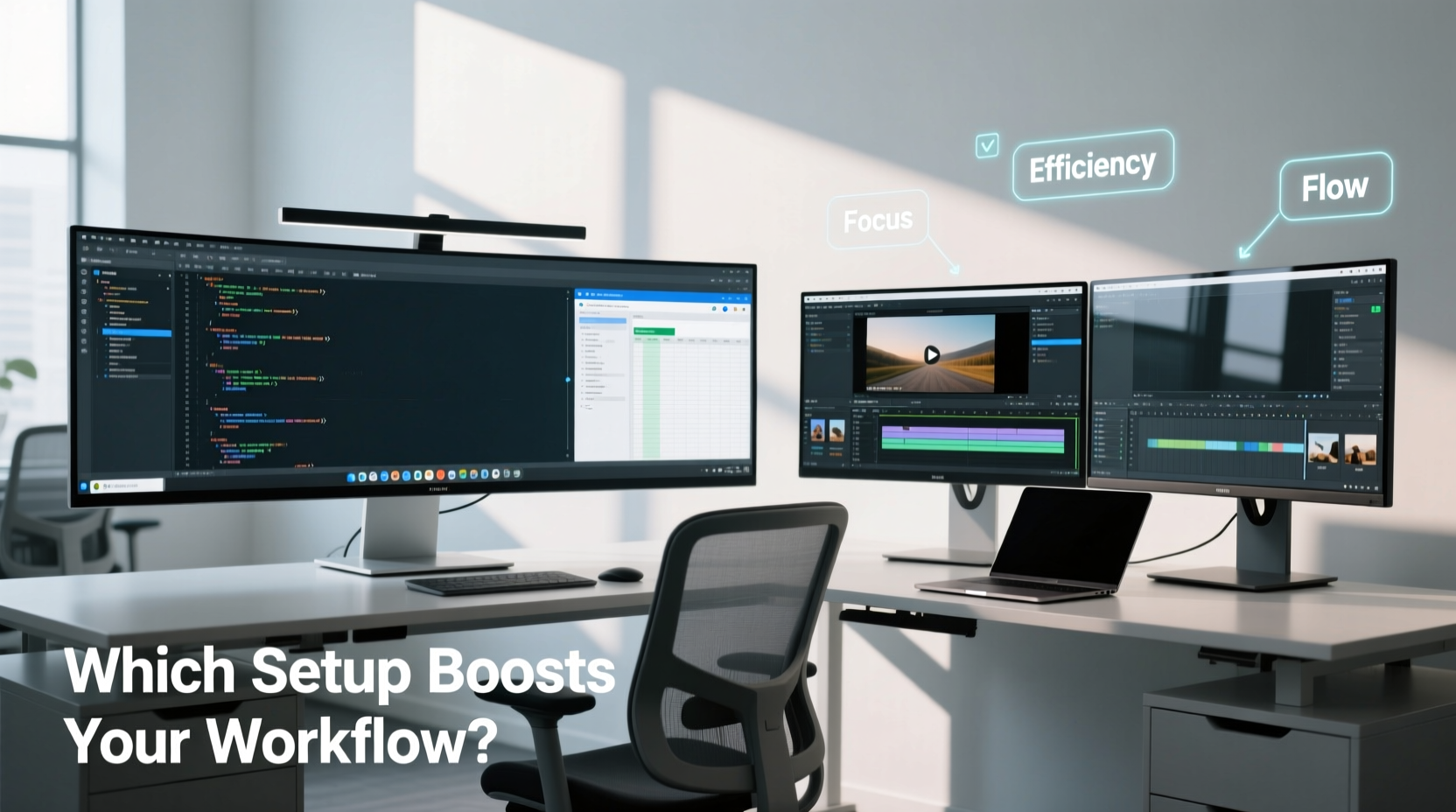
An ultrawide monitor typically features a 21:9 or even 32:9 aspect ratio, offering a single, expansive display surface that spans across your field of view. In contrast, a dual-screen setup uses two separate monitors—usually 16:9 panels—placed side by side, creating a segmented but flexible workspace.
The key distinction lies in continuity versus modularity. An ultrawide provides a seamless canvas ideal for applications that benefit from horizontal space, such as video timelines, long spreadsheets, or multi-column documents. A dual-monitor configuration, on the other hand, allows for greater flexibility in window placement, enabling users to dedicate each screen to specific tasks—for example, email on one and design software on the other.
This structural difference influences not only ergonomics but also software compatibility, cable management, and visual immersion.
Productivity Performance: Real-World Task Analysis
To evaluate which setup improves multitasking, consider common workflows:
- Content Creation: Video editors using Adobe Premiere Pro often benefit from ultrawide displays because the timeline extends naturally across the wide surface, leaving vertical space for tools and preview windows. However, some professionals prefer dual screens—one for editing, one for media bins or color grading panels—allowing better separation of functions.
- Programming: Developers often run code on one screen and documentation or terminals on another. Dual monitors allow clean compartmentalization. That said, ultrawides support split-screen IDEs (like VS Code) with multiple files open side-by-side without bezel interruptions.
- Financial Analysis: Analysts working with large Excel sheets find ultrawides advantageous for viewing dozens of columns simultaneously. Yet, having a second screen for Bloomberg terminals or research keeps critical data always visible.
- Communication & Collaboration: Remote workers managing Slack, Zoom, and project management tools often use one screen for meetings and the other for active work. This reduces distractions and maintains focus during calls.
The choice ultimately depends on whether your workflow thrives on integration or isolation of tasks.
“From a cognitive load perspective, minimizing window switching and maintaining peripheral awareness of secondary tasks improves concentration. Ultrawides help with spatial continuity; dual screens excel in task segregation.” — Dr. Lena Patel, Human-Computer Interaction Researcher at MIT Media Lab
Comparative Breakdown: Advantages and Trade-offs
| Feature | Ultrawide Monitor | Dual Screen Setup |
|---|---|---|
| Seamless Workspace | ✅ No bezel interruption; ideal for panning across timelines or spreadsheets | ❌ Bezel gap disrupts continuity, especially noticeable when dragging windows |
| Flexibility in Layout | ⚠️ Limited to virtual desktops or software-based splits | ✅ Each monitor can run independent resolutions, orientations, and sources |
| Ergonomics | ✅ Single focal plane reduces neck strain; curved models enhance immersion | ⚠️ Requires careful alignment; turning head between screens may cause fatigue |
| Cable & Port Management | ✅ One primary connection (DisplayPort/HDMI); cleaner desk | ❌ Multiple cables, power adapters, and GPU demands |
| Gaming & Media Experience | ✅ Immersive experience with cinematic content and racing/simulation games | ❌ Less immersive; better suited for multi-app gaming like streaming + gameplay |
| Cost Efficiency | ⚠️ High-quality ultrawides are premium-priced (often $700+) | ✅ Can reuse existing monitors or mix models for budget scalability |
| Software Compatibility | ⚠️ Some apps don’t optimize for 21:9; taskbars may misalign | ✅ Broad OS and app support; plug-and-play familiarity |
Mini Case Study: Graphic Designer Transitioning to Ultrawide
Sophie Chen, a senior UI/UX designer at a tech startup, used a dual 24-inch monitor setup for three years. She constantly switched between Figma, Zeplin, and client feedback tabs. After upgrading to a 34-inch 21:9 ultrawide, she restructured her workflow: Figma on the left, component library in the center, and feedback panel on the right—all within a single glance.
“I didn’t realize how much mental energy I was spending on ‘reloading’ context every time I turned my head,” Sophie said. “Now, everything is in my peripheral vision. My focus sessions are longer, and I make fewer errors transferring assets.”
However, she noted a learning curve with window snapping and occasionally missed having a dedicated screen for video conferencing during collaborative sprints.
Choosing Based on Your Environment and Goals
Not all workspaces accommodate both options equally. Consider these factors before deciding:
Available Desk Space
A 34-inch ultrawide requires approximately 35 inches of depth clearance and benefits from a centered, direct viewing angle. Dual monitors need lateral space—two 24-inch screens span about 45 inches, demanding a wider desk. If space is tight, an ultrawide offers more screen per inch of footprint.
GPU and Port Limitations
Dual monitors require either multiple video outputs or daisy-chaining via DisplayPort 1.2+. Older GPUs may struggle with driving two high-resolution displays smoothly. Ultrawides typically demand a single DisplayPort input but may require higher bandwidth (e.g., DP 1.4 for 3440x1440 at 100Hz+).
Work Style Preferences
Do you prefer having everything visible at once, or do you thrive on separating concerns? Users who rely on constant reference material (e.g., coders with API docs, writers with research) often benefit from dual screens. Those who work linearly across broad canvases—like musicians arranging tracks or analysts scanning financial charts—tend to favor ultrawides.
Actionable Checklist: How to Decide What Works for You
Use this checklist to evaluate your needs and select the optimal configuration:
- ✅ List your top 3 daily tasks (e.g., coding, writing, video editing)
- ✅ Identify whether those tasks are linear (benefit from width) or modular (need isolation)
- ✅ Measure your desk depth and width to ensure physical fit
- ✅ Check your graphics card’s output capabilities (number of ports, supported resolutions)
- ✅ Assess your current monitors—if functional, repurposing them for dual screens saves cost
- ✅ Determine your budget: ultrawides start around $500 for mid-tier models; dual screens can be incremental
- ✅ Consider future-proofing: will you add a third screen later? Is your system scalable?
- ✅ Evaluate ergonomic preferences: do you turn your head frequently now? Would a curved screen reduce strain?
Frequently Asked Questions
Can I use an ultrawide and still have multiple virtual desktops?
Absolutely. Modern operating systems like Windows 11 and macOS support multiple virtual desktops on ultrawide monitors. You can assign different projects or workflows to separate desktops and swipe between them, effectively simulating multiple screens while retaining the benefits of a single display.
Is screen burn-in a concern with ultrawides?
Potential, yes—especially with OLED ultrawides. Static elements like taskbars or dock icons can leave residual images over time. To mitigate this, enable pixel refresh features, use dark mode, avoid maximum brightness for prolonged periods, and set shorter sleep timers. IPS ultrawides are less prone to burn-in than OLED variants.
Can I combine both—an ultrawide with a second vertical monitor?
Yes, and many professionals do. This hybrid approach merges the best of both worlds: the ultrawide serves as the primary workspace, while a secondary portrait-oriented monitor handles chat apps, email, or code documentation. It’s particularly effective for developers, writers, and data scientists.
Final Recommendation: Align Technology with Workflow
There is no universal winner between ultrawide monitors and dual-screen setups. The best choice hinges on your specific tasks, physical workspace, and cognitive preferences. Ultrawides shine when continuity, immersion, and minimal clutter matter most. Dual screens prevail when task separation, hardware flexibility, and cost control take priority.
For knowledge workers engaged in deep, focused tasks—such as writing, data analysis, or creative production—an ultrawide often streamlines workflow by reducing distraction and enhancing spatial awareness. For dynamic roles requiring simultaneous interaction with multiple independent applications—like customer support, trading, or live streaming—a dual-screen setup provides unmatched operational agility.
Ultimately, the goal isn't just more screen space—it's smarter screen space. Invest time in observing how you currently use your monitors. Track how often you resize, move, or minimize windows. Notice where friction occurs. Then, let those insights guide your upgrade path.




 浙公网安备
33010002000092号
浙公网安备
33010002000092号 浙B2-20120091-4
Comments
No comments yet. Why don't you start the discussion?