
In an era where digital workspaces define efficiency, the choice of monitor setup can dramatically influence how fast you work, how focused you stay, and even how comfortable your day feels. The debate between using a single ultrawide monitor versus dual standard screens has sparked passionate arguments among professionals, designers, developers, and remote workers alike. Is one objectively better for productivity? Or are both options just overkill for most users?
The answer isn’t simple. It depends on your workflow, software usage, physical space, budget, and even personal preference. This article breaks down the real-world advantages and drawbacks of each setup, backed by ergonomic research, user experiences, and performance data — so you can make an informed decision without falling for marketing hype.
Understanding the Core Differences
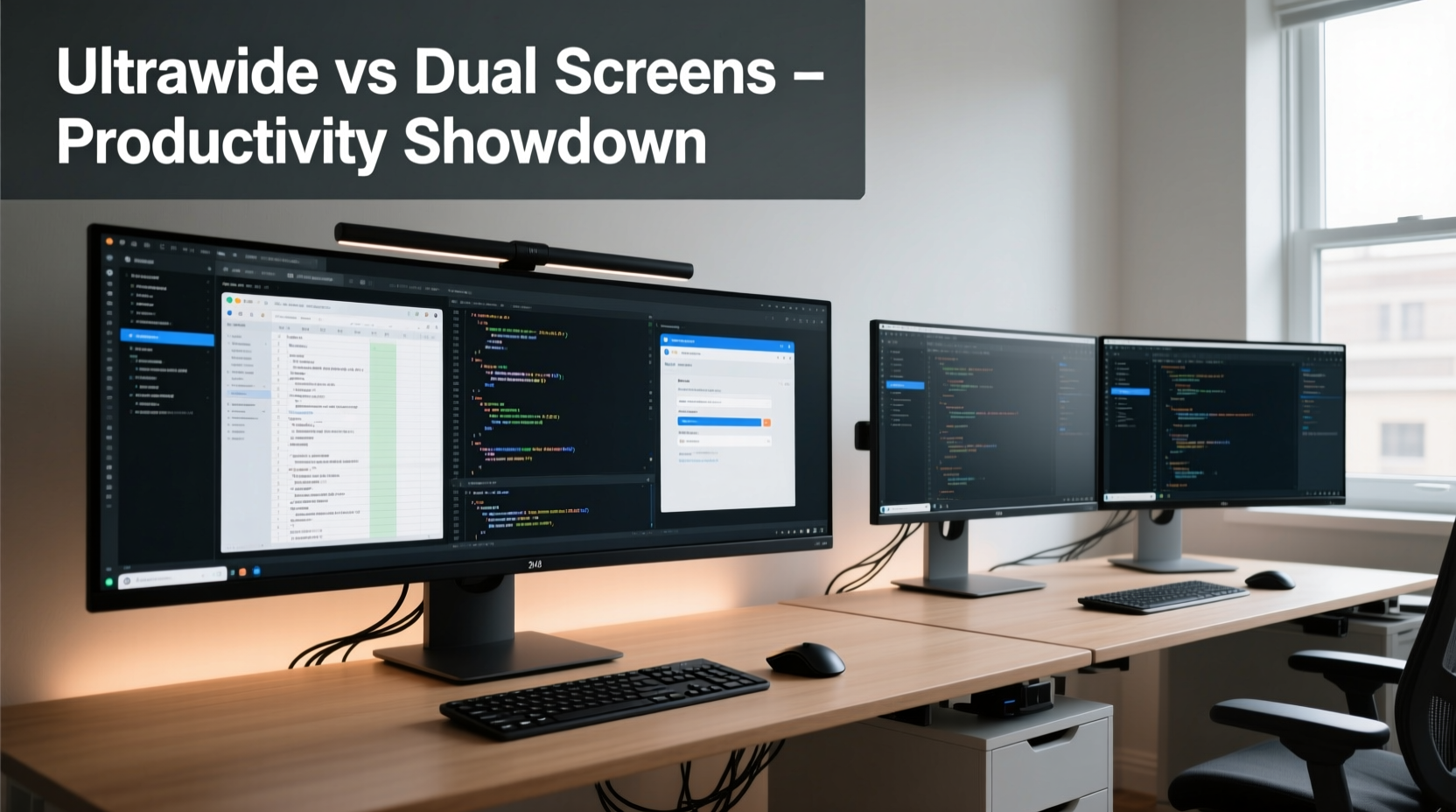
An ultrawide monitor typically refers to a single display with an aspect ratio of 21:9 or 32:9, offering significantly more horizontal screen real estate than the traditional 16:9 format. Common sizes range from 34 to 49 inches, with resolutions like 3440x1440 (for 21:9) or 5120x1440 (for 32:9).
Dual-screen setups, on the other hand, usually consist of two 24- to 27-inch 16:9 monitors placed side by side, often at a slight inward angle. Together, they offer similar total pixel counts but with a visible bezel dividing the workspace.
While both aim to expand your visual footprint, their impact on multitasking, immersion, and workflow continuity varies in subtle but meaningful ways.
Ergonomics and Visual Flow
One of the strongest arguments in favor of ultrawide monitors is uninterrupted visual flow. With no central bezel, dragging windows across the screen feels seamless — especially useful when working with spreadsheets, video timelines, or code editors that span multiple panes.
According to Dr. Sarah Lin, an occupational ergonomist at the Human Factors Research Group:
“Continuous screen surfaces reduce eye saccades and cognitive load during cross-window tasks. The brain doesn’t have to 'reset' when crossing a bezel, which improves focus and reduces fatigue over long sessions.” — Dr. Sarah Lin, Ergonomics Researcher
Dual monitors, however, allow greater flexibility in positioning. You can tilt, swivel, and adjust each screen independently, potentially aligning them better with your natural line of sight. For users who frequently reference documents or dashboards while writing or coding, having one screen angled slightly toward them can improve readability and posture.
Productivity: Where Each Setup Shines
Productivity gains from extra screen space are well-documented. A 2008 study by the University of Utah found that workers using dual monitors were up to 44% more productive in multi-application tasks compared to single-display users. But newer research suggests that a high-quality ultrawide may match or exceed those benefits — depending on use case.
Best Use Cases for Ultrawide Monitors
- Video editing: Full timeline visibility alongside preview and tools without window switching.
- Programming: Code editor on one side, terminal and documentation stretched across the rest.
- Financial analysis: Multiple charts, data tables, and news feeds visible simultaneously.
- Gaming and media consumption: Immersive experience with cinematic aspect ratios.
Best Use Cases for Dual Screens
- Email and communication-heavy roles: Keep inbox open on one screen, compose or research on the other.
-
Canvas on one monitor, layers, color palettes, and asset libraries on the second. - Data entry: Source document on left, input form on right — minimal mouse travel.
- Trading platforms: Real-time feeds, order books, and charting tools spread across both displays.
Comparative Analysis: Key Metrics Side-by-Side
| Feature | Ultrawide Monitor | Dual Screens |
|---|---|---|
| Screen Continuity | ✅ Seamless across entire width | ❌ Bezels interrupt workflow |
| Setup Complexity | ✅ Plug-and-play; single cable often sufficient | ❌ Requires calibration, alignment, multiple cables |
| Flexibility in Layout | ❌ Fixed orientation (usually landscape) | ✅ Rotate one screen vertically, adjust angles |
| Cost Efficiency | ❌ Higher upfront cost ($600–$1,200+) | ✅ Can mix older models or upgrade incrementally |
| Cable Management | ✅ Minimal (one power + one video cable typical) | ❌ More clutter; two video cables, two power cords |
| Vertical Space | ❌ Limited height (same as 16:9 at same resolution) | ✅ Can rotate one monitor portrait mode for coding/docs |
| Immersion & Focus | ✅ Wraps peripheral vision, reduces distractions | ❌ Gaps break immersion; easier to get distracted |
When Does It Become Overkill?
Not every professional needs expansive screen real estate. For many office workers whose tasks revolve around word processing, basic web browsing, or CRM systems, even a single 27-inch 1440p monitor is more than adequate.
The risk of overkill arises when users prioritize specs over actual utility. Buying a $900 ultrawide because “it looks cool” or “might help someday” rarely pays off. Similarly, stacking two 4K monitors without proper GPU support or desk depth leads to frustration, not efficiency.
Overkill indicators include:
- You rarely use more than one application at a time.
- Your desk is smaller than 50 inches wide.
- You experience eye strain or difficulty focusing across wide fields.
- You spend more time adjusting windows than doing actual work.
As Jakob Nielsen, usability pioneer at the Nielsen Norman Group, notes:
“More screen space increases productivity only if the user actively manages multiple information sources. Otherwise, it just creates digital clutter.” — Jakob Nielsen, Usability Expert
Real-World Example: Marketing Manager’s Workflow
Consider Maria, a digital marketing manager handling social media calendars, analytics dashboards, email campaigns, and ad creatives daily. She tested both setups over six weeks:
- Weeks 1–3 (Dual 27\" 1440p): Found herself constantly rotating her head between screens. Loved keeping Google Analytics on the left and Canva on the right but struggled with the gap when dragging images.
- Weeks 4–6 (34\" Ultrawide 21:9): Appreciated the smooth drag-and-drop between tools. However, she missed the ability to pivot one screen vertically for long-form content writing.
Her verdict? The ultrawide improved focus and reduced physical strain, but she eventually returned to dual screens after acquiring a vertical stand for her secondary monitor — giving her both breadth and height flexibility.
Step-by-Step: Choosing the Right Setup for You
Follow this practical guide to determine whether an ultrawide or dual-screen setup suits your needs:
- Assess Your Daily Tasks: List the top three applications you use. Do they benefit from side-by-side viewing? (e.g., Excel + browser, IDE + terminal)
- Measure Your Desk Space: Ensure at least 40 inches of clear width for dual screens, or 36 inches for a 34\" ultrawide. Account for keyboard and mouse space.
- Check Your GPU: Verify that your graphics card supports the resolution and refresh rate of your chosen setup. Older integrated GPUs may struggle with 3440x1440.
- Test Window Management Habits: Are you disciplined about organizing windows? If you tend to pile tabs and apps haphazardly, extra space may worsen chaos.
- Budget Realistically: Factor in mounts, cables, and potential need for a new GPU. A full dual-monitor rig can sometimes be cheaper than a premium ultrawide.
- Try Before You Buy: Visit a tech store or borrow equipment. Spend at least an hour simulating your real workflow.
Frequently Asked Questions
Can I use an ultrawide monitor for dual-monitor workflows?
Yes. Most ultrawides support software-based partitioning (via built-in features or third-party tools like DisplayFusion). You can simulate “zones” equivalent to two 16:9 screens. However, you lose the physical separation that helps some users mentally compartmentalize tasks.
Is eye strain worse on ultrawide monitors?
For most users, no — provided the monitor is properly positioned. The curved designs of many ultrawides actually reduce distortion at the edges. However, individuals with limited peripheral tracking ability may find extreme widths tiring. Start with a 34\" 21:9 before jumping to 49\" 32:9.
Do dual screens slow down my computer?
Only if your GPU lacks sufficient video memory or bandwidth. Driving two 1080p or 1440p monitors is standard for modern integrated and dedicated graphics. But running two 4K displays at 60Hz+ requires a capable GPU (e.g., NVIDIA RTX 3060 or higher).
Action Plan Checklist
Before upgrading your workstation, complete this checklist:
- ❏ Identify 2–3 core tasks that would benefit from expanded screen space
- ❏ Measure desk dimensions and ensure ergonomic clearance
- ❏ Confirm GPU compatibility with target resolution
- ❏ Decide whether bezel interruption is a dealbreaker
- ❏ Consider future-proofing: Will this setup last 3–5 years?
- ❏ Explore mounting options (VESA arms save space and improve alignment)
- ❏ Test window management tools to optimize layout efficiency
Final Verdict: Productivity Tool or Expensive Distraction?
Neither ultrawide nor dual-screen setups are universally superior. Each excels in specific contexts:
The **ultrawide monitor** wins for immersive, linear workflows — video editing, coding, financial modeling — where seamless horizontal space enhances concentration and reduces context switching.
The **dual-screen setup** triumphs in hybrid workflows requiring varied orientations, legacy hardware integration, or maximum customization. Its adaptability makes it ideal for creative professionals, traders, and technical writers.
But both can become overkill if adopted without purpose. The key is alignment between your tools and your actual work patterns. Technology should serve productivity, not the other way around.
If you’re still unsure, start modestly. A single high-resolution 27-inch monitor with good window snapping tools may outperform flashy multi-display rigs for everyday tasks. Upgrade only when limitations become tangible bottlenecks.




 浙公网安备
33010002000092号
浙公网安备
33010002000092号 浙B2-20120091-4
Comments
No comments yet. Why don't you start the discussion?