
In today’s knowledge-driven work environment, screen real estate is no longer a luxury—it’s a necessity. Whether you're editing video, analyzing spreadsheets, coding complex software, or managing multiple communication channels, your display setup can significantly impact focus, efficiency, and long-term comfort. Two dominant configurations have emerged: the ultrawide single monitor and the dual-screen setup. Both promise enhanced productivity, but they come with distinct trade-offs. The real question isn’t just about screen size or number—it’s about how each configuration aligns with your workflow, cognitive load, and physical workspace.
This article dissects the strengths and pitfalls of ultrawide monitors versus dual-screen setups, drawing on ergonomic research, user behavior patterns, and real-world experiences to help you make an informed decision that enhances output without sacrificing mental clarity.
The Productivity Promise of Expanded Displays
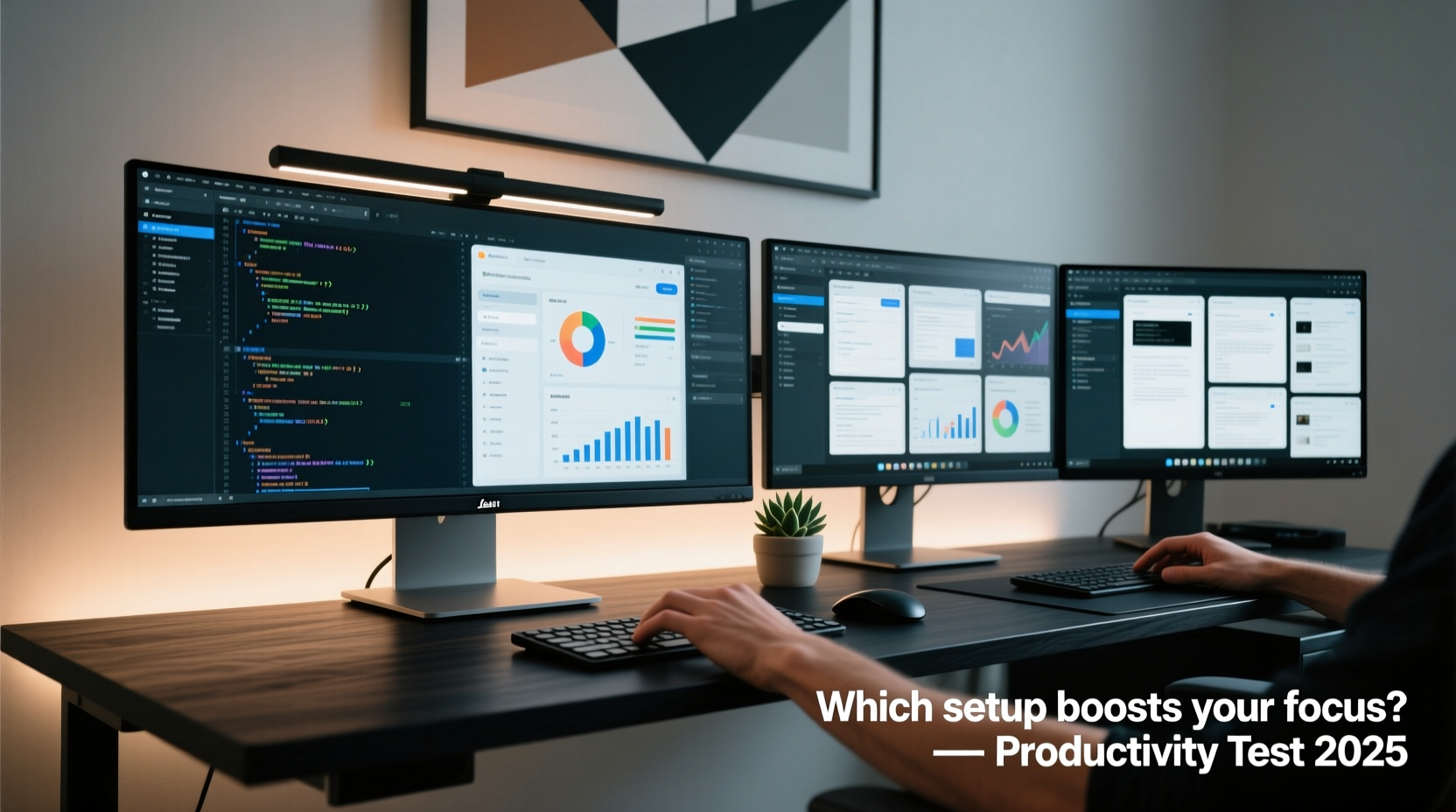
Multiple studies confirm that increased screen space leads to measurable gains in productivity. A 2008 study by the University of Utah, sponsored by NEC, found that workers using widescreen displays completed tasks up to 35% faster than those using standard 4:3 monitors. More recent data from the Journal of Applied Psychology supports this, showing that professionals with larger or multiple displays report higher job satisfaction and reduced task-switching time.
However, more screen space doesn’t automatically translate into better performance. How that space is organized—and how your brain processes it—plays a critical role. This is where the fundamental difference between ultrawide and dual monitors becomes apparent.
Ultrawide Monitors: Seamless Space or Cognitive Overload?
Ultrawide monitors typically feature aspect ratios of 21:9 or even 32:9, offering a continuous field of view that eliminates bezels and visual interruptions. Popular among video editors, financial analysts, and multitaskers, these displays allow users to place multiple windows side-by-side without physical or perceptual breaks.
The uninterrupted expanse supports immersive workflows. For example, a content creator can have a full-width timeline at the bottom while editing video in the main window above, with reference material and chat apps pinned to the sides—all visible simultaneously. Gamers appreciate the wider peripheral vision, and coders benefit from being able to keep documentation open alongside their IDE.
Yet, the very strength of the ultrawide—its continuity—can become a weakness. Without natural divisions, users may struggle to compartmentalize tasks. Important notifications can get lost in the periphery, and eye tracking across such a wide span may increase fatigue over long sessions. Some users report difficulty focusing on a single application when others remain partially visible in the corners of their vision.
“An ultrawide monitor can be like having a panoramic window: beautiful and expansive, but if everything outside is moving, it’s hard to concentrate.” — Dr. Lena Torres, Human Factors Researcher at MIT Media Lab
Dual Screens: Flexibility with Fragmentation
Dual-monitor setups have been a staple in professional environments for decades. Their primary advantage lies in modularity: each screen can serve a dedicated function. One might be reserved for active work (e.g., writing or design), while the other runs communication tools, email, or system monitoring dashboards.
This spatial separation helps reinforce task boundaries. Switching focus from one screen to another provides a subtle psychological cue, reducing context-switching errors. A developer might code on the left while keeping logs and terminal output on the right; a trader could track live markets on one screen and execute trades on the other.
However, dual monitors introduce physical and visual discontinuities. The center bezel creates a “dead zone” where dragging windows feels awkward. Color and brightness inconsistencies between two separate units can disrupt visual harmony. Calibration differences often require manual tweaking, especially if monitors are not identical models.
Moreover, dual setups demand more desk space and careful cable management. Ergonomic alignment—ensuring both monitors are at the same height and angle—is crucial to prevent neck strain. Misaligned screens force users to tilt their heads repeatedly, leading to discomfort over time.
Comparative Analysis: Key Differences at a Glance
| Feature | Ultrawide Monitor | Dual Screens |
|---|---|---|
| Seamless Display | ✅ Yes – no bezel interruption | ❌ No – visible gap between screens |
| Task Segmentation | ⚠️ Requires software tools | ✅ Natural physical separation |
| Ease of Setup | ✅ Single device, one cable | ⚠️ Multiple devices, calibration needed |
| Cost Efficiency | ⚠️ Higher upfront cost | ✅ Can mix older/newer monitors |
| Ergonomic Flexibility | ⚠️ Fixed curvature and position | ✅ Adjustable angles and heights |
| Visual Fatigue Risk | ⚠️ High – wide horizontal gaze required | ✅ Lower – focused zones |
| Ideal For | Media editing, immersive multitasking | Communication-heavy roles, development |
Real-World Workflow Case: Content Creator vs. Project Manager
Scenario 1: Sarah, Video Editor
Sarah works remotely as a freelance video editor. She uses a 34-inch ultrawide monitor with a 21:9 aspect ratio. Her timeline spans the lower third of the screen, while the preview window occupies the top left. On the far right, she keeps her asset library and Slack open. Because her workflow relies on constant cross-referencing between clips, audio tracks, and client feedback, the seamless layout allows her to drag assets fluidly across panels without losing context. She reports a 20% reduction in project completion time since switching from dual 16:9 monitors.
Scenario 2: James, Agile Project Manager
James manages three software teams. His day involves juggling Jira, Zoom, email, Slack, and documentation. He uses two 27-inch monitors: the left for active sprint planning in Jira, the right for meetings and messaging. The physical separation helps him mentally switch modes. When he’s in a call, he minimizes distractions on the left. He tried an ultrawide but found himself distracted by pending tickets flickering at the edge of his vision. After reverting to dual screens, his self-reported focus improved by nearly 40%, according to weekly productivity reviews.
These examples highlight a key insight: the best setup depends not on technology alone, but on how information is processed and prioritized.
Actionable Tips for Choosing the Right Setup
- Assess your primary workflow: Do you need to see multiple related elements simultaneously (e.g., code and output), or do you switch between unrelated tasks frequently?
- Consider screen real estate utilization: Ultrawides offer more horizontal space, but vertical space is often limited unless using a 38-inch model with high resolution.
- Evaluate desk ergonomics: Measure your desk depth and viewing distance. Ultrawides require a minimum of 40 inches of width for comfortable use.
- Think about future-proofing: Dual monitors allow incremental upgrades. You can replace one at a time, whereas ultrawides are all-or-nothing investments.
- Use software to compensate for hardware limits: Tools like DisplayFusion (Windows) or Magnet (Mac) enable advanced window snapping, virtual desktops, and task grouping on both setups.
Step-by-Step Guide: Optimizing Your Chosen Configuration
- Define your core tasks: List the 3–5 applications you use most during peak hours.
- Map window placement: Sketch how these apps would fit on an ultrawide versus dual screens.
- Simulate the layout: Use existing monitors or online configurator tools to visualize arrangements.
- Test for eye movement: Note how much you turn your head or shift focus. Frequent extreme glances suggest fatigue risk.
- Run a one-week trial: Use one setup exclusively and log productivity, comfort, and distractions daily.
- Adjust software settings: Enable dark mode, adjust scaling, set up hotkeys for window management.
- Re-evaluate: After the trial, compare notes and decide whether to commit or iterate.
Common Pitfalls and How to Avoid Them
Both setups carry hidden risks. With ultrawides, the biggest danger is visual sprawl—spreading too many apps across the screen, leading to attention fragmentation. Users often fall into the trap of thinking “more visible = more productive,” but cognitive science shows that constant partial attention reduces deep work capacity.
Dual monitors, meanwhile, can encourage multitasking to excess. Having email always visible on the secondary screen tempts frequent checking, disrupting flow states. Research from the University of California, Irvine, shows that it takes an average of 23 minutes to fully regain focus after an interruption.
Frequently Asked Questions
Can I use an ultrawide with dual-monitor workflows?
Yes. Many users treat an ultrawide as two or even three virtual screens using software partitions. Apps like FancyZones (PowerToys) let you define custom grid layouts, mimicking the segmentation of dual monitors while retaining seamlessness.
Is screen burn-in a concern with ultrawide monitors?
It can be, especially with OLED ultrawides used for static UI elements (e.g., taskbars or docked apps). To mitigate this, enable pixel shifting, use screen savers, and avoid displaying static content for extended periods.
Which setup is better for remote work?
It depends on your role. If your job involves frequent video conferencing and document collaboration, dual screens offer better separation between meeting windows and note-taking. For creative or analytical roles requiring broad data views, ultrawides often provide superior immersion and efficiency.
Conclusion: Align Technology with Intention
The debate between ultrawide monitors and dual screens isn’t about which is universally better—it’s about alignment with purpose. An ultrawide excels when continuity and breadth enhance comprehension, such as in media production or data analysis. Dual monitors shine when compartmentalization supports focus, particularly in communication-heavy or rapidly switching roles.
Productivity isn’t just about seeing more; it’s about seeing what matters, when it matters, without cognitive friction. The most effective setup minimizes distractions, supports ergonomic health, and adapts to evolving tasks. Technology should serve intention, not dictate it.




 浙公网安备
33010002000092号
浙公网安备
33010002000092号 浙B2-20120091-4
Comments
No comments yet. Why don't you start the discussion?