
In today’s knowledge-driven work environment, screen real estate directly impacts how efficiently we process information, manage tasks, and maintain focus. As remote and hybrid work become standard, professionals are reevaluating their setups—especially when it comes to choosing between ultrawide monitors and dual-screen configurations. Both options promise enhanced productivity, but they deliver it in fundamentally different ways. The key question isn’t just about pixel count or resolution; it’s about workflow compatibility, long-term comfort, and whether the higher cost of an ultrawide monitor translates into tangible gains.
This decision isn’t one-size-fits-all. A financial analyst juggling spreadsheets may benefit differently than a video editor syncing timelines or a developer managing multiple terminals. Understanding the trade-offs between seamless panoramic views and modular flexibility can help you make a choice that aligns with both your professional needs and budget.
The Core Differences: Design, Space, and Workflow
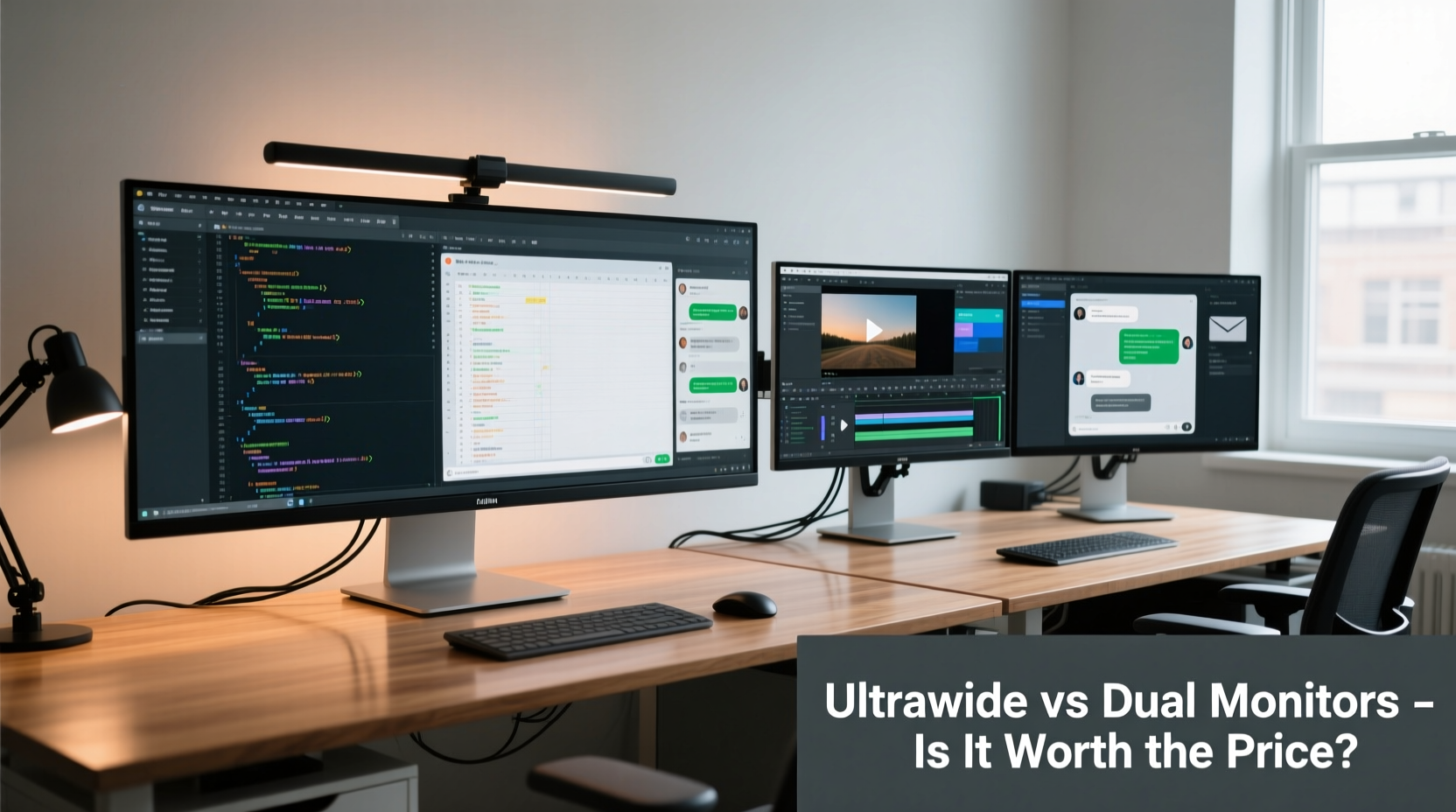
At first glance, ultrawide monitors and dual-screen setups appear to serve the same purpose: expanding your digital workspace. However, their underlying design philosophies differ significantly.
An ultrawide monitor typically features a 21:9 or even 32:9 aspect ratio, offering a single continuous display surface—often 34 inches or larger. This eliminates the physical bezel gap found in dual monitors, creating a smooth visual experience ideal for multitasking across applications that benefit from horizontal space, such as video editing timelines, coding environments, or financial dashboards.
Dual monitors, on the other hand, provide two separate displays, usually 24” to 27” each, arranged side by side. While this introduces a central bezel (or gap), it offers greater configurability. You can rotate one screen vertically for document editing, use different resolutions or refresh rates, or dedicate one monitor exclusively to communication tools like email or Slack while reserving the other for deep work.
The psychological impact of screen layout also matters. An ultrawide can feel immersive and focused, reducing the need to shift your gaze dramatically between windows. Dual screens, however, allow stronger compartmentalization—visually separating tasks in a way that may reduce cognitive load during complex workflows.
Performance and Multitasking: Real-World Use Cases
To assess which setup enhances productivity, consider how you actually work—not how you wish you worked.
For content creators: Video editors using Adobe Premiere Pro or DaVinci Resolve often prefer ultrawide monitors. The wide canvas allows them to view the timeline, preview window, and tool panels simultaneously without constant tab switching. Similarly, graphic designers working in Photoshop or Illustrator gain more horizontal room for toolbars and reference images.
For developers and engineers: Coding typically involves splitting the workspace between an IDE, terminal, documentation, and browser. Dual monitors excel here—keeping code on one screen and references or debugging tools on the other. That said, some developers report improved focus on ultrawides when using tiling window managers or virtual desktops to organize panes horizontally.
For finance and data analysts: Ultrawide monitors shine when comparing large datasets across adjacent columns in Excel or Google Sheets. The uninterrupted span reduces scrolling and makes trends easier to spot. However, if you’re monitoring live market data on one screen while modeling in another, dual monitors offer better isolation and responsiveness.
A 2022 study by the University of Utah’s Human-Computer Interaction Lab found that users completing complex spreadsheet tasks were 15% faster on ultrawide displays compared to dual 1080p monitors, primarily due to reduced mouse travel and fewer context switches.
“Single-display ultrawides reduce visual fragmentation, which can lower cognitive strain during extended analytical sessions.” — Dr. Lena Patel, Cognitive Ergonomics Researcher, University of Utah
Cost Analysis: Is the Premium Justified?
Ultrawide monitors often carry a significant price premium. A high-quality 34-inch 3440x1440 model ranges from $600 to $1,200, whereas two 27-inch 1440p monitors can be purchased for $500–$800 combined. Additionally, ultrawides may require more powerful GPUs and compatible cabling (DisplayPort 1.4 or HDMI 2.1) to run at full resolution and refresh rate.
However, cost shouldn’t be evaluated solely on upfront price. Consider long-term value:
- Cable management: One monitor means fewer cables, power adapters, and desk clutter.
- Desk space: Ultrawides typically occupy less depth, freeing up room for keyboards, notebooks, or peripherals.
- Maintenance: Fewer devices mean fewer points of failure and simpler software calibration.
- Ergonomics: A single curved panel can promote better neck alignment versus turning between two flat screens.
If your workflow thrives on continuity and immersion, the ultrawide’s efficiency gains may justify its cost over time. But if you need specialized screen orientations, mixed resolutions, or plan to upgrade incrementally, dual monitors offer superior flexibility and scalability.
Comparison Table: Ultrawide vs Dual Screens
| Feature | Ultrawide Monitor | Dual Screens |
|---|---|---|
| Screen Continuity | Seamless, no bezel interruption | Bezel or gap between screens |
| Setup Complexity | Simple: one cable, one mount | More cables, alignment needed |
| Flexibility | Limited to single orientation | Can mix sizes, orientations, and uses |
| Cost (High-End) | $800–$1,500 | $600–$1,200 (for two) |
| Best For | Video editing, data analysis, immersive work | Programming, multitasking, split-task workflows |
| Ease of Mobility | Harder to transport (large size) | Easier to pack and relocate |
| GPU Requirements | Higher bandwidth needed | Lower per-monitor demand |
Mini Case Study: From Dual Monitors to Ultrawide
Sarah Kim, a senior UX researcher at a tech startup, used dual 24-inch monitors for three years. Her typical day involved analyzing user session recordings on one screen while taking notes and updating reports on the other. She found herself constantly adjusting window positions due to the central bezel cutting through videos.
Last year, she upgraded to a 34-inch ultrawide 1440p monitor. Initially skeptical, she quickly adapted to the wider format. By placing her video player across the left two-thirds and her research doc on the right, she eliminated the need to resize or reposition. “It’s like removing a wall from my desk,” she said. “I don’t realize how much mental energy I was spending on window management until it was gone.”
Her productivity metrics—measured by completed studies per week—increased by 20%. While the monitor cost $900, her company calculated a return within five months based on output gains alone.
Step-by-Step Guide: Choosing the Right Setup for You
Follow this practical sequence to determine which configuration suits your needs:
- Map Your Daily Workflow: Track how many applications you use simultaneously and how you arrange them. Are you side-by-side referencing, or do you switch rapidly between full-screen apps?
- Assess Physical Space: Measure your desk depth and width. Ultrawides require at least 36 inches of width and benefit from deeper desks to accommodate curvature.
- Test Resolution Needs: If you work with high-resolution images or codebases, prioritize 1440p or higher. Avoid stretching 1080p across an ultrawide—it degrades clarity.
- Budget for Peripherals: Factor in costs for mounts, cables, and potential GPU upgrades. An ultrawide may require a new DisplayPort cable or docking station.
- Try Before You Buy: Visit a retailer or borrow a setup. Spend at least 30 minutes performing real tasks to gauge comfort and efficiency.
- Start Incremental (Dual Screen Option): Begin with one quality monitor and add a second later. This spreads cost and lets you refine placement.
- Evaluate Long-Term Goals: Will your role evolve toward more collaborative or presentation-heavy tasks? Ultrawides can double as presentation displays with minimal rearrangement.
Frequently Asked Questions
Can I use an ultrawide monitor for gaming and productivity?
Yes. Many ultrawides support high refresh rates (100Hz+) and adaptive sync (FreeSync/G-Sync), making them excellent for both work and entertainment. Just ensure your GPU can drive the resolution (3440x1440 or higher).
Do dual monitors slow down my computer?
Not inherently. Performance impact depends on total resolution and GPU capability. Two 1080p monitors (combined ~4MP) use less bandwidth than a single 3440x1440 ultrawide (~5MP). However, modern integrated graphics handle both setups adequately for office tasks.
Is eye strain worse with ultrawide monitors?
Not if set up correctly. Curved ultrawides can reduce glare and maintain consistent viewing distance. Ensure the monitor is centered, at eye level, and positioned 24–30 inches away. Poor posture or excessive brightness causes more strain than screen format.
Action Checklist: Make the Right Decision
- ✅ Your GPU supports the resolution and refresh rate
- ✅ Your desk has enough width and depth
- ✅ You’ve tested the setup with actual work tasks
- ✅ You’ve calibrated brightness and color settings
- ✅ You’ve considered future scalability (e.g., adding a third screen later)
Final Verdict: Worth It—But Not for Everyone
The ultrawide monitor is not a universal upgrade, but for many professionals, it represents a meaningful leap in workflow efficiency. Its seamless expanse reduces friction in tasks requiring lateral expansion—editing, designing, analyzing—and promotes a cleaner, more focused workspace. The initial investment is higher, but the long-term benefits in reduced clutter, simplified setup, and cognitive ease can outweigh the cost.
Dual monitors remain a powerful, flexible alternative—especially for those who need vertical screen space, mixed device usage, or incremental upgrades. They offer proven productivity gains and widespread compatibility.
The truth is, the best setup isn’t defined by specs or trends, but by how well it disappears into your workflow. When your tools stop demanding attention, you can finally focus on what matters: the work itself.




 浙公网安备
33010002000092号
浙公网安备
33010002000092号 浙B2-20120091-4
Comments
No comments yet. Why don't you start the discussion?