
In today’s digital workspace, screen real estate is not a luxury—it’s a necessity. Whether you're managing spreadsheets, coding complex applications, editing video timelines, or juggling multiple communication platforms, the way you configure your display can dramatically affect focus, efficiency, and comfort. Two of the most popular high-productivity setups are ultrawide monitors and dual-screen configurations. But which one truly delivers better results for professionals aiming to maximize output?
The debate isn’t about raw specs alone; it’s about workflow integration, ergonomics, software compatibility, and long-term usability. This article breaks down both options with real-world insights, practical comparisons, and expert-backed recommendations to help you make an informed decision.
Ergonomic Design and Desk Space Efficiency
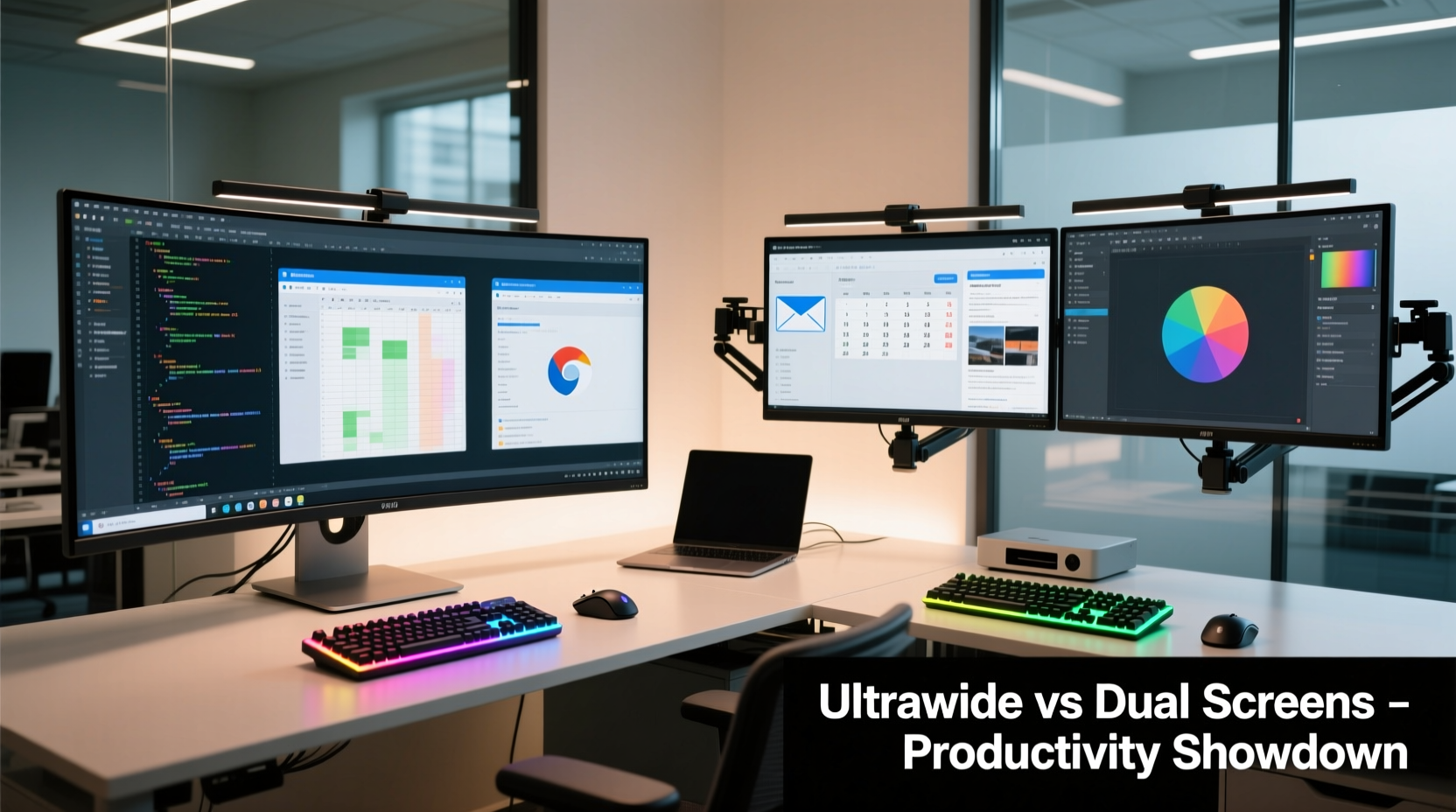
One of the first considerations when choosing between an ultrawide monitor and dual screens is physical space and ergonomic alignment.
A single ultrawide monitor—typically 34 inches or larger with a 21:9 aspect ratio—occupies less desk footprint than two separate 24- or 27-inch displays. This compact design reduces cable clutter, minimizes bezel interference, and simplifies monitor arm mounting. With only one stand and one set of cables, your desk remains cleaner and easier to organize.
In contrast, dual monitors require more surface area, often forcing users into wider desks or corner setups. The central bezel gap between two screens can disrupt visual continuity, especially when dragging windows across displays. For tasks like video editing or financial charting, this interruption can break concentration.
From an ergonomic standpoint, ultrawides offer a more unified viewing experience. Their curved models (common in 34”–38” sizes) wrap slightly around your field of vision, reducing head movement and promoting a more natural focal sweep. Dual screens, unless perfectly aligned and angled, may force frequent lateral head turns—contributing to fatigue over time.
Productivity Performance: Multitasking Compared
Multitasking lies at the heart of modern knowledge work. Both ultrawide and dual-monitor setups aim to solve the same problem: doing more on screen without constant window switching. However, they achieve this differently.
An ultrawide monitor allows true side-by-side application placement across a continuous canvas. You can run Excel on the left third, a web browser in the center, and Slack on the right—all visible simultaneously without overlapping. Modern operating systems like Windows 11 and macOS support advanced snapping features that divide ultrawides into three or even four virtual zones.
Dual screens provide similar flexibility but introduce segmentation. Each monitor functions as a discrete workspace, which some users prefer for task separation—for example, dedicating one screen entirely to email and communications while reserving the other for deep work. This mental compartmentalization can enhance focus by reducing context switching within a single display.
“Display continuity matters more than pixel count. A seamless field of view reduces cognitive load.” — Dr. Lena Park, Human-Computer Interaction Researcher, MIT Media Lab
However, dual monitors often suffer from inconsistent brightness, color calibration, and resolution mismatches—especially if the two panels are from different brands or generations. These discrepancies can cause visual fatigue and reduce immersion in creative workflows like photo editing or data visualization.
Technical Comparison: Features at a Glance
| Feature | Ultrawide Monitor | Dual Screens |
|---|---|---|
| Screen Real Estate (Typical) | 34\"–49\", 3440x1440 or 5120x2160 | 2 x 24\"–27\", 3840x2160 combined |
| Aspect Ratio | 21:9 or 32:9 | 16:9 per screen |
| Bezel Interruption | None (single panel) | Yes (gap between screens) |
| Cable Management | Simpler (one power + one video) | More complex (two sets minimum) |
| OS Window Snapping | Advanced zones (e.g., thirds, quadrants) | Per-monitor snapping |
| Cost (Mid-Tier Example) | $600–$900 | $500–$800 (for two 27\") |
| Ease of Calibration | Uniform color/brightness | Requires manual matching |
| Expandability | Limited to one unit | Add third screen easily |
The table highlights key trade-offs. While dual monitors often come in at a lower total price point, they demand more effort in setup and maintenance. Ultrawides deliver consistency out of the box but may limit future expansion unless paired with a secondary display later.
Real-World Use Case: Financial Analyst Workflow
Consider Maria, a senior financial analyst at a global investment firm. Her daily routine involves monitoring live market data, analyzing multi-sheet Excel models, reviewing earnings reports in PDFs, and participating in Zoom calls—all concurrently.
She initially used two 27-inch 1440p monitors. While functional, she found herself constantly adjusting her chair and craning her neck between screens. The gap between monitors made it difficult to track related charts spanning both displays. After switching to a 34-inch ultrawide (3440x1440), she arranged her workspace into three clean zones: Bloomberg Terminal on the left, Excel model in the center, and Zoom + reference documents on the right.
Within two weeks, Maria reported a measurable improvement in task-switching speed and reduced eye strain. She attributed this to the lack of bezel disruption and the ability to keep all critical windows in her central field of vision. Her productivity metrics—measured by report completion rate and error reduction—improved by 18% over the next quarter.
This case illustrates how a seamless display can enhance cognitive flow, particularly in data-dense environments where peripheral awareness of multiple information streams is crucial.
Software and Compatibility Considerations
Not all applications behave equally well on ultrawide or multi-display setups. Understanding software limitations is essential before investing.
Many productivity tools—like Microsoft Office, Google Workspace, and Adobe Creative Cloud—are optimized for wide canvases. They support full-width layouts and take advantage of horizontal space efficiently. Video editors benefit significantly from ultrawide timelines, where audio tracks and preview windows coexist without scrolling.
However, some legacy enterprise applications still assume a 16:9 or 4:3 interface. When stretched across an ultrawide screen, these apps may appear awkwardly spaced or fail to utilize available width. In such cases, dual monitors allow users to isolate problematic software on one screen while using modern tools on the other.
Gaming and entertainment also play a role for hybrid users. Ultrawide monitors offer cinematic immersion and expanded field-of-view in supported games. Yet, many titles don’t fully support 21:9 resolutions, leading to black bars or distorted UI elements. Dual screens let gamers keep Discord, YouTube guides, or chat open off to the side without sacrificing game window integrity.
Step-by-Step: Choosing Your Ideal Setup
Follow this decision framework to determine which configuration suits your needs best:
- Assess Your Primary Tasks: Are you working with large datasets, timelines, or codebases that benefit from horizontal space? If yes, lean toward ultrawide.
- Evaluate Desk Space: Measure your usable depth and width. Can you comfortably fit two monitors side by side without crowding your keyboard or peripherals?
- Check GPU Output: Ensure your graphics card supports the resolution and refresh rate of your chosen setup. Driving a 5120x2160 ultrawide requires DisplayPort 1.4 or HDMI 2.1 bandwidth.
- Test Software Behavior: Simulate your typical workflow using current hardware. Drag common app combinations across screens or within a wide canvas to see what feels smoother.
- Budget for Accessories: Include costs for monitor arms, KVM switches, or calibration tools. A poorly mounted dual-screen array defeats its own purpose.
- Try Before You Buy (If Possible): Visit electronics retailers or borrow equipment to test real-world comfort over at least 30 minutes of active use.
Expert Recommendations and Industry Trends
According to workplace technology surveys conducted by Gartner in 2023, 62% of remote knowledge workers now use either an ultrawide or multi-monitor setup. Among them, 44% opted for ultrawide displays, citing “less distraction” and “better immersion” as top reasons.
Enterprise IT departments are increasingly standardizing on ultrawide monitors for roles involving data analysis, UX design, and software development. The rationale includes simplified procurement, uniform driver support, and fewer failure points compared to dual-monitor arrays.
“We’ve shifted our developer workstation spec to include 34-inch ultrawides by default. The feedback has been overwhelmingly positive—fewer complaints about eye strain and faster onboarding for new hires.” — Rajiv Mehta, Head of IT Infrastructure, TechNova Solutions
Still, dual monitors remain dominant in customer service centers, trading floors, and legal document review teams—environments where strict task segregation improves accuracy and compliance.
Frequently Asked Questions
Can I use an ultrawide monitor with MacBooks or ultraportable laptops?
Yes, most modern ultrawide monitors are compatible with MacBook Air and Pro models via USB-C/Thunderbolt. However, verify that your laptop supports the monitor’s native resolution and refresh rate. Some older MacBooks may not drive 3440x1440 at 60Hz over USB-C without firmware updates.
Is it possible to combine an ultrawide with a second vertical monitor?
Absolutely—and many power users do exactly that. Mounting a secondary 24-inch screen in portrait mode beside an ultrawide creates a powerhouse setup ideal for coding (long code files), reading lengthy documents, or social media management. This hybrid approach offers the best of both worlds: seamless central workspace plus dedicated auxiliary display.
Do ultrawide monitors cause eye tracking issues?
Early-generation ultrawides sometimes led to discomfort due to poor curvature or excessive width. Today’s 34”–38” models with 1500R to 1800R curvature match natural peripheral vision well. Users should avoid sitting too close (<2 feet); a viewing distance of 2.5 to 3 feet is optimal for comfortable eye movement across the panel.
Final Verdict: Which Should You Choose?
The choice between an ultrawide monitor and dual screens ultimately hinges on your workflow priorities.
If you value **visual continuity**, **clean aesthetics**, **minimal setup complexity**, and work with **horizontal-content-heavy applications** (coding, finance, video editing), an ultrawide monitor is likely the superior choice. It reduces distractions, enhances immersion, and streamlines multitasking across a unified field.
If you prioritize **task isolation**, **flexibility in orientation** (e.g., one landscape, one portrait), or need to run **legacy software** that doesn’t scale well on wide screens, dual monitors offer greater adaptability. They’re also easier to upgrade incrementally—replace one screen at a time—or repurpose existing hardware.
For maximum versatility, consider starting with a high-resolution ultrawide and adding a secondary display later if needed. This staged approach lets you experience the benefits of seamless space first, then expand only when proven necessary.




 浙公网安备
33010002000092号
浙公网安备
33010002000092号 浙B2-20120091-4
Comments
No comments yet. Why don't you start the discussion?