
In modern workspaces, screen real estate directly influences efficiency. As remote work and multitasking become standard, professionals face a critical decision: choose an ultrawide curved monitor or stick with a dual-monitor flat setup. While both offer expansive viewing areas, their impact on focus, workflow, and long-term comfort differs significantly. One persistent concern—especially among knowledge workers, coders, and designers—is whether the curvature of an ultrawide monitor distracts from productivity rather than enhancing it. This article explores that question in depth, comparing ergonomics, usability, visual fatigue, and real-world performance to help you make an informed choice.
Ergonomic Design: How Screen Shape Affects Posture and Focus
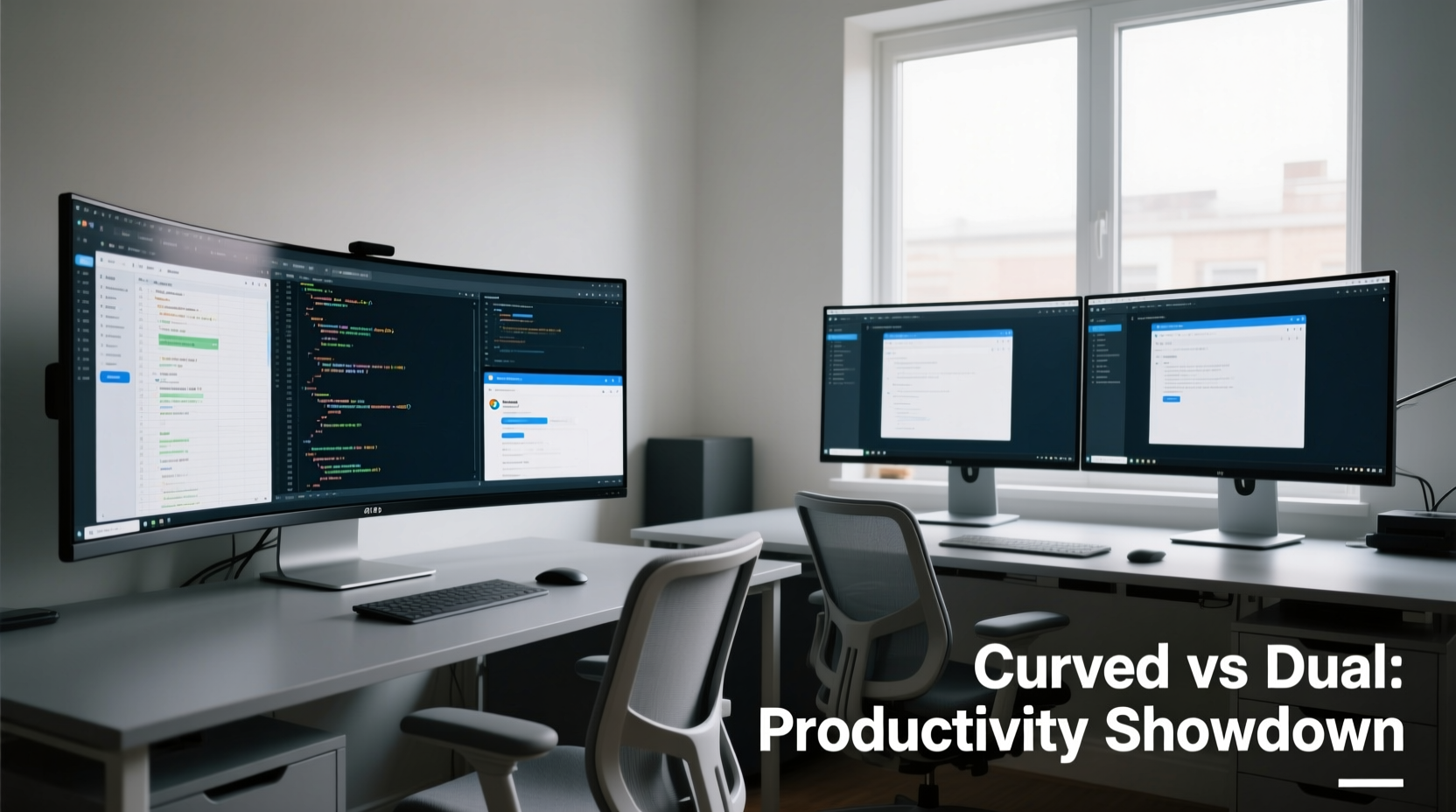
The physical layout of your workspace plays a crucial role in sustained concentration. Traditional dual-monitor setups often require users to angle two separate screens inward, creating a “V” shape to reduce neck strain. However, this configuration introduces a central bezel gap—a physical interruption between windows—that can disrupt visual continuity during tasks like video editing or financial modeling.
Ultrawide monitors, typically ranging from 29 to 49 inches with aspect ratios like 21:9 or even 32:9, eliminate that gap entirely. Their curved design is engineered to match the natural arc of human peripheral vision, theoretically keeping more of the display within the focal sweet spot without requiring constant eye movement or head turning.
However, not all curves are created equal. Monitors with excessive curvature (e.g., 1800R) may cause text at the edges to appear stretched or skewed if viewed from too far away or off-center. In contrast, flatter curves (3000R or higher) provide subtle wraparound benefits without aggressive distortion, making them better suited for productivity over entertainment.
Visual Continuity and Cognitive Load
One of the most cited advantages of ultrawide monitors is seamless multitasking. You can have a full browser window on the left, a spreadsheet in the center, and communication tools like Slack or email on the right—all visible simultaneously without overlapping windows or constant alt-tabbing.
But does the curve enhance or hinder this experience?
Studies in visual ergonomics suggest that moderate curvature reduces eye saccades—the rapid movements your eyes make when scanning across disparate points. With a dual setup, each monitor operates as a separate visual zone, forcing your brain to reorient every time you shift focus from one screen to another. The ultrawide’s continuous surface lowers cognitive load by presenting information as a single, cohesive plane.
“Curved ultrawides mimic how we naturally see the world—peripherally aware but centrally focused. When properly calibrated, they reduce mental fatigue during extended work sessions.” — Dr. Lena Torres, Human Factors Researcher at MIT Media Lab
That said, some users report initial discomfort with edge distortion on highly curved models. Text alignment near the corners may seem slightly bent, especially in applications that rely on precise grid layouts (e.g., CAD software or financial dashboards). Over time, many adapt due to perceptual normalization—the brain’s ability to filter out minor visual anomalies—but individual sensitivity varies.
Ultrawide vs Dual Monitor: A Practical Comparison
| Feature | Ultrawide Curved Monitor | Dual Flat Monitor Setup |
|---|---|---|
| Screen Real Estate | Single large canvas (e.g., 3440x1440) | Two independent displays (e.g., 2 x 1920x1080) |
| Seamless Multitasking | Yes – no bezel interruption | No – middle bezel breaks flow |
| Ease of Setup | Simple – one cable, one stand | Complex – cabling, alignment, VESA mounts |
| Distraction Potential | Moderate (edge warping on tight curves) | Low (flat, predictable geometry) |
| Cost Efficiency | Higher upfront cost | Potentially cheaper (use existing monitors) |
| Ergonomic Flexibility | Fixed curve radius | Adjustable angles and heights per screen |
| Gaming & Media Immersion | High – immersive field of view | Limited – disjointed visuals |
The table highlights a key trade-off: while ultrawides offer superior immersion and fewer hardware complications, dual setups allow greater customization. For example, rotating one monitor vertically for coding or document review is easier with discrete units. Similarly, troubleshooting display issues is simpler when problems are isolated to one screen.
Real-World Case: Developer Workflow Across Setups
Jamal Chen, a senior full-stack developer based in Vancouver, switched from a dual 27-inch setup to a 34-inch ultrawide (3440x1440, 21:9, 1500R curve) after six months of hesitation. His primary concerns were readability and distraction.
Initially, he found the curve “disorienting,” particularly when reviewing long lines of code across the width of the screen. After adjusting his seating position—moving slightly closer and centering his chair—he noticed a marked improvement. Within three weeks, he reported faster context switching between IDE, terminal, and documentation tabs.
“The biggest win was eliminating the bezel dead zone,” Jamal explained. “I used to lose my cursor constantly diving into that black strip between monitors. Now everything flows. I still rotate windows occasionally for deep focus, but overall, the curve helps me stay oriented.”
He did note one limitation: color accuracy varied slightly at the extreme edges during UI design reviews, requiring occasional calibration checks. Still, he concluded the benefits outweighed the drawbacks and has since recommended ultrawides to three colleagues.
When the Curve Becomes a Distraction
Despite the advantages, curved ultrawides aren’t universally ideal. Several factors can turn the curve from asset to annoyance:
- Improper Viewing Distance: Sitting too far back (>3 feet) exaggerates edge distortion. Optimal range is 24–30 inches.
- Excessive Curvature: Monitors labeled 1000R or 1500R are designed more for gaming than productivity. Choose 3000R or flatter for office use.
- Poor Mounting: Tilting the monitor upward or downward disrupts the intended curvature alignment, causing glare and image skew.
- Application Compatibility: Some older enterprise software doesn’t scale well to ultrawide resolutions, leading to awkward side padding or horizontal scrolling.
If you frequently collaborate via screen sharing, consider that others may perceive your layout as “stretched” if they’re viewing on standard 16:9 displays. This is rarely a functional issue but can create momentary confusion during presentations.
Step-by-Step Guide to Choosing the Right Setup
- Assess Your Primary Tasks: Do you split time between writing, coding, data analysis, and video calls? Ultrawides excel here. If you need vertical space (e.g., legal docs, music notation), dual monitors with one rotated may be better.
- Measure Your Desk Space: Ultrawides require depth clearance. Ensure at least 30 inches of front-to-back room to maintain optimal viewing distance.
- Check GPU Output: Confirm your graphics card supports ultrawide resolution (e.g., DisplayPort 1.4 or HDMI 2.0+). Older systems may struggle with scaling.
- Test Curvature Sensitivity: Visit a retail store or borrow a model. Spend 20 minutes reading documents and navigating spreadsheets across the full width.
- Simulate Dual Monitor Workflow: Run two apps side-by-side on your current laptop. Can you manage without constant tabbing? If yes, an ultrawide will likely feel liberating.
- Set a Budget: Entry-level ultrawides start around $400; high-end models exceed $1,000. Dual setups can reuse existing hardware, offering savings.
- Plan for Longevity: Consider future needs. Will you adopt virtual desktops or multi-app workflows more heavily in the next two years?
Frequently Asked Questions
Is a curved screen bad for prolonged reading or writing?
Not inherently. On moderately curved ultrawides (3000R or flatter), text remains legible across the screen when viewed head-on. However, reading long vertical documents may require more horizontal scrolling compared to a tall 16:10 display. Using split-pane editors or e-book readers with reflowable layouts mitigates this.
Can I use an ultrawide for coding effectively?
Absolutely. Many developers prefer ultrawides because they can keep their code editor, terminal, and API documentation open side-by-side. Just ensure your IDE supports proper window tiling and that font rendering remains crisp at the screen’s native resolution.
Do dual monitors cause more eye strain than a single ultrawide?
They can, but not necessarily due to the screens themselves. The abrupt transition across the center bezel forces repeated refocusing, which may contribute to visual fatigue over time. Proper lighting, anti-glare coatings, and regular breaks matter more than monitor count.
Final Recommendation: It Depends on Your Work Style
There’s no universal answer to whether an ultrawide curved monitor is distracting for productivity—it hinges on personal preference, task type, and environmental setup. For fluid, wide-format workflows involving multiple apps, the ultrawide’s uninterrupted canvas offers tangible benefits. The curve, when appropriately matched to viewing distance and radius, enhances focus rather than detracting from it.
Conversely, dual monitor setups remain a strong choice for those who value modularity, vertical space, or incremental upgrades. They also suit collaborative environments where screen rotation or specialized configurations are routine.
Ultimately, the goal is reducing friction in your digital workspace. Whether through seamless panoramic views or customizable dual zones, the right display setup should recede into the background—letting your mind stay on the work, not the hardware.




 浙公网安备
33010002000092号
浙公网安备
33010002000092号 浙B2-20120091-4
Comments
No comments yet. Why don't you start the discussion?