
For professional developers, the right monitor setup can mean the difference between a smooth workflow and constant context switching. As coding environments grow more complex—integrating IDEs, terminals, documentation, version control, and communication tools—the demand for screen real estate has never been higher. Two dominant solutions have emerged: ultrawide monitors and dual-screen setups. Both promise increased productivity, but they deliver it in fundamentally different ways. Choosing between them isn’t just about preference—it’s about aligning hardware with your coding style, environment, and long-term efficiency goals.
The Case for Ultrawide Monitors
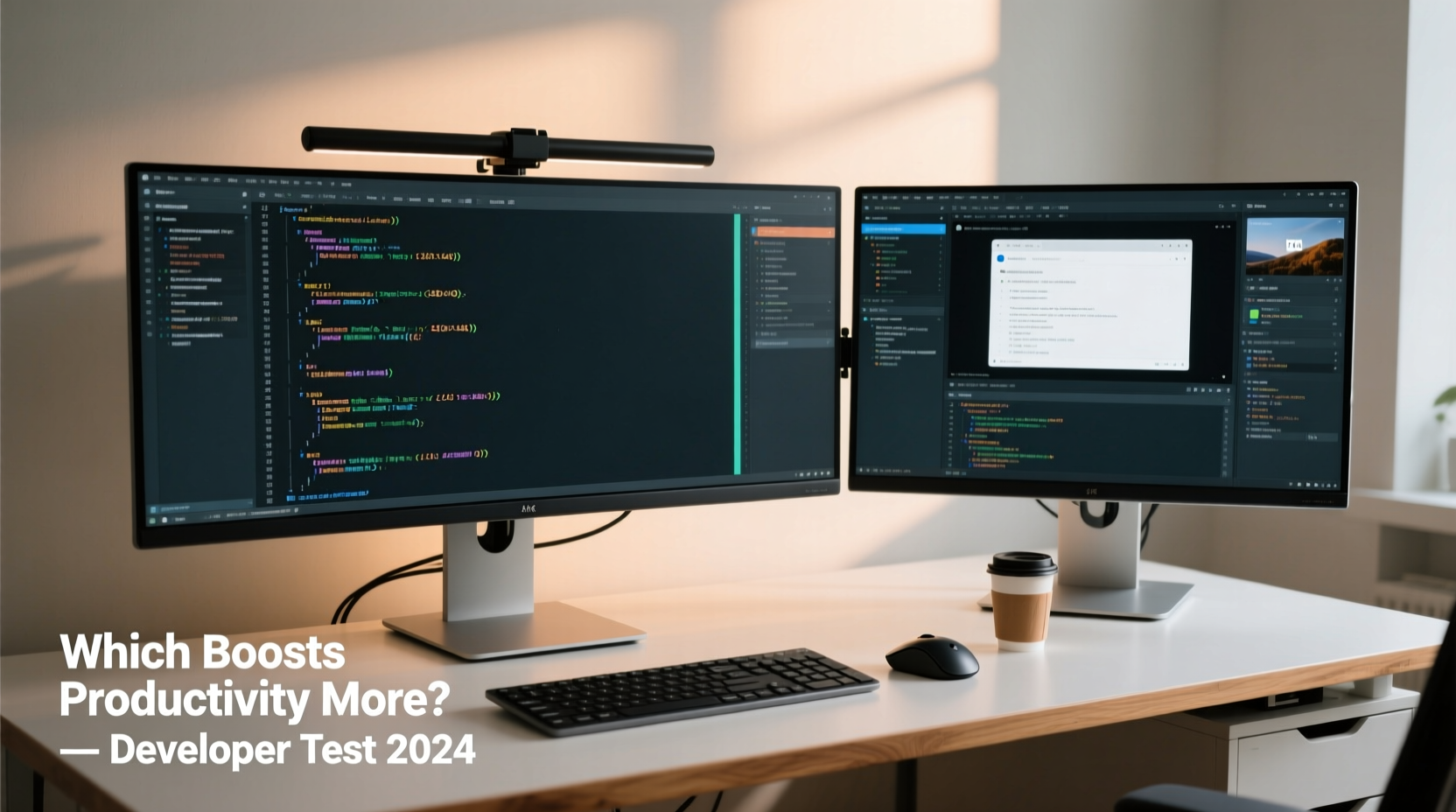
Ultrawide monitors typically feature aspect ratios of 21:9 or even 32:9, offering significantly more horizontal space than standard 16:9 displays. This expanded canvas allows developers to run multiple applications side by side without the physical bezel interruption common in dual-monitor configurations.
A single ultrawide screen eliminates the “dead zone” created by monitor bezels and gaps, enabling seamless window snapping across the entire display. For coders working with split views—such as code on one side and documentation or a terminal on the other—an ultrawide monitor provides a continuous workspace that feels more integrated.
Modern ultrawides often come with high resolutions such as 3440x1440 (QHD+) or 5120x2160 (5K), delivering sharp text and excellent color accuracy—critical for long coding sessions. Additionally, many support adaptive sync (FreeSync or G-Sync), reducing eye strain during extended use.
Another advantage is cable management and desk footprint. A single monitor requires fewer cables, less desk space, and reduces visual clutter—important factors in maintaining a focused work environment.
The Strengths of Dual-Screen Setups
Dual monitors offer modular flexibility. You can mix and match sizes, resolutions, and orientations based on specific needs. For example, a developer might pair a vertical monitor for reading long code files or Git diffs with a horizontal one for active development.
This modularity supports task-specific zoning. One screen can be dedicated to the IDE, while the other runs a browser with documentation, a local server output, Slack, or video calls. The separation helps reduce cognitive load by creating visual boundaries between tasks.
Dual monitors are also easier to upgrade incrementally. If one screen fails or becomes outdated, it can be replaced independently. This makes dual setups more cost-effective over time, especially for those building their rigs gradually.
“Having two screens changed how I debug—I keep logs on one side and the code on the other. No more alt-tabbing.” — Raj Patel, Senior Full-Stack Developer at DevFlow Labs
However, dual setups introduce challenges. The bezel in the center can disrupt wide windows or full-screen previews. Mouse movement across screens may feel disjointed, particularly if monitors differ in size or resolution. And achieving perfect alignment—both physically and in operating system settings—requires careful calibration.
Comparative Analysis: Key Differences at a Glance
| Feature | Ultrawide Monitor | Dual Screens |
|---|---|---|
| Screen Continuity | Seamless, no bezel interruption | Bezel creates visual break |
| Desk Space | Compact footprint | Larger, requires wider desk |
| Resolution Flexibility | Fixed per model | Mix and match possible |
| Cost Efficiency | Higher upfront cost | Potentially lower long-term cost |
| Ease of Setup | Simple plug-and-play | Requires alignment and calibration |
| Vertical Real Estate | Limited unless using 32:9 or stacking windows | One monitor can be rotated vertically |
| Multitasking Flow | Smooth within single display | Clear task separation |
Real-World Example: A Backend Developer’s Workflow
Consider Maria, a backend engineer working on a microservices architecture. Her daily routine involves editing Go code, monitoring API logs, checking database queries, reviewing Swagger docs, and attending stand-ups via Zoom.
Initially, she used a dual 24-inch 1080p setup. While functional, she found herself constantly resizing windows and dealing with misaligned mouse transitions. After switching to a 34-inch 21:9 ultrawide, she arranged her workspace with VS Code on the left (in split view), Chrome with API docs in the center, and a terminal running docker logs on the right. The transition reduced her window-switching frequency by an estimated 60%, according to self-tracked activity logs.
However, when she began conducting deeper database analysis requiring long SQL scripts and result sets, she missed the ability to rotate a second screen vertically. She eventually adopted a hybrid approach: an ultrawide primary with a smaller vertical secondary monitor for data-heavy tasks. This configuration gave her the best of both worlds—continuous main workspace with added vertical flexibility.
Step-by-Step Guide: Choosing Your Ideal Setup
Selecting the right monitor configuration should be driven by your workflow, not trends. Follow this decision-making process:
- Assess Your Daily Tasks: Track your screen usage for three days. Note how often you switch between IDE, browser, terminal, chat apps, and video calls.
- Evaluate Physical Space: Measure your desk depth and width. Ultrawides need at least 36 inches of clearance; dual monitors may require 40+ inches.
- Test Resolution Needs: If you work with high-DPI assets or small fonts, prioritize pixel density (PPI). A 34” 3440x1440 ultrawide offers ~109 PPI, comparable to a 27” 1440p display.
- Simulate the Experience: Use software like DisplayFusion or UltraWideScreen Simulator to mimic ultrawide layouts on your current setup.
- Try Before You Buy: Visit electronics stores or borrow setups from colleagues. Spend at least 90 minutes coding on each configuration.
- Consider Future-Proofing: Look for monitors with USB-C docking, HDR support, and VESA compatibility for ergonomic arms.
- Start Hybrid (Optional): Combine an ultrawide with a vertical secondary screen for maximum adaptability.
Expert Insight: What Industry Leaders Recommend
According to Dr. Lena Torres, human-computer interaction researcher at MIT Media Lab, screen layout directly impacts cognitive performance in knowledge work.
“Studies show that minimizing window overlap and reducing task-switching latency improves focus duration by up to 27%. Ultrawides reduce fragmentation, while dual screens enhance compartmentalization—both valid strategies depending on the user’s mental model.” — Dr. Lena Torres, MIT HCI Lab
Her team’s 2023 study observed 48 professional developers over six weeks. Results showed that ultrawide users reported lower eye fatigue and faster navigation between panes, while dual-screen users excelled in multitasking scenarios involving frequent external references (e.g., Stack Overflow, Jira, or design mockups).
Actionable Tips for Maximizing Either Setup
- Invest in a mechanical keyboard and ergonomic mouse to complement your visual upgrade.
- Use monitor arms to achieve optimal height and angle, reducing neck strain.
- Label virtual workspaces or screen zones (e.g., “Code,” “Docs,” “Comms”) for faster orientation.
FAQ: Common Questions Answered
Can I use an ultrawide monitor for gaming and coding?
Yes. Many ultrawides offer high refresh rates (100Hz+) and low response times suitable for gaming. Their resolution also benefits IDE readability. Just ensure your GPU can handle the pixel count, especially at 5K.
Do dual monitors slow down my computer?
Not significantly for modern systems. Driving two 1080p or even 1440p displays is well within the capabilities of integrated graphics (e.g., Intel Iris Xe, Apple M-series). Performance bottlenecks usually arise from running too many apps, not the monitors themselves.
Is 21:9 better than 16:9 for programming?
For most coders, yes. The extra horizontal space accommodates longer lines of code, side-by-side file comparisons, and multi-pane editors without horizontal scrolling. However, if your work involves tall datasets or web design previews, supplementing with vertical space (via rotation or secondary screen) may be necessary.
Checklist: Ready to Upgrade Your Coding Workspace?
Before making a purchase, go through this checklist:
- ✅ Measured desk space and ensured adequate clearance
- ✅ Identified primary workflows (coding, debugging, documentation, etc.)
- ✅ Researched monitor specs: resolution, refresh rate, panel type (IPS recommended)
- ✅ Verified GPU compatibility with target resolution
- ✅ Considered ergonomics: height, tilt, swivel, and viewing distance
- ✅ Explored mounting options (VESA arm, clamp, stand)
- ✅ Tested software compatibility (IDE window snapping, OS multi-display support)
- ✅ Budgeted for potential accessories (cables, docks, KVM switches)
Final Verdict: Which Boosts Productivity More?
There is no universal winner. Ultrawide monitors excel in providing a seamless, distraction-free coding surface ideal for deep work. They reduce physical clutter and support fluid multitasking within a unified space. For developers who value immersion and continuity, the ultrawide is often the superior choice.
Dual-screen setups, however, offer unmatched flexibility. The ability to isolate tasks, rotate one monitor vertically, and upgrade incrementally makes them a pragmatic solution for diverse coding demands. They’re especially effective for full-stack developers juggling frontend previews, backend logic, and design assets simultaneously.
The most productive setup is the one that aligns with how your brain organizes information. Some thrive in a panoramic digital landscape; others prefer compartmentalized zones. The best approach may be hybrid: a high-resolution ultrawide as the primary, augmented by a smaller vertical screen for reference materials or logs.
Conclusion
Whether you choose an ultrawide monitor or a dual-screen configuration, the goal remains the same: to create a digital environment where code flows freely and distractions fade. Technology should serve your workflow—not the other way around. Take the time to evaluate your habits, test both options, and build a setup that reflects your unique rhythm as a developer.




 浙公网安备
33010002000092号
浙公网安备
33010002000092号 浙B2-20120091-4
Comments
No comments yet. Why don't you start the discussion?