
In today’s fast-paced digital environment, maximizing productivity isn’t just about working longer—it’s about working smarter. One of the most impactful decisions professionals make is choosing how they structure their workspace, particularly when it comes to display setups. The debate between ultrawide monitors and dual-screen configurations has become central to discussions around multitasking efficiency. Both options promise enhanced screen real estate and improved workflow, but which one actually delivers better results for multitaskers across industries?
This article breaks down the core differences between ultrawide monitors and dual-screen setups, evaluates their strengths and weaknesses in real-world scenarios, and provides actionable insights to help you determine the best fit for your work style.
Understanding the Core Differences
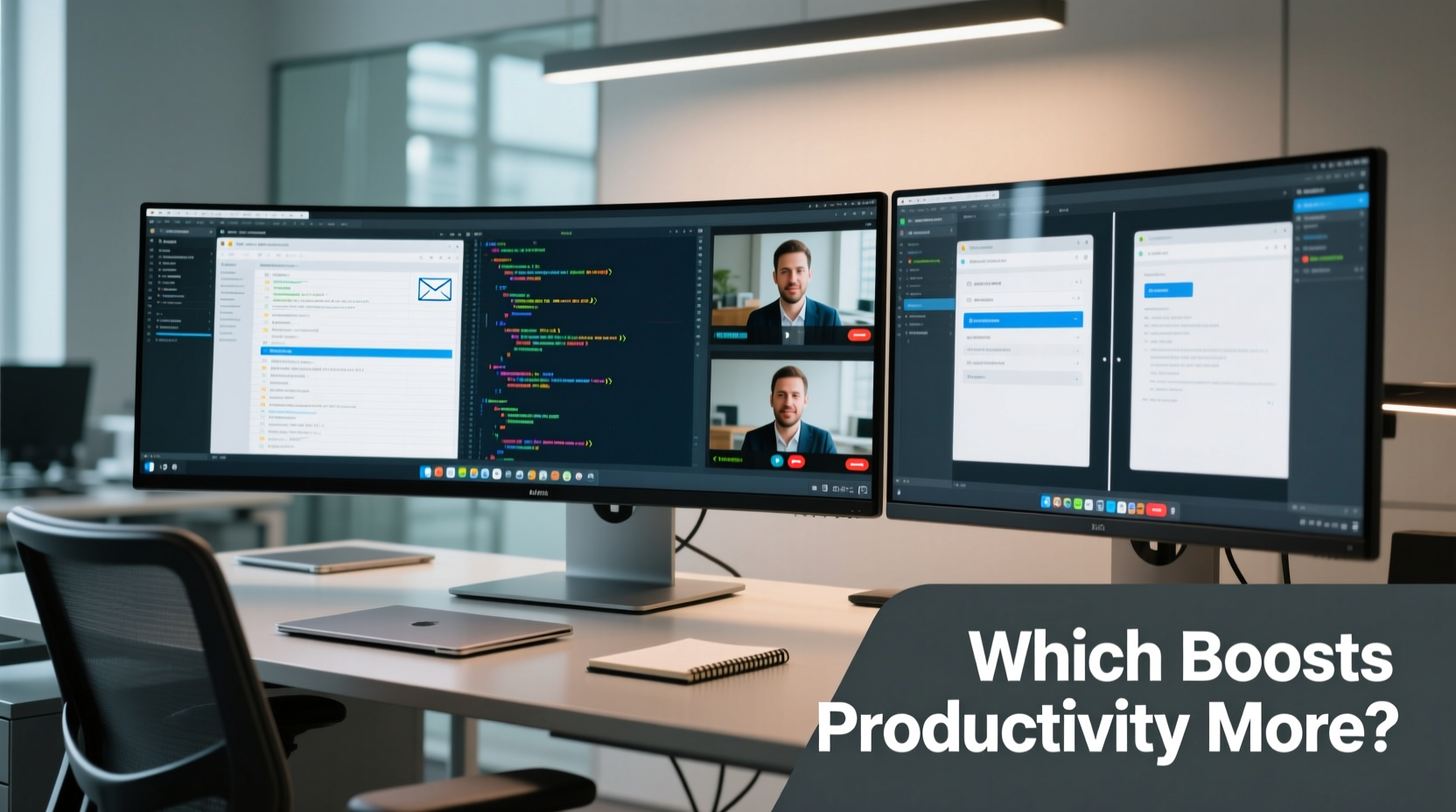
The fundamental distinction lies in how each setup delivers screen space. A dual-screen configuration uses two separate monitors—typically 24” or 27” displays—placed side by side. This gives users independent control over window placement, application assignments, and physical orientation. In contrast, an ultrawide monitor is a single display with an aspect ratio of 21:9 or even 32:9, offering a continuous panoramic view that eliminates the bezel gap found between dual monitors.
While both expand horizontal viewing area compared to standard 16:9 monitors, the user experience diverges significantly. Dual monitors allow true multi-desktop functionality, where different operating systems or virtual desktops can run independently on each screen. Ultrawides, however, provide a seamless canvas ideal for stretched applications like video editing timelines, financial spreadsheets, or coding environments with multiple panes.
Workflow Efficiency: Real-World Use Cases
Different professions benefit differently from each setup. Let’s examine several common use cases to illustrate practical advantages.
Software Developers
Developers often juggle code editors, terminal windows, documentation tabs, and version control tools. With a dual-screen setup, one monitor might host the IDE while the other runs browsers and debugging consoles. However, many developers report that ultrawide monitors reduce eye strain during long coding sessions because there’s no need to shift focus across a central bezel. Split-screen software like Microsoft PowerToys or DisplayFusion allows precise window snapping, mimicking dual-monitor behavior on a single ultrawide surface.
Video Editors and Content Creators
For video professionals, timeline visibility is crucial. An ultrawide monitor can display an entire project timeline alongside preview windows, effects panels, and audio meters without constant scrolling. Adobe Premiere Pro and DaVinci Resolve are optimized for wide formats, making ultrawides particularly effective. That said, some editors still prefer dual screens—one for the timeline and source material, the other for playback and color grading—because it reduces clutter and cognitive load.
Financial Analysts and Traders
Real-time data monitoring demands simultaneous access to multiple dashboards. Dual monitors excel here: one screen dedicated to live market feeds, another to analytical models or trading platforms. While some traders have transitioned to super ultrawide 49” displays (e.g., Samsung Odyssey), the risk of information overload increases if not managed with strict window organization.
“Ultrawides offer immersion, but dual monitors give control. For high-stakes decision-making, predictability matters more than aesthetics.” — James Lin, Financial Technology Consultant
Comparative Analysis: Key Factors at a Glance
| Factor | Ultrawide Monitor | Dual Screens |
|---|---|---|
| Seamless Viewing | ✅ No bezel interruption; smooth panning | ❌ Central bezel disrupts continuity |
| Setup Simplicity | ✅ Single cable, one calibration | ❌ Requires alignment, multiple cables |
| Window Management | ⚠️ Relies on software partitioning | ✅ Natural separation across physical units |
| Cost Efficiency | ⚠️ Higher upfront cost for quality models | ✅ Can reuse existing monitors |
| Ergonomics | ✅ Curved models reduce neck strain | ❌ Head movement across wider span |
| Gaming & Media Immersion | ✅ Superior cinematic and gaming experience | ❌ Limited immersive effect |
Common Pitfalls and How to Avoid Them
Both setups come with trade-offs that, if ignored, can undermine productivity rather than enhance it.
- Overextending field of view: Placing dual monitors too far apart forces excessive head turning, leading to fatigue. Position them so the inner edges meet at a slight angle toward the user.
- Poor resolution scaling: Running mismatched resolutions or DPI settings on dual monitors causes inconsistent text sizing and layout jumps. Stick to identical models when possible.
- Misusing ultrawide space: Treating an ultrawide as one giant screen often leads to disorganized windows. Use built-in tiling features or third-party tools to create defined work zones.
- Neglecting vertical space: Ultrawides prioritize width over height. Tasks requiring long documents or deep code stacks may suffer unless paired with a secondary vertical monitor.
Step-by-Step Guide: Choosing Your Ideal Setup
Follow this decision framework to identify the best option based on your specific needs.
- Assess your primary tasks: List the top three applications you use daily. Are they designed for wide interfaces (e.g., DAWs, CAD software)? If yes, lean toward ultrawide.
- Evaluate multitasking patterns: Do you frequently compare documents side by side, or do you keep reference materials open while working on a main task? Dual screens offer clearer visual separation.
- Measure your desk space: Ultrawides require depth clearance due to curvature. Ensure at least 30 inches of width and proper back-to-front space for curved models.
- Test compatibility: Verify GPU output supports ultrawide resolution (e.g., 3440x1440) or dual independent displays. Older graphics cards may struggle with either setup.
- Simulate before investing: Use free tools like Divvy (macOS) or GridMove (Windows) to simulate split layouts on your current monitor. This helps gauge comfort with segmented workflows.
- Consider future scalability: Will you eventually add a third screen? Dual-monitor arms support expansion easier than integrating a second ultrawide.
Mini Case Study: From Dual Monitors to Ultrawide Transition
Sarah Kim, a UX designer at a mid-sized tech firm, used a dual-monitor setup for five years—her left screen hosted Figma and Sketch, while the right ran Slack, email, and research tabs. After experiencing persistent neck pain, she consulted an ergonomic specialist who recommended reducing head rotation.
She switched to a 34-inch ultrawide (LG 34WN80C-B) and restructured her workspace using macOS Stage Manager and Spectacle for window management. Within two weeks, she reported a 30% reduction in end-of-day discomfort. More surprisingly, she found herself completing wireframes faster because she could view full artboard sequences in a single glance without switching screens.
However, Sarah did reintroduce a small vertical monitor for her calendar and notifications, proving that hybrid solutions often deliver optimal balance.
Expert Recommendations and Industry Trends
According to Dr. Elena Torres, an ergonomics researcher at the University of Michigan School of Public Health, “The key metric isn’t screen count or size—it’s minimizing unnecessary movement and cognitive switching. Whether through dual monitors or ultrawides, the goal is to keep critical information within easy visual reach.”
Industry trends reflect growing adoption of ultrawide displays among creative professionals. A 2023 survey by TechWork Insights found that 58% of graphic designers and video editors now use ultrawides as their primary display, citing reduced context-switching and improved timeline navigation. Meanwhile, enterprise environments continue favoring dual monitors for customer service reps, analysts, and developers managing complex toolchains.
“The best multitasking setup isn’t the flashiest—it’s the one that disappears into your workflow.” — Dr. Elena Torres, Ergonomics Researcher
Frequently Asked Questions
Can I use an ultrawide monitor with dual-screen software?
Yes. Modern operating systems and third-party tools allow you to divide an ultrawide into virtual monitors. Windows 11’s Snap Layouts and macOS Mission Control support zone-based arrangements that mimic dual screens on a single display.
Do ultrawide monitors cause distortion at the edges?
Potential edge distortion exists, especially on flat ultrawides. Curved models mitigate this by aligning pixels more naturally with peripheral vision. High-quality panels with uniform backlighting minimize warping effects during prolonged use.
Is dual screen better for gaming and streaming?
Traditionally, yes—streamers used one screen for gameplay and another for chat/moderation. However, ultrawide monitors now support expanded FOV in compatible games, and advanced capture cards allow scene composition across zones. Many streamers are consolidating to ultrawides for cleaner desk setups.
Checklist: Ready to Upgrade Your Multitasking Setup?
- ☑ Identify your top three productivity bottlenecks
- ☑ Measure available desk space and lighting conditions
- ☑ Confirm GPU and port compatibility (DisplayPort/HDMI)
- ☑ Decide whether seamless viewing or physical separation matters more
- ☑ Test window management tools on your current system
- ☑ Set a budget including mounts, cables, and potential accessories
- ☑ Plan for long-term scalability (third screen, laptop integration)
Conclusion: Make the Choice That Serves Your Workflow
The choice between ultrawide monitors and dual screens isn't about which is objectively superior—it's about alignment with your unique workflow, physical environment, and cognitive preferences. Ultrawides offer elegance, continuity, and immersive experiences ideal for creators and knowledge workers focused on linear, expansive tasks. Dual screens provide modular flexibility, intuitive separation, and proven reliability for those managing diverse, concurrent responsibilities.
Ultimately, the most productive setup is invisible. It doesn’t demand attention; it enables flow. Whether you choose a sweeping ultrawide horizon or a balanced dual-display command center, the goal remains the same: to remove friction, reduce fatigue, and let your mind focus on what truly matters—your work.




 浙公网安备
33010002000092号
浙公网安备
33010002000092号 浙B2-20120091-4
Comments
No comments yet. Why don't you start the discussion?