
Your iPhone is more than just a communication device—it’s an extension of your personality. While most users stick to Apple’s default keyboard, few realize how much character and functionality they’re missing. Custom keyboards offer bold designs, animated keys, gesture typing, emoji enhancements, and even voice-to-text integrations that transform every message into a statement. With the right tools, you can turn mundane texting into a vibrant, expressive act.
iOS has supported third-party keyboards since 2014, yet many users remain unaware of their potential or hesitant due to privacy concerns. The truth is, with careful selection and proper setup, custom keyboards can be both secure and stylish. Whether you're looking for minimalist elegance, neon glow effects, or multilingual support, there's a keyboard out there that matches your vibe—without compromising performance.
Why Upgrade from the Default iPhone Keyboard?
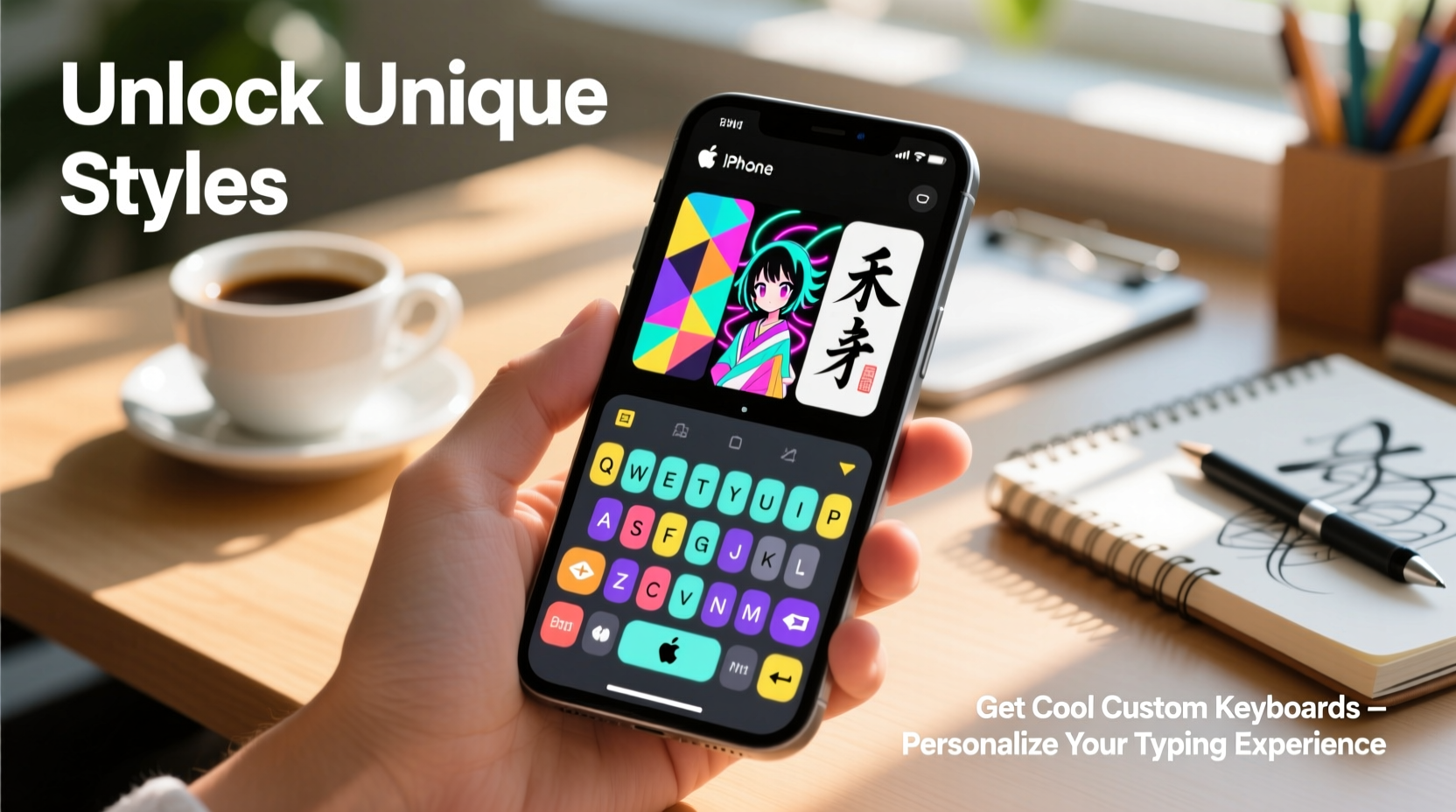
The standard iOS keyboard is reliable and functional, but it’s designed for mass appeal—not individuality. It lacks visual customization, advanced shortcuts, and cross-platform syncing. Third-party keyboards fill these gaps by offering:
- Unique themes (dark mode variants, gradient keys, retro pixel fonts)
- Gesture-based swiping (like SwiftKey or Gboard)
- Built-in emoji search, GIFs, and stickers
- Voice dictation with AI-powered corrections
- Cloud sync across devices
- Support for multiple languages in one layout
These features don’t just make typing faster—they make it more enjoyable. A keyboard that reflects your mood or aesthetic encourages more thoughtful, creative communication.
How to Install a Custom Keyboard on iPhone: Step-by-Step Guide
Adding a new keyboard requires navigating through the App Store and Settings app. Follow this timeline to ensure everything works correctly.
- Open the App Store and search for a reputable keyboard app such as Gboard, SwiftKey, Fleksy, or Grammarly Keyboard.
- Download and install the app like any other iOS application.
- Go to Settings > General > Keyboard > Keyboards > Add New Keyboard.
- Find your newly installed keyboard under “Third-Party Keyboards” and tap to add it.
- Grant full access (optional): Some features require enabling “Allow Full Access.” Be cautious—only enable this for trusted apps.
- Switch between keyboards by tapping the globe icon on the bottom-left corner of any text field.
Once added, you can toggle between your default keyboard and the custom one seamlessly. No restart or reboot is needed.
Recommended Custom Keyboard Apps
| Keyboard | Best For | Key Features | Free/Paid |
|---|---|---|---|
| Gboard (Google) | Speed & search integration | Gesture typing, Google Search in-app, GIFs, multilingual support | Free |
| SwiftKey | AI prediction & personalization | Adaptive learning, theme marketplace, cloud sync | Free + Premium upgrades |
| Fleksy | Minimalist design & speed | Customizable themes, extensions, distraction-free mode | Free + Pro version |
| Grammarly Keyboard | Professional writing | Real-time grammar checks, tone suggestions, plagiarism detection | Free + Premium |
| ThemeBoard | Visual customization | Photo backgrounds, animated keys, font changes | Paid |
Designing Your Typing Identity: Themes, Fonts, and Layouts
One of the strongest appeals of custom keyboards is the ability to tailor appearance. Apps like ThemeBoard and Fleksy let you upload personal photos as keyboard backgrounds, apply blur filters, or select from curated packs like cyberpunk, pastel, or monochrome minimalism.
You can also adjust key size, spacing, and haptic feedback intensity. For accessibility, larger keys help reduce typos; for aesthetics, transparent overlays create a floating effect over your wallpaper.
Consider aligning your keyboard style with your lock screen or home screen theme. A cohesive digital aesthetic enhances user satisfaction and makes daily interactions feel intentional.
“Personalization isn't just about looks—it influences how we engage with technology. When your tools reflect you, you use them more mindfully.” — Dr. Lena Torres, Human-Computer Interaction Researcher at Stanford University
Security and Privacy: What You Need to Know
Enabling third-party keyboards raises valid privacy questions. When you allow “Full Access,” the app *can* technically collect everything you type—including passwords and credit card numbers. However, reputable developers adhere to strict data policies.
To stay safe:
- Only download keyboards from well-known companies (e.g., Google, Microsoft, Grammarly).
- Check app permissions and privacy labels in the App Store.
- Disable “Allow Full Access” if you don’t need cloud sync or advanced features.
- Review the app’s privacy policy for data collection practices.
Most major keyboard apps process keystrokes locally and do not transmit sensitive information unless explicitly permitted. Still, avoid using third-party keyboards in banking apps or password managers.
Mini Case Study: How Sarah Transformed Her Messaging Style
Sarah, a freelance graphic designer from Portland, used the same gray keyboard for years. After seeing a friend use Gboard’s rainbow wave theme with smooth glide typing, she decided to experiment. She downloaded SwiftKey and spent an afternoon exploring its theme store, eventually choosing a dark navy layout with glowing teal keys that matched her portfolio website.
She enabled swipe gestures and connected her account across her iPad and MacBook. Within a week, her typing speed increased by nearly 30%, and clients began commenting on how “polished” her emails felt. “It sounds silly,” she said, “but having a keyboard that looked like *me* made me take more pride in my words.”
FAQ: Common Questions About iPhone Custom Keyboards
Can I use emojis and stickers with custom keyboards?
Yes—many third-party keyboards include built-in emoji search, trending GIFs, and sticker packs. Gboard and Fleksy are especially strong in this area, allowing quick access without leaving the chat window.
Will a custom keyboard slow down my iPhone?
On newer models (iPhone XR and later), performance impact is negligible. However, older devices (iPhone 8 or earlier) might experience slight lag with heavily animated themes. Stick to lightweight designs if you notice delays.
Do custom keyboards work in all apps?
Most do, but some apps—especially those with high security (like banking or healthcare platforms)—disable third-party input. In these cases, iOS automatically reverts to the default keyboard.
Checklist: Getting Started with Your First Custom Keyboard
- ✅ Identify what you want: better design, faster typing, grammar help, or fun visuals
- ✅ Browse the App Store for top-rated keyboard apps
- ✅ Download and install your chosen app
- ✅ Go to Settings > Keyboard > Add New Keyboard
- ✅ Toggle on “Allow Full Access” only if necessary and from trusted sources
- ✅ Test the keyboard in Messages or Notes
- ✅ Explore theme options and personalize layout
- ✅ Set up cloud sync if available and desired
Conclusion: Make Every Tap Reflect Who You Are
Your keyboard doesn’t have to be invisible. By unlocking custom styles, you reclaim a small but meaningful part of your digital identity. From sleek professional layouts to playful animated keys, the options are vast—and surprisingly powerful. The right keyboard doesn’t just change how you type; it changes how you express yourself.
Don’t settle for generic. Explore the variety of keyboards available, prioritize security, and choose one that resonates with your lifestyle. Once you experience the blend of form and function, going back to plain gray keys will feel like wearing sweatpants to a gallery opening—functional, perhaps, but far from inspired.




 浙公网安备
33010002000092号
浙公网安备
33010002000092号 浙B2-20120091-4
Comments
No comments yet. Why don't you start the discussion?