
Smartphones today are the primary tools we use to capture life’s moments. With every tap of the camera button, an image file—often saved as .jpg, .png, or .heic—is created and stored. Yet many users struggle when they can't open or manage these photo files, especially after transferring them from other devices, receiving them via messaging apps, or encountering corrupted downloads. Understanding how to unlock, view, and organize these files is essential for seamless digital experiences.
This guide walks you through the most common issues related to photo IMG files on mobile devices and provides clear solutions that work across both Android and iOS platforms. Whether you're troubleshooting a file that won’t open or optimizing storage for thousands of photos, this article delivers actionable insights.
Understanding Photo File Formats on Mobile Devices
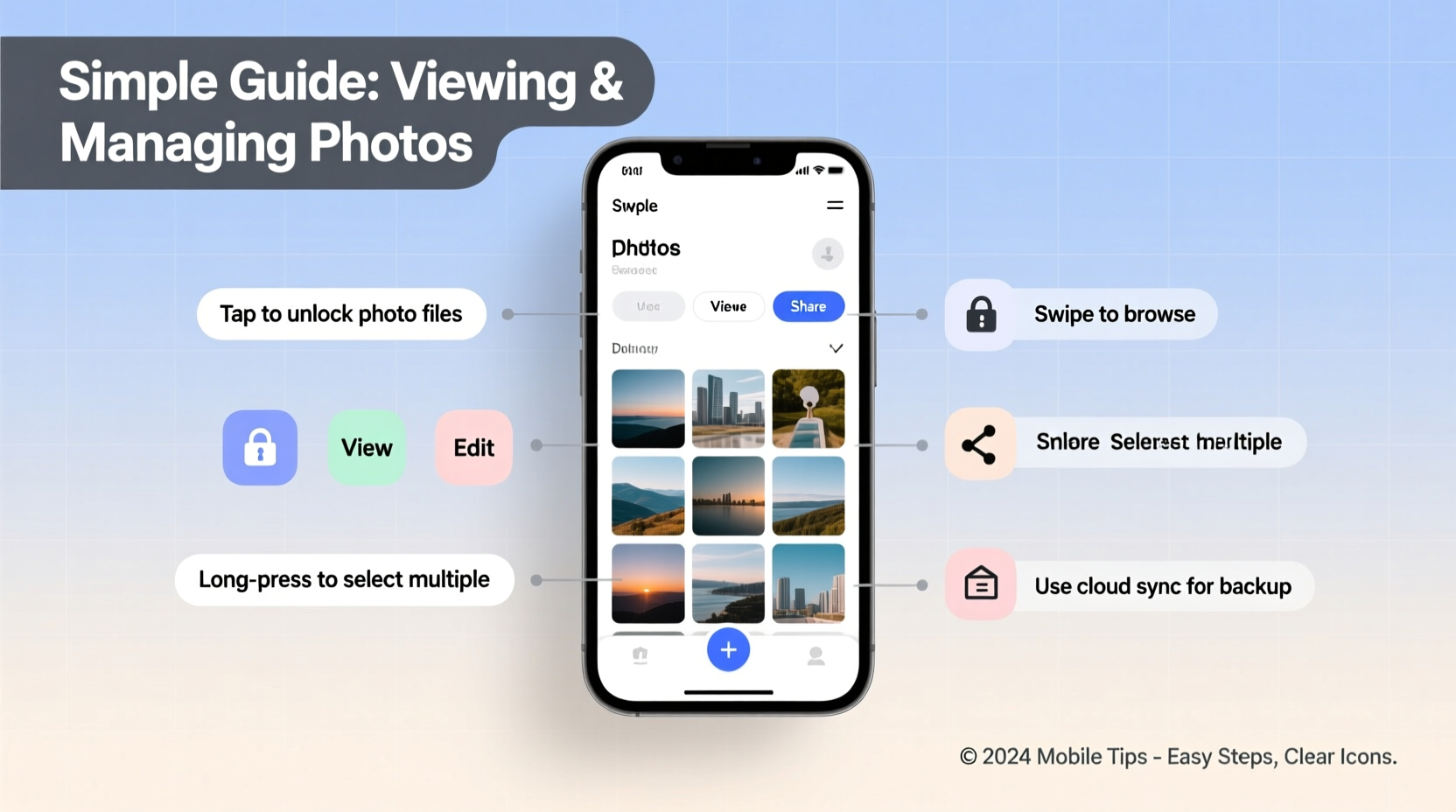
Not all image files are created equal. Your phone may support some formats natively but struggle with others unless specific apps or updates are installed. The most common photo file types include:
- JPEG (.jpg) – Universally supported; ideal for photographs with rich color.
- PNG (.png) – Supports transparency; commonly used for graphics and screenshots.
- HEIC (.heic) – Used by newer iPhones; offers high quality with smaller file size.
- WebP (.webp) – Modern format for web images; not always viewable without third-party apps.
- RAW (.cr2, .nef, etc.) – High-detail files from professional cameras; rarely supported directly on phones.
When a photo fails to open, it's often due to format incompatibility rather than file corruption. For example, Android devices typically don’t natively support HEIC files unless updated to recent versions or equipped with conversion tools.
Step-by-Step Guide to Unlocking and Viewing Locked or Corrupted Images
Sometimes, images appear “locked” or fail to load even though they exist in your gallery. This can happen due to incomplete downloads, permission restrictions, or encryption settings. Follow this sequence to regain access:
- Check File Location: Open your phone’s built-in file manager and navigate to folders like Downloads, DCIM, or WhatsApp Images. Ensure the file is actually present.
- Verify Permissions: Go to Settings > Apps > [Gallery App] > Permissions and confirm it has access to storage.
- Clear Cache (Android): In Settings > Apps > [Gallery App], tap Storage > Clear Cache. This often resolves display glitches.
- Use a Third-Party Viewer: Try opening the file with alternative apps like Google Photos, Adobe Photoshop Express, or Fast Image Viewer.
- Convert Problematic Formats: For HEIC files on Android, use free converters like \"HEIC to JPG Converter\" from the Play Store.
- Recover Corrupted Files: Tools such as DiskDigger (Android) or iMyFone UFony (iOS) can repair or retrieve damaged images.
If the image was sent via email or messaging and appears blank, download it again—especially if the connection was unstable during transfer.
Managing and Organizing Your Photo Library Efficiently
As your photo collection grows, disorganization leads to frustration. You might end up with duplicates, blurry shots, or forgotten memories buried under clutter. Effective management starts with consistent habits.
Start by reviewing your current photo library weekly. Delete accidental shots, duplicates, or outdated screenshots. Then categorize remaining images into albums—such as Travel, Family, Work Projects, or Receipts—for faster retrieval.
| Platform | Best Gallery App | Cloud Backup Option | Format Support Tip |
|---|---|---|---|
| Android | Google Photos | Auto-sync with Google Account | Install plugin for HEIC/RAW support |
| iOS | Apple Photos | iCloud Photos | Enable \"Most Compatible\" mode for cross-device sharing |
| Cross-Device Users | Adobe Lightroom Mobile | Adobe Cloud / Dropbox | Save edits in DNG + JPEG combo |
“Modern smartphones generate over 1,000 images per year on average. Without active curation, users lose access to meaningful content within two years.” — Dr. Lena Torres, Digital Archiving Researcher, MIT Media Lab
Real Example: Recovering Family Photos After a Failed Transfer
Sarah, a mother of two, recently switched from iPhone to Android. She transferred hundreds of family photos via Bluetooth, only to find many wouldn’t open—showing error messages like “File format not supported” or “Cannot display image.” Frustrated, she assumed the files were lost forever.
After consulting a tech-savvy friend, she learned her iPhone had exported the images in HEIC format. Using the \"HEIC to JPG\" converter app, she batch-converted all unreadable files. She then uploaded them to Google Photos, which automatically organized them by date and location. Within an hour, her entire photo history was restored and accessible.
Sarah now keeps her iCloud backup active during transitions and uses automatic cloud sync to prevent future losses.
Essential Checklist for Managing IMG Files on Your Phone
Follow this checklist monthly to maintain control over your image files:
- ✅ Back up all new photos to a cloud service (Google Photos, iCloud, Dropbox).
- ✅ Delete low-quality or duplicate images.
- ✅ Rename important files with descriptive titles (e.g., “Beach_Vacation_2025.jpg”).
- ✅ Verify that hidden files aren’t consuming space (use file explorer to show hidden items).
- ✅ Update your gallery and file manager apps regularly for better compatibility.
- ✅ Test access to archived photos quarterly to ensure long-term readability.
Frequently Asked Questions
Why can’t I open a photo sent via WhatsApp or Telegram?
Some messaging apps save images in temporary directories or apply compression that alters the file structure. Manually download the image and try opening it with a different viewer. Also, ensure the file wasn’t partially downloaded—check its size against the original.
What does it mean when a photo is “locked” on my phone?
On iOS, “locked” photos refer to those protected in the Recently Deleted folder or secured via Screen Time settings. On Android, files may be encrypted or restricted by admin policies (common in work profiles). Check your device’s privacy settings to adjust access permissions.
Can I recover permanently deleted photos?
Yes, in many cases. If cloud backup is enabled, deleted photos remain in the trash for 30 days (Google Photos/iCloud). For local deletions, recovery apps like DiskDigger (root required) or EaseUS MobiSaver can scan internal memory for remnants of erased files.
Take Control of Your Digital Memories Today
Your phone holds more than data—it stores memories, records, and personal milestones. Being unable to view or manage your photo files shouldn’t mean losing them. By understanding file formats, applying smart organizational strategies, and using the right tools, you can unlock every image and keep your library functional for years.
Start small: spend 15 minutes today cleaning up your gallery, converting incompatible files, and enabling automatic backups. These simple actions protect your digital legacy and ensure that every photo remains just a tap away.




 浙公网安备
33010002000092号
浙公网安备
33010002000092号 浙B2-20120091-4
Comments
No comments yet. Why don't you start the discussion?