
Smart sunglasses are no longer a futuristic concept—they’re here, blending fashion with advanced technology. These wearable devices integrate built-in microphones, speakers, and AI-powered voice assistants like Siri, Google Assistant, and Alexa. Whether you're walking through the city, cycling on a trail, or driving without touching your phone, smart sunglasses let you stay connected hands-free. But unlocking their full potential requires more than just wearing them. Understanding how to use AI voice assistants effectively is key to maximizing convenience, safety, and functionality.
Why Smart Sunglasses Are Changing the Game
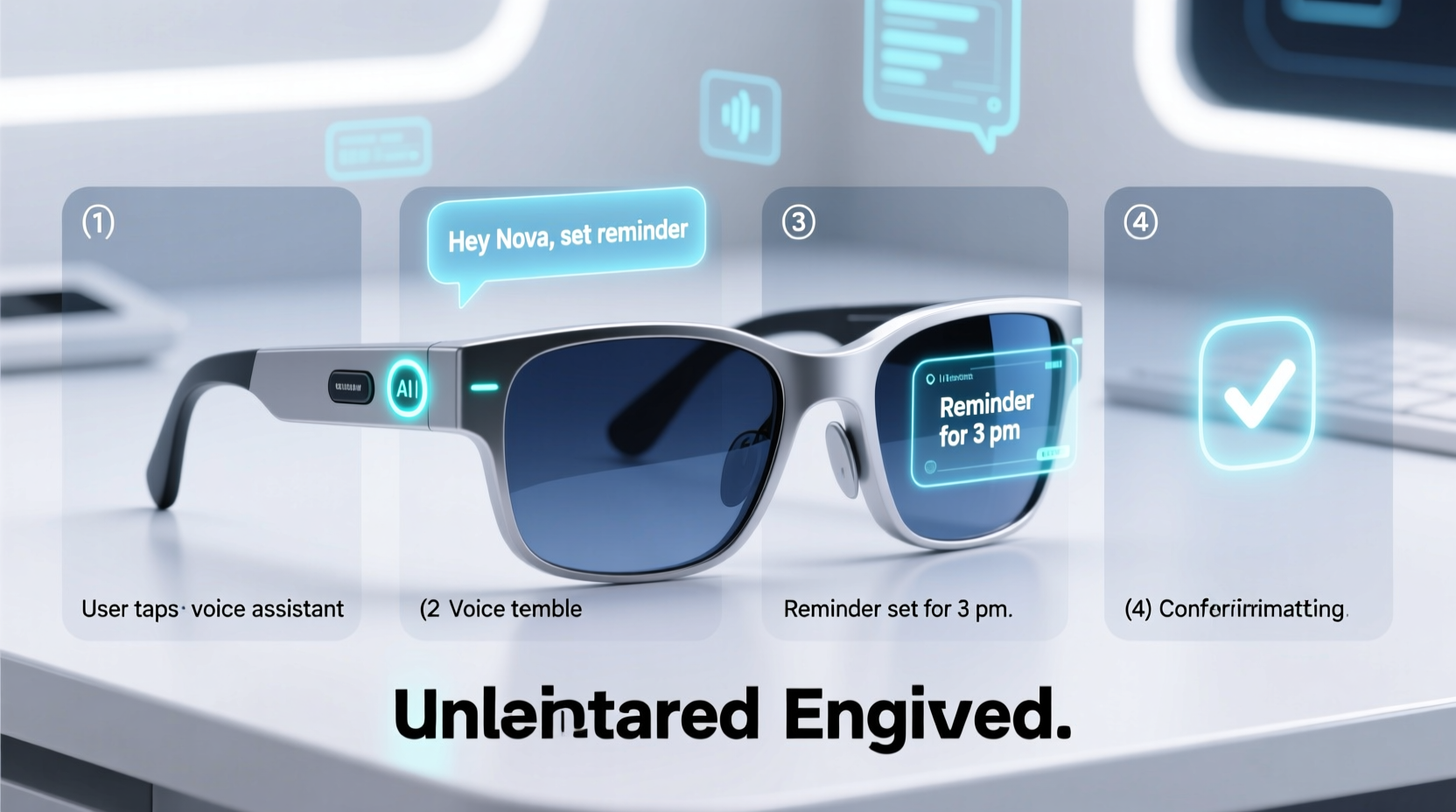
Modern smart sunglasses go beyond UV protection. Brands like Ray-Ban Meta, Bose Frames, and Oakley’s Radar EV Path offer audio playback, real-time navigation, call handling, and even photo capture—all controlled via voice. The integration of AI voice assistants makes these features accessible without pulling out a device. This is especially valuable for people on the move: runners avoiding distractions, professionals managing calls during commutes, or travelers navigating unfamiliar streets.
The core advantage lies in natural interaction. Instead of tapping a temple or opening an app, users can simply speak. However, many struggle with inconsistent responses, poor setup, or misunderstanding what commands are supported. A clear, structured approach ensures you get the most from your investment.
Step-by-Step Guide to Activating and Using AI Voice Assistants
Follow this sequence to unlock seamless voice control with your smart sunglasses:
- Charge and Power On: Ensure your sunglasses are fully charged. Most models have LED indicators that show battery status when powered on.
- Pair via Bluetooth: Enable Bluetooth on your smartphone. Open the companion app (e.g., Ray-Ban Meta app, Bose Connect) and follow pairing instructions. Keep the sunglasses within 3 feet of your phone.
- Select Your Preferred Assistant: In the app settings, choose between Google Assistant, Siri, or Alexa. Note: Siri only works with iOS, while Google Assistant supports both Android and iOS.
- Set Up Voice Activation: Decide whether to use a wake word (like “Hey Google”) or a physical button press to activate the assistant. Some models support both.
- Test Basic Commands: Say something simple: “Call Mom,” “What’s the weather today?” or “Play my workout playlist.” Confirm audio comes through clearly.
- Customize Settings: Adjust volume, language, notification preferences, and privacy options. Disable unwanted prompts to reduce interruptions.
Essential Voice Commands for Daily Use
Once set up, leverage these practical commands to enhance productivity and safety:
- \"Call [contact name]\" – Initiate a hands-free call.
- \"Send a message to [name] saying I’ll be there in 10 minutes\" – Dictate texts without typing.
- \"Navigate to the nearest coffee shop\" – Get turn-by-turn directions through audio cues.
- \"Read my last message\" – Stay informed without checking your phone.
- \"Take a photo\" – Capture moments instantly (available on select models).
- \"Increase volume\" or \"Pause music\" – Control media playback seamlessly.
- \"Set a reminder for 3 PM\" – Log tasks on the go.
These commands transform your sunglasses into a personal digital concierge. Over time, usage patterns help AI assistants anticipate needs, offering proactive suggestions like traffic alerts before your usual commute.
Common Pitfalls and How to Avoid Them
Even with proper setup, users often encounter issues. Here’s a breakdown of frequent problems and solutions:
| Issue | Root Cause | Solution |
|---|---|---|
| Voice assistant doesn’t respond | Bluetooth disconnected or mic blocked | Re-pair device; ensure vents near microphone aren’t covered by hair or hats |
| Poor speech recognition | Noise interference or incorrect accent setting | Use in quieter areas; verify language model matches your dialect in app settings |
| Battery drains quickly | Voice assistant always listening | Switch to button activation instead of continuous wake-word detection |
| Assistant opens wrong app | Default apps not configured | In your phone settings, assign preferred navigation/music apps |
“Voice-enabled wearables succeed when they disappear into daily life—users shouldn’t have to think about operating them.” — Dr. Lena Torres, Human-Computer Interaction Researcher at MIT Media Lab
Real-World Example: A Day with Smart Sunglasses
Consider Maria, a freelance designer who cycles to client meetings across town. She wears Ray-Ban Meta glasses synced to Google Assistant. As she leaves home, she says, “Hey Google, navigate to Studio Hive on 5th Avenue.” Turn-by-turn directions play softly in her ears. Midway, her phone buzzes with a text. Without stopping, she taps her temple and says, “Read my messages.” The assistant reads aloud: “Client confirms meeting at 11.” She replies, “Tell Sarah I’m on schedule,” and continues riding. Later, inspired by street art, she activates camera mode: “Take a photo.” All actions happen safely and efficiently—no fumbling with devices.
This scenario illustrates how smart sunglasses, when paired with reliable voice AI, reduce cognitive load and increase situational awareness.
Pro Tips for Optimal Performance
- Position the glasses correctly on your face—misalignment can block microphones located near the hinges.
- Use noise-canceling modes if available, especially in windy conditions.
- Train your assistant by repeating misunderstood words slowly. Over time, accuracy improves.
FAQ
Can I use multiple voice assistants with one pair of smart sunglasses?
No. You must choose one primary assistant during setup—either Siri, Google Assistant, or Alexa. Switching requires reconfiguring in the companion app.
Are smart sunglasses waterproof?
Most are sweat- and splash-resistant (IPX4 rating), but not fully waterproof. Avoid submerging them or wearing in heavy rain unless specified by the manufacturer.
Do voice commands work without a phone nearby?
Only if the sunglasses have standalone connectivity (rare). Most rely on Bluetooth tethering to your smartphone for internet access and processing.
Maximize Your Experience: Final Checklist
Before heading out, run through this quick verification list:
- ✅ Sunglasses are fully charged
- ✅ Paired successfully with your phone via Bluetooth
- ✅ Voice assistant selected and tested
- ✅ Microphones and speakers unobstructed
- ✅ Preferred apps (maps, music, messaging) set as defaults
- ✅ Firmware updated to latest version
- ✅ Privacy settings reviewed (e.g., auto-delete voice history)
Conclusion
Smart sunglasses represent the next evolution in wearable tech—not as gadgets, but as intuitive extensions of how we interact with the world. By mastering AI voice assistants, you unlock a smoother, safer, and more efficient lifestyle. Setup is simple, but attention to detail makes all the difference. From precise command usage to routine maintenance, each step enhances reliability and enjoyment.




 浙公网安备
33010002000092号
浙公网安备
33010002000092号 浙B2-20120091-4
Comments
No comments yet. Why don't you start the discussion?