
For millions of PC users, the transition from Windows 10 to Windows 11 has been less of a revolution and more of an evolution—subtle, sometimes confusing, and often debated. Microsoft launched Windows 11 in October 2021 with promises of a modern interface, improved productivity tools, and tighter integration with cloud and mobile services. But nearly three years later, many users still wonder: Is the new UI actually better than Windows 10’s familiar layout? And more importantly, is upgrading worth it?
The answer isn’t universal. It depends on your hardware, workflow, aesthetic preferences, and tolerance for change. While Windows 11 brings visual polish and some meaningful quality-of-life improvements, it also removes features, changes navigation patterns, and demands newer hardware. For some, it feels like progress. For others, it’s a step back.
The Visual Overhaul: Aesthetic Appeal vs. Usability Trade-offs
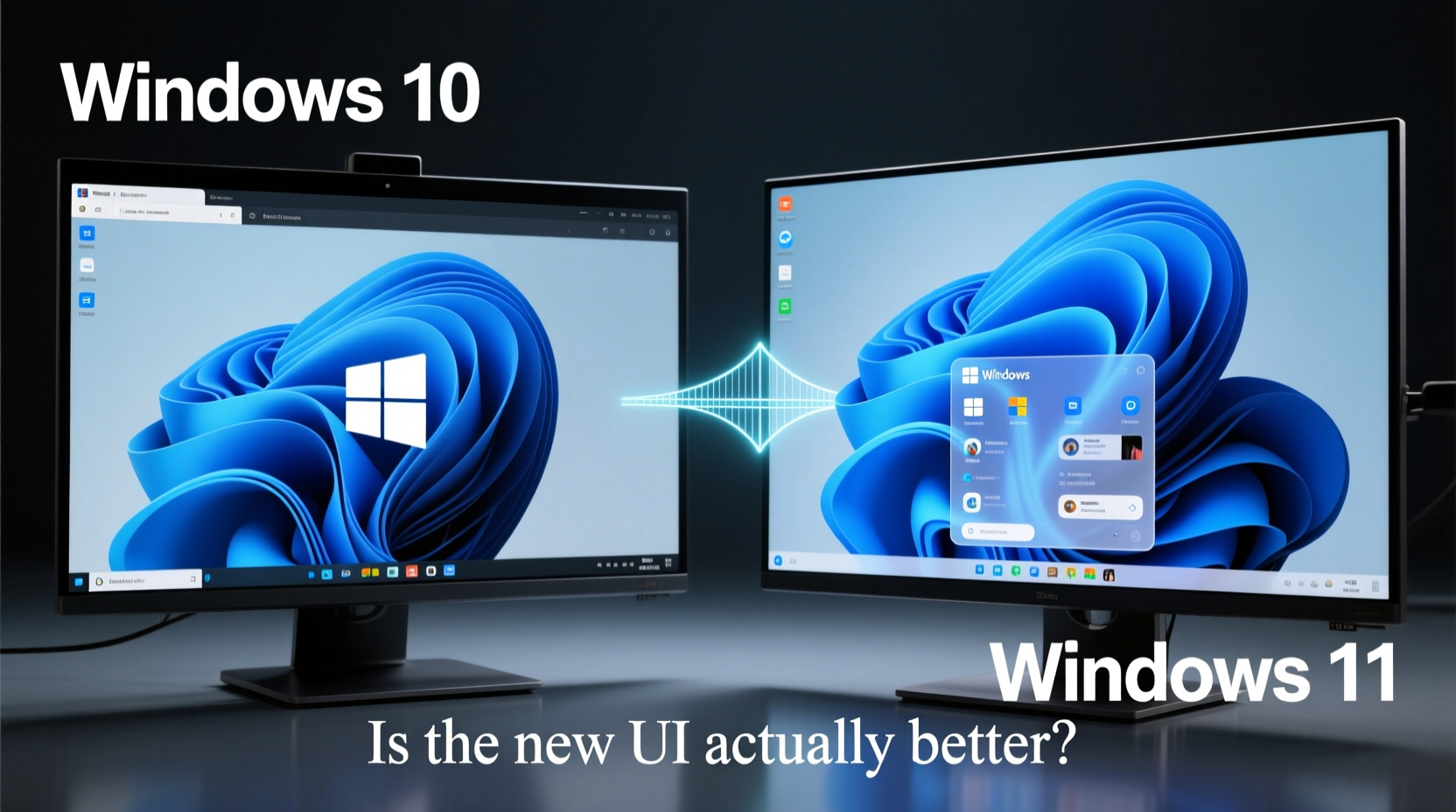
Windows 11’s most noticeable change is its centered taskbar and Start menu. Gone are the left-aligned icons and live tiles of Windows 10. In their place is a minimalist, Mac-like design with rounded corners, translucent effects, and a focus on symmetry. The goal was simplicity and elegance—but at what cost?
The centered taskbar initially drew criticism for disrupting muscle memory. Longtime users accustomed to quickly clicking the bottom-left corner now face a layout that requires longer mouse movements or awkward positioning. While you can re-center icons to the left (via Settings > Personalization > Taskbar), the option doesn't fully restore the Windows 10 experience. Some third-party apps even fail to integrate cleanly, appearing misaligned or visually inconsistent.
The Start menu itself is cleaner, but stripped of functionality. Live tiles—once praised for delivering dynamic updates at a glance—are gone. Instead, you get pinned apps and a feed of recent files, which pulls from OneDrive and local documents. This works well if you're deeply embedded in Microsoft’s ecosystem, but feels redundant or intrusive otherwise.
Performance and System Requirements: Who Can Upgrade?
One of the biggest barriers to upgrading is hardware compatibility. Windows 11 requires a Trusted Platform Module (TPM) 2.0, Secure Boot, and a compatible 8th-gen Intel or Ryzen 2000 processor (or newer). This effectively locks out many perfectly functional machines still running Windows 10 smoothly.
Microsoft argues these requirements enhance security, especially against firmware-level attacks. That’s valid—but it also accelerates obsolescence. Users with older but capable systems may find themselves forced to stay on Windows 10 past its end-of-support date (October 14, 2025) or invest in new hardware.
On supported devices, Windows 11 often boots faster, resumes quicker from sleep, and manages resources slightly more efficiently thanks to optimizations in memory usage and background processes. However, benchmarks show only marginal gains in real-world performance for most tasks. If your Windows 10 system runs well, don’t expect Windows 11 to feel dramatically snappier.
“Security through hardware enforcement makes sense long-term, but Microsoft underestimated how many businesses and consumers would be left behind.” — David Liu, Senior Systems Architect at TechEdge Consulting
Feature Comparison: What’s Gained and What’s Lost
Let’s break down key differences between the two operating systems in practical terms. Some changes improve daily use; others feel like regressions.
| Feature | Windows 10 | Windows 11 |
|---|---|---|
| Taskbar Customization | High – drag icons freely, multi-monitor support | Limited – no drag-and-drop, reduced customization |
| Start Menu | Live tiles, full app list, power user access | Cleaner layout, no live tiles, fewer customization options |
| Virtual Desktops | Basic support | Enhanced with custom wallpapers and naming |
| Gaming Features | DirectX 12, Game Mode | Auto HDR, DirectStorage, Xbox app integration |
| Touch & Tablet Mode | Available but clunky | Redesigned gestures, larger touch targets, better haptics |
| Widgets Panel | None | News, weather, calendar via AI-powered feed |
| File Explorer | Traditional ribbon interface | Simplified toolbar, tab support added in 2023 update |
Notable additions in Windows 11 include Snap Layouts and Snap Groups—multitasking tools that let you organize windows into predefined grids with ease. Hover over the maximize button, choose a layout, and arrange multiple apps side-by-side without manual resizing. This is particularly useful for hybrid workers using laptops with smaller screens.
However, power users miss the granular control they had in Windows 10. Right-clicking the taskbar once gave access to direct links to Command Prompt, Device Manager, and Control Panel. Now, those are buried under “Show more options” in a secondary menu. Even basic functions like shutting down require extra clicks unless you memorize keyboard shortcuts.
Real-World Example: A Small Business Owner’s Dilemma
Sarah Kim runs a boutique accounting firm with ten employees. Her team uses Dell desktops from 2018—solid machines that handle Excel, QuickBooks, and tax software without issue. When Windows 11 launched, she considered upgrading for the improved Teams integration and widget-based calendar alerts.
She tested it on one machine. The sleek interface impressed her at first. But within days, complaints piled up: “Why did the taskbar move?” “I can’t right-click to open Device Manager anymore.” “The printer stopped showing up after the update.”
Worse, two older peripherals—scanners critical to their document workflow—stopped functioning due to driver incompatibility. After two weeks, Sarah rolled back the upgrade. She now plans to stay on Windows 10 until mid-2025, then replace aging hardware with Windows 11-ready models.
Her story reflects a common pattern: organizations valuing stability over novelty. For them, the new UI isn’t “better”—it’s disruptive.
Should You Upgrade? A Step-by-Step Decision Guide
Deciding whether to upgrade shouldn’t be based on aesthetics alone. Follow this structured approach to evaluate your situation:
- Check Your Hardware Compatibility
Use Microsoft’s PC Health Check app to verify TPM 2.0, Secure Boot, and CPU support. If your device isn’t officially supported, proceed with caution—even if workarounds exist. - Evaluate Your Workflow
List the five apps or tasks you perform daily. Are they optimized for Windows 11? Do any depend on legacy features removed in the new OS? - Test in a Controlled Environment
If possible, install Windows 11 on a secondary device or virtual machine. Spend at least a week using it for real tasks—not just browsing. - Assess Peripheral Compatibility
Printers, scanners, docking stations, and external monitors may need updated drivers. Visit manufacturer websites before upgrading. - Weigh Security Against Stability
After October 2025, Windows 10 will no longer receive security updates. If you delay upgrading, ensure your antivirus and firewall are robust. - Plan for Training and Adjustment
Even small UI changes slow productivity temporarily. Budget time for your team (or yourself) to adapt.
Frequently Asked Questions
Can I revert to Windows 10 after upgrading to Windows 11?
Yes—but only within 10 days of upgrading. After that, you’ll need to perform a clean installation of Windows 10, which means backing up all data and reinstalling applications manually.
Does Windows 11 slow down older computers even if they meet minimum specs?
Some users report increased fan noise and slower responsiveness on borderline-compatible systems. The visual effects (like transparency and animations) consume more GPU resources. You can disable these in Settings > Accessibility > Visual Effects to improve performance.
Is the new UI better for multitasking?
In specific scenarios, yes. Snap Layouts make organizing multiple windows significantly easier than manual resizing. However, the lack of taskbar flexibility can hinder rapid switching between apps, especially across multiple monitors.
The Verdict: Progress With Caveats
So, is the new UI actually better? It depends on what you value.
If you prioritize visual modernity, touch-friendly design, and seamless integration with Microsoft 365, Android phones (via Phone Link), and gaming features like Auto HDR, Windows 11 offers tangible benefits. Its cleaner look and refined multitasking tools suit creative professionals, students, and casual users who want a more cohesive, tablet-ready experience.
But if you rely on deep system customization, legacy software, or hardware not on Microsoft’s approved list, Windows 10 remains the more stable, predictable choice. Its interface may feel dated, but it’s proven, flexible, and fully supported until late 2025.
The truth is, Windows 11 isn’t a mandatory leap forward—it’s an optional refinement. Microsoft succeeded in making Windows look fresh again, but at the cost of alienating users who preferred function over form. Future updates may bridge the gap, restoring lost features while preserving the modern foundation.
Until then, upgrading should be a deliberate decision, not a reflex. Assess your needs, test thoroughly, and remember: familiarity is not failure. Sometimes, the best interface is the one you already know how to use.




 浙公网安备
33010002000092号
浙公网安备
33010002000092号 浙B2-20120091-4
Comments
No comments yet. Why don't you start the discussion?