
Not all USB-C cables are created equal. You might have noticed that one cable charges your phone in under an hour while another takes twice as long—even when both are labeled \"USB-C.\" The difference isn’t magic or marketing hype; it’s rooted in technical specifications, power delivery standards, and internal design. Understanding these factors helps you avoid buying a $10 cable that performs like a $3 one and ensures your devices get the fastest, safest charging and data transfer possible.
The Hidden Layers Behind USB-C Performance
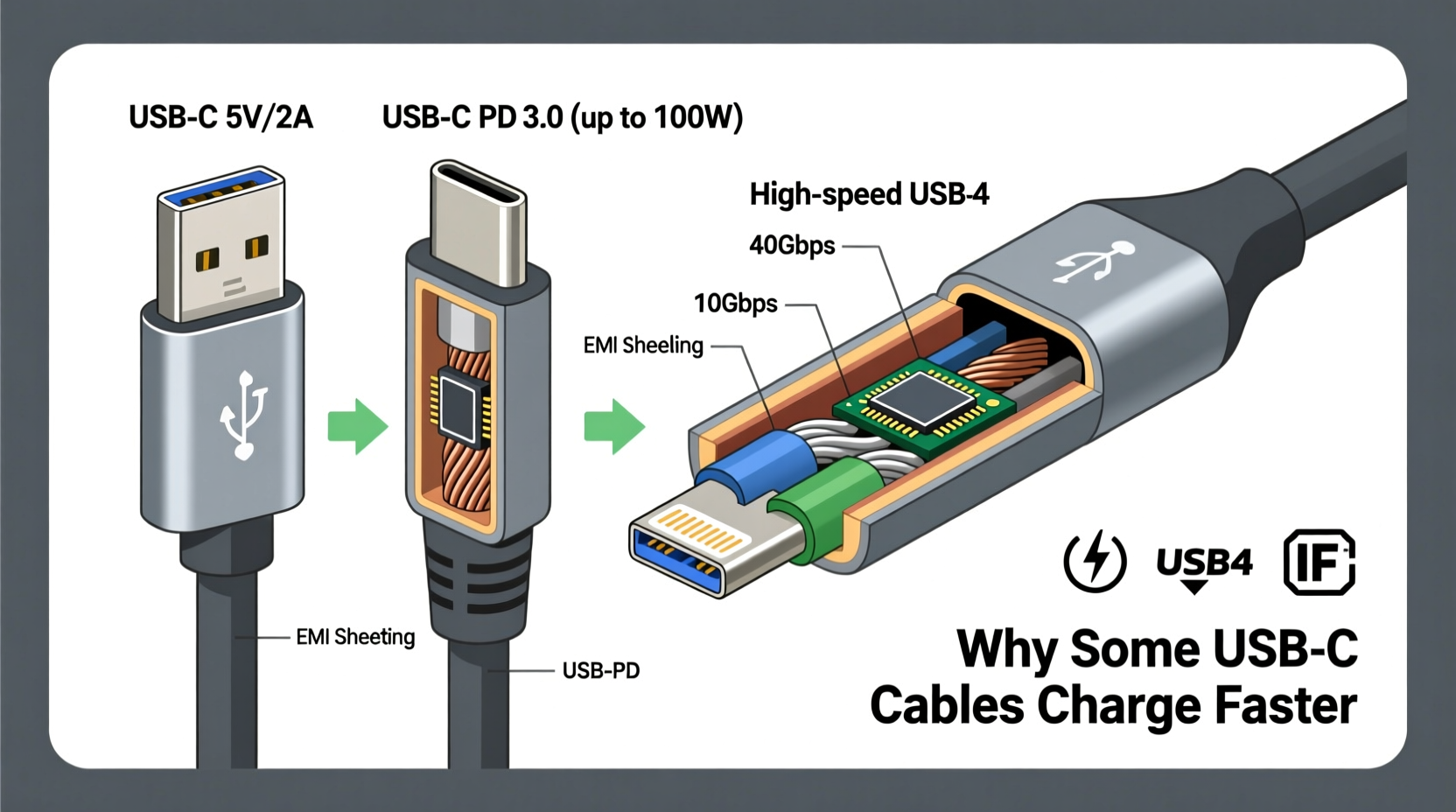
USB-C refers only to the physical shape of the connector. It doesn't tell you anything about speed, power delivery, or supported protocols. A USB-C port can support anything from slow 5W charging to 240W ultra-fast power delivery, and from USB 2.0 data speeds (480 Mbps) to USB4 with 40 Gbps throughput. The cable determines which capabilities are actually available.
Cables vary based on:
- Supported USB version (e.g., USB 2.0, USB 3.2, USB4)
- Power Delivery (PD) compatibility
- Data transfer protocol support (e.g., Thunderbolt 3/4)
- Wire gauge and internal shielding
- Presence of an E-Marker chip for high-speed communication
A poorly made or underspecified cable may physically fit but fail to deliver promised speeds or safe charging levels. This mismatch leads to frustration, slower workflows, and in rare cases, hardware damage.
How Power Delivery Works: Why Wattage Matters
Charging speed is primarily determined by power—measured in watts (W)—which is calculated as voltage (V) multiplied by current (A). Standard USB-A ports deliver 5V at up to 1.5A (7.5W), but modern USB-C chargers can negotiate much higher levels using USB Power Delivery (USB-PD).
USB-PD enables dynamic negotiation between device and charger. For example:
- 5V × 3A = 15W (common for smartphones)
- 9V × 3A = 27W (fast charging for phones and tablets)
- 15V × 3A = 45W (laptops and larger devices)
- 20V × 5A = 100W (high-performance laptops, monitors)
But here's the catch: the cable must be able to handle the negotiated power level. A thin, unshielded USB-C cable without proper conductors might only support up to 60W, even if your charger and laptop support 100W. In such cases, the system defaults to the lowest common denominator—slower charging.
“Many users blame their charger when fast charging fails, but the real culprit is often the cable. Without proper current-carrying capacity, no amount of PD smarts will help.” — Dr. Lin Zhou, Electrical Engineer & USB-IF Contributor
Data Speeds vs. Charging: Not the Same Thing
It's important to distinguish between charging capability and data transfer speed—they’re governed by different aspects of the cable’s design. A cable can support fast charging but only USB 2.0 data speeds, or vice versa.
Data speed depends on:
- Number of high-speed data lanes used
- Shielding quality to prevent interference
- Support for advanced protocols like USB3.2 Gen 2x2 or Thunderbolt
- Inclusion of an E-Marker chip (required for cables over 10 Gbps)
The table below summarizes common USB standards and what they mean for real-world use:
| Standard | Max Data Speed | Max Power Delivery | Typical Use Case |
|---|---|---|---|
| USB 2.0 | 480 Mbps | 7.5W (5V/1.5A) | Basic charging, older peripherals |
| USB 3.2 Gen 1 | 5 Gbps | 20V/3A (60W) | Faster file transfers, mid-tier charging |
| USB 3.2 Gen 2 | 10 Gbps | 20V/5A (100W) | External SSDs, laptops |
| USB4 / Thunderbolt 3 | 40 Gbps | 20V/5A (100W) | 4K displays, high-speed storage |
| USB4 v2.0 (newest) | 80–120 Gbps (future) | 240W (coming soon) | Professional workstations, docks |
Note: Just because a cable has a USB-C plug doesn’t mean it supports any of these beyond basic USB 2.0. Many inexpensive cables omit extra wiring needed for high-speed data or high-wattage power.
Physical Design: What’s Inside the Cable?
Beneath the rubberized coating lies a complex arrangement of wires, shielding, and sometimes microchips. High-performance cables include multiple twisted pairs for data, thick power conductors, braided shields, and reinforced stress points.
Key internal components:
- Power wires: Thicker gauge (lower AWG number) means less resistance and better power flow. Premium cables use 20AWG or lower for 100W+ support.
- Data lanes: Differential pairs shielded to reduce crosstalk and signal loss at high frequencies.
- E-Marker chip: Present in most cables rated above 60W or 10 Gbps. This chip tells the host device the cable’s capabilities and prevents unsafe operation.
- Shielding: Foil and braid layers protect signals from electromagnetic interference—critical for stable high-speed transfers.
Cheap cables often skip these elements. They may use thin wires, minimal shielding, and no E-Marker, limiting them to low-power or low-speed modes even when connected to capable devices.
Mini Case Study: The Laptop That Wouldn’t Charge
A freelance video editor bought a new MacBook Pro and a third-party 100W USB-C charger. Despite using a USB-C cable, her laptop charged slowly and wouldn’t power on when the battery was completely drained. She assumed the charger was defective.
After troubleshooting, she discovered the included cable was only rated for 60W and lacked an E-Marker chip. When she switched to a certified 100W USB-C cable with full USB-PD support, charging resumed normally and the laptop powered up instantly—even under load.
This case highlights how overlooked cable specs can bottleneck even top-tier setups.
How to Choose the Right USB-C Cable: A Practical Checklist
To ensure optimal performance, follow this checklist before purchasing or using any USB-C cable:
- Check the wattage rating: Match or exceed your device’s charging requirement (e.g., 65W for most ultrabooks).
- Verify data speed: Look for terms like “10 Gbps,” “USB 3.2 Gen 2,” or “Thunderbolt 3” if transferring large files.
- Look for certifications: USB-IF certification, Thunderbolt branding, or MFi (for Apple devices) indicate compliance with strict standards.
- Inspect length: Longer cables (>2m) require better engineering to maintain signal integrity and power efficiency.
- Read reviews: Real-world tests often reveal issues not apparent from specs alone—like overheating or intermittent connections.
- Avoid ultra-cheap options: Cables under $5 often cut corners on safety and performance. Invest in quality for critical devices.
Step-by-Step: Testing Your Current Cables
You don’t need lab equipment to assess your existing cables. Follow this process to identify weak links:
- Label each cable (e.g., “Black Short,” “Blue Long”) for tracking.
- Connect to a known fast-charging device (e.g., recent iPhone, Samsung Galaxy, or laptop).
- Monitor charging speed: Use a battery app or observe time to gain 20% charge from 30%.
- Compare results: Note which cables deliver noticeably faster charging.
- Test data transfer: Copy a 1GB+ file from computer to external SSD via each cable. Record approximate time.
- Check system information: On macOS, go to > About This Mac > System Report > Hardware > Thunderbolt. On Windows, use Device Manager or third-party tools like USBTreeView to see negotiated connection speed.
- Eliminate or downgrade: Keep only cables that meet your performance needs. Store or recycle underperformers.
This audit reveals which cables are holding back your setup—and where upgrades will make the biggest impact.
Common Misconceptions About USB-C Cables
Several myths persist about USB-C cables. Let’s clear them up:
- Myth: All USB-C cables support fast charging.
Reality: Only cables with sufficient wire gauge and PD support can deliver high wattage. - Myth: Reversible plug means universal compatibility.
Reality: While the plug fits either way, functionality depends on internal wiring and protocol support. - Myth: Longer cables are always worse.
Reality: Well-designed 2-meter cables with active electronics can outperform poorly made short ones. - Myth: Brand doesn’t matter.
Reality: Reputable brands invest in testing, safety compliance, and consistent manufacturing.
FAQ
Can a bad USB-C cable damage my device?
Yes. Poorly made cables with incorrect resistors or faulty wiring can send wrong voltage levels, potentially damaging ports or batteries. In extreme cases, substandard materials have led to fires. Always use certified cables, especially for high-power devices.
Do I need a special cable for Thunderbolt devices?
Yes. Thunderbolt 3 and 4 require fully spec-compliant USB-C cables with 40 Gbps support and proper E-Marker chips. Using a standard USB-C cable may limit speed to 10 Gbps or prevent connection entirely.
Why does my cable stop working after a few months?
Physical wear, repeated bending, and poor strain relief cause internal wire breaks. Shielding degradation also leads to data errors. Investing in braided or reinforced cables improves longevity.
Future-Proofing Your Setup
New standards are emerging rapidly. USB PD 3.1 introduces Extended Power Range (EPR), enabling up to 240W—enough to power desktop monitors, gaming laptops, and even small appliances. Newer USB4 v2.0 promises up to 80–120 Gbps speeds.
To future-proof:
- Adopt 100W-capable cables now, even if your current devices don’t need it.
- Choose cables labeled “USB4” or “Thunderbolt 4” for maximum compatibility.
- Keep one ultra-premium cable (e.g., 2m, 100W, 40 Gbps) for critical tasks like docking or video output.
“The next generation of USB isn’t just faster—it’s smarter and safer. But it only works if every link in the chain meets the standard.” — Sarah Kim, Senior Standards Analyst at USB Implementers Forum
Conclusion
The speed and efficiency of your USB-C cable depend on far more than its connector type. From internal wiring to certification standards, every detail shapes how quickly your devices charge and how fast data moves. Recognizing these differences empowers you to make informed choices—avoiding frustration, maximizing performance, and protecting your investment.
Take a moment to audit your current cables. Replace unknown or underperforming ones with properly rated, certified options. Your phone, laptop, and external drives will respond with faster boot times, smoother transfers, and reliable power delivery.




 浙公网安备
33010002000092号
浙公网安备
33010002000092号 浙B2-20120091-4
Comments
No comments yet. Why don't you start the discussion?