
In today’s mobile-first work environment, professionals rely on compact laptops—many of which offer only a single USB-C port. This design prioritizes sleekness over connectivity, creating a demand for external solutions that restore full functionality. Two popular options dominate the market: USB-C hubs and docking stations. While both expand your laptop’s capabilities, they differ significantly in design, power delivery, and reliability when connecting multiple devices. Understanding these differences is essential if you want stable, high-performance connections across monitors, storage drives, peripherals, and networks.
Understanding the Core Differences
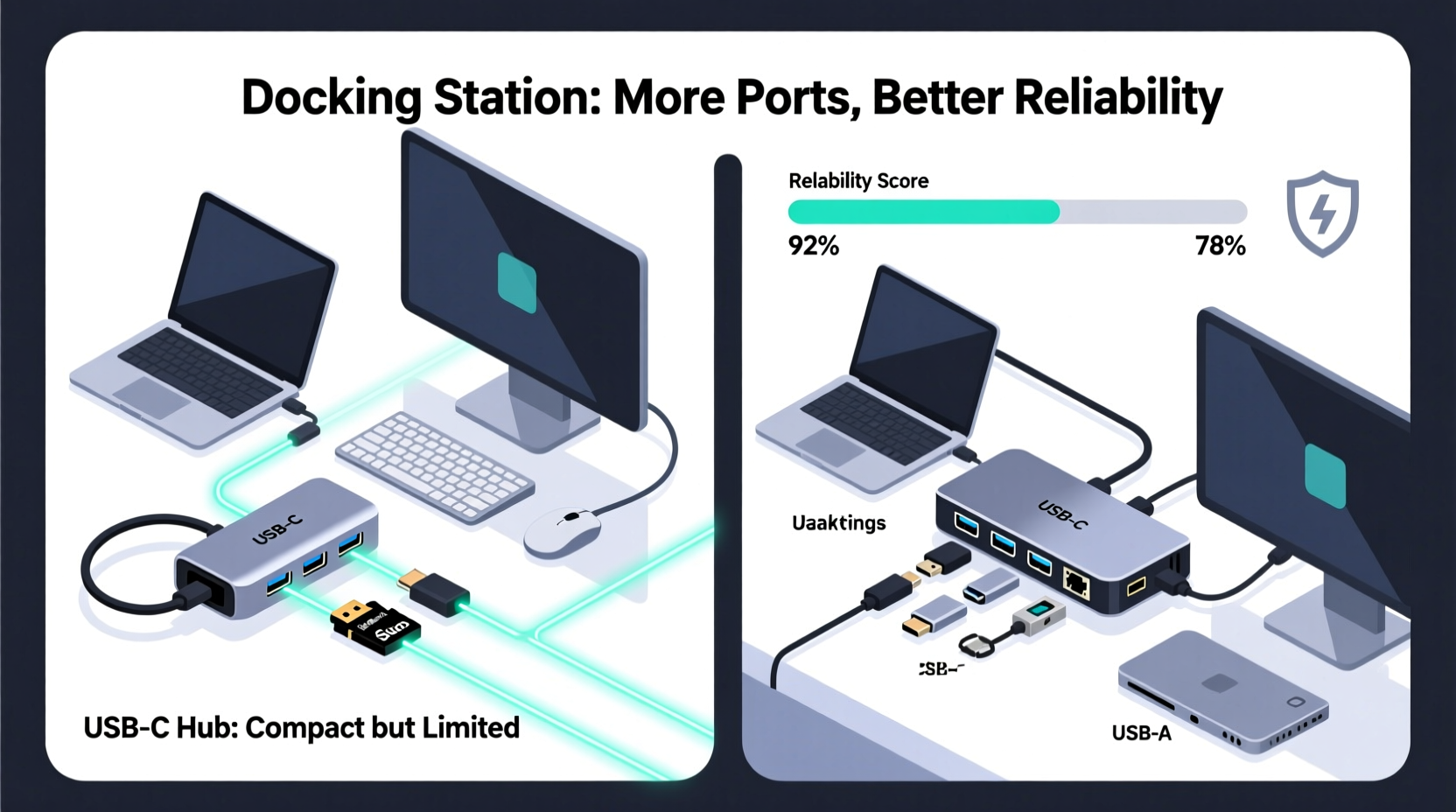
A USB-C hub and a docking station may appear similar at first glance—one plugs into your laptop via USB-C and provides additional ports. However, their internal architecture and intended use cases set them apart fundamentally.
A USB-C hub is typically a compact, portable device designed to add basic connectivity such as extra USB-A ports, HDMI output, an SD card reader, or Ethernet. It relies entirely on the host laptop’s processing power and bandwidth allocation through its USB-C port. Most hubs are plug-and-play, require no external power (though some support it), and are ideal for light multitasking on the go.
In contrast, a docking station is a more robust solution—often larger and frequently powered by its own AC adapter. It functions almost like a desktop extension, capable of driving dual 4K displays, supporting high-speed data transfers, and managing complex peripheral ecosystems. Docks often include advanced features like network bridging, audio passthrough, and even charging for laptops up to 100W.
Bandwidth Allocation and Connection Reliability
The key factor determining how many devices can be connected reliably lies in bandwidth management. USB-C ports support various standards, but most modern laptops use USB 3.2 Gen 2 or Thunderbolt 3/4, each offering different throughput levels.
- USB 3.2 Gen 2: Up to 10 Gbps
- Thunderbolt 3: Up to 40 Gbps
- Thunderbolt 4: Same speed as TB3 but with stricter compliance requirements
Hubs usually split this available bandwidth among all connected devices. For example, plugging in a 4K monitor (which alone can consume ~12 Gbps via DisplayPort over USB-C) along with two external SSDs and a webcam could easily exceed the capacity of a standard USB-C hub—even if physically possible, the connections become unstable or drop frames.
Docking stations, particularly those built around Thunderbolt technology, handle bandwidth more efficiently. They often incorporate dedicated controllers that manage display output separately from data channels, reducing bottlenecks. Additionally, powered docks maintain consistent voltage delivery across ports, minimizing device disconnects caused by power fluctuations—a common issue with unpowered hubs.
“Docking stations with Thunderbolt support don’t just add ports—they intelligently allocate resources so each device performs optimally.” — Dr. Alan Reyes, Peripheral Systems Engineer at TechEdge Labs
Comparison Table: Hub vs Dock Across Key Metrics
| Metric | USB-C Hub | Docking Station |
|---|---|---|
| Max Supported Devices | 3–5 (limited by bandwidth) | 6+ (with better resource management) |
| Display Support | Single 4K @ 30Hz or dual 1080p | Dual 4K @ 60Hz (especially with Thunderbolt) |
| Power Delivery | Pass-through charging (often limited to 60W) | Full laptop charging (up to 100W), powers all peripherals |
| Data Throughput | Shared bus; prone to slowdowns under load | Dedicated lanes; sustained speeds even with multiple drives |
| Network Connectivity | Basic Gigabit Ethernet (if included) | Gigabit or 2.5G Ethernet with low-latency drivers |
| Setup & Portability | Highly portable, instant plug-and-use | Bulkier, requires power outlet, optimized for desk use |
| Price Range | $30–$80 | $120–$300+ |
Real-World Scenario: The Hybrid Worker's Setup
Consider Maria, a freelance video editor who works remotely but visits her agency office twice a week. Her MacBook Pro has two Thunderbolt 4 ports. At home, she uses a CalDigit TS4 docking station connected to:
- Dual LG UltraFine 4K monitors
- External SSD array (for project files)
- Ethernet for stable upload speeds
- Logitech MX Master mouse and keyboard
- Audio interface and headphones
Every morning, she docks her laptop with a single cable. All devices activate instantly, screens extend properly, and her system recognizes every peripheral without delay. When traveling, she carries a compact Anker USB-C hub that gives her HDMI, USB-A, and Ethernet—just enough to present slides in meetings or edit light footage on one screen.
The difference in experience is stark. With the hub, attempting to run two monitors and an SSD causes lag and occasional monitor sleep issues. But at her desk, the dock handles everything seamlessly. This illustrates a crucial point: reliability isn't just about how many devices you *can* connect—it's about how well they perform together under real workloads.
When a Hub Is Sufficient
Not every user needs a full docking station. A USB-C hub remains a smart, cost-effective choice for specific scenarios:
- Students needing HDMI + USB-A + charging during lectures
- Frequent travelers with minimal accessory needs
- Users with older laptops lacking Thunderbolt support
- Temporary setups like conference rooms or co-working desks
However, even in these cases, reliability depends heavily on build quality. Low-cost hubs often skimp on circuitry, leading to overheating, intermittent disconnections, or failure to maintain video signal integrity. Always opt for models from reputable brands (e.g., Anker, Belkin, HyperDrive) that specify supported resolutions and pass certification tests like USB-IF or Thunderbolt compliance.
Step-by-Step: Choosing the Right Solution for Your Workflow
To determine whether a hub or dock suits your needs, follow this decision framework:
- Inventory Your Devices: List all peripherals you regularly use (monitor, drive, mouse, etc.). Note which require power, data, or video output.
- Check Your Laptop’s Port Capabilities: Determine if your USB-C ports support Thunderbolt, DP Alt Mode, and Power Delivery. This info is usually in the tech specs on the manufacturer’s website.
- Assess Usage Environment: Will you primarily work from a fixed desk (favoring a dock), or move frequently (better served by a hub)?
- Test Bandwidth Needs: Calculate approximate bandwidth usage. A 4K@60Hz display uses ~12–14 Gbps; a fast NVMe SSD can pull 5–8 Gbps. Add them up and compare to your port’s max throughput.
- Select Based on Expandability: Choose a hub if total concurrent device count is under four and includes only one display. Opt for a dock if you need dual monitors, fast storage access, and seamless integration.
Expert Recommendations for Maximizing Reliability
According to IT infrastructure consultants, the most overlooked aspect of peripheral reliability is driver and firmware maintenance. Many assume these devices are “plug and forget,” but outdated firmware can cause handshake failures, especially after OS updates.
“We’ve seen dozens of support tickets resolved simply by updating the dock’s firmware. It’s like updating your router—you wouldn’t expect peak performance without it.” — Lena Park, Senior Solutions Architect at NexaIT
Additionally, experts recommend:
- Using active Thunderbolt cables for distances over 0.8 meters to prevent signal degradation
- Connecting power-hungry devices (like external GPUs or RAID arrays) directly to powered dock ports, not through daisy chains
- Disabling unused ports in the dock’s control panel to reduce background polling overhead
FAQ: Common Questions About Hubs and Docks
Can I use a USB-C hub with a docking station?
Technically yes, but not recommended. Doing so compounds bandwidth limitations and increases the risk of power draw issues. It also negates the primary advantage of a dock—centralized, reliable connectivity. Instead, choose a dock with sufficient native ports.
Why does my hub disconnect devices randomly?
This is typically due to insufficient power supply or bandwidth congestion. Unpowered hubs draw energy from your laptop, which may throttle peripheral access when battery levels drop. Also, simultaneous high-bandwidth tasks (e.g., 4K video + file transfer) can overwhelm shared bus architecture. Upgrade to a powered hub or switch to a docking station.
Do all docking stations require drivers?
No. Most modern docks use standard DisplayLink or Thunderbolt protocols recognized natively by Windows and macOS. However, premium models often include optional software for advanced settings like display arrangement presets, quick undock buttons, or network prioritization. Check the product page before purchase.
Final Checklist Before Buying
Before investing in either solution, verify the following:
- ✅ Confirmed compatibility with your laptop model and OS version
- ✅ Adequate power delivery rating (at least equal to your laptop’s charger)
- ✅ Video output matches your monitor’s resolution and refresh rate
- ✅ Includes necessary ports (HDMI/DP, USB-A/C, Ethernet, audio)
- ✅ Has positive long-term user reviews regarding stability
- ✅ Offers firmware update support (especially for docks)
Conclusion: Making the Right Choice for Stable, Scalable Connectivity
While both USB-C hubs and docking stations solve the problem of limited laptop ports, their ability to connect multiple devices reliably varies dramatically. For users managing complex workflows involving multiple high-resolution displays, fast storage, and network-dependent applications, a docking station offers superior performance, consistent power delivery, and intelligent bandwidth distribution. It’s an investment in productivity and stability.
On the other hand, USB-C hubs serve a vital role for mobile professionals who value portability and simplicity. They work well within their limits—but those limits must be respected. Pushing a hub beyond its design capacity leads to frustrating disconnects, sluggish transfers, and unreliable video output.
Your choice should align with how you work, not just what fits in your bag. If your desk setup demands seamless multi-device integration, a docking station isn’t just preferable—it’s essential. For lighter, transient needs, a high-quality hub delivers convenience without compromise.




 浙公网安备
33010002000092号
浙公网安备
33010002000092号 浙B2-20120091-4
Comments
No comments yet. Why don't you start the discussion?