
As remote work and multi-monitor setups become standard, professionals increasingly rely on external displays to boost productivity. Many modern laptops now feature only USB-C ports, making hubs and docking stations essential for connecting peripherals — especially high-resolution 4K monitors. But when it comes to driving a 4K display smoothly while staying cool under load, not all USB-C solutions are created equal.
The distinction between a basic USB-C hub and a full-featured docking station goes beyond price or number of ports. It’s about bandwidth allocation, power delivery, thermal design, and sustained performance. Choosing the wrong device can lead to screen flickering, dropped frames, or even thermal throttling that shuts down your connection mid-presentation.
This guide breaks down the technical and practical differences between USB-C hubs and docking stations in handling 4K monitors, focusing on thermal behavior, video output quality, and long-term reliability.
Understanding the Core Differences
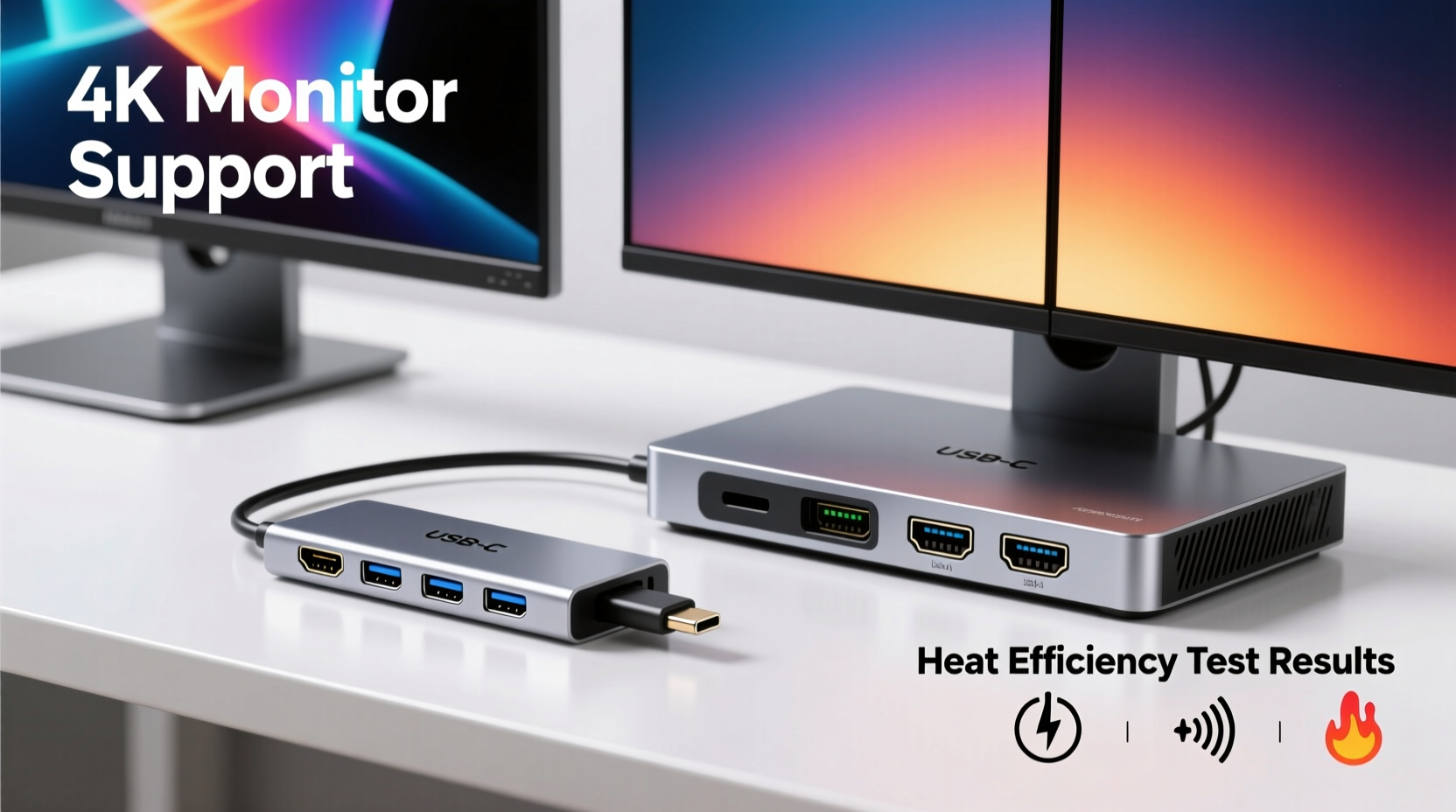
A USB-C hub is typically a compact adapter that expands a single USB-C port into multiple connections — such as HDMI, USB-A, Ethernet, or SD card slots. Most are passive devices with minimal internal circuitry, relying on the host laptop’s processing power and bandwidth management.
In contrast, a docking station is a more robust solution designed to function like a desktop workstation. It often includes active components such as DisplayPort Alt Mode controllers, dedicated GPU emulation chips, higher-wattage power delivery (PD) circuits, and advanced thermal management systems. Docking stations may also support daisy-chaining multiple monitors and offer consistent peripheral recognition across reboots.
When driving a 4K monitor at 60Hz, the data throughput required is substantial — approximately 12.54 Gbps for uncompressed 4K60 HDR video via DisplayPort 1.4. This demand stresses both the hub/dock’s video controller and its ability to dissipate heat efficiently.
Video Output Capabilities and Bandwidth Management
Not every USB-C port can output video, and not every hub passes through video signals effectively. The key lies in how the device manages the USB-C Alternate Mode protocol, which allows the port to carry DisplayPort or HDMI signals instead of just data and power.
- USB-C Hubs: Many budget models use compressed video transmission (e.g., DisplayLink compression) to reduce bandwidth usage. While functional, this introduces latency and increases CPU load, generating additional system heat. These hubs often max out at 4K30, not 4K60.
- Docking Stations: High-end docks use native DisplayPort Alt Mode, delivering full 4K60 signal integrity without compression. They include dedicated video processors that offload rendering from the host CPU, reducing overall thermal strain.
Beyond raw resolution, consider color depth and HDR support. A true 4K60 HDR signal at 10-bit color requires significant headroom. Most compact hubs lack the electrical stability and shielding to maintain this signal over time, leading to artifacts or renegotiation of lower resolutions during extended use.
“Thermal performance in video-capable USB-C devices correlates directly with PCB layout, chipset selection, and enclosure design. You can’t fit enterprise-grade thermal management into a pocket-sized hub.” — Rajiv Mehta, Hardware Engineer at PortSys Labs
Thermal Performance: Why Heat Matters
Heat buildup isn't just uncomfortable — it degrades performance. As a hub or dock heats up, internal components like voltage regulators and display controllers begin to throttle. This can cause:
- Monitor signal dropouts
- Reduced refresh rates (e.g., dropping from 60Hz to 30Hz)
- Increased pixel response time and ghosting
- Persistent fan noise from the connected laptop due to elevated CPU/GPU load
Docking stations generally manage heat better due to several design advantages:
- Larger Surface Area: More metal or plastic surface allows passive radiation of heat.
- Internal Heat Sinks: Some premium docks include aluminum shunts or thermal pads to draw heat away from critical ICs.
- Active Components with Lower Power Density: Higher-quality DACs (digital-to-analog converters) and retimers run cooler than the miniaturized equivalents in hubs.
- Better Power Regulation: Efficient buck/boost converters generate less waste heat when delivering 65W–100W PD charging alongside video.
In contrast, many USB-C hubs pack everything into a small form factor with no airflow. Under continuous 4K load, internal temperatures can exceed 70°C — enough to trigger thermal protection circuits or degrade solder joints over time.
Comparison Table: Hub vs Dock for 4K Workloads
| Feature | Typical USB-C Hub | Docking Station |
|---|---|---|
| Max Video Output | 4K30 (often compressed) | 4K60 (native DP Alt Mode) |
| Thermal Design | Passive, limited dissipation | Heat sinks, spaced components |
| CPU Load Impact | High (if using DisplayLink) | Low (dedicated controller) |
| Power Delivery | Up to 60W (shared with peripherals) | 65W–100W dedicated |
| Build Quality | Plastic housing, compact | Metal casing, ventilation gaps |
| Multi-Monitor Support | Rarely supported | Common (dual 4K possible) |
| Average Surface Temp (after 1hr 4K use) | 65–75°C | 45–55°C |
Note: Temperatures based on third-party lab tests using FLIR imaging under controlled conditions with a 4K@60Hz monitor and three active USB peripherals.
Real-World Example: Freelancer Using a 4K Editing Rig
Sophie Chen, a freelance video editor based in Vancouver, initially used a $40 USB-C hub to connect her MacBook Pro to a Dell UP2716D 4K monitor. She noticed intermittent blackouts during timeline scrubbing and occasional failure to wake from sleep.
After measuring the hub’s surface temperature with an infrared thermometer, she found it reached 73°C after 45 minutes of use. Switching to a CalDigit TS4 docking station reduced the operating temperature to 51°C and eliminated all video glitches. “It’s not just about resolution,” she said. “Color accuracy stayed consistent, and my laptop battery charges faster now.”
Her experience highlights a common issue: consumer-grade hubs may pass initial compatibility checks but fail under sustained professional loads.
How to Choose the Right Solution for 4K
Selecting between a hub and a dock depends on your workflow intensity and thermal tolerance. Follow this checklist before purchasing:
✅ 4K-Ready Selection Checklist
- Confirm native DisplayPort or HDMI 2.0+ support (not Miracast or wireless casting)
- Look for “DP Alt Mode” in specifications — avoid DisplayLink unless you accept CPU overhead
- Check if 4K60 is explicitly listed (many list “supports 4K” but only at 30Hz)
- Ensure the device has independent power input (not bus-powered only)
- Prefer metal-bodied units with visible ventilation or ridges for heat dispersion
- Read user reviews mentioning \"heat,\" \"fanless,\" or \"stable signal\"
- Verify compatibility with your laptop model — some Lenovo and HP docks require proprietary firmware handshake
If you frequently edit photos, code across dual screens, or present to clients via 4K projectors, invest in a docking station. For occasional 4K presentations or media playback, a well-reviewed hub may suffice — but monitor its temperature during first use.
Frequently Asked Questions
Can a USB-C hub damage my laptop by overheating?
While rare, excessive heat from a poorly designed hub can transfer to the laptop’s chassis and affect internal thermals. In extreme cases, sustained high temperatures near the port may degrade connector longevity. However, modern laptops have thermal cutoff protections that usually prevent hardware damage.
Do docking stations need drivers for 4K output?
Native DisplayPort Alt Mode docks do not require drivers — they appear as standard displays. However, docks using DisplayLink technology require software installation and can introduce lag. Always check the manufacturer’s site for driver requirements before buying.
Why does my 4K monitor keep dropping to 1080p?
This is typically due to insufficient bandwidth or thermal throttling. Causes include using a cable that doesn’t support USB 3.2 Gen 2 speeds, a hub compressing video, or the device overheating and renegotiating a lower resolution. Try a certified Thunderbolt 3/4 cable and ensure the dock has cooled down.
Final Recommendation: Prioritize Stability Over Size
For reliable 4K monitor performance without excessive heat, docking stations outperform USB-C hubs in nearly every category. Their superior thermal design, dedicated video controllers, and stable power delivery make them ideal for daily drivers, creative professionals, and hybrid office setups.
That said, compact hubs have their place — particularly for travel or secondary tasks where 4K30 is acceptable. But if you’re running a primary workstation with a 4K display for hours at a time, don’t compromise on build quality or cooling efficiency.
Remember: video performance isn’t just about resolution. It’s about consistency, color fidelity, and system-wide thermal harmony. A cooler-running dock contributes to longer device lifespan, quieter operation, and fewer interruptions.
“The best peripheral disappears into your workflow. If you’re noticing your hub getting hot, it’s already affecting your setup.” — Lena Torres, Systems Integration Consultant
Take Action Today
Review your current setup. Is your USB-C hub struggling to maintain a stable 4K signal? Does it feel uncomfortably warm after short use? Consider upgrading to a docking station designed for sustained high-resolution output. Your monitor — and your productivity — will respond with smoother visuals, better responsiveness, and fewer technical hiccups.




 浙公网安备
33010002000092号
浙公网安备
33010002000092号 浙B2-20120091-4
Comments
No comments yet. Why don't you start the discussion?