
In today’s fast-paced digital environment, a clean, efficient workspace isn’t just about aesthetics—it’s about performance. As laptops become thinner and manufacturers consolidate ports into USB-C, users are turning to external devices to restore connectivity. Two of the most popular solutions are USB-C hubs and docking stations. While they may appear similar at first glance, their capabilities, use cases, and impact on workspace organization differ significantly. Choosing between them can shape how streamlined, productive, and clutter-free your setup becomes.
Understanding the distinction goes beyond port count. It's about matching technology to lifestyle—whether you're a remote worker juggling multiple monitors, a student moving between classrooms, or a creative professional needing reliable peripheral access. This guide breaks down the real-world implications of each option, helping you determine which one delivers true simplicity for your daily workflow.
What Is a USB-C Hub?
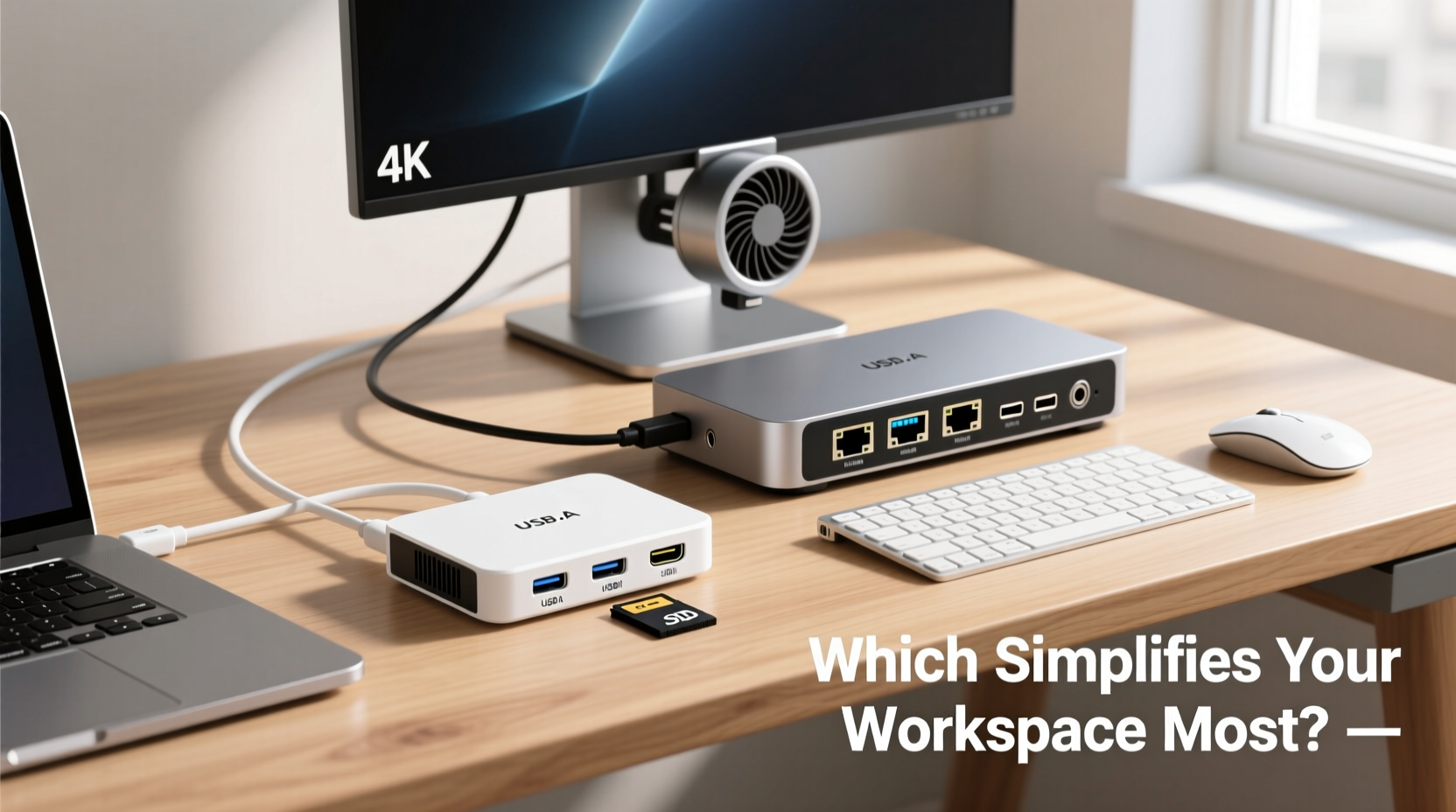
A USB-C hub is a compact adapter that expands the number of available ports on a single USB-C connection. Typically pocket-sized, it plugs directly into your laptop’s USB-C port and branches out into multiple interfaces such as HDMI, USB-A, Ethernet, SD card readers, or additional USB-C ports.
Hubs are designed primarily for port expansion. They do not usually provide full desktop-level functionality but serve well when you need temporary access to extra connections. For example, plugging in a mouse, external drive, and projector during a presentation. Most hubs draw power from the host device, though some include a charging pass-through feature to keep your laptop powered while using peripherals.
Their lightweight design makes them ideal for travel. However, because they rely on limited bandwidth from one upstream connection, performance can degrade when multiple high-demand devices are used simultaneously—especially with 4K displays or fast data transfers.
What Is a Docking Station?
A docking station functions like a centralized command center for your laptop. Instead of simply adding ports, it transforms your laptop into a full desktop experience. Docks typically connect via a single USB-C or Thunderbolt cable and offer extensive I/O options including dual or even triple monitor support, Gigabit Ethernet, audio jacks, multiple USB ports (both A and C), and sometimes even PCIe expansion.
Unlike basic hubs, many docking stations deliver higher power output (up to 100W) to charge your laptop while running all connected devices. They often require their own power supply and are built for permanent placement at a desk. When you dock your laptop, everything—from monitors to keyboards to network cables—comes alive instantly, eliminating the daily plug-and-unplug routine.
Docking stations also tend to have better internal architecture, supporting DisplayPort Alt Mode, MST (Multi-Stream Transport), and robust driver support for consistent multi-monitor setups. Some models integrate with software ecosystems, allowing automatic profile switching based on user login or device detection.
“Docking stations aren’t just about convenience—they’re productivity accelerators. The time saved from seamless connectivity adds up to hours over a month.” — Rajiv Mehta, Senior Systems Engineer at TechFlow Solutions
Key Differences: Functionality, Performance & Use Cases
To understand which solution simplifies your workspace most, consider how you work, where you work, and what tools you depend on daily. Below is a detailed comparison highlighting core differences.
| Feature | USB-C Hub | Docking Station |
|---|---|---|
| Primary Purpose | Port expansion | Desktop replacement / full system integration |
| Port Variety & Quantity | Limited (3–6 ports typical) | Extensive (6+ ports, often with video/audio/network) |
| Power Delivery | Passive or low-wattage charging (e.g., 60W) | High-wattage charging (up to 100W), independent power supply |
| Video Output Support | Single display, often up to 4K@30Hz | Dual/triple 4K@60Hz with MST support |
| Network Connectivity | Sometimes includes Gigabit Ethernet | Standard inclusion, stable wired networking |
| Mobility | Highly portable, fits in pocket | Bulky, desk-bound |
| Setup Complexity | Plug-and-play, minimal configuration | May require drivers or firmware updates |
| Price Range | $25–$70 | $100–$300+ |
The table illustrates a clear divide: hubs prioritize mobility and simplicity; docks emphasize performance and permanence. Your choice should reflect whether your priority is flexibility or functionality.
Real-World Scenarios: Who Benefits From What?
Let’s examine two contrasting professionals to see how each device impacts actual workspace efficiency.
Case Study: Remote Marketing Consultant (Mobile-Focused)
Sophia works remotely across cafes, co-working spaces, and client offices. Her MacBook Air has two USB-C ports, which she uses for charging and connecting to projectors or clients’ TVs. She carries a small USB-C hub with HDMI, USB-A, and an SD card reader. During meetings, she quickly connects her presentation drive and camera footage without lugging around multiple adapters.
For Sophia, a docking station would be impractical. She doesn’t have a dedicated office, rarely uses more than one external screen, and values minimalism. Her hub weighs under 100 grams and slips into her sleeve. The simplicity comes from reducing friction—not adding complexity.
Case Study: In-House Software Developer (Desk-Bound)
David works from a home office equipped with dual 27-inch 4K monitors, a mechanical keyboard, gaming mouse, webcam, microphone, and NAS storage. Every morning, he used to spend five minutes connecting six cables until he invested in a Thunderbolt 4 docking station. Now, he docks his laptop with one cable, and within seconds, all devices activate automatically.
The dock powers his laptop, drives both monitors at native resolution, maintains a stable Ethernet connection for code deployments, and routes audio through his studio headphones. Over a year, David estimates he’s reclaimed nearly 20 hours previously lost to manual setup. His workspace is cleaner, faster, and more professional.
These examples show that the “most simplifying” device depends entirely on context. Simplicity isn’t just fewer items—it’s fewer actions, fewer interruptions, and fewer cognitive loads during transitions.
How to Choose Based on Your Workflow
Selecting between a hub and a dock isn’t about which is better overall, but which aligns with your habits and hardware demands. Follow this step-by-step decision framework:
- Assess your primary work location: Do you move daily (mobile) or stay put (stationary)? Mobile users lean toward hubs; stationary ones benefit from docks.
- List your essential peripherals: Count how many devices you regularly connect. More than four? A dock likely handles them better.
- Evaluate display needs: Need more than one external monitor at high refresh rates? Only advanced docks support this reliably.
- Check your laptop’s specs: Does it support Thunderbolt 3/4 or USB4? These enable full dock functionality. Basic USB-C may limit bandwidth.
- Consider future-proofing: Will your role demand more tools next year? Investing early in a dock may save money long-term.
Maximizing Workspace Simplicity: Best Practices
No matter which device you choose, true workspace simplification requires intentional setup. Here’s a checklist to ensure maximum efficiency:
- ✅ Use cable management clips or sleeves to bundle cords neatly
- ✅ Label ports or use color-coded cables for quick identification
- ✅ Position the hub or dock in an accessible yet out-of-the-way spot (e.g., behind monitor)
- ✅ Enable auto-docking features if supported by OS or manufacturer software
- ✅ Regularly update firmware for optimal performance and security
- ✅ Avoid daisy-chaining multiple hubs/docks unless explicitly supported
Additionally, place frequently used peripherals—like external drives or phones—on dedicated USB ports so you always know where to plug them. Reducing search time reduces mental fatigue.
Frequently Asked Questions
Can a USB-C hub support dual monitors?
Some advanced USB-C hubs can, but only if they support DisplayPort Alt Mode and MST, and your laptop allows it. However, performance may be inconsistent, especially at 4K resolution. For reliable dual-monitor output, a docking station remains the superior choice.
Do docking stations slow down my laptop?
No, high-quality docking stations do not slow down your laptop. In fact, they can improve performance by offloading tasks like video rendering and network processing. However, using low-bandwidth docks or overloaded hubs can cause bottlenecks, leading to lag or disconnects.
Is a docking station worth it for a single monitor setup?
If you still connect multiple peripherals (keyboard, mouse, Ethernet, etc.) every day, yes. Even with one monitor, the time saved from one-cable docking adds up. But if you only occasionally use external devices, a simple hub may suffice.
Final Verdict: Which Simplifies Your Workspace Most?
When judged purely by its ability to reduce clutter, minimize repetitive actions, and enhance daily workflow, the **docking station** emerges as the more transformative tool—for those who work from a fixed location. It consolidates chaos into order, replacing a tangle of wires with a single elegant connection. For developers, designers, financial analysts, and anyone relying on a full desktop ecosystem, it’s not just convenient—it’s essential.
Yet, for the mobile professional, traveler, or student whose environment changes daily, the **USB-C hub** wins by virtue of adaptability. Its strength lies in doing just enough, just in time, without anchoring you to a desk.
Simplicity isn’t universal. It must be tailored. The right device removes friction specific to your rhythm. So ask yourself: Are you building a command center or enabling freedom on the go? Answer that, and your ideal choice becomes clear.




 浙公网安备
33010002000092号
浙公网安备
33010002000092号 浙B2-20120091-4
Comments
No comments yet. Why don't you start the discussion?