
As remote work, content creation, and multitasking become standard, professionals increasingly rely on multiple external monitors to boost productivity. Connecting these displays through a single port—especially on modern laptops with limited ports—requires either a USB-C hub or a Thunderbolt dock. While both can expand connectivity, their ability to support multiple external monitors varies significantly in terms of reliability, bandwidth, and performance.
The core difference lies not just in physical compatibility but in underlying technology: USB-C is a connector type, while Thunderbolt is a high-speed data protocol that often uses the USB-C form factor. Understanding this distinction is critical when deciding which solution will deliver stable, high-resolution multi-monitor setups without lag, flickering, or dropped signals.
Understanding the Technology Behind USB-C and Thunderbolt
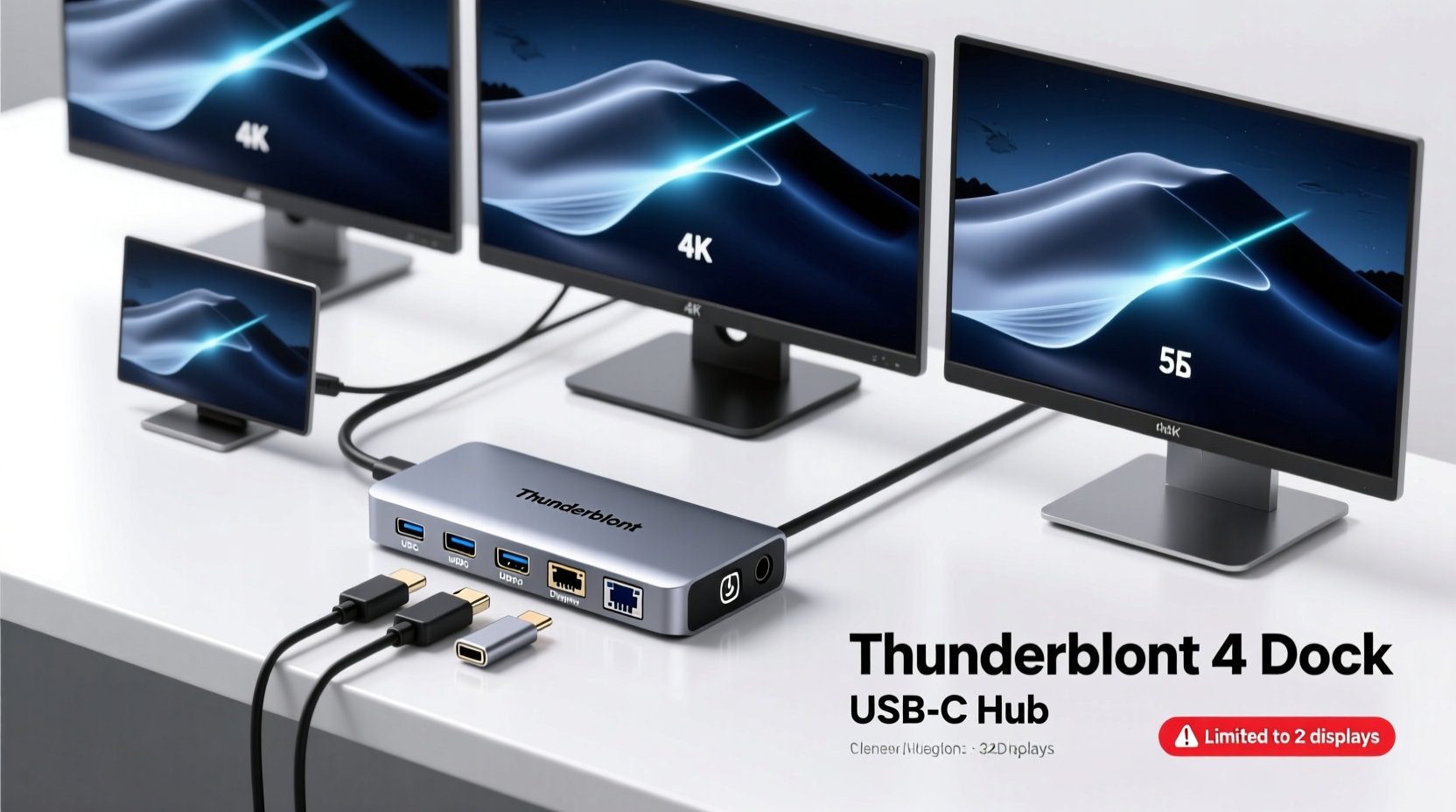
USB-C refers to the physical shape and reversible design of the connector. It supports various protocols, including USB 3.2, DisplayPort Alt Mode, Power Delivery (PD), and—when implemented—Thunderbolt 3 or 4. Not all USB-C ports are created equal. Some only transfer data and power, while others support video output via DisplayPort over USB-C.
Thunderbolt, developed by Intel in collaboration with Apple, combines PCI Express (PCIe) and DisplayPort into a single connection. Thunderbolt 3 and 4 use the USB-C connector but operate at much higher bandwidths—up to 40 Gbps—compared to USB 3.2 Gen 2’s maximum of 10 Gbps. This makes Thunderbolt uniquely capable of daisy-chaining multiple high-resolution displays and supporting demanding peripherals like external GPUs and fast storage arrays.
“Thunderbolt isn’t just faster—it’s smarter. Its ability to allocate bandwidth dynamically between data, video, and power gives it a decisive edge in multi-monitor workflows.” — Dr. Alan Zhou, Peripheral Systems Engineer at MIT Media Lab
Multi-Monitor Support: Bandwidth and Real-World Limits
The number of external monitors a device can drive depends on available bandwidth, supported video protocols, and GPU capabilities. A single 4K monitor at 60Hz requires approximately 12.54 Gbps of bandwidth using DisplayPort 1.4. Two such monitors would require nearly 25 Gbps—beyond what standard USB-C hubs can provide reliably.
Most USB-C hubs use USB 3.2 Gen 1 or Gen 2, offering 5–10 Gbps total bandwidth shared across all functions: data transfer, charging, audio, and video. When video is transmitted via DisplayPort Alt Mode, only a portion of that bandwidth is allocated to display output, limiting most hubs to one 4K monitor or two 1080p displays—with potential compromises in refresh rate or color depth.
In contrast, Thunderbolt docks operate at 40 Gbps and support DisplayPort 1.4 with DSC (Display Stream Compression), a visually lossless compression standard that enables higher resolutions and refresh rates without overwhelming the link. Thunderbolt 4 guarantees support for two 4K displays at 60Hz or one 8K display, making it far more reliable for dual- or triple-monitor configurations.
Comparison Table: USB-C Hub vs Thunderbolt Dock Capabilities
| Feature | Typical USB-C Hub | Thunderbolt Dock (3/4) |
|---|---|---|
| Max Bandwidth | 5–10 Gbps | 40 Gbps |
| Video Support | DisplayPort Alt Mode (limited) | DP 1.4 with DSC |
| Max Monitors Supported | 1x 4K @ 60Hz or 2x 1080p | 2x 4K @ 60Hz (guaranteed with TB4) |
| Daisy-Chaining | Rarely supported | Yes (up to 6 devices, including displays) |
| Power Delivery | Up to 100W (varies) | Up to 100W (standard) |
| External GPU Support | No | Yes |
| Price Range | $30–$80 | $200–$400 |
| Reliability with Multiple Monitors | Moderate; prone to signal drops | High; designed for professional use |
Real-World Example: Video Editor Using Dual 4K Monitors
Jamal, a freelance video editor based in Austin, upgraded his workflow to include two 27-inch 4K monitors for timeline and preview monitoring. His MacBook Pro has two Thunderbolt 3 ports, but he initially tried using a $60 USB-C hub to connect both displays, along with an external SSD and keyboard.
The setup failed consistently: one monitor would drop signal during rendering, colors appeared washed out, and playback stuttered. After diagnosing the issue, Jamal switched to a CalDigit TS4 Thunderbolt dock. Immediately, both 4K monitors ran at 60Hz with full HDR support, his SSD transferred footage at 2800 MB/s, and system stability improved dramatically—even under heavy load.
“I assumed any USB-C hub would work,” Jamal said. “But I didn’t realize the hub was bottlenecking my entire creative pipeline. The Thunderbolt dock wasn’t cheap, but it eliminated every technical hurdle.”
This scenario illustrates a common misconception: that any USB-C accessory can handle professional-grade video workloads. In reality, sustained multi-display output demands deterministic performance—something only Thunderbolt provides.
Step-by-Step Guide to Choosing the Right Solution
Follow this sequence to determine whether a USB-C hub or Thunderbolt dock best suits your multi-monitor needs:
- Check Your Laptop’s Port Specifications: Look up your device model and confirm if the USB-C ports support Thunderbolt 3/4 or only USB with DisplayPort Alt Mode. Thunderbolt ports usually have a lightning bolt icon next to them.
- Determine Monitor Requirements: Note the resolution, refresh rate, and connection type (HDMI, DisplayPort, etc.) of each display. Calculate total bandwidth needed using tools like the VESA DisplayPort calculator.
- Evaluate Total Peripherals: Count how many additional devices (SSDs, webcams, Ethernet, audio interfaces) you’ll connect through the hub/dock. Thunderbolt excels when multiple high-bandwidth devices are used simultaneously.
- Assess Budget vs. Longevity: If you’re setting up a permanent workstation, investing in a Thunderbolt dock pays off in reliability and future-proofing. For occasional second-screen use, a quality USB-C hub may suffice.
- Test Before Committing: Whenever possible, borrow or trial equipment. Signal instability often only appears under load, so run a stress test with all monitors active before finalizing your choice.
Common Pitfalls and How to Avoid Them
- Assuming All USB-C Ports Are Equal: Many users plug a hub into a USB-C port that doesn’t support video output, leading to confusion. Always verify port functionality.
- Overloading a Hub’s Bandwidth: Running two 4K monitors, a 4K webcam, and fast storage through a 10 Gbps hub will cause bottlenecks. Prioritize essential devices or upgrade to Thunderbolt.
- Ignoring Cable Quality: Cheap or non-compliant cables can fail to deliver full bandwidth. Use certified Thunderbolt or USB4 cables rated for 40 Gbps when possible.
- Using Adapters That Degrade Signal: HDMI-to-USB-C adapters often limit resolution or refresh rate. Direct DisplayPort connections are more reliable for high-res monitors.
Frequently Asked Questions
Can a USB-C hub support two 4K monitors?
Generally, no—not reliably. Most USB-C hubs lack sufficient bandwidth to drive two 4K displays at 60Hz. Some may claim dual 4K support, but this often requires lower refresh rates (30Hz) or reduced chroma subsampling, resulting in blurry text or motion artifacts. True dual 4K performance requires Thunderbolt or dedicated graphics outputs.
Is Thunderbolt backward compatible with USB-C devices?
Yes. Thunderbolt 3 and 4 ports are fully compatible with USB-C devices, including hubs, flash drives, and monitors. However, those devices will operate at their native speed (e.g., USB 3.2), not Thunderbolt speeds. You can safely plug a USB-C hub into a Thunderbolt port, but not vice versa unless the hub is Thunderbolt-certified.
Do I need a Thunderbolt dock if I only use one external monitor?
Not necessarily. If you're connecting a single 4K monitor and don’t need high-speed data transfers, a well-built USB-C hub with DisplayPort Alt Mode is cost-effective and sufficient. Thunderbolt becomes essential when scaling to multiple high-resolution displays or using bandwidth-intensive peripherals.
Final Recommendation: Match the Tool to the Task
For casual users adding a second screen for email and web browsing, a mid-tier USB-C hub offers excellent value. But for professionals—designers, developers, financial analysts, video editors—who depend on multiple high-resolution monitors for accuracy and efficiency, a Thunderbolt dock is not a luxury; it’s a necessity.
The reliability gap between the two solutions becomes apparent under sustained load. Thunderbolt’s superior bandwidth management, guaranteed dual-display support, and robust error correction ensure flicker-free, low-latency performance. USB-C hubs, while convenient, often cut corners on signal integrity and power delivery when pushed beyond basic use cases.
If your workflow involves extended multi-monitor sessions, consider the long-term cost of interruptions, redraw delays, and incompatible hardware. A Thunderbolt dock may carry a higher upfront price, but its stability, scalability, and seamless integration with modern laptops make it the clear winner for serious multi-display setups.




 浙公网安备
33010002000092号
浙公网安备
33010002000092号 浙B2-20120091-4
Comments
No comments yet. Why don't you start the discussion?