
Every modern laptop, tablet, and smartphone now features a USB-C port. Many of them also support Thunderbolt 4—but not all do. For the average user, the distinction between USB-C and Thunderbolt 4 is often confusing. Marketing materials highlight blistering data transfer speeds, daisy-chained monitors, and high-power charging, but how much of that actually impacts someone who checks email, streams videos, and occasionally edits photos?
The short answer: probably not as much as you think. While Thunderbolt 4 offers significant advantages in specific professional environments, its benefits are largely invisible to most everyday users. This article breaks down the technical differences, examines real-world usage scenarios, and helps you decide whether Thunderbolt 4 matters for your lifestyle.
Understanding the Basics: USB-C vs Thunderbolt 4
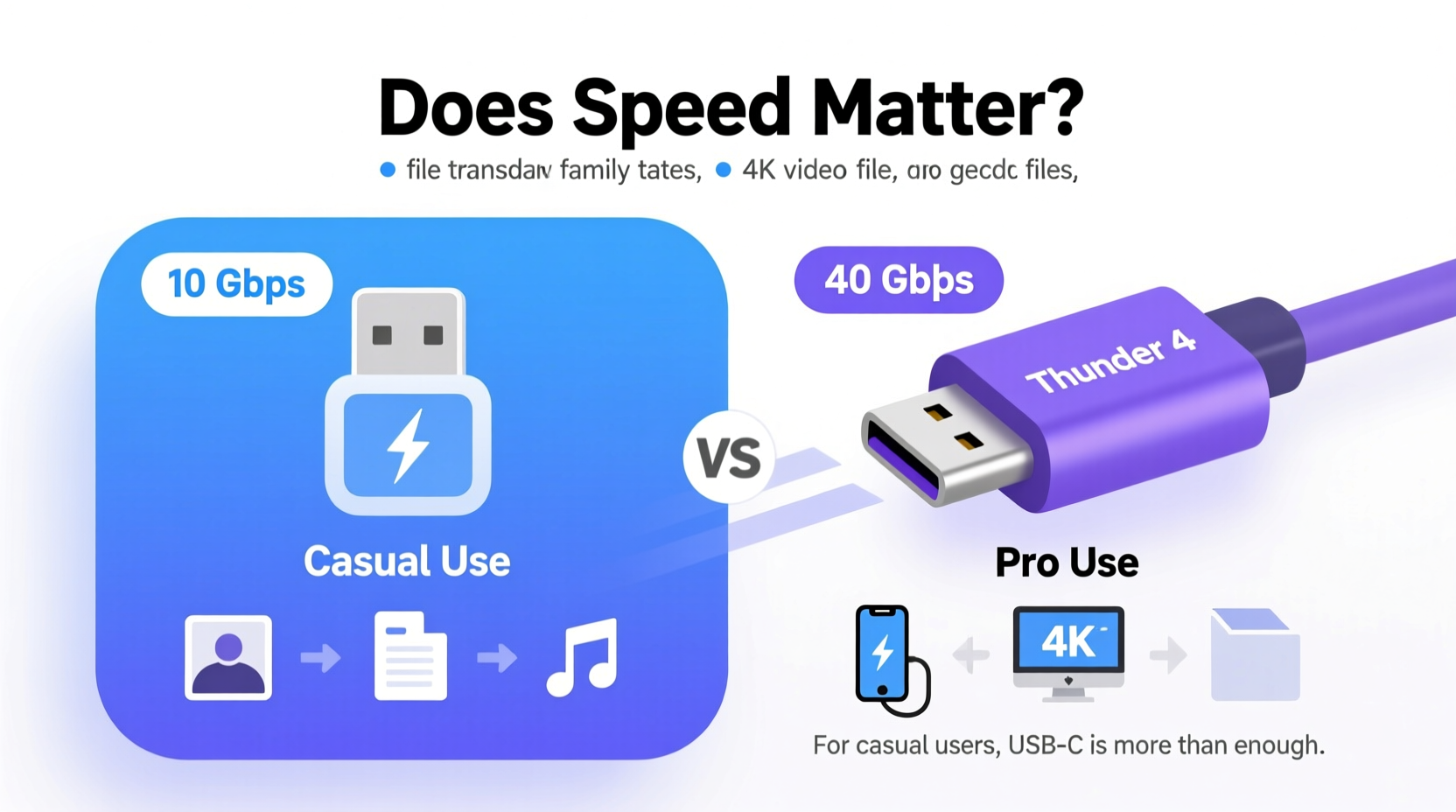
First, it’s important to clarify a common misconception: USB-C is a physical connector type, while Thunderbolt 4 is a high-speed interface standard. Think of USB-C as the shape of the plug, and Thunderbolt 4 as the technology running through it. Not all USB-C ports support Thunderbolt 4—only those explicitly labeled or certified by Intel do.
Thunderbolt 4 builds on the USB-C form factor but adds capabilities far beyond basic USB standards. It supports:
- Up to 40 Gbps data transfer speeds (four times faster than USB 3.2 Gen 2)
- Dual 4K display output or one 8K display
- Daisy-chaining up to six devices via a single port
- PCIe data transfer for external GPUs and high-speed storage
- Minimum 30W charging delivery to host devices
In contrast, standard USB-C ports vary widely. Some support only USB 2.0 speeds (480 Mbps), others offer USB 3.2 Gen 2 (10 Gbps), and a few even reach 20 Gbps with USB4. But unless the device specifies Thunderbolt 4, it lacks the full suite of advanced features—even if it looks identical.
Transfer Speeds in Practice: What Real Users Experience
The headline number—40 Gbps—is impressive on paper. But how does it translate to actual use? Let’s consider common tasks:
- Transferring a 20GB 4K movie: Over Thunderbolt 4, this takes under 5 seconds. Over USB 3.2 Gen 2 (10 Gbps), it takes about 30 seconds. Over USB 2.0, it could take over an hour.
- Backing up a photo library (100GB): Thunderbolt 4 finishes in ~20 seconds; USB 3.2 Gen 2 takes ~2 minutes.
- Connecting an external SSD: Both Thunderbolt 4 and fast USB4 drives will feel snappy when opening large files. The difference may be imperceptible during casual browsing.
For most people, waiting 30 seconds instead of 5 doesn’t disrupt workflow. Streaming services don’t require local file transfers. Web browsing, social media, and video calls operate within bandwidth limits far below what even basic USB-C can handle. Unless you’re moving terabytes of data daily, the speed gap rarely impacts usability.
Moreover, real-world performance depends on more than just the port. The connected device—like an external hard drive—must also support high speeds. A slow SSD plugged into a Thunderbolt 4 port won’t magically become faster.
Feature Comparison: Where Thunderbolt 4 Shines (and Where It Doesn’t)
To better understand the value proposition, here’s a side-by-side comparison of key features relevant to casual users:
| Feature | Standard USB-C | Thunderbolt 4 |
|---|---|---|
| Max Data Transfer Speed | 5–20 Gbps (varies by spec) | 40 Gbps |
| Video Output Support | Single 4K @ 60Hz (if supported) | Dual 4K or single 8K |
| Daisy-Chaining Devices | No | Yes (up to 6 devices) |
| External GPU Support | No | Yes |
| Minimum Charging Power to Host | Varies (often 7.5W–15W) | 30W minimum |
| Security Features | Limited | Intel VT-d based DMA protection |
| Cost Impact on Devices | Negligible | Adds $50–$150 to manufacturing cost |
The table shows that Thunderbolt 4 excels in multi-monitor setups, creative workflows, and enterprise security. However, none of these are typical needs for someone using a laptop primarily for Netflix, Zoom calls, and document editing.
“For general consumers, the jump from USB 3.2 to Thunderbolt 4 is like installing a Formula 1 engine in a city commuter car—you’ll never reach top speed, so the investment rarely pays off.” — David Lin, Hardware Analyst at TechPulse Insights
A Real-World Example: Sarah’s Daily Workflow
Sarah is a freelance writer and part-time online student. Her current laptop has two USB-C ports—one supports Thunderbolt 4, the other is standard USB-C. She uses her devices for:
- Writing articles in Google Docs
- Video conferencing with clients
- Watching documentaries on streaming platforms
- Storing family photos on an external drive
- Charging her phone and earbuds
She recently upgraded from an older laptop with USB-A ports and noticed everything feels faster. But when asked which port she uses most, she said: “Honestly, I don’t know which is which. They both charge my phone and connect my monitor. The only time I check is when I plug in my backup drive—and even then, it finishes in under a minute.”
Sarah owns a Thunderbolt 4-compatible SSD, but her backup routine runs overnight. Speed isn’t a bottleneck. She doesn’t use multiple monitors, doesn’t own an eGPU, and has no need to daisy-chain peripherals. In her case, Thunderbolt 4 exists but delivers no tangible benefit.
This scenario reflects millions of users. The infrastructure is future-proof, yes—but so is having HDMI 2.1 on a TV you only use for YouTube. Capability doesn’t equal necessity.
When Thunderbolt 4 Actually Matters
While casual users gain little, certain groups benefit significantly from Thunderbolt 4:
- Video editors moving 4K/8K footage between drives
- Photographers syncing RAW files from memory cards to RAID arrays
- Designers using external GPUs for rendering
- Business professionals docking laptops to dual-monitor setups daily
- Developers testing on external high-performance storage
If you regularly work with large files, rely on external displays, or use specialized hardware, Thunderbolt 4 reduces wait times and simplifies connectivity. But for everyone else, it’s a premium feature without a premium payoff.
Checklist: Do You Really Need Thunderbolt 4?
Before deciding whether Thunderbolt 4 matters for you, ask yourself the following:
- Do you regularly transfer files larger than 50GB?
- Do you use more than one external monitor?
- Do you rely on external high-speed storage (e.g., NVMe enclosures)?
- Do you plan to use an external graphics card?
- Do you dock and undock your laptop multiple times a day?
- Are you willing to pay extra for potential future-proofing?
If you answered “no” to four or more of these, Thunderbolt 4 likely won’t improve your experience. Standard USB-C with USB 3.2 or USB4 support will serve you just as well.
Future-Proofing: Is Thunderbolt 4 Worth It for Tomorrow?
Some argue that buying a Thunderbolt 4-equipped device today prepares you for tomorrow’s demands. After all, file sizes are growing, 8K video is emerging, and hybrid workspaces are evolving.
That logic holds some weight—but only if you expect your usage patterns to change dramatically. If you’re buying a laptop intended to last 5–7 years, and you anticipate stepping into content creation or advanced multitasking, Thunderbolt 4 could save you from needing an early upgrade.
However, technology evolves quickly. By the time 8K editing becomes mainstream, newer standards like Thunderbolt 5 (expected to offer 80 Gbps) may already be available. Relying on today’s “future-proof” tech to last a decade is risky.
Instead, prioritize core specs: processor performance, RAM, battery life, and build quality. These have a far greater impact on long-term satisfaction than port-level capabilities.
Frequently Asked Questions
Can I use Thunderbolt 4 devices on a regular USB-C port?
You can physically plug them in, but functionality will be limited. A Thunderbolt SSD on a standard USB-C port will fall back to USB 3.2 speeds (typically 10 Gbps). Features like daisy-chaining and external GPU support will not work at all.
Does Thunderbolt 4 charge devices faster?
Not necessarily. While Thunderbolt 4 guarantees at least 30W of power delivery to the host device, actual charging speed depends on the laptop’s power requirements. Most casual users won’t notice a difference compared to standard USB-C PD (Power Delivery) chargers.
Is USB4 the same as Thunderbolt 4?
They share the same underlying protocol and maximum speed (40 Gbps), but Thunderbolt 4 enforces stricter requirements. For example, USB4 may support only single-display output or lack DMA protection. True Thunderbolt 4 certification ensures consistent performance across all features.
Final Thoughts: Speed Isn’t Everything
Technology marketing thrives on big numbers. 40 Gbps sounds revolutionary. Dual 8K displays feel futuristic. But real-world utility must guide purchasing decisions—not just specifications.
For the vast majority of users, the difference between USB-C and Thunderbolt 4 is academic. You won’t miss what you never needed. Your streaming stays smooth, your documents load instantly, and your photos back up reliably—all over standard USB-C connections.
Thunderbolt 4 remains a powerful tool for professionals and enthusiasts. But for casual users, it’s like owning a racecar garage when all you need is a bike rack. Appreciated? Maybe. Necessary? Almost never.
Choose based on your actual habits, not hypothetical futures. Invest in what improves your daily experience—not just what looks good on a spec sheet.




 浙公网安备
33010002000092号
浙公网安备
33010002000092号 浙B2-20120091-4
Comments
No comments yet. Why don't you start the discussion?