
For content creators, every second counts—especially when transferring high-resolution video files, backing up photo libraries, or connecting to external monitors and storage. While USB-C has become a universal standard across laptops, tablets, and smartphones, not all USB-C cables are created equal. Enter Thunderbolt: a premium technology often mistaken for just another USB-C variant. Understanding the speed difference between USB-C and Thunderbolt cables isn’t just technical trivia—it directly impacts your productivity, workflow efficiency, and equipment compatibility.
The confusion stems from physical similarity: both use the same reversible oval-shaped connector. But beneath that shared design lies vastly different capabilities in bandwidth, power delivery, and device support. Choosing the wrong cable can mean hours lost in file transfers or an inability to daisy-chain high-performance peripherals. This guide breaks down what sets these cables apart, how they affect real-world creative tasks, and which one you actually need.
Understanding the Basics: USB-C vs Thunderbolt
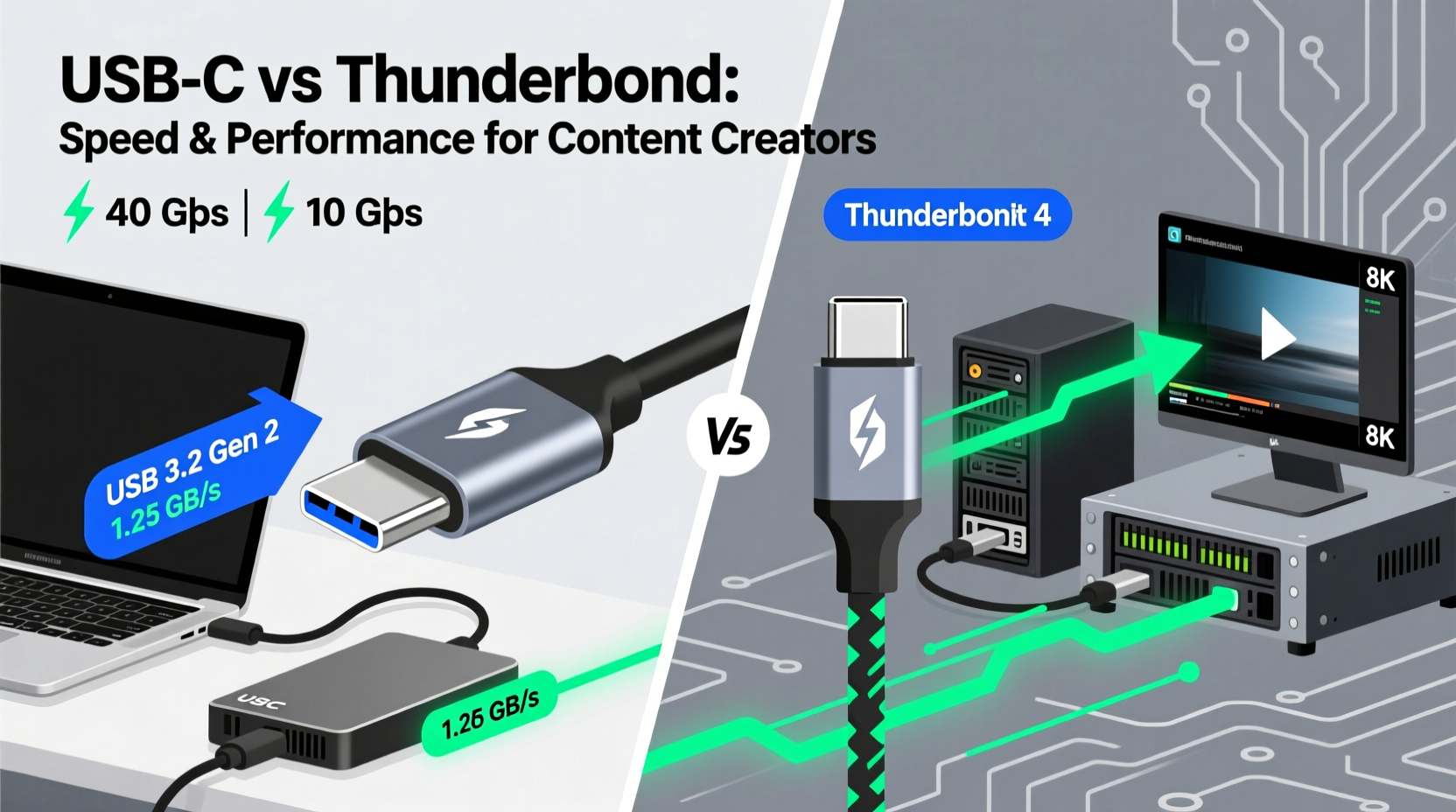
USB-C refers to the physical shape and configuration of the connector. It’s a hardware standard developed by the USB Implementers Forum (USB-IF), designed to replace older USB types with a more versatile, compact port. However, USB-C is not a performance specification—it’s a form factor. That means a USB-C cable can support various underlying technologies, including USB 3.2, USB4, DisplayPort Alt Mode, Power Delivery, and Thunderbolt.
Thunderbolt, on the other hand, is a high-speed connectivity standard co-developed by Intel and Apple. It combines PCIe (for data) and DisplayPort (for video) into a single interface, delivering exceptional throughput. While Thunderbolt 3 and 4 use the USB-C connector, they require specific circuitry and certification to achieve their full potential.
The key takeaway? All Thunderbolt cables are USB-C in shape, but not all USB-C cables support Thunderbolt speeds. Confusing the two can lead to underperforming setups, especially when working with 4K/6K video editing, large audio projects, or multi-monitor workstations.
Speed Comparison: Bandwidth That Matters to Creators
Data transfer speed is the most critical differentiator for content creators. Whether you're offloading footage from a cinema camera or accessing assets from an external SSD, bandwidth determines how quickly you can move large files. Let’s break down the actual performance levels:
| Technology | Max Data Transfer Speed | Video Support | Daisy-Chaining Devices | Power Delivery |
|---|---|---|---|---|
| USB-C (USB 3.2 Gen 1) | 5 Gbps | Up to 4K @ 30Hz (with Alt Mode) | No | Up to 60W |
| USB-C (USB 3.2 Gen 2) | 10 Gbps | Up to 4K @ 60Hz | No | Up to 100W |
| USB4 (via USB-C) | 20 or 40 Gbps | Supports dual 4K or single 8K | Limited | Up to 100W |
| Thunderbolt 3 | 40 Gbps | Dual 4K @ 60Hz or single 5K/6K | Yes (up to 6 devices) | Up to 100W |
| Thunderbolt 4 | 40 Gbps | Dual 4K or single 8K | Yes (up to 6 devices) | Up to 100W |
While Thunderbolt 3 and 4 maintain the same peak speed of 40 Gbps, Thunderbolt 4 enforces stricter minimum requirements: guaranteed support for dual 4K displays, faster wake-from-sleep times, and mandatory PCIe bandwidth for external SSDs. This consistency makes Thunderbolt 4 more reliable for professional workflows.
To put this in perspective: transferring a 100GB 6K ProRes video file takes approximately:
- 2 min 40 sec over Thunderbolt (40 Gbps)
- 13 min 20 sec over USB 3.2 Gen 2 (10 Gbps)
- 26 min 40 sec over basic USB-C (5 Gbps)
For editors handling multiple such files daily, the time savings compound dramatically. Over a week, that could mean gaining back several hours otherwise spent waiting for transfers.
“Thunderbolt isn’t just about speed—it’s about system integration. For creatives using external GPUs, RAID arrays, or high-refresh monitors, it’s the only cable that delivers consistent, low-latency performance.” — Dr. Lena Torres, Peripheral Systems Engineer at MediaTech Labs
Real-World Use Cases: When Thunderbolt Makes the Difference
Not every creator needs Thunderbolt, but certain workflows benefit immensely. Consider the following scenario:
Mini Case Study: Documentary Editor Using External Storage
Jamal is a freelance documentary editor based in Vancouver. He shoots in 6K with a Blackmagic Pocket Cinema Camera and works with RAW footage averaging 70–100GB per hour of recording. His MacBook Pro connects to a Sonnet Qio reader via a third-party USB-C cable labeled “fast charging.” After each shoot, he spends nearly 90 minutes offloading three hours of footage. Frustrated, he upgrades to a certified Thunderbolt 4 cable and a compatible PCIe NVMe dock.
Result: Offload time drops to 22 minutes. Additionally, he can now drive his 32-inch 4K monitor at full refresh rate while simultaneously running DaVinci Resolve and accessing his NAS through the same cable. The investment paid for itself within two weeks in saved time and reduced rendering delays.
This example highlights a broader truth: Thunderbolt excels in multi-device, high-bandwidth environments. If your setup includes any of the following, Thunderbolt should be non-negotiable:
- External SSDs or RAID enclosures for video editing
- High-resolution or high-refresh-rate monitors
- Docking stations with multiple ports
- Audio interfaces requiring low-latency PCIe connectivity
- External GPU enclosures for rendering acceleration
In contrast, standard USB-C cables suffice for simpler tasks like connecting a single 1080p monitor, charging a phone, or transferring documents. They’re also more affordable and widely available.
How to Choose the Right Cable: A Creator’s Checklist
Selecting the right cable involves more than reading labels. Many manufacturers use vague terms like “super-fast” or “supports 4K,” which don’t guarantee Thunderbolt performance. Use this checklist before purchasing:
- Verify Thunderbolt Certification: Look for official Thunderbolt branding and check the product page for certification from Intel.
- Check Active vs Passive Cables: Passive Thunderbolt 4 cables work up to 0.8 meters at full speed. Longer cables (1–2 meters) may be active and require internal power—ensure compatibility.
- Confirm Device Compatibility: Your laptop or desktop must have a Thunderbolt-enabled port. Not all USB-C ports support Thunderbolt—even on MacBooks, some models lack it.
- Avoid Cheap Knockoffs: Substandard cables can cause intermittent connections, slower speeds, or even damage to devices. Stick to reputable brands like Anker, Belkin, Cable Matters, or CalDigit.
- Test Real-World Performance: After purchase, benchmark transfer speeds using tools like Blackmagic Disk Speed Test to ensure you’re getting advertised throughput.
Frequently Asked Questions
Can I use a Thunderbolt cable with any USB-C device?
Yes, Thunderbolt cables are backward compatible with USB-C devices. However, you’ll only get USB-C speeds unless both the cable and host device support Thunderbolt. For example, plugging a Thunderbolt cable into a standard USB-C phone will charge it and allow data transfer—but capped at USB 3.2 rates.
Is Thunderbolt 4 worth it for photo editors?
If you work with large RAW batches or tethered shooting, yes. Thunderbolt enables rapid ingestion from card readers and seamless access to high-speed storage. It also supports high-PPI displays like the Apple Studio Display or Dell UltraSharp series, crucial for color-accurate editing.
Do all USB4 cables support Thunderbolt?
No. While USB4 shares the same 40 Gbps maximum speed as Thunderbolt 3 and 4, Thunderbolt adds features like guaranteed PCIe tunneling, Wake on LAN, and stricter display support. Some USB4 cables may not support Thunderbolt devices. Look for cables marked “Thunderbolt-compatible” if you plan to mix ecosystems.
Optimizing Your Workflow: A Step-by-Step Setup Guide
Follow this sequence to integrate Thunderbolt effectively into your creative environment:
- Inventory Your Devices: List all peripherals—monitors, drives, docks, cameras—and note their interface requirements (e.g., USB 3.2, DisplayPort, Thunderbolt).
- Check Your Host Port: Confirm whether your computer supports Thunderbolt. On macOS, go to > About This Mac > System Report > Thunderbolt. On Windows, check Device Manager or your manufacturer’s specs.
- Select a Primary Cable: For high-demand tasks, choose a Thunderbolt 4-certified cable (minimum 0.8m for passive, longer if active). Ensure it supports 40 Gbps and 100W charging.
- Connect High-Speed Devices First: Prioritize external SSDs, capture cards, and high-res monitors on Thunderbolt. Use standard USB-C for keyboards, mice, and chargers.
- Enable Daisy-Chaining (if applicable): Connect multiple Thunderbolt devices in series—for example, a dock → SSD → monitor—all through one port on your laptop.
- Monitor Performance: Use activity monitors or disk utilities to verify sustained transfer speeds. Drop-offs may indicate cable issues or thermal throttling.
This structured approach minimizes bottlenecks and ensures you’re leveraging the fastest path for your most demanding tools.
Final Thoughts: Speed Is Part of Your Creative Toolkit
In content creation, efficiency isn’t luxury—it’s necessity. The right cable can transform your workflow from sluggish and fragmented to smooth and integrated. While USB-C remains a capable standard for everyday use, Thunderbolt delivers the headroom professionals need when juggling massive files, multiple displays, and real-time processing.
Investing in Thunderbolt isn’t about chasing specs; it’s about removing friction. Every minute saved on data transfer is a minute gained for editing, refining, and creating. As resolutions climb and file sizes balloon, future-proofing your setup with Thunderbolt-ready cables and peripherals becomes increasingly strategic.




 浙公网安备
33010002000092号
浙公网安备
33010002000092号 浙B2-20120091-4
Comments
No comments yet. Why don't you start the discussion?