
In today’s hybrid work environment, managing multiple peripherals—keyboards, monitors, external drives, smartphones, and more—is a daily reality. Yet not all laptops come equipped with enough ports to support this digital ecosystem. That’s where USB hubs and docking stations enter the picture. While both expand connectivity, they serve different needs, capabilities, and user expectations. Choosing between a USB hub and a docking station isn’t just about adding ports—it’s about streamlining your workflow, reducing clutter, and ensuring seamless integration across devices.
Understanding the functional distinctions, performance implications, and long-term value of each option can significantly impact productivity, especially for remote workers, creatives, and professionals who frequently switch between mobile and desk-based setups.
Core Differences: Functionality and Design
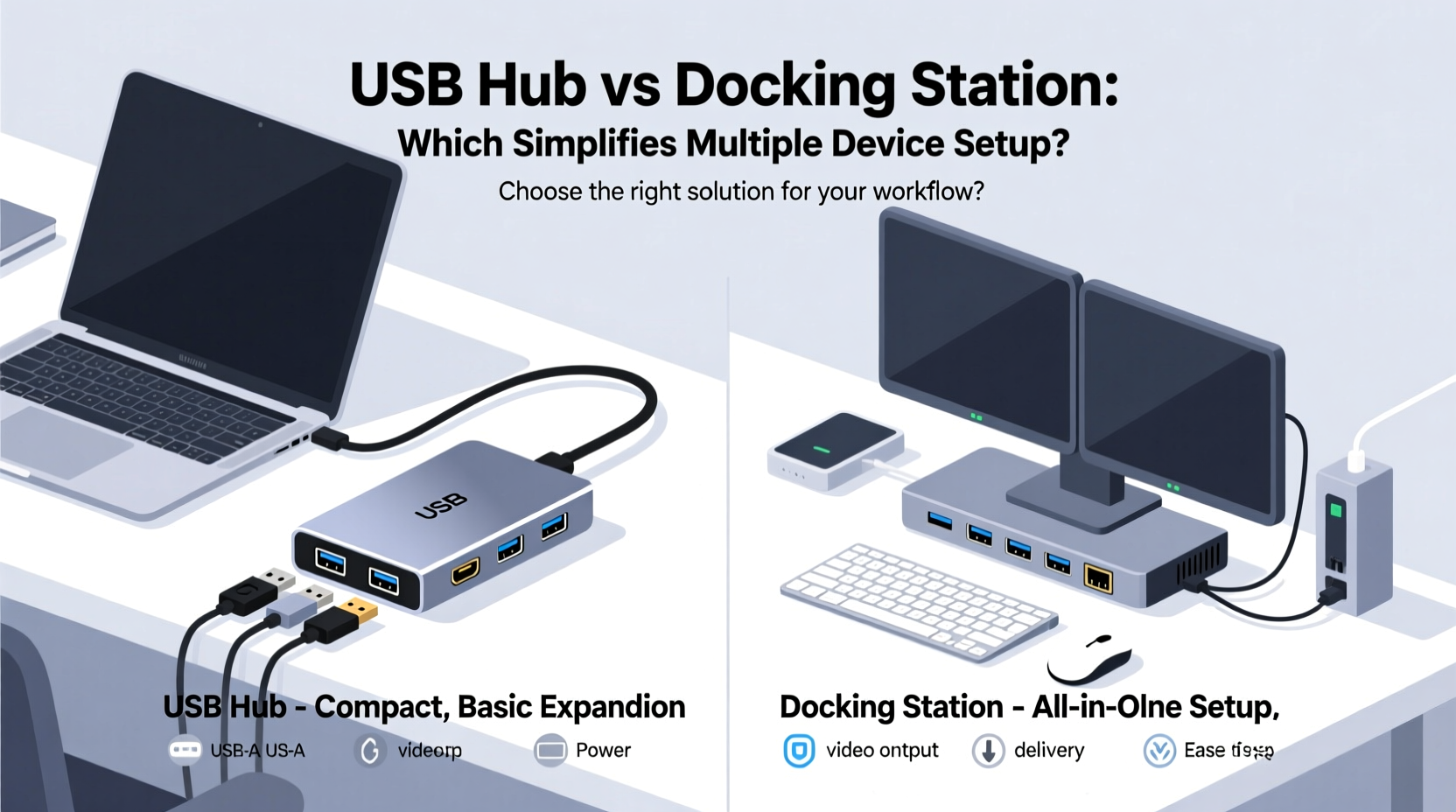
At first glance, a USB hub and a docking station may appear similar—one central device that connects multiple peripherals to a laptop. However, their underlying architecture, power delivery, and feature sets differ substantially.
A USB hub is primarily a port multiplier. It takes a single USB connection from your laptop and splits it into multiple downstream ports. Most hubs offer additional USB-A or USB-C ports, sometimes including an SD card reader or HDMI output. They are compact, portable, and ideal for occasional use—like connecting a mouse, flash drive, and phone charger during a coffee shop session.
In contrast, a docking station functions as a full workstation interface. Beyond expanding ports, it often includes video outputs (HDMI, DisplayPort), Ethernet, audio jacks, and even power delivery to charge your laptop. Docks are designed for permanent or semi-permanent setups, turning a laptop into a desktop replacement with plug-and-play simplicity.
Performance and Connectivity: What You Can Actually Do
The real test of any peripheral expansion tool lies in its ability to handle simultaneous high-bandwidth tasks without lag, disconnections, or data loss.
Most USB hubs operate on USB 3.0 or USB 3.2 Gen 1 standards, offering up to 5 Gbps bandwidth shared across all connected devices. This works well for low-power peripherals like keyboards, mice, and flash drives. But when multiple high-demand devices are plugged in—such as an external SSD and a 4K monitor—bandwidth bottlenecks occur. Some budget hubs also lack sufficient power delivery, causing devices to drain faster or fail to charge.
Docking stations, particularly those built on Thunderbolt 3, Thunderbolt 4, or USB4 protocols, provide significantly higher throughput—up to 40 Gbps—with dedicated bandwidth allocation per port. This allows for dual 4K displays at 60Hz, fast NVMe drive access, and stable network connections—all at once. Many docks also include Power Delivery (PD) charging of 60W, 85W, or even 100W, eliminating the need for a separate laptop charger.
“Docking stations are no longer luxury accessories—they’re essential infrastructure for modern hybrid work.” — Rajiv Mehta, Senior Product Manager at Peripheral Dynamics Inc.
Comparison Table: USB Hub vs Docking Station
| Feature | USB Hub | Docking Station |
|---|---|---|
| Primary Purpose | Add extra USB ports | Turn laptop into full workstation |
| Video Output | Sometimes (single HDMI, limited resolution) | Yes (dual 4K/60Hz common) |
| Network Port | Rare | Yes (Gigabit Ethernet standard) |
| Power Delivery | Limited (often under 15W) | High (60–100W, charges laptop) |
| Bandwidth | Shared (5–10 Gbps total) | Dedicated lanes (up to 40 Gbps with Thunderbolt) |
| Ideal Use Case | Travel, light multitasking | Home office, creative workflows, enterprise |
| Price Range | $15–$50 | $100–$300+ |
Real-World Scenario: The Freelancer’s Setup Dilemma
Consider Lena, a freelance graphic designer who works from her apartment and occasionally meets clients at co-working spaces. At home, she uses two external 4K monitors, a mechanical keyboard, a high-DPI mouse, an external SSD for project files, and a wired headset. Her laptop has only two USB-C ports.
Initially, she bought a $30 USB hub with four USB-A ports and one HDMI output. It worked for basic file transfers, but struggled with dual monitors—only one would display at full resolution. The hub didn’t support Power Delivery, so she had to keep her laptop charger plugged in separately. Worse, the external SSD intermittently disconnected during large file renders.
Frustrated, she upgraded to a Thunderbolt 4 docking station. With a single cable, she now connects both monitors at 4K/60Hz, accesses her SSD at full speed, maintains a stable Ethernet connection for client uploads, and charges her laptop simultaneously. Her setup time dropped from five minutes of plugging in individual cables to 10 seconds of connecting one cord. Productivity increased, and system crashes decreased.
Lena’s experience illustrates a broader truth: while USB hubs solve minor inconveniences, docking stations solve systemic inefficiencies.
Step-by-Step Guide: Choosing the Right Solution for Your Needs
Selecting between a USB hub and a docking station should be based on your actual usage patterns, not price alone. Follow this decision framework:
- Assess your peripheral load: List every device you regularly connect—monitors, storage, input devices, network, audio. If you have more than three, especially including displays, lean toward a dock.
- Evaluate your laptop’s ports: Check if your laptop supports Thunderbolt or USB4. These enable high-performance docks. If it only has USB-A or older USB-C, a hub may be your only viable option.
- Determine your workspace type: Frequent travelers benefit from compact hubs. Those with fixed desks gain more from docks.
- Test bandwidth requirements: High-resolution video editing, large file transfers, or virtual machines demand dedicated bandwidth—only a dock can reliably provide this.
- Budget for long-term value: A $40 hub might save money now, but if it slows down your work or fails prematurely, it costs more in lost time. Invest in reliability where it matters.
Checklist: Before You Buy Either Device
- ✅ Confirm the number and types of ports you actually need (HDMI, USB-A, USB-C, Ethernet, audio)
- ✅ Check if your laptop supports Power Delivery over USB-C
- ✅ Verify maximum supported resolution and refresh rate for monitors
- ✅ Ensure the hub or dock is compatible with your operating system (Windows, macOS, Linux)
- ✅ Look for certifications (e.g., Thunderbolt logo, USB-IF compliance)
- ✅ Read user reviews focusing on stability, heat management, and driver issues
- ✅ Consider future needs—will you add another monitor or faster drive next year?
FAQ: Common Questions Answered
Can I use a USB hub with a docking station?
Technically yes, but it's not recommended. Connecting a hub to a dock can lead to power overload, bandwidth congestion, and instability. Instead, choose a dock with enough native ports to meet your needs.
Do all docking stations charge laptops?
No. Only docking stations with Power Delivery (PD) support can charge laptops. Check the wattage—60W is minimum for most ultrabooks; 87W or 100W is needed for larger laptops or desktop replacements.
Why does my USB hub disconnect devices randomly?
This usually stems from insufficient power supply or bandwidth saturation. Active (powered) hubs with their own AC adapter perform better than passive ones. Also, avoid daisy-chaining multiple hubs.
When Simplicity Matters Most
The ultimate goal of any tech accessory should be to reduce friction, not create it. A USB hub offers simplicity in form—a small, plug-and-play solution for minor expansions. But a docking station delivers simplicity in function—consolidating dozens of connections into one seamless interaction.
For users who spend hours daily switching between devices, the cumulative effect of streamlined setup is profound. No more hunting for cables, troubleshooting flickering screens, or waiting for drives to reconnect. One cable becomes the gateway to a fully operational workspace.
Moreover, docking stations enhance ergonomics and desk organization. With fewer visible cords and centralized access, your workspace becomes cleaner, safer, and more professional—important whether you're on a Zoom call or simply trying to focus.
“The difference between a good day and a frustrating one often comes down to how smoothly your tools work together. A proper dock eliminates daily micro-frustrations.” — Dr. Sarah Lin, Human Factors Researcher at UX Lab Boston
Conclusion
Choosing between a USB hub and a docking station isn’t about which is “better” overall—it’s about which one better serves your specific workflow. For light, mobile users who occasionally need an extra port, a USB hub remains a practical, affordable choice. But for anyone serious about productivity, performance, and long-term efficiency, a docking station is a strategic investment.
It simplifies not just the physical act of plugging in devices, but the mental load of managing them. In a world where time is the most valuable resource, reducing setup time from minutes to seconds adds up to hours saved each month.




 浙公网安备
33010002000092号
浙公网安备
33010002000092号 浙B2-20120091-4
Comments
No comments yet. Why don't you start the discussion?